Key takeaways: An AI design agent is different from a normal AI image generator because it can plan and execute a connected workflow. In Iconly, the agent can work with brand profiles, generate custom icons, save assets to your library, create social creatives, build responsive HTML email templates, check token usage, and open outputs in the right editor. The strongest use case is campaign creation: one prompt becomes a coordinated set of reusable design assets.
Most AI design tools still ask you to think like a tool operator. Open the AI icon generator. Write a prompt. Save the result. Open the social graphics generator. Attach the icon. Write another prompt. Open the email builder. Re-enter the same brand context. Repeat until the campaign is stitched together.
That is faster than traditional design work, but it still leaves a lot of orchestration on the user. An AI design agent changes the shape of the workflow: you describe the outcome, and the agent plans which design tools to use.
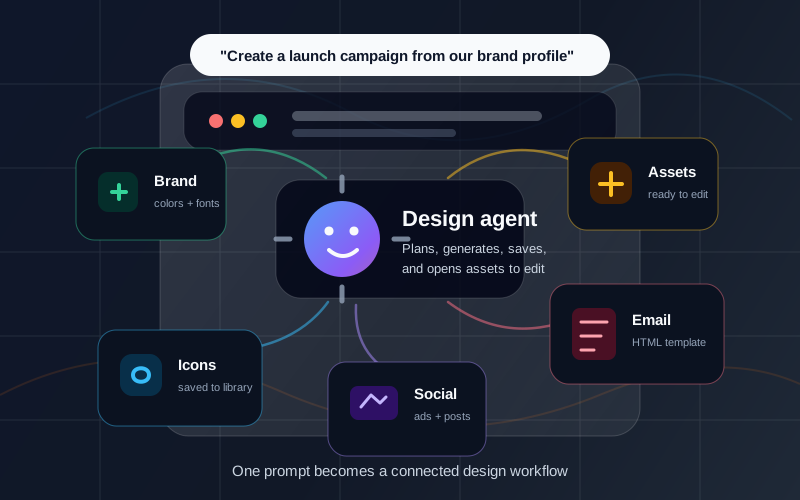
Instead of asking for one isolated image, you can ask for a launch campaign, a set of branded assets, or a draft creative system. The agent can then create icons, apply brand context, generate social graphics, produce email templates, save reusable assets, and send the final pieces to the right editor for review.
What Is an AI Design Agent?
An AI design agent is a chat-based assistant that can use design tools on your behalf. It does not just answer questions or produce a single image. It can decide which actions are needed, call those tools, keep track of outputs, and move assets through a workflow.
In Iconly, that means the agent sits above the AI design toolkit. It can use the same generation systems behind the product screens and Iconly API, including:
- Icon generation for custom visual assets and icon sets.
- Vector generation for SVG-based illustrations and scalable assets.
- Brand tools for listing, creating, updating, and applying brand profiles.
- Library tools for saving generated icons and retrieving existing assets.
- Social creative generation for platform-ready social graphics and ad creatives.
- Email template generation for responsive HTML email layouts.
- Token checks so the workflow stays aware of usage.
- Editor handoff so results can be reviewed and refined visually.
The important shift is that the agent can connect those steps. A normal generator gives you an output. A design agent gives you a path from brief to usable assets.
Why Design Workflows Need Agents
Creative work is rarely one asset. A small campaign might need a brand check, a hero icon, three supporting icons, a square social graphic, a story graphic, a launch email, and a reusable asset library for later updates.
That is why design workflows often get messy even when individual AI tools are fast. The bottleneck moves from creation to coordination:
Repeated Context
Teams re-enter the same brand, audience, and campaign details across multiple tools.
Asset Handoff
Generated icons need to be saved before they can be reused in social graphics or emails.
Format Sprawl
One campaign becomes square posts, stories, feed ads, email headers, and reusable media.
Review Loops
The output still needs a human pass for brand fit, copy accuracy, and layout quality.
An agent helps because it can keep the workflow together. It can remember that the social creative should use the same icons as the email, that both should use the same brand profile, and that anything intended for future reuse should be saved to the library.
What the Iconly Agent Can Do
The Iconly Agent is designed as a workflow layer over Iconly's design tools. It uses the same underlying product logic as the UI and API, so it is not a separate toy environment. It works with the same account, tokens, saved assets, brands, and editors.
Here are the core jobs it can help with:
| Task | What the Agent Helps With | Where It Connects |
|---|---|---|
| Generate icons | Create custom icons from subjects, style preferences, and brand context. | AI Icon Generator |
| Save assets | Save generated icons to the library so they can be reused in other tools. | Library docs |
| Apply brands | Use saved brand colors, fonts, products, features, and aesthetic details. | Brand Studio |
| Create social graphics | Generate platform-ready social creatives with copy, layout, icons, and media. | AI Social Graphics |
| Build emails | Create responsive HTML emails with brand styling and custom icons. | AI Email Builder |
| Open in editor | Hand results to the visual editor for final changes. | Iconly editors |
This makes the agent especially useful when your request touches more than one tool. If you only need one icon, the AI icon generator is direct and fast. If you need a coordinated campaign, the agent is the better starting point.
Example Campaign Workflow
Here is a realistic prompt you could give an AI design agent:
"Create launch assets for a new analytics dashboard. Use our saved brand, make three matching icons for real-time alerts, charts, and team reports, then create an Instagram square post and a promotional email announcing the feature."
A good agent workflow breaks that into a sequence instead of trying to solve everything in one image:
Step 1: Find or Create the Brand Profile
The agent starts by checking existing brand profiles. If a profile already exists, it can use the saved brand name, domain, colors, fonts, products, features, and aesthetic. If there is no brand yet, the agent can help create one through Brand Studio or the authenticated brand creation workspace.
This matters because brand context should be applied before generation starts. It is much easier to create on-brand assets from the beginning than to recolor and rewrite everything afterward.
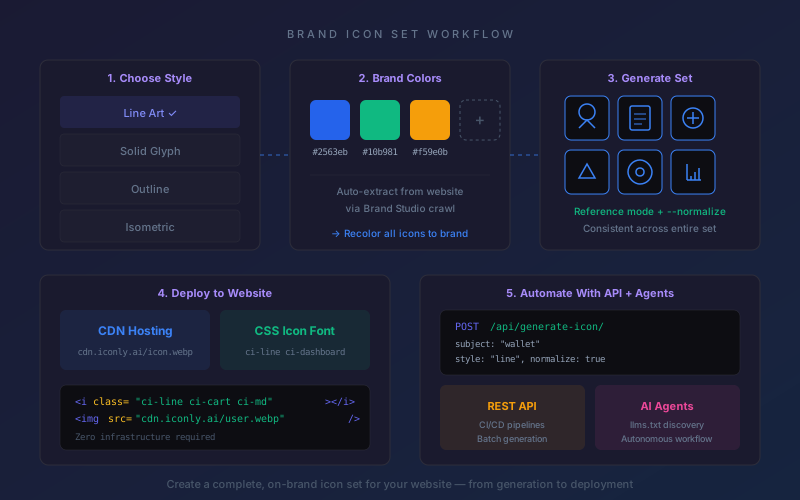
Step 2: Generate Matching Icons
Next, the agent generates the requested icons. For a dashboard launch, that might be:
- Real-time alert icon.
- Analytics chart icon.
- Team report icon.
The agent can save those icons to the user's library, which is important because social creatives and email templates use saved library icons. This keeps the campaign assets reusable rather than trapped in a one-off generation result. For deeper icon set guidance, see our guide on generating a consistent icon set with AI.
Step 3: Create the Social Creative
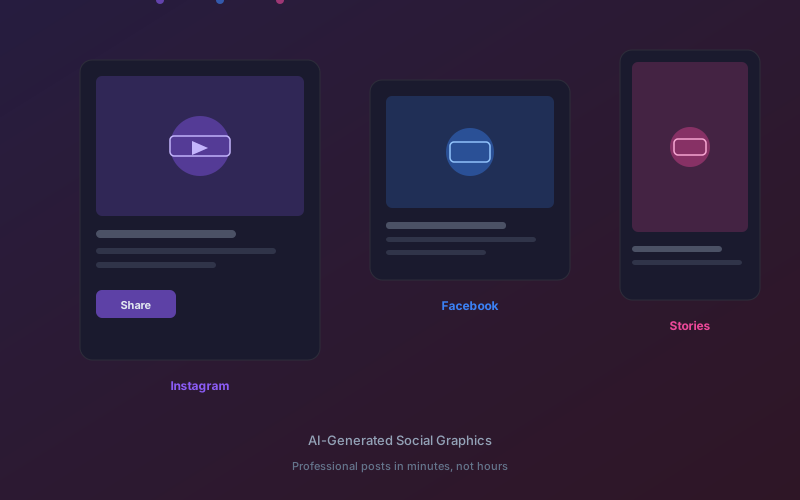
With brand context and saved icons ready, the agent can generate a social creative. The result can include:
- Headline and supporting copy.
- CTA text.
- Brand colors and fonts.
- Attached custom icons from the library.
- Platform-ready dimensions such as square, portrait, story, or landscape.
For social assets, Iconly generates editable HTML/CSS layouts and can render them to image formats for final use. Our tutorial on turning icons into ad creatives shows the same idea from an icon-first workflow.
Step 4: Create the Email Template
Then the agent can generate a matching email template. The strongest workflow is to reuse the same brand profile, the same campaign message, and the same icon set so the email looks connected to the social creative.
Iconly's AI Email Builder outputs responsive HTML email templates. That means the final deliverable is HTML for an email service provider, not just an image preview. For a deeper walkthrough, see our guide to creating on-brand emails with custom icons.
Step 5: Review in the Editors
The agent can get you to a strong first draft quickly, but campaign assets still deserve review. Open the social creative and email in their editors to check copy, spacing, typography, image placement, and brand fit.
This is where the workflow becomes practical: the agent accelerates the blank-page and coordination work, while the user still has final creative control.
AI Design Agent vs AI Image Generator
The easiest way to understand the difference is to compare the output.
| Capability | AI Image Generator | AI Design Agent |
|---|---|---|
| Primary input | One image prompt | A workflow goal or campaign brief |
| Typical output | One image | Multiple connected assets |
| Brand memory | Usually retyped into each prompt | Can use saved brand profiles |
| Asset reuse | Manual download and upload | Can save and reuse library assets |
| Best for | Exploration and one-off visuals | Campaigns, systems, and repeatable workflows |
General-purpose image generators can be excellent for moodboarding or artistic exploration. But they usually do not know that your icon needs to become an ad element, that the ad needs to match your email, or that both should use an existing brand profile.
A design agent is built for that coordination layer.
Best Use Cases
Launch Campaigns
Ask the agent for a feature launch, product drop, event announcement, or sale campaign. It can coordinate icons, social creatives, and emails around one message.
Small Team Marketing
Founders and lean marketing teams often need professional assets without a full design department. An agent can turn one brief into a first draft campaign, then the team can polish the outputs.
Agency Client Work
Agencies managing multiple clients can benefit from saved brand profiles. The agent can help keep each campaign tied to the correct brand context instead of manually switching colors, fonts, and voice every time. For agency-style workflows, the designer use case page explains how Iconly fits into recurring creative production.
Developer-Driven Asset Pipelines
Because Iconly also has API documentation and skills files, technical teams can think of agent workflows and API workflows as two sides of the same system. The agent is useful for interactive creation, while the REST API and skills bundle are useful for automation.
Content Repurposing
A single idea can become a square social post, story graphic, email header, and reusable icon set. The agent helps keep the pieces aligned instead of treating every format as a separate job.
Where Human Review Still Matters
An AI design agent is powerful, but it is not a replacement for judgment. The best workflow is agent first draft, human final pass.
Review these areas before publishing:
- Brand accuracy: Does the output actually feel like your brand, or did it only use the right colors?
- Copy accuracy: Are product names, claims, dates, and CTAs correct?
- Layout quality: Is text readable? Are important elements centered and unclipped?
- Email rendering: Does the HTML email work in your email service provider and test inboxes? Use compatibility references like Can I email when checking HTML and CSS support.
- Platform fit: Does each social creative match the intended format and use case?
- Accessibility: Are icons, contrast, and email alt text handled responsibly? The W3C WCAG 2.2 guidelines are the authoritative reference for accessibility requirements.
For icon-specific accessibility guidance, use our icon accessibility guide. For email rendering, always test in the email service provider you plan to use and pair that with the Email Builder docs.
Getting Started
The best first prompt is specific enough to give the agent a goal, but broad enough to let it plan the workflow.
Use this format:
"Create [campaign type] for [product or feature]. Use [brand or style]. Generate [icons/assets needed], then create [social formats] and [email type]."
Examples:
- "Create a launch campaign for our new AI scheduling feature. Use our saved brand, make three icons, create an Instagram square post, and build an announcement email."
- "Create a Black Friday campaign for our ecommerce store. Use bold sale-focused visuals, generate product category icons, make story and square creatives, and build a promotional email."
- "Create onboarding assets for a SaaS dashboard. Generate navigation icons, a welcome social post, and a welcome email for new users."
If you already know exactly which asset you need, start with the direct tool: icons, social creatives, emails, or brands. If you are still comparing workflows, browse the public pages for AI icons, AI social graphics, AI email templates, and brand profiles. If the request spans several tools, start with the agent.
Frequently Asked Questions
What is an AI design agent?
An AI design agent is a chat-based assistant that can plan and execute a multi-step design workflow. Instead of using separate screens one at a time, you describe the campaign or asset system you need, and the agent can call tools for brand setup, icon generation, social creative generation, email template generation, library saves, and editor handoff.
How is an AI design agent different from an AI image generator?
An AI image generator usually creates one image from one prompt. An AI design agent coordinates a workflow. It can reuse brand context, generate icons, save assets to a library, create social graphics, build email templates, check tokens, and open results in the right editor. The output is a connected set of campaign assets rather than one isolated image.
Can an AI design agent create a full marketing campaign?
Yes. In Iconly, the agent can help create a campaign by applying a brand profile, generating custom icons, saving them to the library, creating social graphics in supported formats, generating an HTML email template, and handing each result off to the visual editor for final review.
What assets can the Iconly agent create?
The Iconly agent can work across the Iconly design toolkit, including icons, SVG vectors, social creatives, email templates, brand profiles, library assets, and token checks. It uses the same underlying generation and API logic as the product screens, so saved assets and usage limits stay consistent.
Do AI design agent outputs still need human review?
Yes. An AI design agent speeds up planning, generation, and handoff, but final assets should still be reviewed for copy accuracy, brand fit, layout, accessibility, email rendering, and platform requirements before publishing.
When should I use the agent instead of a direct design tool?
Use the agent when your request spans multiple tools or requires a sequence, such as creating icons, saving them, building social graphics, and generating an email. Use the direct tool when you only need one specific asset, such as a single icon or one email template.