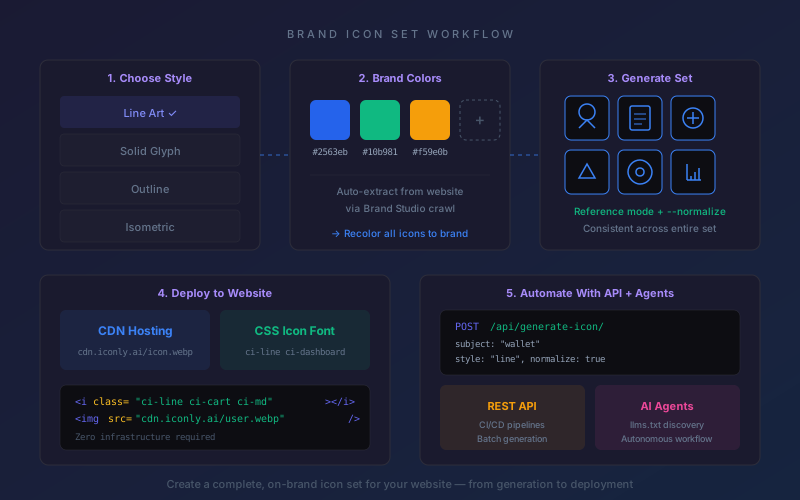
Key takeaways:
- A typical website needs 20-60 custom icons across navigation, features, actions, and content — stock libraries rarely cover every need, and mixing sources breaks visual consistency.
- Iconly generates AI icons in 9 styles, with Reference mode and the
--normalizeflag to keep every icon in your set visually consistent. - Free editing tools (recolor, thickness, smoothing) let you fine-tune every icon to match your brand palette — no design software needed.
- Deploy your entire icon set instantly via CDN hosting at
cdn.iconly.aior as a CSS icon font withci-class names — zero hosting infrastructure required. - The REST API enables automated icon pipelines, and the
/.well-known/llms.txtendpoint lets AI agents generate and manage brand icons programmatically.
Icons are one of the most visible elements on any website. They guide users through navigation, communicate features at a glance, reinforce brand identity in every section, and make dense interfaces feel intuitive. Yet most websites treat icons as an afterthought — pulling random icons from Font Awesome, mixing in a few from Material Icons, and hoping nobody notices the inconsistency.
The result is a visual experience that feels generic at best and disjointed at worst. When your "features" section uses rounded line icons but your footer uses solid glyphs from a different library, users subconsciously register the inconsistency — even if they can't articulate it. It signals a lack of attention to craft, and it dilutes whatever brand identity you've worked to build.
This guide walks you through building a complete, consistent icon set for your website from scratch using AI — covering every step from planning which icons you need to deploying them via CDN and automating future generation with the API and AI agents.
Why Your Website Needs a Custom Brand Icon Set
Before diving into the how, let's address the why. If Font Awesome has 30,000+ icons, why would you generate your own?
Stock Icons Make You Look Like Everyone Else
Font Awesome is used on over 200 million websites according to Wappalyzer. That means the icons on your pricing page, your navigation, and your feature grid are identical to millions of other sites. For a personal blog, that's fine. For a business trying to differentiate, it's a missed opportunity.
Custom icons — generated specifically for your brand — are unique by definition. No other website has the exact same visual language, and that distinctiveness compounds across every page and interaction.
Mixed Icon Sources Break Visual Consistency
Most websites don't use a single icon library. They pull from Font Awesome for navigation icons, grab a few SVGs from Flaticon for their features section, and use Heroicons for their app UI. Each library has different stroke widths, corner radii, proportions, and visual weight. The result is subtle visual noise that undermines the cohesion of your design.
A custom icon set, generated with the same style parameters and refined with the same tools, is inherently consistent. Every icon shares the same DNA — same stroke weight, same proportions, same visual language.
Stock Libraries Have Gaps
Standard icon libraries cover common concepts like "home," "search," and "settings." But what about industry-specific icons? If your SaaS product has a "workflow automation" feature or your e-commerce site needs a "same-day drone delivery" icon, no stock library has it. You end up with 90% of your icons from one source and 10% from random Google searches — and those outliers always look different.
AI generation solves this by creating any icon you describe, in the exact style of your existing set. For more on prompting techniques, see our guide on how to generate perfect icons with AI.
Planning Your Icon Set: What Icons to Include
Before generating a single icon, audit your website to determine exactly what you need. This prevents the common mistake of generating icons ad hoc and ending up with an inconsistent, bloated collection.
Website Icon Audit Checklist
Walk through every page and section of your website (or wireframes, if you're building from scratch) and catalog every place an icon appears or should appear:
Navigation (5-10 icons)
- Main nav items: Home, Products, Pricing, About, Contact, Blog
- Utility icons: Search, Menu (hamburger), Close, User/Account, Cart
- Mobile-specific: Back arrow, More options
Hero and Feature Sections (6-15 icons)
- Feature highlights: one icon per feature card or benefit point
- Value propositions: speed, security, reliability, customization, etc.
- Process steps: "Sign up," "Configure," "Launch"
Actions and UI (5-12 icons)
- Buttons: Download, Upload, Share, Copy, Edit, Delete, Save
- Form elements: Calendar, Dropdown arrow, Checkbox, Info tooltip
- Status indicators: Success (checkmark), Error (X), Warning, Loading
Content and Media (4-8 icons)
- Content types: Document, Image, Video, Link, Code
- Social platforms: specific to where you link (Twitter/X, LinkedIn, GitHub, etc.)
- Communication: Email, Phone, Chat, Location pin
Footer and Miscellaneous (3-8 icons)
- Legal: Privacy, Terms, Cookie settings
- Social media links (repeated from content section)
- Trust badges: Secure checkout, SSL, Guarantees
Tip: Create a simple spreadsheet with three columns: Icon Name, Where It's Used, and Priority (core vs. nice-to-have). This becomes your generation checklist and ensures nothing gets forgotten. Most websites land between 20 and 60 icons for a complete set.
Choosing the Right Icon Style for Your Brand
Your icon style should reflect your brand personality. Iconly offers 9 icon styles, each suited to different brand identities. Choosing the right one upfront saves rework later — you want every icon in the set to share the same style from the start.
| Style | Visual Character | Best For |
|---|---|---|
| Line Art | Uniform strokes, rounded ends, clean and minimal | SaaS, fintech, tech startups, developer tools |
| Solid Glyph | Flat filled silhouettes, bold and confident | E-commerce, media, entertainment, mobile apps |
| Outline | Thin strokes, minimal detail, elegant | Luxury brands, fashion, editorial, portfolios |
| Pixel Art | 8-bit retro, blocky geometry | Gaming, retro brands, creative agencies, indie products |
| Isometric | 3D perspective with depth and dimension | Architecture, engineering, data visualization, infographics |
| Photorealistic | 3D rendered with studio lighting | Product showcases, high-end marketing, landing pages |
| Pop Art | Vivid colors, thick outlines, bold energy | Youth brands, creative services, event marketing |
For most professional websites, Line Art or Outline provides the safest choice — they're clean, scalable, and work well at every size from 16px favicons to 128px feature illustrations. For a deeper analysis, see our comparison of line, solid, and outline icon styles.
Brand alignment rule of thumb: Look at your website's typography and overall design language. If you use thin, elegant fonts (like Inter Light or Helvetica Thin), Outline or Line Art will feel native. If you use bold, heavy fonts (like Montserrat Bold or Impact), Solid Glyph will match the visual weight better. The icon style should feel like a natural extension of your typography — not fight against it.
Generating Brand-Consistent Icons With AI
With your icon list and style selected, it's time to generate. The key challenge isn't generating one good icon — it's generating 30-50 icons that all look like they belong together. Here's the workflow that ensures consistency.
Step 1: Generate Your Anchor Icon
Start with the most important icon in your set — typically your primary navigation icon or the one that will appear most prominently. This becomes your visual anchor that all other icons will reference.
On the icon creation page, enter your prompt (e.g., "dashboard analytics chart"), select your chosen style, and generate. If the first result isn't quite right, regenerate or use the --refine flag to iterate. Spend the most time getting this first icon perfect — it sets the standard for everything else.
Step 2: Use Reference Mode for Every Subsequent Icon
Once your anchor icon looks right, click the "Use as Reference" button below the result image. This tells the AI to use your anchor icon as a style guide for the next generation. When you now generate "email envelope" or "settings gear," the AI will match the stroke weight, corner radius, proportions, and visual density of your anchor icon.
This is the single most important step for consistency. Without Reference mode, each generation is independent — with it, every icon inherits the visual DNA of your anchor. For a detailed walkthrough of reference chains, see our guide on generating a consistent, matching icon set.
Step 3: Use the --normalize Flag for Batch Consistency
For additional consistency, use the --normalize flag in your prompt. This mode works by referencing multiple existing icons (via @ mentions) and generating normalized variations that actively match the style across your set, smoothing out subtle variations that can creep in even with Reference mode. It's most effective when you already have 2+ icons to reference.
Step 4: Use Custom Templates to Lock In Settings
Create a custom template that saves your exact generation settings — style, detail level, output size, and any post-processing preferences. Name it something like "Brand Icons - [Your Company]." Now every generation starts from the exact same parameters, eliminating accidental drift from changing a setting mid-session.
Iconly includes 21 built-in presets (Glassmorphism, Duotone, Neon Glow, Watercolor, and more) for specialized styles, but for a brand icon set you'll want a custom template tuned to your exact specifications.
Step 5: Generate in Batches by Category
Rather than generating icons randomly, work through your audit checklist by category. Generate all navigation icons in one session, then all feature icons, then all action icons. This keeps your mind (and the AI's reference context) focused on similar concepts, which improves consistency. See our batch icon generation guide for more techniques.
Editing and Fine-Tuning for Brand Consistency
Even with Reference mode and normalization, some icons may need fine-tuning. Iconly's editing tools let you adjust every icon without leaving the platform — and without any design software.
Recolor to Match Your Brand Palette
If your brand uses specific colors, use the Recolor tool (press R) to change any icon to your exact brand hex color. Generate icons in black first for maximum flexibility, then recolor them to your primary brand color, secondary color, or any accent color. This is free and supports undo with Ctrl+Z.
If you have a Brand Profile set up in Iconly, your brand colors are already saved — just reference them when recoloring. The Brand Studio can even auto-extract your colors by crawling your website.
Adjust Thickness for Visual Weight
If some icons feel heavier or lighter than others, use the Adjust Thickness tool (press T). A subtle adjustment of 1-2 points can bring an outlier icon back in line with the rest of the set. This is especially useful for Line Art and Outline styles where stroke weight is the primary visual variable.
Smooth or Sharpen Edges
The Smooth/Sharpen Edges tool (press S) offers five algorithms (Selective, Gaussian, Morphological, Supersampling, and Contour) for different edge refinement needs. Use it to clean up any jagged edges or to match the edge quality across icons that were generated in different sessions.
Crop and Recenter
Consistent padding and centering matters for a professional icon set. The Crop & Recenter tool (press C) automatically removes empty space and centers the icon on the canvas. Run this on every icon for uniform spacing.
Background Removal
For icons destined for website use, transparent backgrounds are essential. Use the Remove Background tool (press G) with the strength slider, or the Smart Remove Background option for AI-powered removal (1 token). For targeted cleanup, the Flood Fill tool (press B) lets you click specific background areas to make them transparent.
All editing tools support Ctrl+Z / Cmd+Z undo (up to 20 steps), so experiment freely. For a complete overview of what's possible, see our guide on AI-generated icons vs hand-drawn.
Organizing Your Icon Library
As you generate icons, save each one to your Icon Library with a clear, descriptive name. Naming conventions matter — they determine your CSS class names and make your library searchable.
Naming Best Practices
- Use lowercase with hyphens:
shopping-cart,user-settings,cloud-upload - Be descriptive but concise:
analytics-chartis better thanchartoranalytics-dashboard-bar-chart-icon - Use consistent prefixes for categories:
nav-home,nav-search,action-download,action-share - Avoid generic names:
icon-1ornew-iconwill be meaningless in a library of 50+ icons
Icon Sets for Organization
Use Iconly's Icon Sets feature to group related icons into collections. Create sets that map to your website's sections:
- Navigation — all nav and utility icons
- Features — feature section illustrations
- Actions — buttons and interactive elements
- Content — media types and document icons
- Social — social platform icons
Sets make it easy to export or deploy icons by category, and they keep your library manageable as it grows. For more on library management, see our guide on building a design system icon library.
Deploying via CDN and CSS Icon Fonts
Once your icon set is generated, edited, and organized, it's time to get them on your website. Iconly provides two zero-infrastructure deployment options.
Option 1: CDN-Hosted Icon URLs
Every icon in your library is automatically hosted on Iconly's global CDN at cdn.iconly.ai. Click the CDN button on any icon to copy its permanent URL, then use it directly in your HTML:
<img src="https://cdn.iconly.ai/your-icon.webp" alt="Dashboard" width="32" height="32">Icons are served with automatic WebP conversion, proper cache headers, and multiple size options. No S3 buckets, no CloudFront configuration, no image optimization pipeline — it's handled for you.
This approach works best when you need icons in <img> tags, CSS background-image properties, or anywhere you'd reference an image URL. It's framework-agnostic and works with React, Vue, Next.js, plain HTML, WordPress, Shopify, or any platform that supports image URLs.
Option 2: CSS Icon Font Classes
For inline icon usage, Iconly generates a CSS icon font from your library — similar to how Font Awesome works, but with your custom AI-generated icons. Include the generated CSS, then use class names:
<script src="cdn.iconly.ai/public/iconly.js"></script>

<i class="ci-line ci-shopping-cart ci-md"></i>
<i class="ci-line ci-user-settings ci-lg"></i>
<i class="ci-line ci-analytics-chart ci-sm"></i>
Icons scale with font-size, inherit CSS color, and include size utility classes: ci-sm (16px), ci-md (32px), ci-lg (64px), ci-xl (128px), and ci-2xl (256px). This approach is ideal for:
- Buttons and navigation — icons inline with text, scaling naturally
- Design systems — consistent usage via class names across all components
- Performance — one CSS file instead of dozens of image requests
- Theming — icon color changes automatically with CSS
color, perfect for dark mode
After adding or editing icons in your library, click "Rebuild CSS" to regenerate the font file with your latest changes. For a deeper dive on this workflow, see our post on CSS icon fonts for developers.
Which Deployment Method to Choose
| Use Case | CDN Image URLs | CSS Icon Font |
|---|---|---|
| Feature section illustrations | Better (larger sizes, more detail) | Works but less crisp at large sizes |
| Navigation and buttons | Works but more markup | Better (inline, scales with text) |
| Dark mode support | Requires separate dark mode icons | Inherits CSS color automatically |
| Email templates | Universal email client support | No icon font support in email |
| Performance (many icons) | Multiple HTTP requests | Single CSS file |
| Non-web platforms | Works anywhere (native apps, PDFs) | Web only |
Many teams use both: CSS icon fonts for navigation, buttons, and inline elements, and CDN image URLs for larger feature illustrations and non-web contexts.
Automating Icon Pipelines With the API
For teams that need to generate icons at scale, integrate with CI/CD pipelines, or build custom tooling, the Iconly REST API provides programmatic access to every feature available in the web interface.
API Overview
The API uses standard REST conventions with JSON payloads. Authentication is via API key (passed in the X-API-Key header), available on the Max plan. Key endpoints for brand icon workflows:
| Endpoint | Purpose | Token Cost |
|---|---|---|
POST /api/generate-icon/ |
Generate an icon from a text prompt | 6-20 tokens |
POST /api/recolor/ |
Change icon color to a specific hex value | Free |
POST /api/adjust-thickness/ |
Adjust stroke weight for consistency | Free |
POST /api/smooth-edges/ |
Clean up edges across your set | Free |
POST /api/crop-recenter/ |
Normalize padding and centering | Free |
POST /api/smart-remove-bg/ |
AI-powered background removal | 1 token |
POST /api/library/add/ |
Save icon to your library | Free |
GET /api/library/list/ |
List all icons in your library | Free |
GET /api/tokens/ |
Check remaining token balance | Free |
Example: Generate and Post-Process a Brand Icon (Python)
import requests
import base64

API_KEY = "ik_your_api_key_here"
BASE_URL = "https://iconly.ai/api"
BRAND_COLOR = "#2563eb"

headers = {
    "X-API-Key": API_KEY,
    "Content-Type": "application/json"
}

def generate_brand_icon(subject, style="line", reference_image=None):
    payload = {
        "subject": subject,
        "style": style,
        "model": "high"
    }
    if reference_image:
        payload["attached_image"] = reference_image
        payload["use_as_reference"] = True

    resp = requests.post(
        f"{BASE_URL}/generate-icon/",
        json=payload, headers=headers
    )
    return resp.json()["image_data"]

def post_process(image_data):
    """Recolor to brand color, crop, and clean edges."""

    # Recolor to brand color
    resp = requests.post(
        f"{BASE_URL}/recolor/",
        json={"image_data": image_data, "color": BRAND_COLOR},
        headers=headers
    )
    image_data = resp.json()["image_data"]

    # Crop and recenter
    resp = requests.post(
        f"{BASE_URL}/crop-recenter/",
        json={"image_data": image_data},
        headers=headers
    )
    image_data = resp.json()["image_data"]

    # Smooth edges
    resp = requests.post(
        f"{BASE_URL}/smooth-edges/",
        json={"image_data": image_data, "amount": 3},
        headers=headers
    )
    return resp.json()["image_data"]

# Generate a full brand icon set
icons = [
    "dashboard analytics", "user profile", "settings gear",
    "notification bell", "search magnifying glass",
    "shopping cart", "heart favorite", "download arrow",
    "cloud upload", "lock security"
]

# Generate anchor icon first
anchor = generate_brand_icon(icons[0])
anchor = post_process(anchor)

# Generate remaining icons using anchor as reference
for icon_name in icons[1:]:
    image = generate_brand_icon(icon_name, reference_image=anchor)
    image = post_process(image)

    # Save to library
    slug = icon_name.replace(" ", "-")
    requests.post(
        f"{BASE_URL}/library/add/",
        json={"image_data": image, "name": slug},
        headers=headers
    )
    print(f"Generated and saved: {slug}")
Example: Brand Icon Pipeline (JavaScript)
const API_KEY = "ik_your_api_key_here";
const BASE_URL = "https://iconly.ai/api";
const BRAND_COLOR = "#2563eb";

async function apiCall(endpoint, body) {
    const resp = await fetch(`${BASE_URL}${endpoint}`, {
        method: "POST",
        headers: {
            "X-API-Key": API_KEY,
            "Content-Type": "application/json"
        },
        body: JSON.stringify(body)
    });
    return resp.json();
}

async function generateBrandIcon(subject, referenceImage = null) {
    const payload = {
        subject,
        style: "line",
        model: "high"
    };
    if (referenceImage) {
        payload.attached_image = referenceImage;
        payload.use_as_reference = true;
    }

    const data = await apiCall("/generate-icon/", payload);
    return data.image_data;
}

async function postProcess(imageData) {
    let data;

    data = await apiCall("/recolor/", {
        image_data: imageData, color: BRAND_COLOR
    });
    imageData = data.image_data;

    data = await apiCall("/crop-recenter/", {
        image_data: imageData
    });
    imageData = data.image_data;

    data = await apiCall("/smooth-edges/", {
        image_data: imageData, amount: 3
    });
    return data.image_data;
}

async function buildBrandIconSet() {
    const icons = [
        "dashboard analytics", "user profile",
        "settings gear", "notification bell",
        "search magnifying glass", "shopping cart"
    ];

    // Generate and process anchor icon
    let anchor = await generateBrandIcon(icons[0]);
    anchor = await postProcess(anchor);

    // Generate remaining icons with reference chain
    for (const name of icons.slice(1)) {
        let image = await generateBrandIcon(name, anchor);
        image = await postProcess(image);

        const slug = name.replace(/ /g, "-");
        await apiCall("/library/add/", {
            image_data: image, name: slug
        });
        console.log(`Generated: ${slug}`);
    }
}

buildBrandIconSet();
For complete API documentation, rate limiting strategies, and more advanced patterns like reference chains across large sets, see our full Iconly API developer guide.
Building AI Agents That Generate Brand Icons
The most powerful way to automate brand icon creation is with AI agents — autonomous programs that can understand brand guidelines, generate appropriate icons, post-process them for consistency, and deploy them to your library without manual intervention.
This is increasingly practical thanks to the rise of agentic AI frameworks like Claude Agent SDK, LangChain, and OpenAI Agents. Iconly is built to support this with machine-readable documentation and a structured API.
How Iconly Supports AI Agents
Iconly provides several agent-friendly features:
/.well-known/llms.txt— An LLM discovery endpoint that describes Iconly's capabilities, icon styles, features, and API in a format AI models can parse. This lets agents "discover" the platform and understand what it can do./api/skills/— Returns structured JSON with detailed API documentation files (skills files) that agents can consume:icon-generation.md,social-graphics.md,email-templates.md,vector-generation.md, and a mastericonly.mdreference./api/icons.json— A machine-readable JSON catalog of all available icon styles and public icons, useful for agents that need to browse or recommend existing icons before generating new ones.- REST API with predictable JSON responses — Every endpoint returns structured JSON, making it straightforward for agents to parse results and chain actions.
Example: Brand Icon Agent With Claude Agent SDK (Python)
Here's a conceptual example of an AI agent that accepts brand guidelines and generates an icon set. Using the Claude Agent SDK, you can give an LLM direct access to the Iconly API as a tool:
import anthropic
import requests
import json

client = anthropic.Anthropic()

ICONLY_API_KEY = "ik_your_api_key_here"
BASE_URL = "https://iconly.ai/api"

# Define Iconly tools the agent can use
tools = [
    {
        "name": "generate_icon",
        "description": "Generate an AI icon from a text description",
        "input_schema": {
            "type": "object",
            "properties": {
                "subject": {"type": "string"},
                "style": {"type": "string", "enum": [
                    "line", "glyph", "outline", "pixel", "isometric"
                ]}
            },
            "required": ["subject", "style"]
        }
    },
    {
        "name": "recolor_icon",
        "description": "Change an icon's color to a hex value",
        "input_schema": {
            "type": "object",
            "properties": {
                "image_data": {"type": "string"},
                "color": {"type": "string"}
            },
            "required": ["image_data", "color"]
        }
    },
    {
        "name": "save_to_library",
        "description": "Save an icon to the user's library",
        "input_schema": {
            "type": "object",
            "properties": {
                "image_data": {"type": "string"},
                "name": {"type": "string"}
            },
            "required": ["image_data", "name"]
        }
    }
]

def handle_tool_call(tool_name, tool_input):
    """Route agent tool calls to the Iconly API."""
    endpoint_map = {
        "generate_icon": "/generate-icon/",
        "recolor_icon": "/recolor/",
        "save_to_library": "/library/add/",
    }
    resp = requests.post(
        f"{BASE_URL}{endpoint_map[tool_name]}",
        json=tool_input,
        headers={
            "X-API-Key": ICONLY_API_KEY,
            "Content-Type": "application/json"
        }
    )
    return resp.json()

# Give the agent brand context and let it work
brand_brief = """
Create a brand icon set for a fintech startup called "PayFlow".
Brand colors: Primary #2563eb (blue), Secondary #10b981 (green).
Style: Line Art (clean, modern, professional).
Icons needed: dashboard, wallet, transfer arrows, credit card,
bank building, receipt, pie chart analytics, shield security,
notification bell, user profile.
Recolor all icons to the primary brand blue.
Save each to the library with descriptive hyphenated names.
"""

messages = [{"role": "user", "content": brand_brief}]

# Agent loop: the LLM decides which tools to call
while True:
    response = client.messages.create(
        model="claude-sonnet-4-6",
        max_tokens=4096,
        tools=tools,
        messages=messages
    )

    if response.stop_reason == "end_turn":
        break

    # Process tool calls
    for block in response.content:
        if block.type == "tool_use":
            result = handle_tool_call(block.name, block.input)
            messages.append({
                "role": "assistant",
                "content": response.content
            })
            messages.append({
                "role": "user",
                "content": [{
                    "type": "tool_result",
                    "tool_use_id": block.id,
                    "content": json.dumps(result)
                }]
            })
This agent autonomously generates all 10 icons, recolors each to the brand color, and saves them to the library — all from a single natural language brief. The LLM handles sequencing, error recovery, and naming conventions based on the context you provide.
Agent Use Cases for Brand Icons
New Feature Launch
Agent reads a feature spec, determines which icons are needed, generates them in your brand style, and adds them to your library — ready for the dev team before they start building UI.
Multi-Brand Agency Workflow
Agent accepts a brand profile (colors, style, personality) and generates a complete starter icon set for each new client — cutting the onboarding icon work from hours to minutes.
CI/CD Icon Pipeline
Agent runs as a step in your deployment pipeline. When new icon names are referenced in code, it auto-generates missing icons, post-processes them, and deploys to CDN before the build completes.
Brand Consistency Auditor
Agent reviews your existing icon library, flags icons with inconsistent stroke weight or color, and offers to regenerate or post-process outliers to match your brand standards.
Connecting Agents via llms.txt
The llms.txt standard is an emerging convention for making web services discoverable by AI agents. Iconly's endpoint at /.well-known/llms.txt provides a structured description of the platform's capabilities, so an agent can "read" what Iconly does, what styles are available, what the API offers, and how to interact with it — all without hardcoded documentation.
This means you can build generic design agents that discover and use Iconly dynamically, rather than building Iconly-specific integrations. As more platforms adopt the llms.txt standard, the same agent architecture can work across multiple design tools.
Maintaining and Scaling Your Icon Set Over Time
A brand icon set is not a one-time project. Websites evolve, features launch, pages get redesigned. Here's how to keep your icon set consistent as it grows.
Keep Your Anchor Icon
Save your original anchor icon and always use it as the reference when generating new icons — even months later. This ensures new additions match the visual style of the original set, not whatever the AI's default happens to be at that point.
Use Custom Templates
Your saved custom template preserves the exact settings used for the original set. Whenever you need a new icon, select the template first, then generate. This eliminates the "which settings did I use?" problem.
Document Your Conventions
Keep a brief record of your icon style decisions: which Iconly style you chose, what brand color(s) you apply, what thickness and smoothing settings you use, and your naming convention. This is especially important for teams — anyone should be able to generate a new icon that matches the existing set.
Regular Consistency Checks
Every quarter (or whenever you've added 10+ new icons), review your full library side by side. Look for outliers in stroke weight, color, and visual density. Use the editing tools to bring any inconsistent icons back in line. The library grid view with a white background makes inconsistencies easy to spot.
Version Your Font CSS
If you use the CSS icon font, click "Rebuild CSS" after adding or modifying icons. Consider adding a cache-busting query parameter to your CSS include whenever the font changes, so users see updated icons immediately.
Cost Comparison: AI vs Designer vs Stock Libraries
Let's compare the realistic cost of creating a 40-icon brand set across three approaches.
| Approach | Cost | Time | Consistency | Customization |
|---|---|---|---|---|
| Freelance designer | $500-$2,000+ | 1-3 weeks | High (one designer) | Full custom |
| Stock library (Flaticon Pro) | $90-$150/year | 2-4 hours of searching | Low (mixed authors) | Limited to existing icons |
| Font Awesome Pro | $99/year | 1-2 hours | High (one library) | Pre-made only, not unique |
| AI generation (Iconly Pro) | $25/month | 1-2 hours | High (reference mode) | Fully custom + brand colors |
At 6 tokens per icon (low quality) or 20 tokens per icon (high quality), a 40-icon set costs 240-800 tokens. Iconly Pro includes 2,500 tokens/month — enough for multiple complete icon sets plus social graphics, email templates, and other design work. Post-processing (recolor, thickness, smoothing, crop) is completely free.
For a detailed cost analysis across different scenarios, see our breakdown of the real cost of custom icon design in 2026.
Frequently Asked Questions
How many icons does a typical website need?
Most websites need between 20 and 60 icons for a complete set. A basic marketing site typically needs 15-25 icons covering navigation, features, social links, and footer elements. A SaaS dashboard or web application usually requires 40-60+ icons for navigation, status indicators, actions, content types, and settings. Start with your core navigation and feature icons, then expand as needed using the same reference icon for consistency.
Which icon style works best for brand consistency on websites?
The best style depends on your brand personality. Line Art works well for clean, modern brands (tech, SaaS, fintech). Solid Glyph suits bold, confident brands (e-commerce, media, entertainment). Outline is ideal for minimal, elegant brands (luxury, fashion, editorial). For most websites, Line Art or Outline provides the best balance of clarity and professionalism. See our full style comparison guide for research-backed recommendations.
Can I deploy brand icons to my website without managing hosting?
Yes. Iconly automatically hosts every icon in your library on a global CDN at cdn.iconly.ai. Each icon gets a permanent URL you can reference directly in HTML or CSS. You can also generate a CSS icon font with ci- prefixed classes, similar to Font Awesome, where icons render inline with a single class name and no image files to manage.
How do I keep icons visually consistent when generating them with AI?
Use three techniques: First, always select the same style for every icon. Second, use Reference mode to pass an existing icon as a style guide for new generations — this matches stroke weight, proportions, and visual density. Third, use the --normalize flag with multiple @ references for additional cross-generation consistency. After generating, use the free editing tools (recolor, thickness adjustment, smoothing) to fine-tune any outliers. For a complete walkthrough, see our matching icon set guide.
Can I use the Iconly API to automate icon generation for my website?
Yes. The Iconly REST API lets you generate icons, apply post-processing, and manage your library programmatically. You can integrate icon generation into CI/CD pipelines, build scripts, or custom tools. The API supports all generation modes including reference chains for consistent style, recoloring to match brand colors, and automatic library management. API access is available on the Max plan with authentication via API key.
Can AI agents generate brand icons automatically?
Yes. Iconly provides machine-readable skills files and an LLM discovery endpoint at /.well-known/llms.txt that AI agents can consume to understand and interact with the API. You can build agents using frameworks like the Claude Agent SDK or LangChain that generate icons based on brand guidelines, apply post-processing, organize them into sets, and deploy them to your CDN — all from a natural language brief.
How much does it cost to create a full brand icon set with AI?
On Iconly, generating a complete 40-icon brand set costs approximately 240-800 tokens depending on quality settings (6 tokens at low quality, 20 at high quality). Post-processing like recoloring is free. At Pro plan pricing ($25/month with 2,500 tokens), you can generate multiple complete icon sets per month. Compare this to hiring a designer ($500-$2,000+ for a custom set) or buying stock icons ($100-300 for a library that won't match your brand exactly). See our full cost comparison for more detail.