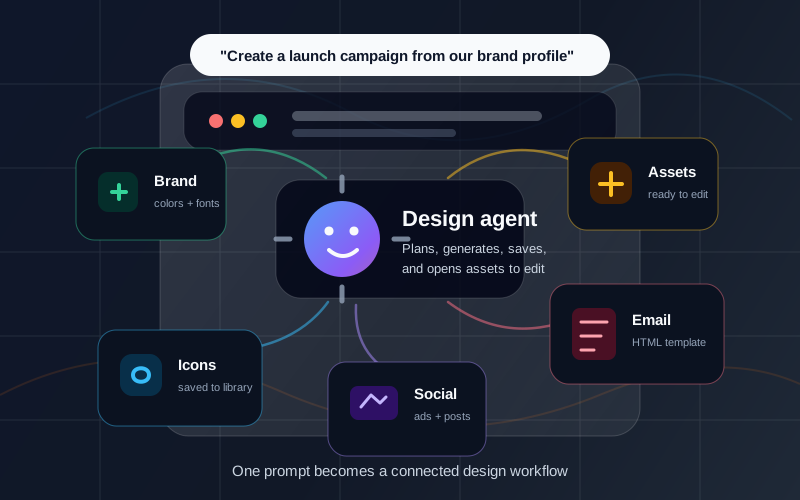
Key takeaways: An AI campaign generator is most useful when one idea needs to become several coordinated assets. In Iconly, that means using an AI design agent to apply brand context, generate custom icons, save reusable assets, create social graphics, build responsive HTML email templates, and hand drafts to the editors for final review.
A marketing campaign rarely needs one asset. A product launch might need a hero icon, a few feature icons, an Instagram square post, a story graphic, a launch email, a reusable visual direction, and a few variants for later follow-up.
That is where a normal AI image generator starts to feel small. It can make a single image, but it does not know how that image should connect to the email, the email header, the social post, the CTA, or the brand system.
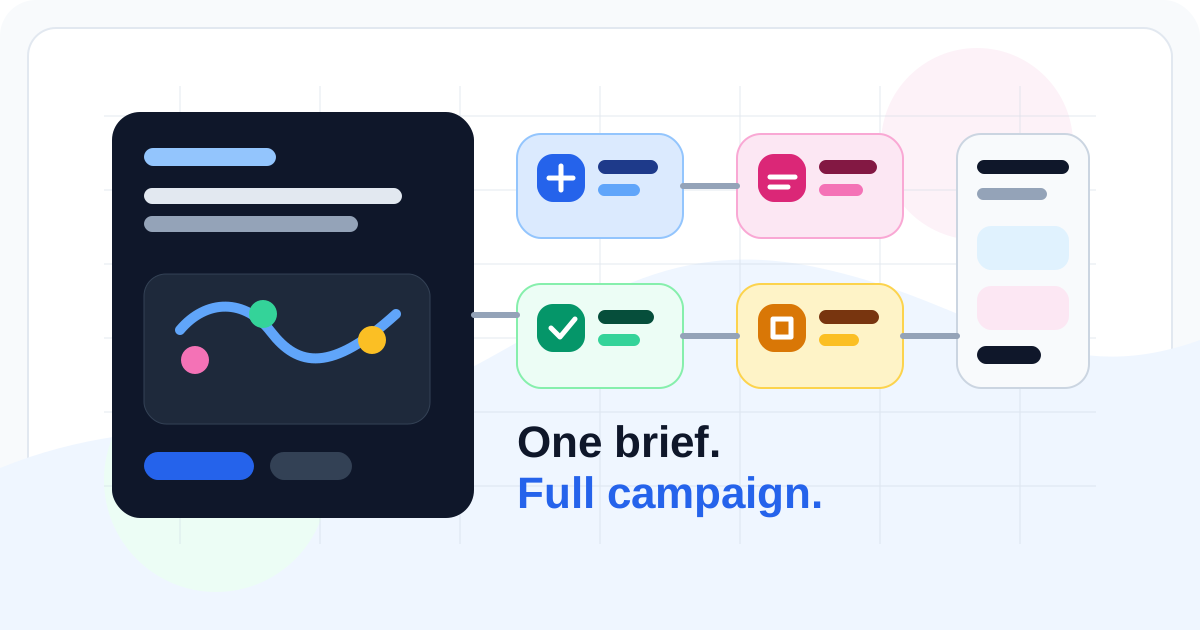
An AI campaign generator solves a different problem. It turns one brief into a coordinated creative workflow. Instead of asking for one output, you ask for the campaign system: what needs to be made, which assets should match, and where each draft should go next.
What Is an AI Campaign Generator?
An AI campaign generator is a tool or agent workflow that creates multiple connected marketing assets from one campaign brief. In Iconly, this workflow sits on top of the same tools used for AI icon generation, AI social graphics, AI email templates, and brand profiles.
The difference is coordination. The generator is not just producing assets in parallel. It is helping the whole campaign stay consistent:
- The icons use the same visual style.
- The social graphics and email use the same message.
- The colors, typography, and tone come from the same brand profile.
- The best reusable assets are saved to the library.
- Everything can be opened in the right editor before publishing.
If the first article in this cluster explains the AI design agent, this article zooms in on the campaign use case: how to go from a brief to a practical set of launch assets.
When to Use an AI Campaign Generator
Use an AI campaign generator when the output needs to span more than one format. If you only need one icon, use the icon generator. If you only need one post, use the social creative workspace. If you need a coordinated campaign, start with the agent.
Feature Launches
Create feature icons, announcement posts, and launch emails around one product message.
Promotions
Turn a sale or seasonal offer into matching social graphics, email templates, and campaign badges.
Onboarding
Generate welcome emails, social announcements, and product navigation icons for new users.
Events
Create event invite emails, reminder graphics, speaker icons, and recap assets from the same brief.
Start With the Campaign Brief
The quality of the campaign depends on the brief. A good brief does not need to be long, but it should give the agent enough context to make connected decisions.
At minimum, include:
- Goal: launch, promote, announce, educate, onboard, or reactivate.
- Audience: who the campaign is for and what they care about.
- Offer or message: the main claim, feature, discount, or announcement.
- Brand context: saved brand profile, website URL, or style direction.
- Asset list: icons, social formats, email type, and any reusable media.
- Review needs: where drafts should be opened for final editing.
If you do not already have a brand profile, create one first in Brand Studio. The agent can produce better campaign assets when it has a shared source of truth for color, typography, tone, products, and visual style.
Step-by-Step AI Campaign Workflow
Step 1: Apply the Brand Profile
Start by asking the agent to use an existing brand profile or create one from your website. This prevents the campaign from drifting across assets. The social graphic, email template, and icons should all feel like they came from the same team.
For more detail on setting this up, use the Brand Studio docs.
Step 2: Define the Core Campaign Message
Before generating visuals, lock the message. What is the campaign saying in one sentence? A feature launch might be, "Ship dashboards faster with real-time analytics." A sale campaign might be, "Save 30% on your first year before Friday."
This message becomes the anchor for headlines, CTAs, email subject ideas, icon themes, and social creative copy.
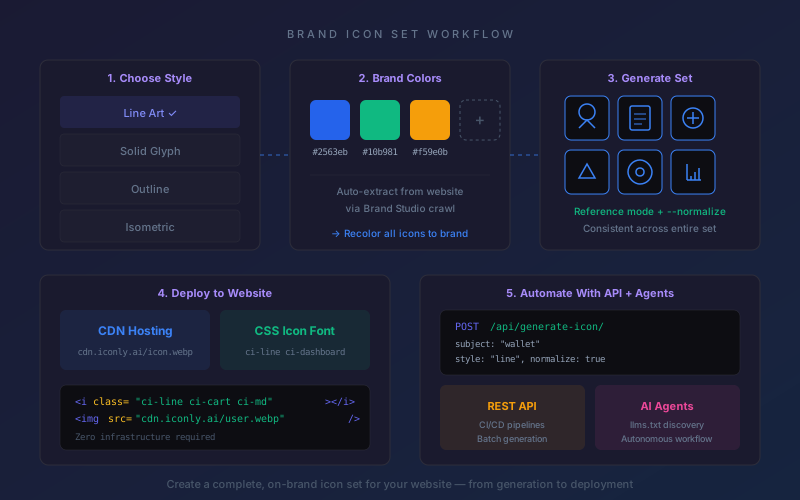
Step 3: Generate the Campaign Icon Set
Icons are often the easiest way to give a campaign a visual system. Ask for a small set first: one hero icon and two or three supporting icons. For a launch campaign, these might represent the new feature, the main benefit, and the user outcome.
Use matching icon set best practices so the icons share stroke weight, shape language, color treatment, and detail level. Save strong results to the library so the social and email tools can reuse them.
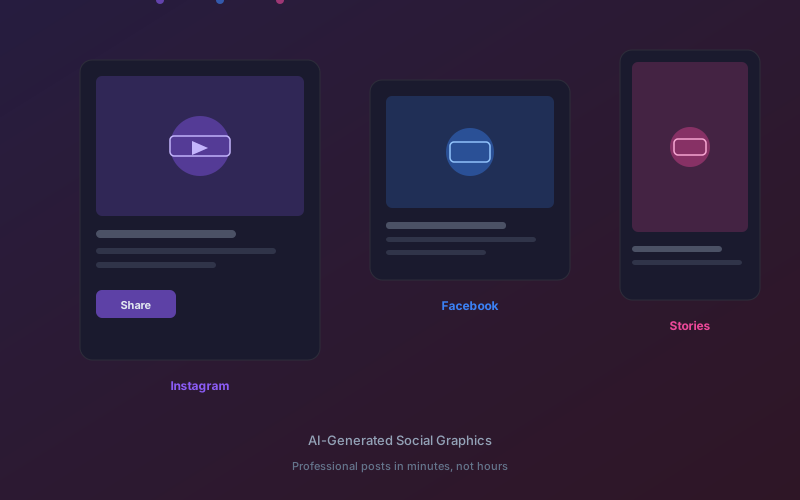
Step 4: Create Social Graphics
Once the icons and message are ready, generate the social creative. Ask for the specific formats you need, such as square, portrait, story, or landscape. If you are running paid or organic campaigns, this is also where you can request headline variants and CTA options.
Iconly's AI social graphics generator can use custom icons and brand context, so the result feels connected to the rest of the campaign instead of looking like a generic template.
Step 5: Build the Email Template
Next, create the email. A launch email should reuse the same campaign message, CTA, brand colors, and icons. That consistency helps the campaign feel recognizable across inbox and social feeds.
Iconly's AI email builder outputs responsive HTML that can be pasted into an email service provider. For a deeper walkthrough, read our guide to building on-brand AI email templates.
Step 6: Save the Reusable Assets
A campaign should leave you with reusable pieces. Save the best icons, media assets, and patterns to your library so future posts, emails, or landing pages can reuse the same visual language.
This is the difference between one-off generation and a real campaign system.
Step 7: Open Drafts in the Editors
The agent should get you to a strong draft, not skip review. Open the social and email outputs in their editors to check spacing, hierarchy, copy, button placement, image cropping, and brand fit.
AI Campaign Generator Prompt Template
Use this prompt structure when you want a campaign instead of a single asset:
"Create a [campaign type] for [product, feature, or offer]. The audience is [audience]. The main message is [message]. Use [brand profile or website/style]. Generate [icon set], create [social formats], build [email type], save reusable assets, and open the drafts for review."
Examples:
- "Create a feature launch campaign for our AI scheduling tool. The audience is small business owners. The main message is that scheduling can be automated in minutes. Use our saved brand, generate three feature icons, create an Instagram square and story, build a launch email, and open everything for review."
- "Create a spring sale campaign for an ecommerce skincare brand. Use a clean editorial style, generate category icons for cleanser, moisturizer, and sunscreen, create square and portrait social graphics, and build a promotional email."
- "Create onboarding campaign assets for a SaaS dashboard. Generate navigation icons, a welcome social post, and a welcome email for new users."
Campaign Asset Map
A useful campaign generator should make the relationship between assets clear. Here is a practical map you can use before generation starts:
| Campaign Asset | Purpose | Iconly Tool |
|---|---|---|
| Hero icon | Visual anchor for the campaign concept. | AI Icon Generator |
| Supporting icons | Represent benefits, features, categories, or steps. | Icon Generator docs |
| Social creative | Promote the campaign in feed, story, or ad formats. | AI Social Graphics |
| Email template | Turn the campaign into a responsive HTML email. | AI Email Builder |
| Brand profile | Keep colors, typography, tone, and visual style consistent. | Brand Studio |
| Library assets | Save reusable campaign pieces for future updates. | Library docs |
Quality Control Checklist
Before publishing AI-generated campaign assets, review the pieces together, not just one by one.
- Message consistency: Does every asset communicate the same core promise?
- Brand fit: Do the colors, fonts, icons, and tone match the brand profile?
- Visual hierarchy: Are the headline, product, CTA, and supporting details easy to scan?
- Claims and dates: Are launch dates, discounts, product names, and legal claims correct?
- Email rendering: Test the HTML in your email service provider and check support with resources like Can I email.
- Accessibility: Check contrast, alt text, and icon meaning. The W3C WCAG 2.2 guidelines are the primary reference.
- Reuse: Save the final icons and visual elements so the next campaign does not start from zero.
For accessibility details specific to icons, read our icon accessibility guide. For broader multi-asset workflows, the AI design agent guide explains how the agent connects generation, saving, and editor handoff.
Frequently Asked Questions
What is an AI campaign generator?
An AI campaign generator is a workflow tool that turns a marketing brief into a coordinated set of launch assets. Instead of generating one image or one email, it can help create campaign icons, social graphics, email templates, brand assets, and reusable creative that all share the same message and visual system.
What can an AI campaign generator create?
In Iconly, an AI campaign workflow can create custom icons, social media graphics, responsive HTML email templates, brand profiles, reusable library assets, and editor-ready drafts. The exact output depends on the campaign brief and the tools you ask the agent to use.
How is an AI campaign generator different from a social media generator?
A social media generator usually creates posts or ad creatives for one channel. An AI campaign generator coordinates multiple assets across channels, such as icons, social graphics, emails, brand settings, and reusable library assets.
What should I include in an AI campaign prompt?
Include the campaign goal, audience, main message, brand profile, asset list, preferred formats, and review needs. The more clearly you describe the campaign system, the easier it is for the agent to create connected assets.
Do AI-generated campaigns need human review?
Yes. AI-generated campaigns should be reviewed for brand accuracy, factual claims, offer details, layout quality, accessibility, email rendering, and platform requirements before publishing.
When should I use direct tools instead?
Use direct tools when you only need one asset: icons, social creatives, emails, or brands. Use the agent when your request spans several tools or requires sequencing.