Key takeaways: Iconly agent skills are compact Markdown references that teach AI assistants how to use the Iconly API. Start with iconly.md, then load only the feature file needed for the task: icon generation, vectors, social graphics, or email templates. A good agent workflow checks tokens, uses the right endpoint, saves reusable assets, handles large base64 payloads carefully, and hands final outputs to a human for review.
An AI assistant can only use an API well if it understands the product behind the API. Raw endpoint docs are useful, but agents need more than a list of URLs. They need to know which endpoint fits the user request, which parameters matter, what to do with the response, when to save assets, and where human review belongs.
That is the purpose of Iconly agent skills. They give coding assistants and workflow agents a task-oriented reference for using Iconly programmatically. Instead of asking an agent to guess how to generate a social ad or responsive email, you give it the relevant skills file and let it follow the documented workflow.
This guide explains how those skills fit together, how to install them into an agent project, and how to use them for real design automation: custom icons, SVG vectors, social graphics, HTML emails, brand profiles, screenshots, and reusable library assets.
What Are Iconly Agent Skills?
Iconly agent skills are Markdown files designed for AI assistants. They describe how to call the Iconly REST API, which parameters to use, how much each workflow costs in tokens, what the response looks like, and how to connect outputs across tools.
The simplest way to think about them:
- API docs explain the endpoint surface for humans.
- Skills files explain the task workflow for AI agents.
For example, a general API reference can tell an agent that POST /api/generate-creative/ exists. The social graphics skill tells it when to use platform: "instagram" versus platform: "square", how multi-format generation affects token cost, why the response contains HTML, and when to call POST /api/html-screenshot/ to export a final PNG or WebP.
That extra context is what turns a tool call into a usable workflow.
Why AI Assistants Need API Skills
Design API calls are stateful in a way a weather or search API is not. A good result may need to move through several steps:
- Generate a set of icons.
- Save the strongest icons to the library.
- Fetch a brand profile.
- Use the saved icons and brand colors in a social creative.
- Render the social creative HTML to PNG.
- Build a matching email template.
- Save reusable campaign assets for later.
An agent that only knows individual endpoints will often stop too early. It might generate an icon but forget to save it. It might generate a social creative but return HTML when the user expects an image. It might paste an API key into a command or try to pass a large base64 image through a fragile shell variable.
Skills reduce those mistakes by giving the assistant a known operating manual. They make the workflow explicit: read the relevant file, choose the endpoint, validate inputs, handle large payloads safely, and return the right artifact.
What's Inside the Iconly Skills Bundle
You can download the full bundle from the API docs or fetch it directly:
curl -o iconly-skills.zip https://iconly.ai/docs/api/skills-bundle/The bundle is organized around the major product surfaces:
| Skill File | What It Covers | Use It When |
|---|---|---|
iconly.md |
Authentication, endpoint overview, timeouts, payload notes, skill update flow. | Starting any agent integration. |
icon-generation.md |
Raster icons, post-processing, prompt templates, library saves, CDN usage. | Generating or editing icons. |
vector-generation.md |
SVG vector generation and vector library workflows. | Creating scalable SVG assets. |
social-graphics.md |
Social creatives, brand profiles, media assets, reference images, HTML screenshots. | Generating social posts, ads, or campaign graphics. |
email-templates.md |
Responsive HTML email generation, merge tags, brand integration, export guidance. | Building email templates for ESPs. |
iconly-amendments.md |
Local notes, preferences, workarounds, and project-specific conventions. | Preserving what the agent learns in your environment. |
The amendments file is important. Core skills should be updateable, but local knowledge should survive updates. If an agent learns that your team always uses a specific icon style, brand ID, naming convention, or export folder, that belongs in iconly-amendments.md, not in the upstream skill file.
Setup Workflow for an AI Assistant
Here is the basic setup for giving an AI assistant access to Iconly.
Step 1: Generate an API Key
In Iconly, go to Settings > API Access and generate an API key. API keys use the ik_ prefix and are passed in the X-API-Key header.
X-API-Key: ik_your_api_key_hereStore the key in an environment variable or secret manager. Do not hardcode it into an agent prompt, frontend app, public repo, or generated code snippet.
Step 2: Download the Skills Files
Use the bundle download from API Reference, or fetch the machine-readable skills endpoint:
curl https://iconly.ai/api/skills/The /api/skills/ response includes the current skill file contents. Agents can use this endpoint to update their local knowledge without scraping documentation pages.
Step 3: Load Only the Relevant Skill
Do not stuff every file into every prompt. A good assistant reads iconly.md first, then loads the smallest feature file needed for the task.
- Need one app icon? Load
icon-generation.md. - Need a social ad with a product image? Load
social-graphics.md. - Need a launch email? Load
email-templates.md. - Need a full campaign? Load the relevant files in sequence.
Step 4: Check Tokens Before Expensive Work
Agents should check available tokens before multi-step generation:
curl https://iconly.ai/api/tokens/ \
  -H "X-API-Key: $ICONLY_API_KEY"
This is especially important for multi-format social creatives, email generation, brand crawls, and image refinement. A workflow that needs five tool calls should know whether it has enough token balance before starting.
Step 5: Save Reusable Outputs
Generation is only half the job. If the user needs a reusable visual system, the agent should save good outputs to the library, create helpful names, and reuse those IDs in later calls.
Skill-to-Endpoint Map
These are the core endpoints an assistant will use most often:
| Workflow | Endpoint | Typical Agent Action |
|---|---|---|
| Check balance | GET /api/tokens/ |
Verify token availability before generation. |
| Generate icon | POST /api/generate-icon/ |
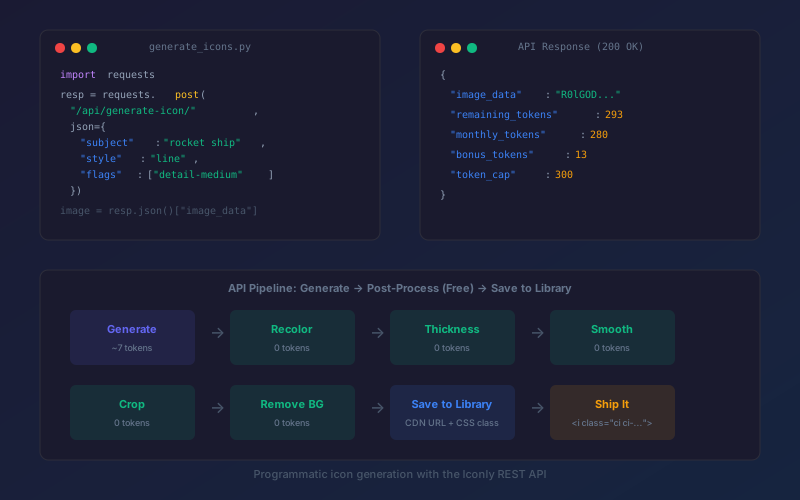
Create a custom raster icon from a subject, style, color, and flags. |
| Generate vector | POST /api/generate-vector/ |
Create raw SVG markup from a prompt. |
| Post-process icon | POST /api/recolor/, /adjust-thickness/, /crop-recenter/ |
Clean up icon output before saving or export. |
| Save to library | POST /api/library/add/ |
Make generated assets reusable in future workflows. |
| List library | GET /api/library/list/ |
Find existing icons to reuse in social graphics or emails. |
| Generate social creative | POST /api/generate-creative/ |
Create HTML-based social creative drafts with copy and layout. |
| Render image | POST /api/html-screenshot/ |
Convert social creative HTML to PNG or WebP. |
| Generate email | POST /api/generate-email/ |
Create responsive HTML email templates. |
| Manage brands | GET/POST /api/brands/ |
Fetch or create brand profiles for consistent campaign assets. |
| Upload media | POST /api/media/upload/ |
Add logos, product photos, or reference assets for later generation. |
For a complete reference, use the Iconly API docs. For a human-friendly tutorial on icon-only workflows, see the Iconly API icon generation guide.
Example Agent Workflows
Workflow 1: Generate and Save a Matching Icon Set
This is the smallest useful agent workflow. The assistant reads the icon skill, generates a few icons, saves the best outputs, and returns library IDs.
Goal: Create three matching line icons for "analytics dashboard",
"team permissions", and "automated reports".

Agent plan:
1. Read iconly.md and icon-generation.md.
2. Check GET /api/tokens/.
3. Call POST /api/generate-icon/ for each subject.
4. Keep style, color, detail, and background flags consistent.
5. Save approved icons with POST /api/library/add/.
6. Return names, IDs, and preview data.
The key is consistency. The skill file reminds the agent to reuse style controls and avoid treating each icon as a separate art direction.
Workflow 2: Generate a Social Creative and Export a PNG
Social creative generation returns structured creative data with HTML snippets. If the user asks for a downloadable image, the agent should render that HTML through the screenshot endpoint.
Goal: Create an Instagram square graphic for a feature launch.

Agent plan:
1. Read social-graphics.md.
2. Fetch brand data from GET /api/brands/.
3. Fetch relevant icons from GET /api/library/list/.
4. Call POST /api/generate-creative/ with platform "square".
5. Extract the returned creative HTML.
6. Call POST /api/html-screenshot/ with width 1080 and height 1080.
7. Return the image data and save the creative if requested.
This distinction matters: the HTML is the editable design source; the PNG or WebP is the final image export.
Workflow 3: Build a Matching Launch Email
Email generation is different from social export. The final deliverable is HTML, not an image. Screenshots can help with review, but the email template itself should remain portable HTML for an ESP.
Goal: Create a launch email for the same feature campaign.

Agent plan:
1. Read email-templates.md.
2. Reuse the campaign message and brand colors.
3. Include icon IDs from the saved icon set.
4. Call POST /api/generate-email/ with email_type "announcement".
5. Return subject, preview text, HTML, and suggested QA checks.
6. Save the template if the user wants it in Iconly.
This is where Iconly's broader workflow helps. The same custom icons and brand profile can appear in the social creative and the email template, so the campaign feels connected across channels.
Workflow 4: Full Agent Campaign
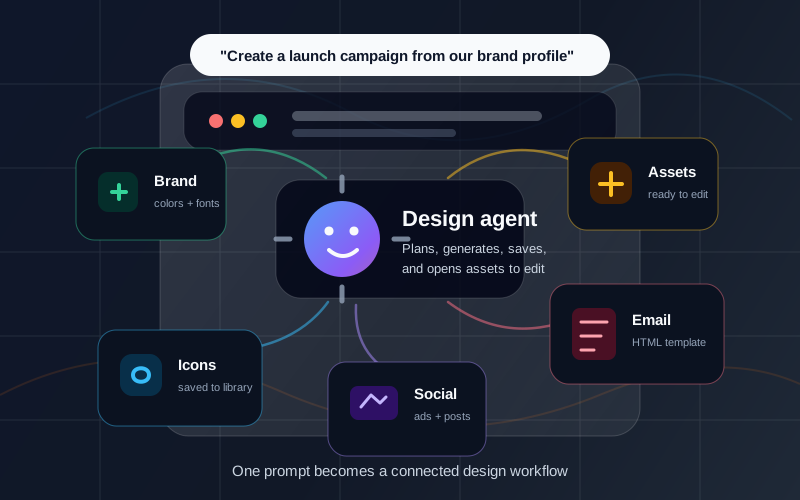
For a complete campaign, the agent can chain multiple skill files:
Prompt:
"Create launch assets for our new reporting feature. Use our saved
brand, generate three matching icons, create Instagram square and story
graphics, build an announcement email, and save reusable assets."

Agent sequence:
1. Read iconly.md.
2. Read icon-generation.md for icons and library saves.
3. Read social-graphics.md for brand, social creative, and screenshots.
4. Read email-templates.md for the email.
5. Check tokens.
6. Generate and save icons.
7. Generate social creatives.
8. Generate email HTML.
9. Return outputs with a human review checklist.
This is the agent version of the workflow covered in AI Campaign Generator: Create Launch Assets From One Brief.
Security and Reliability Guardrails
Agents are powerful because they can act. That also means they need guardrails. Use these rules when connecting any assistant to the Iconly API.
Protect API Keys
Use environment variables or secret stores. Never expose keys in browser code, screenshots, logs, or committed files.
Use Real Timeouts
Generation can take longer than simple API calls. Give social and email workflows multi-minute timeouts.
Handle Base64 Safely
Large image payloads should be written to files or handled in code, not shoved through brittle shell variables.
Review Before Publish
Generated assets should be checked for brand fit, text accuracy, layout, accessibility, and platform requirements.
Recommended Agent Rules
- Always check
iconly-amendments.mdbefore starting. - Ask before spending tokens on broad multi-format generation if the request is ambiguous.
- Use the lowest-risk endpoint that satisfies the task.
- Return IDs and file names, not just previews.
- Never overwrite saved assets unless the user explicitly asks.
- When generating social creatives, clarify whether the user wants editable HTML, image export, or both.
- When generating emails, preserve the HTML as the final deliverable.
- Log enough metadata to reproduce the result: prompt, style, format, brand, endpoint, and asset IDs.
Prompt Patterns for Agents
Good user prompts help the agent choose the right skills. Here are patterns that work well.
Icon Set Prompt
"Use Iconly to generate a matching icon set for [subjects]. Use [style], [color], and [detail level]. Save the best results to my library and return the icon IDs."
Social Creative Prompt
"Use Iconly to create a [platform/format] social graphic for [campaign]. Use my [brand name] brand profile and these library icons: [icon IDs]. Export an editable creative and a PNG preview."
Email Template Prompt
"Use Iconly to generate a [newsletter/promotional/welcome/announcement] email for [context]. Apply my brand colors, include these icons, and return portable HTML plus subject and preview text."
Campaign Prompt
"Use Iconly skills to create a campaign for [product/offer]. Generate supporting icons, create social graphics in [formats], build a matching email, save reusable assets, and give me a review checklist."
These prompts work because they describe the intended workflow, not just the first asset. That gives the assistant permission to read multiple skills, sequence endpoint calls, and return a finished set of artifacts.
Where Skills Fit in the Iconly Workflow
Iconly skills are not a replacement for the product UI. They are a bridge between the UI, the API, and the Iconly Agent.
Use the UI when you want direct visual control. Use the API when you need automation. Use the agent when you want a natural-language workflow across several product surfaces. The skills bundle helps external assistants reach the same level of product fluency.
| Interface | Best For | Output |
|---|---|---|
| Iconly UI | Hands-on creation, editing, and review. | Icons, social graphics, emails, vectors, saved assets. |
| Iconly API | Programmatic generation and integration into apps or pipelines. | JSON responses, image data, SVG, HTML, library IDs. |
| Iconly Agent | Multi-step campaign workflows from natural language. | Generated assets plus editor handoff. |
| External assistant + skills | Letting your coding agent use Iconly correctly inside your own workflow. | Automated design assets, scripts, saved outputs, documentation. |
Frequently Asked Questions
What are Iconly agent skills?
Iconly agent skills are Markdown files that teach AI assistants how to use the Iconly API. They cover authentication, endpoints, parameters, token costs, examples, response handling, and product-specific workflow rules.
Can an AI assistant generate Iconly assets through the API?
Yes. With an API key, an assistant can call endpoints for icon generation, vector generation, social creatives, email templates, brand profiles, media assets, library management, screenshots, token checks, and account stats. The assistant should read the relevant skills file before making calls.
Do Iconly skills require an API key?
Downloading the skills files does not require authentication. Calling authenticated API endpoints requires an Iconly API key in the X-API-Key header. API access is intended for Pro and Max accounts.
Which skill file should an agent read first?
Start with iconly.md. It explains the overall API, authentication model, skill file map, timeout guidance, payload handling, and update workflow. Then load the feature-specific file for the task.
Can agent skills create a full marketing campaign?
Yes. A campaign workflow can combine icon generation, library saves, brand profiles, social creative generation, HTML screenshot export, and responsive email generation. For the higher-level workflow, read AI Campaign Generator: Create Launch Assets From One Brief.
How should agents handle generated social creatives?
Iconly social creatives are returned as HTML-based designs. If the final deliverable is an image, the agent should pass that HTML to POST /api/html-screenshot/ and return a PNG or WebP. If the user wants to edit the creative, keep the HTML source.