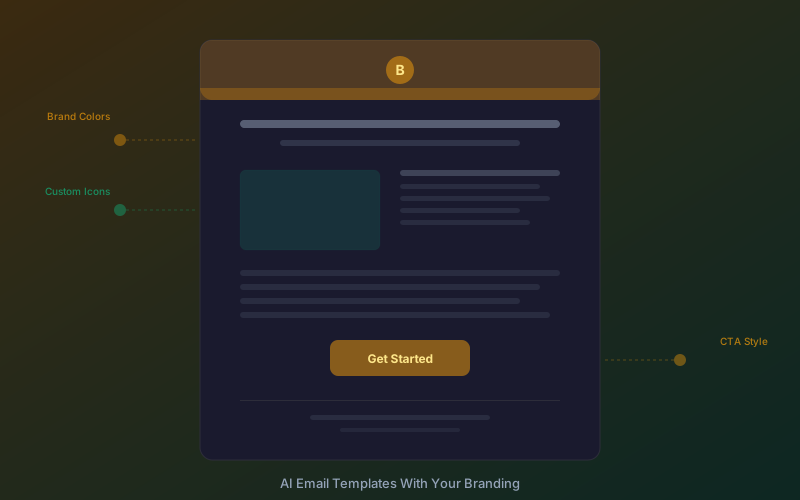
Key findings:
- An AI email template builder with custom branding generates professional, on-brand emails in 2-4 minutes versus 8-16 hours with a designer.
- AI automatically applies your brand colors, fonts, and logo to every template - no manual styling required.
- Merge tags and personalization are built into AI-generated templates for major email platforms.
- Businesses save 95-99% on email design costs by switching from freelancers or agencies to AI tools.
- AI handles every email type: newsletters, promotional, welcome sequences, transactional, and more.
- PNG is the only reliable format for icons in email — SVG and icon fonts are stripped by most email clients.
Email marketing delivers an average return of $36 for every $1 spent, making it one of the highest-ROI channels available. But there is a persistent bottleneck: designing emails that look professional and stay on brand requires either design skills you may not have or a designer you may not be able to afford.
An AI email template builder with custom branding eliminates that bottleneck entirely. Instead of wrestling with drag-and-drop editors or waiting days for a freelancer to deliver, you describe what you need in plain language and get a polished, branded email template in minutes.
This guide walks you through how AI email builders work, how to integrate your custom branding, the step-by-step workflow for creating every type of email your business needs, and how to use icons effectively in your email designs.
The Email Design Problem for Marketers and Businesses
Most businesses know they should be sending better emails. The challenge is execution. Email design sits at the intersection of several disciplines that rarely overlap in one person:
- Visual design - layout, typography, color theory, and visual hierarchy
- Brand consistency - matching exact brand colors, fonts, and visual identity across every send
- HTML/CSS knowledge - email rendering is notoriously inconsistent across clients like Gmail, Outlook, and Apple Mail (see Can I Email for compatibility tables)
- Copywriting - writing compelling subject lines, body content, and calls to action
- Mobile responsiveness - over 60% of emails are opened on mobile devices
The result is a familiar pattern. Marketers either spend hours fighting with clunky email builders, settle for generic templates that dilute their brand, or pay $500-$2,000+ per template for professional design work. None of these options scale well for businesses that need to send consistent, branded emails every week.
Why Traditional Email Builders Fall Short
Drag-and-drop email builders were a major improvement over hand-coding HTML emails. But they come with limitations that frustrate marketers daily:
- Template lock-in - you start from a pre-made layout and try to make it fit your content, rather than having the layout adapt to your needs
- Manual brand application - you have to set colors, fonts, and spacing for every element, every time
- Limited design flexibility - complex layouts require workarounds or custom code that defeats the purpose of a visual builder
- Time-intensive - a "simple" newsletter still takes 1-3 hours to build, proof, and test
- No content assistance - you handle all the copywriting yourself
Traditional builders solve the coding problem but do nothing for the design and content problem. You still need to know what a good email looks like, and you still need to write every word yourself.
How AI Email Template Builders Work
An AI email template builder takes a fundamentally different approach. Instead of assembling blocks manually, you provide a prompt describing your email and the AI generates the complete template - layout, content, images, and styling - in one step.
Here is what happens behind the scenes when you use an AI email template builder like Iconly:
- Prompt analysis - the AI interprets your description to understand the email type, purpose, tone, and key content
- Brand application - your saved brand profile (colors, fonts, logo) is automatically applied to every design element
- Layout generation - the AI selects and composes the optimal layout structure for your email type
- Content creation - headlines, body copy, and calls to action are generated to match your prompt and brand voice
- Responsive HTML output - the finished template is rendered as clean, mobile-responsive HTML compatible with major email platforms
The entire process takes 2-4 minutes from prompt to finished template. Compare that to the 8-16 hours a professional designer spends on a single custom email template, and the productivity advantage is clear.
Tip: Be specific in your prompts. Instead of "create a newsletter," try "create a monthly product update newsletter for a SaaS company announcing two new features and an upcoming webinar." The more context you provide, the better the AI output.
Custom Branding Integration: Colors, Fonts, and Logos
The "custom branding" part of an AI email template builder is what separates it from generic AI content tools. Every email needs to look like it came from your company, not from a template library.
With Iconly, custom branding works in two ways:
Automatic Brand Extraction
Iconly's brand crawl feature analyzes your website URL and automatically extracts your brand elements in seconds:
- Primary and secondary colors - extracted from your site's color palette
- Typography - your heading and body fonts
- Logo - pulled directly from your site
- Visual tone - the overall aesthetic style of your brand
This brand profile is saved and applied to every email you generate going forward. No manual color-picking or font selection needed.
Manual Brand Kit Upload
If you prefer more control, you can upload your brand assets directly - logo files, hex color codes, font preferences, and any specific guidelines. This is useful for brands with strict style guides or multiple sub-brands.
Once your brand is configured, every AI-generated email automatically uses your exact colors for backgrounds, buttons, and text. Your logo appears in the header. Your fonts are applied to headings and body copy. The result is a template that looks like your designer built it, without a designer being involved.
Email Types You Can Create
An AI email template builder with custom branding handles every email type a business typically needs. Here are the most common categories and what makes each one effective:
Newsletters
Weekly or monthly content digests with multiple sections, featured articles, and curated links. The AI structures content into scannable blocks with clear visual hierarchy and consistent branding throughout.
Promotional Campaigns
Sale announcements, product launches, seasonal offers, and discount campaigns. AI generates attention-grabbing layouts with prominent CTAs, urgency elements, and product-focused designs that drive conversions.
Welcome Sequences
Onboarding emails for new subscribers or customers. The AI creates warm, branded introductions that set expectations, deliver promised lead magnets, and guide recipients toward their first action.
Transactional Emails
Order confirmations, shipping notifications, password resets, and account updates. These need to be clear, trustworthy, and on-brand. AI generates clean, functional layouts that prioritize the key information recipients are looking for.
Event Invitations
Webinar announcements, conference invitations, and event reminders. The AI creates templates with prominent date/time details, speaker information, and registration CTAs designed to maximize signups.
Re-engagement Campaigns
Win-back emails for inactive subscribers with compelling offers or content previews. The AI crafts templates with strong subject-line-ready headlines and incentive-focused layouts.
Tip: Generate multiple versions of the same email and A/B test them. Since AI creates each template in minutes, you can test different layouts, copy approaches, and CTA placements without any extra design cost.
Step-by-Step Workflow With Iconly
Here is the complete workflow for creating a branded email template using Iconly's AI email builder:
Step 1: Set Up Your Brand
Navigate to your brand settings and either enter your website URL for automatic extraction or upload your brand assets manually. This is a one-time setup that applies to all future email generations.
Step 2: Choose Your Email Type
Select the type of email you want to create. This helps the AI optimize the layout structure, content tone, and design elements for your specific use case.
Step 3: Write Your Prompt
Describe what you want in plain language. Include details about the purpose of the email, key messages, any specific offers or CTAs, and the desired tone. The more detail you provide, the closer the first generation will be to your vision.
Step 4: Generate and Review
Click generate and review the output in 2-4 minutes. The AI produces a complete, branded email template with layout, copy, and styling all in place. Preview it on desktop and mobile views to confirm responsiveness.
Step 5: Refine if Needed
If you want changes, adjust your prompt and regenerate. You can also make direct edits to the copy or layout. Since each generation takes minutes, iterating is fast and free.
Step 6: Export and Send
Export the finished template as HTML and import it into your email platform - Mailchimp, SendGrid, HubSpot, Campaign Monitor, or any platform that accepts custom HTML templates. The generated code is clean and compatible across major email clients. Make sure your sending infrastructure follows Google's email sender guidelines for optimal deliverability.
Merge Tags and Personalization
Personalized emails generate 6x higher transaction rates than generic sends. An effective AI email template builder supports merge tags so your emails feel personal at scale.
Common merge tags you can include in AI-generated templates:
- Subscriber data - first name, last name, company name, location
- Purchase history - recent orders, product recommendations, loyalty points
- Behavioral data - last visited page, abandoned cart items, content preferences
- Account details - subscription plan, renewal date, usage statistics
When you mention personalization in your prompt, Iconly's AI includes the appropriate merge tag syntax for your target email platform. The tags render as dynamic content when the email is sent, pulling in each recipient's individual data.
For example, a welcome email might open with "Hi , welcome to [Your Brand]!" - and when sent through your email platform, each recipient sees their actual name.
Cost Savings vs Hiring a Designer
The economics of AI email design are compelling, especially for businesses that send emails regularly.
Traditional Email Design Costs
| Service Provider | Cost Per Template | Turnaround Time |
|---|---|---|
| Junior freelancer | $200-$500 | 2-5 business days |
| Senior freelancer | $500-$1,500 | 3-7 business days |
| Design agency | $1,000-$2,000+ | 1-2 weeks |
For a business sending four email campaigns per month, traditional design costs range from $800 to $8,000+ per month in design fees alone, plus days of turnaround time for each template.
AI Email Builder Costs
| Metric | Traditional Designer | AI Email Builder |
|---|---|---|
| Cost per template | $200-$2,000+ | Included in subscription |
| Monthly cost (4 templates) | $800-$8,000+ | $15-$79/mo |
| Turnaround time | 2-14 business days | 2-4 minutes |
| Revision cost | $50-$200/round | Free (regenerate instantly) |
| Brand consistency | Depends on designer | Automatic every time |
With Iconly's pricing plans, you get unlimited email template generation along with icon creation, social media graphics, and other design tools - all for a flat monthly fee. The savings compared to traditional design services are 95-99% on an ongoing basis.
Best Practices for AI-Generated Email Design
AI handles the heavy lifting, but following these best practices ensures your emails perform at their best:
1. Keep Your Brand Profile Updated
If your brand evolves - new colors, updated logo, refreshed typography - update your brand profile in the AI tool. Outdated brand assets lead to inconsistent emails that confuse subscribers.
2. Write Specific Prompts
Vague prompts produce generic results. Include the email's purpose, audience, key messages, desired tone, and any specific elements you want included. Think of the prompt as a creative brief.
3. Test Across Email Clients
Even with AI-generated responsive HTML, always preview your emails in Gmail, Outlook, and Apple Mail at minimum. Tools like Litmus and Email on Acid make cross-client testing efficient.
4. Prioritize Mobile Design
With over 60% of opens happening on mobile, ensure your templates render well on smaller screens. AI builders generate responsive layouts by default, but always verify the mobile preview before sending.
5. Use a Clear Visual Hierarchy
Effective emails guide the reader's eye from headline to body to CTA. AI generates layouts with built-in hierarchy, but review the flow to make sure the most important content stands out.
6. Limit to One Primary CTA
Each email should have one clear action you want the reader to take. Multiple competing CTAs reduce click-through rates. When generating templates, specify your primary CTA in the prompt so the AI designs around it.
7. Optimize Image Usage
Use images purposefully - hero images, product photos, and custom icons that support your message. Avoid overloading emails with decorative images that slow load times and get blocked by email clients.
8. Test Icon Rendering Separately
Icons can render differently across email clients. Use Litmus or Email on Acid to preview icon rendering across 90+ clients. Verify that alt text displays correctly when images are blocked, and check that icons appear sharp on Retina displays. If an icon is critical to understanding the email content, always provide descriptive alt text as a fallback.
Tip: Generate custom icons in Iconly to use in your email templates. Branded icons for features, benefits, and CTAs add visual polish without the file size overhead of photographs. Export as PNG at 2x resolution for email compatibility.
Using Icons in Your Email Templates
Icons can dramatically improve email engagement when used correctly. They grab attention in crowded inboxes, make content scannable, and reinforce key messages. But email's technical limitations mean you cannot just copy what works on the web.
Why Icons Improve Email Engagement
Research from Campaign Monitor and other email analytics platforms shows that visual elements increase engagement across every metric:
Faster Scanning
Icons help readers quickly identify sections and actions
Visual Hierarchy
Icons break up text and create natural focal points
Brand Recognition
Consistent iconography reinforces brand identity
Mobile Friendliness
Icons are easier to tap than text links on mobile
The Email Compatibility Challenge
Email clients are notoriously inconsistent in how they render content. Before adding icons to your email templates, understand what works and what does not:
| Email Client | SVG Support | Web Fonts | Background Images |
|---|---|---|---|
| Apple Mail | Yes | Yes | Yes |
| Gmail (Web) | No | No | Yes |
| Gmail App | No | No | Yes |
| Outlook (Desktop) | No | No | VML only |
| Outlook (Web) | No | No | Yes |
| Yahoo Mail | No | No | Yes |
The key rule: PNG is the only reliable format for icons in email. SVG is not supported by Gmail, Outlook, or most email clients. Icon fonts (web fonts) are stripped by nearly all email clients, causing icons to appear as blank squares or strange characters. Always export your icons as PNG for email use.
Export at 2x for Retina Displays
Always export icons at 2x resolution for Retina and high-DPI displays. A 24x24 display icon should be exported at 48x48 pixels, then set to display at 24x24 in your HTML using width and height attributes:
<img src="icon.png" width="24" height="24" alt="Feature" style="display: inline-block;">
When generating icons with Iconly, download at high resolution and resize for email use.
Always Include Alt Text
Many email clients block images by default. Alt text ensures your message gets through even when icons do not load. Use descriptive alt text for functional icons and empty alt text for purely decorative ones:
<img src="check.png" width="20" height="20" alt="Included">
<img src="star.png" width="20" height="20" alt="Featured">
<img src="bullet.png" width="16" height="16" alt="" role="presentation">
Icon Size Recommendations
| Use Case | Display Size | Export Size (2x) |
|---|---|---|
| Inline with text | 16-20px | 32-40px |
| Feature list bullets | 24-32px | 48-64px |
| Social media icons | 32-40px | 64-80px |
| Hero/feature icons | 48-64px | 96-128px |
Effective Patterns for Icons in Email
There are three patterns where icons consistently improve email performance:
Feature Lists
Icons make feature lists more scannable and visually engaging. Use table-based layouts for maximum compatibility:
<table cellpadding="0" cellspacing="0" border="0">
    <tr>
        <td width="40" valign="top">
            <img src="check-icon.png" width="24" height="24" alt="Included">
        </td>
        <td style="padding-left: 10px;">
            <strong>Feature One</strong><br>
            Description of the feature here.
        </td>
    </tr>
</table>
Social Media Links
Icon-based social links are cleaner and more recognizable than text links:
<table cellpadding="0" cellspacing="0" border="0" align="center">
    <tr>
        <td style="padding: 0 8px;">
            <a href="https://twitter.com/yourhandle">
                <img src="twitter-icon.png" width="32" height="32" alt="Twitter">
            </a>
        </td>
        <td style="padding: 0 8px;">
            <a href="https://linkedin.com/company/yourco">
                <img src="linkedin-icon.png" width="32" height="32" alt="LinkedIn">
            </a>
        </td>
    </tr>
</table>
Call-to-Action Buttons
Icons can enhance CTA buttons, but use them sparingly. You can generate custom icons that match your brand:
<a href="https://example.com" style="
    display: inline-block;
    padding: 12px 24px;
    background-color: #7c3aed;
    color: #ffffff;
    text-decoration: none;
    border-radius: 6px;
">
    <img src="arrow-right.png" width="16" height="16" alt=""
         style="display: inline-block; vertical-align: middle; margin-left: 8px;">
    Get Started
</a>
What to Avoid With Icons in Email
Don't use SVG. Despite being the best format for web, SVG does not work in Gmail, Outlook, or most email clients. Always use PNG instead.
Don't use icon fonts. Web fonts are stripped by most email clients. Your icons will appear as blank squares or strange characters.
Don't use CSS background images for critical content. While they work in some clients, they are blocked in others. Use them only for decorative elements that are not essential to understanding the email.
Don't overdo it. Too many icons create visual noise and slow load times. Use icons strategically for key content like feature lists, social links, and CTAs - not as generic decoration.
Frequently Asked Questions
What is an AI email template builder?
An AI email template builder is a tool that uses artificial intelligence to generate professional, ready-to-send email templates from a simple text prompt. Instead of manually dragging and dropping blocks or writing HTML, you describe what you need and the AI creates a complete email layout with content, images, and styling that matches your brand colors, fonts, and logo. Tools like Iconly's email builder generate fully branded templates in 2-4 minutes.
How does custom branding work in AI email builders?
Custom branding in AI email builders works by analyzing your brand assets - colors, fonts, logo, and visual style - before generating any templates. Tools like Iconly can crawl your website to automatically extract brand elements in seconds, or you can upload a brand kit manually. Every email the AI generates then uses your exact brand colors, includes your logo, and follows your visual identity guidelines automatically, ensuring consistency across every send.
Can I use merge tags and personalization in AI-generated email templates?
Yes, AI email template builders support merge tags for personalization. You can include dynamic placeholders like first name, company name, order details, and other subscriber data. The AI generates templates with merge tag syntax compatible with major email platforms like Mailchimp, SendGrid, HubSpot, and Campaign Monitor, so personalization works seamlessly when you send your campaigns.
What types of emails can an AI template builder create?
AI email template builders can create virtually any type of email including newsletters, promotional campaigns, welcome sequences, transactional emails like order confirmations and shipping notifications, event invitations, product announcements, re-engagement campaigns, and seasonal promotions. Each template is generated with the appropriate layout, tone, and content structure for its specific purpose.
How much does an AI email template builder cost compared to hiring a designer?
An AI email template builder costs between $15 and $79 per month for unlimited template generation, compared to $200 to $2,000 or more per template from a freelance designer or agency. A single custom email template from a professional designer typically takes 8 to 16 hours and costs $500-$2,000. With AI, the same template takes 2-4 minutes. Over a year, a business sending four emails per month saves anywhere from $9,000 to $95,000+ by switching to AI. See Iconly's pricing for current plan details.
Are AI-generated email templates mobile responsive?
Yes, reputable AI email template builders like Iconly generate mobile-responsive templates by default. The AI creates layouts using responsive HTML and CSS that adapt to different screen sizes, ensuring emails look professional on desktop, tablet, and mobile devices. With over 60% of emails opened on mobile, responsive design is built into the generation process automatically rather than requiring manual adjustments.
Do I need coding or design skills to use an AI email template builder?
No, you do not need any coding or design skills. AI email template builders are designed for marketers, business owners, and non-designers. You describe what you want in plain language, select your brand, and the AI handles layout, styling, copywriting, and HTML generation. You can then export the finished template or copy the HTML directly into your email platform. For more on how AI simplifies the design process, see our article on AI design productivity.
What is the best image format for icons in email?
PNG is the most reliable format for email icons. SVG is not supported by Gmail, Outlook, or most email clients, and icon fonts (web fonts) are stripped by nearly all email clients, causing icons to appear as blank squares or strange characters. Export PNG icons at 2x resolution for Retina and high-DPI displays, so a 24x24 display icon should be exported at 48x48 pixels and then displayed at the smaller size in your HTML using width and height attributes.
Do icons improve email engagement?
Yes, icons can dramatically improve email engagement when used correctly. They help readers scan content faster by providing visual anchors, create visual hierarchy by breaking up walls of text, reinforce brand identity through consistent iconography, and improve mobile friendliness since icons are easier to tap than small text links. However, overusing icons creates visual noise and can hurt engagement, so they should be used strategically for key content like feature lists, social links, and call-to-action buttons rather than as generic decoration. Sign up for Iconly to generate custom icons that match your brand and export as PNG for email use.