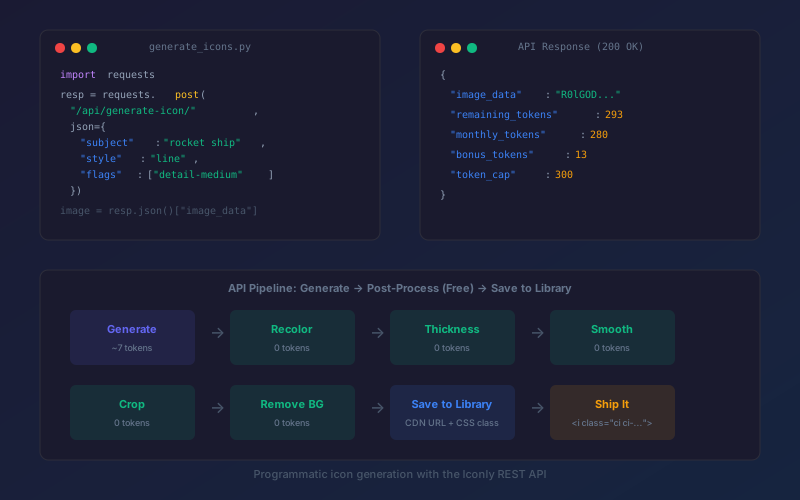
Key takeaways:
- The Iconly REST API lets you generate icons from text prompts, post-process them (recolor, adjust thickness, smooth edges, crop, remove backgrounds), and save them to your library — all programmatically.
- A standard generation costs 6 tokens. Premium features (reference chains, refinement) use the premium model at 20 tokens. Post-processing (recolor, thickness, smoothing, crop) is free.
- Three real use cases below: a SaaS dashboard icon pipeline, an e-commerce category icon batch, and an end-user icon creator embedded directly in your app — using reference chains and live generation.
- Every code example in this guide uses real endpoints and matches the current API reference exactly.
Most icon workflows are manual. You open a tool, design or search for an icon, download it, upload it to your project, and repeat. For one or two icons this is fine. For a product with 50+ icons that need to share a visual style, it's a bottleneck.
The Iconly API turns icon creation into an automated pipeline. Generate icons from text descriptions, run free post-processing to fine-tune them, and save to your library — all from a script. You can also embed icon generation directly into your product, letting your users create icons without leaving your app. This guide covers every endpoint you need, with copy-paste code for three real-world scenarios.
Getting Started: Authentication and Setup
Every API request requires an API key. Generate one from your Iconly dashboard under Settings → API Key.
API keys use the ik_ prefix and are passed via the X-API-Key header on every request. The base URL for all endpoints is:
https://iconly.ai/api/Here's a minimal check to verify your key works — fetch your current token balance:
Python
import requests

API_KEY = "ik_your_api_key_here"
BASE = "https://iconly.ai/api"

resp = requests.get(f"{BASE}/tokens/", headers={"X-API-Key": API_KEY})
data = resp.json()

print(f"Monthly tokens: {data['monthly_tokens']}")
print(f"Bonus tokens:   {data['bonus_tokens']}")
print(f"Total remaining: {data['total_tokens']}")
JavaScript (Node.js)
const API_KEY = "ik_your_api_key_here";
const BASE = "https://iconly.ai/api";

const resp = await fetch(`${BASE}/tokens/`, {
  headers: { "X-API-Key": API_KEY },
});
const data = await resp.json();

console.log(`Monthly tokens: ${data.monthly_tokens}`);
console.log(`Bonus tokens:   ${data.bonus_tokens}`);
console.log(`Total remaining: ${data.total_tokens}`);
If you get a 401 response, double-check that your key starts with ik_ and that you're passing it in the X-API-Key header (not Authorization). See the full authentication docs for details.
The Generate Icon Endpoint
The core of the API. Send a text description, get back a base64-encoded WebP image.
POST /api/generate-icon/Required Parameters
| Parameter | Type | Description |
|---|---|---|
subject |
string | What the icon depicts (e.g. "shopping cart", "notification bell") |
Optional Parameters
| Parameter | Type | Default | Description |
|---|---|---|---|
style |
string | line |
Icon style: line, glyph, outline, pixel, isometric, or a preset slug like glassmorphism, neon |
color |
string | #000000 |
Hex color for base styles. Preset styles use their own palette. |
flags |
array | [] |
Modifiers: color, detail-low, detail-medium, detail-high, allow-text, ai-bg, keep-bg, bias-{color} |
model |
string | low |
low (standard) or high (premium, better quality) |
preset_id |
string | — | Slug of a built-in preset. Takes priority over style. |
template_id |
string | — | UUID of a custom prompt template. Only used if no preset is active. |
Response
{
  "image_data": "base64-encoded WebP image",
  "remaining_tokens": 293,
  "monthly_tokens": 280,
  "bonus_tokens": 13,
  "token_cap": 300
}
The image_data field is a base64 string. Decode it to get the raw WebP bytes, or use it directly as a data URI in HTML: data:image/webp;base64,{image_data}.
For the full parameter reference including attached_image, iconify, use_as_reference, and the precedence rules between conflicting parameters, see the API reference.
Free Post-Processing Endpoints
After generating an icon, you can refine it with post-processing — and it costs zero tokens. Every endpoint below takes a image_data (base64) input and returns a modified image_data output.
Recolor
POST /api/recolor/

{
  "image_data": "base64...",
  "color": "#3b82f6"
}
Changes the icon to a new color. Works best on monochrome icons. The color parameter accepts any hex code.
Adjust Thickness
POST /api/adjust-thickness/

{
  "image_data": "base64...",
  "thickness": 3
}
Adjusts line weight. Range: -10 (thinner) to +10 (thicker). Best for Line and Outline styles.
Smooth / Sharpen Edges
POST /api/smooth-edges/

{
  "image_data": "base64...",
  "strength": 2
}
Range: -10 (sharpen) to +10 (smooth). A value of 2–4 works well for most icons. Supports an optional algorithm parameter (selective, gaussian, morphological, supersample, contour) — default is selective.
Crop and Recenter
POST /api/crop-recenter/

{
  "image_data": "base64...",
  "crop_percent": 10
}
Removes empty space from edges and recenters the icon. Range: 0 to 50 percent.
Remove Background
POST /api/remove-bg/

{
  "image_data": "base64...",
  "strength": 5
}
Removes white/light backgrounds by strength. Range: 0 to 10. Higher values remove more aggressively. Free (0 tokens).
For AI-powered background removal with cleaner edges, use POST /api/smart-remove-bg/ instead — it costs 1 token but handles complex backgrounds better. See the editing tools docs for details.
All post-processing endpoints share the same response shape:
{
  "image_data": "base64-encoded WebP image"
}
Because the input and output are both image_data, you can chain operations: generate → recolor → adjust thickness → smooth → crop. Each step feeds the previous output as input.
Library Management
Generated icons exist only in the API response until you save them. The library endpoints let you persist icons to your account for later access via CDN or the dashboard.
Save to Library
POST /api/library/add/

{
  "name": "shopping cart",
  "image_data": "base64...",
  "style": "line",
  "is_colored": false,
  "detail_level": "none"
}
Response:
{
  "success": true,
  "css_class": "ci ci-shopping-cart",
  "icon_id": "uuid-string",
  "icon_type": "image",
  "url": "https://cdn.iconly.ai/..."
}
The css_class is your icon's CSS font class for inline use. The url is the CDN link you can reference directly in <img> tags. If an icon with the same name already exists, the API auto-appends a number (e.g. shopping-cart-2).
List Library Icons
GET /api/library/list/Returns all icons in your library, newest first:
{
  "icons": [
    {
      "id": "uuid",
      "name": "shopping-cart",
      "slug": "shopping-cart",
      "css_class": "ci ci-shopping-cart",
      "url": "https://cdn.iconly.ai/...",
      "style": "line",
      "created_at": "2026-02-25T12:34:56.789Z",
      "is_colored": false,
      "detail_level": "none",
      "icon_type": "image",
      "has_modifications": false
    }
  ]
}
Use Case 1: SaaS Dashboard Icon Pipeline
You're building a SaaS product and need sidebar navigation icons — Dashboard, Analytics, Users, Settings, Billing, Support. They should all be the same style, same color, same weight.
Doing this manually means generating each icon in the web UI, tweaking each one individually, and downloading them one at a time. With the API, you write the pipeline once and it produces all six icons in under a minute.
The Goal
- 6 navigation icons using the Duotone preset — a modern two-color style that fits SaaS product interfaces
- Reference-chained: first icon anchors the style, remaining icons use it as a visual reference
- Saved to library with CDN URLs
Iconly offers 20+ built-in presets you can use via the preset_id parameter — Duotone, Glassmorphism, Clay 3D, Neon, and more. You can also create custom prompt templates in your dashboard and reference them via template_id for a fully brand-specific aesthetic.
Python Implementation
import requests
import base64
import time

API_KEY = "ik_your_api_key_here"
BASE = "https://iconly.ai/api"
HEADERS = {"Content-Type": "application/json", "X-API-Key": API_KEY}

ICONS = [
    "analytics dashboard with bar chart",
    "group of people, team users",
    "gear cog settings",
    "credit card billing payment",
    "chat bubble support help",
    "bell notification alert",
]

def generate_icon(subject, reference_image=None):
    """Generate a duotone icon, optionally using a reference for consistency."""
    payload = {
        "subject": subject,
        "preset_id": "duotone",
    }
    if reference_image:
        payload["attached_image"] = reference_image
        payload["use_as_reference"] = True
    resp = requests.post(f"{BASE}/generate-icon/", json=payload, headers=HEADERS)
    resp.raise_for_status()
    return resp.json()

def save_to_library(name, image_data):
    """Save an icon to the library. Returns CDN URL and CSS class."""
    resp = requests.post(f"{BASE}/library/add/", json={
        "name": name,
        "image_data": image_data,
        "style": "line",
        "is_colored": True,
        "detail_level": "medium",
    }, headers=HEADERS)
    resp.raise_for_status()
    return resp.json()

# --- Pipeline (reference chain) ---
results = []
reference_image = None

for subject in ICONS:
    print(f"Generating: {subject}")

    # Generate — first icon sets the style, rest reference it
    gen = generate_icon(subject, reference_image)
    image = gen["image_data"]
    print(f"  Generated. Tokens remaining: {gen['remaining_tokens']}")

    # Lock in the first icon as the style anchor
    if reference_image is None:
        reference_image = image
        print("  Set as style reference for remaining icons")

    # Save to library
    short_name = subject.split(",")[0].strip()
    saved = save_to_library(short_name, image)
    print(f"  Saved: {saved['css_class']} → {saved['url']}")

    results.append(saved)

    # Respect rate limits (10 generations/min)
    time.sleep(7)

print(f"\nDone! {len(results)} icons saved to library.")
for r in results:
    print(f"  {r['css_class']}: {r['url']}")
JavaScript (Node.js) Implementation
const API_KEY = "ik_your_api_key_here";
const BASE = "https://iconly.ai/api";
const HEADERS = {
  "Content-Type": "application/json",
  "X-API-Key": API_KEY,
};

const ICONS = [
  "analytics dashboard with bar chart",
  "group of people, team users",
  "gear cog settings",
  "credit card billing payment",
  "chat bubble support help",
  "bell notification alert",
];

async function apiPost(endpoint, body) {
  const resp = await fetch(`${BASE}${endpoint}`, {
    method: "POST",
    headers: HEADERS,
    body: JSON.stringify(body),
  });
  if (!resp.ok) {
    const err = await resp.json();
    throw new Error(`${resp.status}: ${err.error}`);
  }
  return resp.json();
}

async function processIcon(subject, referenceImage = null) {
  // Generate — use reference for style consistency
  const payload = {
    subject,
    preset_id: "duotone",
  };
  if (referenceImage) {
    payload.attached_image = referenceImage;
    payload.use_as_reference = true;
  }
  const gen = await apiPost("/generate-icon/", payload);
  const image = gen.image_data;
  console.log(`  Generated. Tokens remaining: ${gen.remaining_tokens}`);

  // Save to library
  const shortName = subject.split(",")[0].trim();
  const saved = await apiPost("/library/add/", {
    name: shortName,
    image_data: image,
    style: "line",
    is_colored: true,
    detail_level: "medium",
  });

  console.log(`  Saved: ${saved.css_class} → ${saved.url}`);
  return { ...saved, image };
}

const sleep = (ms) => new Promise((r) => setTimeout(r, ms));

async function main() {
  const results = [];
  let referenceImage = null;

  for (const subject of ICONS) {
    console.log(`Generating: ${subject}`);
    const result = await processIcon(subject, referenceImage);

    // First icon becomes the style anchor
    if (!referenceImage) {
      referenceImage = result.image;
      console.log("  Set as style reference for remaining icons");
    }

    results.push(result);
    await sleep(7000); // Respect 10 req/min generation rate limit
  }

  console.log(`\nDone! ${results.length} icons saved.`);
  results.forEach((r) => console.log(`  ${r.css_class}: ${r.url}`));
}

main();
What This Costs
The Duotone preset includes color and medium detail, so the first icon costs ~9 tokens (standard model + preset modifiers). The remaining 5 use use_as_reference, which activates the premium model: ~23 tokens each. Six icons total: ~124 tokens. On the Pro plan (2,500 tokens/month), that's about 5% of your monthly budget for a complete set of style-consistent navigation icons.
Refining After Review
Once you've reviewed the generated set, you can refine any icons that need tweaking using the free post-processing endpoints. Recolor to your brand color, bump thickness, smooth edges, or crop & recenter — all at zero token cost. This lets you evaluate the raw output first, then dial in adjustments only where needed.
Using the Icons
After the script runs, each icon has a CDN URL and CSS class. Use them directly:
<!-- Via CDN URL -->
<img src="https://cdn.iconly.ai/..." alt="Dashboard" width="24" height="24">

<!-- Via CSS icon font (after importing iconly.js) -->
<i class="ci ci-analytics-dashboard ci-md"></i>
Use Case 2: E-Commerce Category Icon Batch
You run an e-commerce site with 15 product categories. You need a consistent icon set for the category navigation: Electronics, Clothing, Home & Garden, Sports, Books, Toys, Food, Beauty, Automotive, Pets, Jewelry, Music, Office, Health, and Travel. You want premium product-photography-style icons to match your store's aesthetic, saved locally to host yourself.
The key challenge is visual consistency. When 15 icons sit side-by-side in a grid, they need to look like they belong together — same weight, same level of detail, same style language. A reference chain solves this: generate the first icon, then pass it as a visual reference for every subsequent icon so the AI matches the established style. The Product Shot preset gives you studio-lit, photorealistic category icons that look professional at any size.
The Goal
- 15 category icons using the Product Shot preset — studio-lit product photography style
- Reference-chained: first icon anchors the visual style for the entire set
- Full color and high detail included in the preset — premium look out of the box
- Saved locally as WebP files, ready to deploy to your own site
The Product Shot preset is one of several presets built for e-commerce — Photorealistic, Clay 3D, and Sticker also work well for product categories. If your brand has a specific illustration style, create a custom prompt template in your dashboard and reference it via template_id instead.
Python Implementation
import requests
import base64
import os
import time

API_KEY = "ik_your_api_key_here"
BASE = "https://iconly.ai/api"
HEADERS = {"Content-Type": "application/json", "X-API-Key": API_KEY}

OUTPUT_DIR = "category_icons"
os.makedirs(OUTPUT_DIR, exist_ok=True)

CATEGORIES = {
    "electronics":  "laptop computer and smartphone electronics",
    "clothing":     "t-shirt and hanger clothing apparel",
    "home-garden":  "house with plant leaf home and garden",
    "sports":       "basketball and tennis racket sports equipment",
    "books":        "open book with pages reading",
    "toys":         "toy building blocks and teddy bear",
    "food":         "fork and knife plate dining food",
    "beauty":       "lipstick and mirror beauty cosmetics",
    "automotive":   "car automobile vehicle front view",
    "pets":         "dog paw print pet animal",
    "jewelry":      "diamond ring gemstone jewelry",
    "music":        "headphones and musical note audio",
    "office":       "desk with monitor office workspace",
    "health":       "medical cross heart health wellness",
    "travel":       "airplane and suitcase luggage travel",
}

def generate_icon(name, subject, reference_image=None):
    """Generate an icon with optional reference and save to disk."""

    # Generate — use reference for style consistency across the set
    payload = {
        "subject": subject,
        "preset_id": "product",
    }
    if reference_image:
        payload["attached_image"] = reference_image
        payload["use_as_reference"] = True
    gen = requests.post(f"{BASE}/generate-icon/", json=payload, headers=HEADERS)
    gen.raise_for_status()
    data = gen.json()
    image = data["image_data"]
    tokens = data["remaining_tokens"]

    # Save to file
    filepath = os.path.join(OUTPUT_DIR, f"{name}.webp")
    with open(filepath, "wb") as f:
        f.write(base64.b64decode(image))

    return {
        "name": name,
        "file": filepath,
        "image": image,
        "tokens_remaining": tokens,
    }

# --- Run batch (reference chain) ---
results = []
reference_image = None

for name, subject in CATEGORIES.items():
    print(f"[{len(results)+1}/{len(CATEGORIES)}] {name}")
    result = generate_icon(name, subject, reference_image)

    # First icon becomes the style anchor for the entire set
    if reference_image is None:
        reference_image = result["image"]
        print(f"  Set as style reference for remaining icons")

    results.append(result)
    print(f"  Saved: {result['file']}")
    print(f"  Tokens remaining: {result['tokens_remaining']}")
    time.sleep(7)

# Summary
print(f"\n{'='*60}")
print(f"Batch complete: {len(results)} icons generated")
print(f"Files saved to: {OUTPUT_DIR}/")
print(f"\nReady to deploy — use the .webp files directly in your site:")
for r in results:
    print(f'  <img src="/icons/{r["name"]}.webp" alt="{r["name"]}" width="24" height="24">')
What This Costs
The Product Shot preset includes color, high detail, and 1024px output, so the first icon costs ~11 tokens (standard model + preset modifiers). The remaining 14 use use_as_reference, which activates the premium model: ~25 tokens each. Fifteen icons total: ~361 tokens. That's a complete, visually consistent category icon set for about 14% of a Pro plan budget — and the reference chain ensures they all look like a cohesive family. For a lighter budget, swap in a cheaper preset like Hand Drawn or use a custom template with lower detail settings.
Refining After Review
Once you've reviewed the generated icons, you can refine any that need tweaking using the free post-processing endpoints. Read the saved .webp files back as base64, pass them through crop & recenter, smoothing, or thickness adjustments, and save the updated files — all at zero token cost.
Use Case 3: End-User Icon Creation in Your App
You're building a platform — a website builder, a design tool, a presentation app — and you want your users to generate custom icons without leaving your product. Instead of running batch scripts, you proxy the Iconly API through your own backend and expose a simple "create icon" UI to your users.
Your API key stays on your server. Your users never see it. They describe what they want, your backend calls Iconly, and the result comes back as an image they can use immediately.
The Goal
- Expose an icon generation feature to your app's users
- Support styles, presets, and custom templates — let users pick or lock to your brand
- Proxy requests through your backend — your Iconly API key stays server-side
- Return the generated image directly to the frontend for display
- Handle errors and token limits gracefully
Backend (Python / Flask)
from flask import Flask, request, jsonify
import requests

app = Flask(__name__)

ICONLY_KEY = "ik_your_api_key_here"
ICONLY_BASE = "https://iconly.ai/api"
ICONLY_HEADERS = {
    "Content-Type": "application/json",
    "X-API-Key": ICONLY_KEY,
}

@app.route("/api/create-icon", methods=["POST"])
def create_icon():
    data = request.get_json()
    subject = data.get("subject", "").strip()

    if not subject or len(subject) > 200:
        return jsonify({"error": "Subject is required (max 200 characters)"}), 400

    # Build the Iconly payload — support style, preset, or template
    payload = {"subject": subject, "color": data.get("color", "#000000")}

    preset_id = data.get("preset_id")
    template_id = data.get("template_id")

    if preset_id:
        payload["preset_id"] = preset_id
    elif template_id:
        payload["template_id"] = template_id
    else:
        style = data.get("style", "line")
        if style not in ("line", "glyph", "outline", "pixel", "isometric"):
            return jsonify({"error": "Invalid style"}), 400
        payload["style"] = style

    resp = requests.post(f"{ICONLY_BASE}/generate-icon/", json=payload, headers=ICONLY_HEADERS)

    if resp.status_code == 429:
        return jsonify({"error": "Too many requests. Try again shortly."}), 429
    if resp.status_code == 403:
        return jsonify({"error": "Icon generation is temporarily unavailable."}), 503
    if resp.status_code != 200:
        return jsonify({"error": "Generation failed. Please try again."}), 502

    result = resp.json()
    return jsonify({
        "image_data": result["image_data"],
    })
Backend (Node.js / Express)
import express from "express";

const app = express();
app.use(express.json());

const ICONLY_KEY = "ik_your_api_key_here";
const ICONLY_BASE = "https://iconly.ai/api";

const VALID_STYLES = ["line", "glyph", "outline", "pixel", "isometric"];

app.post("/api/create-icon", async (req, res) => {
  const { subject, style, color = "#000000", preset_id, template_id } = req.body;

  if (!subject || subject.length > 200) {
    return res.status(400).json({ error: "Subject is required (max 200 characters)" });
  }

  // Build Iconly payload — support style, preset, or template
  const payload = { subject, color };

  if (preset_id) {
    payload.preset_id = preset_id;
  } else if (template_id) {
    payload.template_id = template_id;
  } else {
    const s = style || "line";
    if (!VALID_STYLES.includes(s)) {
      return res.status(400).json({ error: "Invalid style" });
    }
    payload.style = s;
  }

  const resp = await fetch(`${ICONLY_BASE}/generate-icon/`, {
    method: "POST",
    headers: {
      "Content-Type": "application/json",
      "X-API-Key": ICONLY_KEY,
    },
    body: JSON.stringify(payload),
  });

  if (resp.status === 429) {
    return res.status(429).json({ error: "Too many requests. Try again shortly." });
  }
  if (!resp.ok) {
    return res.status(502).json({ error: "Generation failed. Please try again." });
  }

  const result = await resp.json();
  res.json({ image_data: result.image_data });
});

app.listen(3000);
Frontend
On the client side, call your proxy endpoint and display the result as a data URI:
async function generateIcon(subject, { style, preset_id, template_id, color } = {}) {
  const body = { subject, color: color || "#000000" };
  if (preset_id) body.preset_id = preset_id;
  else if (template_id) body.template_id = template_id;
  else body.style = style || "line";

  const resp = await fetch("/api/create-icon", {
    method: "POST",
    headers: { "Content-Type": "application/json" },
    body: JSON.stringify(body),
  });

  if (!resp.ok) {
    const err = await resp.json();
    throw new Error(err.error);
  }

  const { image_data } = await resp.json();
  return `data:image/webp;base64,${image_data}`;
}

// Example: user clicks "Generate" button
const btn = document.getElementById("generate-btn");
const img = document.getElementById("icon-preview");

btn.addEventListener("click", async () => {
  const subject = document.getElementById("icon-subject").value;
  const style = document.getElementById("icon-style").value;

  btn.disabled = true;
  btn.textContent = "Generating...";

  try {
    img.src = await generateIcon(subject, { style });
  } catch (err) {
    alert(err.message);
  } finally {
    btn.disabled = false;
    btn.textContent = "Generate";
  }
});
What This Costs
Each user-triggered generation costs ~6 tokens (base generation, standard model, no modifiers). The cost comes from your Iconly account, not your users'. Budget accordingly based on expected usage — a Pro plan at 2,500 tokens/month supports around 400 icon generations.
Considerations
- Rate limiting your users — Iconly allows 10 generations per minute. Add your own per-user rate limits to prevent a single user from burning through your quota.
- Input validation — Always validate and sanitize the subject on your server before forwarding to Iconly. Cap the length and strip anything you don't want in prompts.
- Token budget — Monitor your balance with
GET /api/tokens/and disable the feature gracefully when tokens run low, rather than letting users hit errors. - Caching — If multiple users request the same icon (e.g. "shopping cart" in Line style), cache the result to avoid duplicate generations.
- Presets and templates — You can lock your users to a specific
preset_idfor brand consistency, offer a curated subset of presets, or use atemplate_idfrom a custom template you've created in the Iconly dashboard.
Token Cost Optimization
Understanding how token costs are calculated lets you get the most out of your budget.
Base Cost
A standard generation (low model) costs 6 base tokens. The premium model (high) costs 20 base tokens but produces better results. Features like use_as_reference, refinement, and iconify automatically use the premium model.
Cost Modifiers
| Modifier | Extra Tokens | When to Use |
|---|---|---|
color flag |
+2 | When you need full-color output. Skip if you'll recolor later. |
detail-medium |
+1 | Good balance for most UI icons. |
detail-high |
+2 | Hero illustrations or large display sizes. |
| Canvas size > 512px | +1 to +2 | Only if you need high-res output. Default is fine for most UI icons. |
Free Operations
Recolor, thickness, smoothing, crop & recenter, and basic background removal all cost 0 tokens. This is the key to cost-efficient workflows: generate at the cheapest settings that produce a usable base, then refine with free post-processing.
For example, instead of using detail-high (+2 tokens) to get cleaner lines, try generating at default detail and then using smooth-edges to clean up. You save 2 tokens per icon — which adds up across a batch of 50.
Error Handling and Rate Limits
Rate Limits
| Scope | Limit | Endpoints |
|---|---|---|
| Generation | 10/min | generate-icon, generate-creative, generate-email, smart-remove-bg |
| Processing | 30/min | recolor, adjust-thickness, smooth-edges, crop-recenter, remove-bg |
| Upload | 20/min | library/add |
When you hit a rate limit, you get a 429 response. For batch scripts, add a delay between generation requests. A time.sleep(7) (Python) or 7-second delay keeps you safely under the 10/min generation limit.
Error Response Format
All errors return JSON with an error field:
{
  "error": "Insufficient tokens"
}
Common Status Codes
| Code | Meaning | What to Do |
|---|---|---|
400 |
Bad request | Check parameter names, types, and ranges. |
401 |
Invalid API key | Verify the key starts with ik_ and is in the X-API-Key header. |
403 |
Insufficient tokens or wrong tier | Check your balance with GET /api/tokens/. Upgrade or buy a token pack. |
429 |
Rate limited | Wait and retry. Add delays between batch requests. |
500 |
Server error | Retry the request. If persistent, contact support. |
A robust batch script should handle these gracefully:
def safe_generate(subject, retries=2):
    """Generate with retry logic for transient errors."""
    for attempt in range(retries + 1):
        resp = requests.post(f"{BASE}/generate-icon/", json={
            "subject": subject,
            "style": "line",
        }, headers=HEADERS)

        if resp.status_code == 200:
            return resp.json()
        elif resp.status_code == 429:
            wait = 15 * (attempt + 1)
            print(f"  Rate limited. Waiting {wait}s...")
            time.sleep(wait)
        elif resp.status_code == 403:
            print(f"  Error: {resp.json()['error']}")
            return None
        else:
            print(f"  Server error ({resp.status_code}). Retrying...")
            time.sleep(5)

    print(f"  Failed after {retries + 1} attempts.")
    return None
For the complete error reference, see the API docs error handling section.
Frequently Asked Questions
Does Iconly have a REST API for icon generation?
Yes. The Iconly API is a REST API at https://iconly.ai/api/ with endpoints for generating icons (POST /api/generate-icon/), post-processing (recolor, thickness, smoothing, crop, background removal), managing your icon library, and checking token balances. All endpoints use API key authentication via the X-API-Key header. Keys start with the ik_ prefix and can be generated from your settings page.
How much does it cost to generate an icon via the API?
A standard generation costs 6 base tokens. The premium model — used by features like use_as_reference, refinement, and iconify — costs 20 base tokens. Modifiers can increase either: the color flag adds 2 tokens, detail-medium adds 1, detail-high adds 2, and larger canvas sizes add up to 2 more. Post-processing — recolor, thickness, smoothing, crop, and basic background removal — is completely free (0 tokens). See token system docs for the full breakdown.
What programming languages can I use with the Iconly API?
Any language that can make HTTP requests. The API is standard REST with JSON request/response bodies. This guide includes examples in Python (using the requests library) and JavaScript (using fetch). Go, Ruby, PHP, Java, C#, Rust, and any other language with HTTP support works out of the box. See the code examples section in the API docs for Python, JavaScript, and curl samples.
Can I batch generate multiple icons with the Iconly API?
Yes. Call POST /api/generate-icon/ in a loop with different subjects. For visual consistency across a set, use a reference chain: generate the first icon normally, then pass its image_data as attached_image with use_as_reference: true for all subsequent icons. The AI matches the established style, so every icon in the batch looks like it belongs together. The rate limit is 10 generation requests per minute — add a 7-second delay between calls. See Use Case 1 and Use Case 2 above for complete reference chain examples.
Are post-processing operations free via the API?
Yes. Recolor (/api/recolor/), thickness adjustment (/api/adjust-thickness/), edge smoothing (/api/smooth-edges/), crop and recenter (/api/crop-recenter/), and basic background removal (/api/remove-bg/) are all free — 0 tokens. Only Smart Background Removal (/api/smart-remove-bg/) costs 1 token. This means you can generate once and refine extensively without additional cost. See the post-processing docs.
What image format does the Iconly API return?
The API returns base64-encoded WebP images in the image_data field of the JSON response. Decode the base64 string to get raw WebP bytes, or display it directly using a data URI: data:image/webp;base64,{image_data}. WebP provides better compression than PNG at equivalent quality, resulting in smaller file sizes.
Can I let my users generate icons through the Iconly API?
Yes. Proxy the API through your own backend so your ik_ API key stays server-side. Your users send requests to your endpoint, your server calls Iconly's POST /api/generate-icon/, and you return the base64 image to the client. Add your own per-user rate limits and input validation to control costs and prevent abuse. Each standard generation costs 6 tokens from your account. See Use Case 3 above for a full Flask, Express, and frontend implementation.