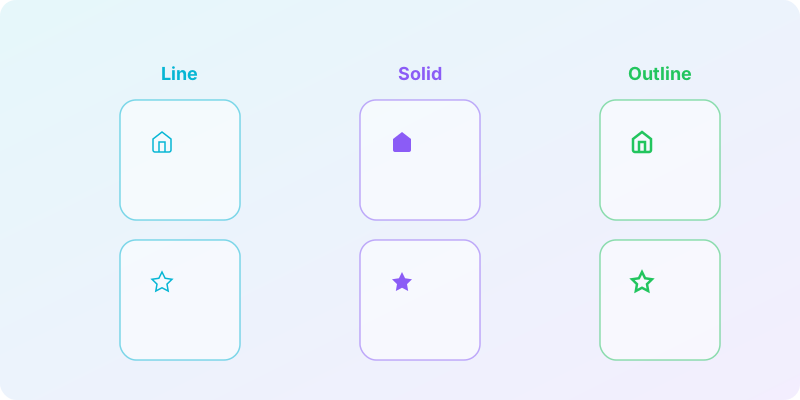
Key findings: Research with 1,260 participants shows solid icons are generally recognized faster than outline icons, because humans process silhouettes more quickly than strokes. However, icons with edge-defining details (speech bubbles, trash cans, keys) are recognized faster as outlines. The best approach is to pick one style for consistency, choose solid for small sizes and accessibility, and use line or outline for modern, content-heavy interfaces.
Should your icons be filled or hollow? Thick strokes or thin? The answer matters more than you might think - research shows icon style directly impacts how quickly users recognize them.
This guide breaks down the three main icon styles, when each works best, and some surprising findings that challenge common design assumptions.
The Three Main Styles
Line Icons
Thin strokes, no fill, minimal appearance
Solid Icons
Filled shapes, silhouette-based recognition
Outline Icons
Bold strokes, heavy visual weight
What the Research Says
A study from the University of North Carolina tested how icon style affects recognition speed and accuracy. With 1,260 participants identifying icons, the results were clear - but nuanced.
Key Finding: Solid Icons Are Generally Faster
On average, solid (filled) icons were recognized faster than outline icons. This makes intuitive sense - humans evolved to recognize shapes by their silhouettes. A solid icon is essentially a simplified silhouette.
The science: Our visual system processes shapes faster than we process lines. A solid icon activates shape recognition pathways more directly.
The Exceptions
However, three icons in the study were actually recognized faster as outlines:
- Speech/comment bubble
- Trash can
- Key
What do these have in common? Their identifying features are on the edges, not in the center. The pointing tail of a speech bubble, the ridges on a trash can lid, the teeth of a key - these details become more visible in outline form.
The Rule
Use solid icons when the silhouette alone is distinctive. Use outline icons when the characteristic details are on the edges.
Detailed Comparison
| Factor | Line | Solid | Outline |
|---|---|---|---|
| Recognition speed | Medium | Fastest (usually) | Fastest for edge-detail icons |
| Small size rendering | Can become hard to see | Stays visible | Stays visible |
| Visual weight | Light | Heavy | Medium-heavy |
| Dark mode performance | Adequate | Excellent contrast | Excellent contrast |
| Modern aesthetic | Very modern | Can feel traditional | Contemporary |
| Detail preservation | Good for internal details | Loses internal detail | Good for edge details |
When to Use Line Icons
Line icons use thin strokes without any fill. They're the most minimal option and have become the dominant style in modern interfaces.
Best Applications
- Light-themed interfaces - Thin lines look elegant on white backgrounds
- Content-heavy screens - Lower visual weight doesn't compete with content
- Large touch targets - When the tappable area is large, the icon can be subtle
- Minimalist brands - Aligns with clean, modern aesthetics
- Illustrations & marketing - Works well at larger sizes with more detail
Cautions
- Small sizes (under 20px): Lines may become too thin to see clearly
- Low contrast situations: Thin lines can disappear on busy backgrounds
- Accessibility: Users with visual impairments may struggle with thin strokes
Iconly tip: When generating line icons, select the "Line" style preset. Use the thickness tool afterward if you need slightly bolder strokes.
When to Use Solid Icons
Solid icons are filled shapes. They maximize contrast and visibility, especially at small sizes.
Best Applications
- Small display sizes - Remain clear even at 16px
- High-contrast needs - Maximum visibility against any background
- Tab bars and navigation - Stand out in UI chrome
- Real-world objects - When the silhouette is recognizable
- Accessibility-focused design - Easier to see for users with low vision
Cautions
- Visual heaviness: Can feel dense when many icons are visible
- Detail loss: Internal details disappear when filled
- Context clashing: Heavy icons may overwhelm subtle interfaces
When to Use Outline Icons
Outline icons split the difference - bolder than line icons but not as heavy as solid. They use thicker strokes (typically 2-3px at 24px size).
Best Applications
- Buttons and CTAs - Bold enough to draw attention without being aggressive
- Icons with edge details - Keys, speech bubbles, documents with folds
- Balancing visual weight - When line icons are too light but solid is too heavy
- Dark mode interfaces - Strong contrast without filling entire shapes
- Playful brands - Bold strokes feel friendly and approachable
Cautions
- Stroke consistency: Harder to maintain uniform weight across complex icons
- Corner handling: Thick strokes at corners can look uneven
The Tab Bar Question
One common design pattern deserves special attention: using outline icons for inactive states and solid icons for the active state in tab bars.
Interestingly, UX Movement research suggests this is backwards. If solid icons are faster to recognize, why use them for the button users have already found?
Counter-intuitive finding: Users need faster recognition for options they haven't selected yet. Consider using solid icons for inactive states and outline for active, rather than the reverse.
That said, the filled/unfilled toggle is a strong learned convention. Users expect filled to mean "selected." Breaking this convention may cause confusion even if the alternative is theoretically faster.
Mixing Styles: Don't
The strongest recommendation from every design system is simple: pick one style and use it consistently.
Mixing line, solid, and outline icons in the same interface creates visual chaos. Even if individual icons look fine, the overall effect is unprofessional.
The only exception is using style changes to indicate state (like the tab bar example above). Even then, use only two styles in a clear, intentional pattern.
Decision Framework
Use this flowchart to choose your icon style:
Start with Size
Below 20px? Solid handles small sizes best. 24px+? More options.
Consider Context
Content-heavy? Line. Need emphasis? Solid or outline.
Match Brand
Minimal brand? Line. Bold brand? Outline. Classic? Solid.
Test with Users
Show your icons to real users. Can they identify them quickly?
Using Iconly's Style Presets
When generating icons with Iconly, you can select from built-in style presets:
| Preset | Description | Best For |
|---|---|---|
| Line | Thin, elegant strokes | Modern UI, light themes |
| Glyph | Solid filled shapes | Small sizes, high contrast |
| Outline | Bold strokes | Buttons, emphasis |
| Flat | Solid with color fills | Colorful, playful apps |
| Pixel | Retro pixelated look | Gaming, nostalgic themes |
After generating, use the thickness adjustment tool to fine-tune stroke weight. This gives you precise control over where your icons fall on the line-to-outline spectrum. Explore all available editing features including recoloring, smoothing, and crop tools.
Summary
- Line icons: Modern, minimal, best for content-heavy interfaces at 24px+
- Solid icons: Fastest recognition for most shapes, essential for small sizes
- Outline icons: Bold middle ground, great for icons with edge details
- Consistency: Pick one style per interface and stick with it
The "right" choice depends on your specific context. What matters most is making a deliberate decision and applying it consistently. For more on building cohesive icon systems, see our guide to creating consistent icon sets.
Ready to try different styles? Sign up for Iconly and experiment with each preset to see what works for your project. Use the icon creator to generate icons in any style, then browse the public icon library to see how each style looks in practice. Check our pricing page for plan details.
Frequently Asked Questions
Are solid icons or outline icons easier to recognize?
Research from the University of North Carolina shows that solid (filled) icons are generally recognized faster than outline icons because humans evolved to recognize shapes by their silhouettes. However, icons whose identifying features are on the edges - such as speech bubbles, trash cans, and keys - are actually recognized faster as outlines. The best choice depends on where the icon's distinctive details are located rather than a universal rule.
When should I use line icons vs solid icons?
Use line icons for light-themed interfaces, content-heavy screens, and minimalist brands where you want icons that do not compete with content. Use solid icons when you need maximum visibility at small sizes (under 20px), high contrast, or accessibility for users with low vision. Solid icons work best for tab bars, navigation, and situations where the silhouette alone is distinctive. You can experiment with both styles using Iconly's style presets.
Can I mix different icon styles in the same interface?
Mixing line, solid, and outline icons in the same interface is generally not recommended as it creates visual chaos and looks unprofessional. The one exception is using style changes to indicate state, such as using outline icons for inactive tab bar items and solid icons for the active state. Even in this case, limit yourself to two styles used in a clear, intentional pattern throughout the interface.
Which icon style works best for dark mode?
Solid and outline icons both perform well in dark mode because they provide excellent contrast against dark backgrounds. Line icons with thin strokes can appear to glow or blur against dark backgrounds due to a visual effect called halation. If you use line icons in dark mode, consider increasing the stroke weight slightly to maintain clarity and readability.
What icon style is most popular in modern UI design?
Line icons have become the dominant style in modern interface design due to their clean, minimal aesthetic. They are the default choice for most contemporary web and mobile applications. However, popularity does not equal suitability for every context. Solid icons remain essential for small sizes and accessibility, while outline icons offer a bold middle ground for buttons and calls-to-action. The best designers choose style based on context rather than trends.