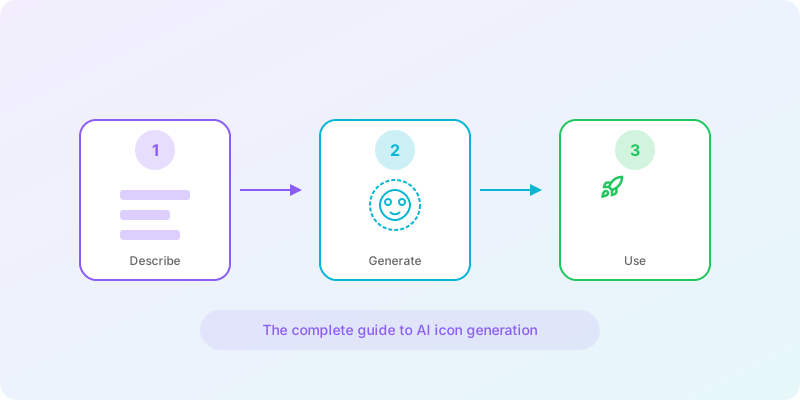
Key takeaways: AI icon generation uses diffusion models to create custom icons from text descriptions in seconds, removing traditional barriers of design skills and time investment. Write specific prompts with style, context, and platform details for best results. Use post-processing tools for background removal, recoloring, and edge cleanup. Build cohesive icon sets by defining a style template first and generating systematically with consistent prompting patterns.
Icons are everywhere in digital design. They help users navigate interfaces, communicate ideas instantly, and create visual consistency across products. But creating professional icons has traditionally required specialized design skills and significant time investment.
AI icon generation changes this equation entirely. Now anyone can create custom, production-ready icons in seconds. This guide covers everything you need to know to leverage AI for your icon needs.
What is AI Icon Generation?
AI icon generation uses machine learning models - specifically diffusion models - trained on vast datasets of images to create new icons based on text descriptions. Instead of manually drawing each shape and line, you describe what you want - "a shopping cart icon in a minimal line style" - and the AI generates it.
Natural Language Input
Describe icons in plain English - no design skills required
Instant Generation
Get results in seconds instead of hours of manual work
Unlimited Variations
Generate multiple options until you find the perfect one
Style Control
Choose from multiple visual styles to match your brand
AI vs Traditional Icon Design
Understanding when to use AI-generated icons versus traditional design methods helps you make the right choice for each project.
| Factor | AI Generation | Traditional Design |
|---|---|---|
| Time per icon | Seconds | Minutes to hours |
| Cost | Pay-per-use or subscription | Designer hourly rates |
| Technical skill needed | None | Professional design software |
| Iteration speed | Instant variations | Revision cycles |
| Pixel-perfect control | Post-processing tools | Complete control |
| Uniqueness | Based on training data | Completely custom |
Best of both worlds: Many teams use AI for rapid prototyping and initial concepts, then refine key icons manually. AI handles 80% of the work in 20% of the time.
Best Practices for Prompting
The quality of your AI-generated icons depends largely on how you describe what you want. Here's how to write effective prompts.
Be Specific About the Object
Generic prompts produce generic results. Instead of "email icon," try "envelope with paper letter visible, sealed with a small heart sticker." The details guide the AI toward your vision.
Specify the Style
Different visual styles serve different purposes. When using Iconly, you can choose from built-in style presets like line, glyph, outline, and flat. Mention your preferred style explicitly.
Good Prompt
"A calendar icon with the number 15 displayed, minimal line style"
Weak Prompt
"calendar"
Include Context Cues
Help the AI understand how the icon will be used:
- Platform context: "iOS-style tab bar icon" following Apple's SF Symbols guidelines or "Android material icon" per Google's Material Design
- Size hints: "simple enough to work at 16px" or "detailed icon for hero section"
- Brand context: "modern tech company" or "playful children's app"
Avoid Ambiguity
Words can have multiple visual interpretations. "Mail" could mean an envelope, a mailbox, or chainmail armor. "Cloud" could be weather, storage, or something fluffy. Be precise.
Common Use Cases
AI-generated icons work well across many applications. Here's where they shine.
Mobile Apps
Tab bars, navigation, action buttons, empty states
Websites
Feature sections, navigation menus, social proof, CTAs
Presentations
Slide decks, infographics, visual aids, concept illustrations
Design Systems
Component libraries, UI kits, internal tools, documentation
App Store Icons
Your app icon is often the first impression users get. Both Apple's App Store and Google Play have specific requirements. AI can generate dozens of concepts quickly, helping you explore directions before committing to final design work.
Marketing Materials
Landing pages, email campaigns, and social media graphics often need icons that match specific campaign themes. AI generation lets you create on-brand icons without waiting for design resources.
Refining and Customizing AI Icons
Raw AI output often needs adjustment before it's production-ready. Modern AI icon tools include post-processing features to help.
Essential Refinements
- Background removal: Most icons need transparent backgrounds for flexible use
- Color adjustment: Match your brand colors exactly with recoloring tools
- Line weight: Ensure consistency by adjusting stroke thickness
- Edge cleanup: Smooth or sharpen edges for the desired crispness
- Cropping: Center and crop to remove excess space
Pro tip: Use custom templates to save your preferred post-processing settings. Apply them with one click to maintain consistency across icon sets.
When to Regenerate vs Refine
If the basic concept is wrong, regenerate with a better prompt. If the concept is right but the details need work, use editing tools. Don't try to fix fundamental issues with refinements - start fresh. For more advanced prompting strategies, see our dedicated AI icon prompting tips guide.
Building Cohesive Icon Sets
Individual icons are useful, but icon sets that work together are essential for professional projects. As Nielsen Norman Group research shows, consistent iconography improves user comprehension and interface usability. Consistency is the challenge.
Maintaining Visual Consistency
- Use the same style: Don't mix line icons with filled icons in the same set
- Consistent stroke weights: All icons should have matching line thickness
- Uniform sizing: Icons should have similar visual weight and fit the same bounding box
- Color palette: Stick to the same colors or monochrome treatment
- Detail level: Keep complexity similar across all icons
Iconly's Approach to Consistency
Iconly addresses consistency challenges with:
- Style presets: Built-in style options ensure visual coherence
- Batch processing: Apply the same refinements to multiple icons
- Custom templates: Save your settings and apply them to new icons
- Reference images: Use an existing icon as style reference for new generations
Workflow for Icon Sets
- Define your style first: Generate one icon and perfect its style before creating more
- Create a template: Save your post-processing settings as a reusable template
- Generate systematically: Work through your icon list using the same prompting patterns
- Review as a group: Check icons together to catch inconsistencies
- Iterate on outliers: Regenerate any icons that don't match the set
Getting Started
Ready to generate your first AI icons? Here's your action plan:
1. Create Account
Sign up free and get 300 free tokens to start creating
2. Explore Styles
Browse the public library for inspiration
3. Generate Icons
Open the icon editor and start creating
4. Export & Use
Download PNGs or grab CDN links
Quick tip: Check out our documentation for detailed guides on each feature, or browse our comparison of AI icon tools to see how different options stack up.
AI icon generation removes the traditional barriers to custom iconography. Whether you're building an app, designing a website, or creating a presentation, you can now get exactly the icons you need without specialized design skills or expensive resources. Developers can also generate and manage icons programmatically through the Iconly REST API.
The technology keeps improving, but the fundamentals remain: clear prompts, consistent styles, and thoughtful refinement produce the best results. Start experimenting today and see what you can create.
Frequently Asked Questions
What is AI icon generation and how does it work?
AI icon generation uses machine learning models, specifically diffusion models, trained on vast datasets of images to create new icons based on text descriptions. Instead of manually drawing each shape and line, you describe what you want in natural language and the AI generates it in seconds. The technology allows anyone to create custom, production-ready icons without specialized design skills.
How do AI-generated icons compare to traditionally designed icons?
AI-generated icons offer significant advantages in speed (seconds vs hours), cost (pay-per-use vs designer hourly rates), and accessibility (no technical skills needed). Traditional design offers more pixel-perfect control and complete uniqueness. Many teams use AI for rapid prototyping and initial concepts, then refine key icons manually, letting AI handle 80% of the work in 20% of the time. See our AI vs hand-drawn icons comparison for a deeper analysis.
How do I write effective prompts for AI icon generation?
Effective AI icon prompts should be specific about the object, specify the visual style, include context cues about how the icon will be used, and avoid ambiguity. For example, instead of writing "calendar" write "A calendar icon with the number 15 displayed, minimal line style." Include platform context (iOS-style, Material Design), size hints (simple enough for 16px), and brand context (modern tech company, playful app).
What are the best use cases for AI-generated icons?
AI-generated icons work well for mobile apps (tab bars, navigation, action buttons, empty states), websites (feature sections, navigation menus, social proof, CTAs), presentations (slide decks, infographics, visual aids), and design systems (component libraries, UI kits, internal tools). They are also valuable for rapid prototyping, marketing materials, and exploring creative directions before committing to final designs.
How do I build a cohesive icon set with AI?
To build a cohesive AI-generated icon set, start by defining your style with a single perfected icon. Save your post-processing settings as a reusable template. Generate systematically using the same prompting patterns and style presets. Review all icons together to catch inconsistencies, and regenerate any outliers. For a complete walkthrough, see our guide on creating consistent icon sets and our batch icon generation tutorial.