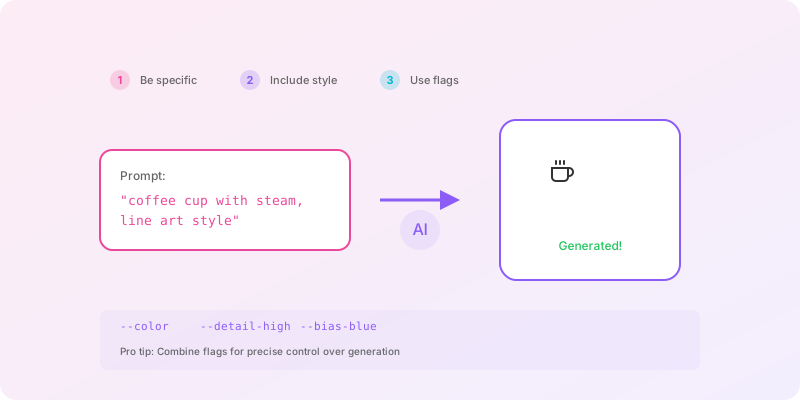
Key takeaways: Effective AI icon prompts have four components: a specific subject, clear style direction, size and complexity constraints, and negative instructions. Describe what the icon looks like rather than what it means. Use consistent prompt templates when building icon sets. Most icons reach production quality in 1-4 iterations when combining good prompts with post-processing tools.
The difference between a mediocre AI-generated icon and a great one often comes down to how you ask for it. Vague prompts produce vague results. Specific, well-structured prompts produce icons you can actually use.
This guide shares the prompting techniques we've learned from millions of icon generations on Iconly. Apply these principles to get better results faster.
The Anatomy of a Good Prompt
Effective icon prompts have four components:
1. Subject
What the icon depicts (be specific)
2. Style
Visual style and aesthetic
3. Constraints
Size, simplicity, technical specs
4. Negatives
What to avoid or exclude
Prompt Examples: Weak vs Strong
Let's see how these principles transform real prompts.
Example 1: Shopping Cart
| Weak Prompt | Strong Prompt |
|---|---|
| "cart" | "Shopping cart icon, simple line style, minimal detail, side view with handle and wheels visible, works at 24px size" |
Why it's better: The strong prompt specifies the type of cart (shopping, not golf cart or mine cart), the visual style (line), the complexity level (minimal), the viewing angle (side), key features to include (handle, wheels), and size constraints (24px).
Example 2: Settings
| Weak Prompt | Strong Prompt |
|---|---|
| "settings" | "Gear cog icon, 6 teeth, rounded edges, solid fill, symmetrical design, no shading or gradients" |
Why it's better: "Settings" could be anything - sliders, switches, gears, wrenches. The strong prompt specifies the exact metaphor (gear), details (6 teeth), style (rounded, solid), and explicitly excludes unwanted elements (shading, gradients).
Example 3: Notification
| Weak Prompt | Strong Prompt |
|---|---|
| "notification" | "Bell icon for notifications, classic bell shape with clapper visible, outline style with 2px stroke, slight 5-degree tilt to the right" |
Why it's better: Specifies the metaphor (bell, not badge or dot), includes details (clapper), defines stroke weight (2px), and adds character (slight tilt) while remaining specific enough to reproduce.
Technique 1: Be Visually Specific
Don't describe what the icon means - describe what it looks like.
Conceptual
"An icon representing collaboration and teamwork"
Visual
"Two person silhouettes side by side, heads overlapping slightly, simple shapes"
The AI doesn't understand abstract concepts like "collaboration." It generates images based on visual descriptions. Think about what shape best represents your concept, then describe that shape. Try it yourself in the icon creator to see the difference firsthand.
Technique 2: Specify Style Clearly
Different icon styles require different prompting approaches.
For Line Icons
Emphasize stroke characteristics:
- "thin lines, no fill"
- "1.5px stroke weight"
- "consistent line thickness throughout"
- "no solid areas"
For Solid Icons
Focus on silhouette and shape:
- "solid fill, no strokes"
- "glyph style"
- "silhouette form"
- "single solid shape"
For Outline Icons
Emphasize bold strokes:
- "bold outline, 2-3px stroke"
- "thick lines, no fill"
- "heavy stroke weight"
Iconly tip: Use the style dropdown in the icon editor to set your base style, then use prompts to refine details. The combination produces more consistent results than prompting alone.
Technique 3: Constrain Complexity
AI image generators tend toward detail. For icons, you often want the opposite. Explicitly constrain complexity:
Simplicity Phrases That Work
- "minimal detail"
- "simple shapes only"
- "no intricate details"
- "clean and simple"
- "readable at 16px"
- "UI icon, not illustration"
Complexity for Hero Icons
When you want more detail (for larger display sizes):
- "detailed icon for 48px+ display"
- "moderate detail level"
- "can include secondary elements"
Technique 4: Specify Viewing Angle
Many objects look different from different angles. Be explicit:
| Angle | Phrase | Good For |
|---|---|---|
| Front | "front view", "facing forward" | Faces, phones, monitors |
| Side | "side view", "profile" | Carts, vehicles, buildings |
| Three-quarter | "3/4 view", "angled perspective" | Boxes, folders, packages |
| Top-down | "top view", "from above" | Maps, layouts, floors |
| Isometric | "isometric view", "30-degree angle" | 3D objects, technical icons |
Technique 5: Use Negative Prompts
Sometimes the best way to get what you want is to specify what you don't want:
Common Exclusions
- "no gradients"
- "no shadows"
- "no background"
- "no 3D effects"
- "no text or labels"
- "no decorative elements"
- "not photorealistic"
Example with Negatives
"House icon, simple line style, front view with door and window visible, no chimney smoke, no landscaping, no perspective distortion"
Technique 6: Reference Existing Standards
Mentioning established design systems can guide style:
- "Material Design style" - Google's design language
- "SF Symbols inspired" - Apple's icon system
- "Feather icons style" - Popular open-source set
- "Phosphor icons inspired" - Flexible icon family
Caution: These references work best for style guidance, not exact copying. The AI interprets these as stylistic directions, not templates.
Technique 7: Iterate Systematically
Rarely does the first generation nail exactly what you want. Use a systematic approach:
- Generate first version with your best prompt
- Identify the gap between result and goal
- Modify prompt to address the specific gap
- Regenerate and compare
- Refine with post-processing once close
Example Iteration
| Round | Prompt Change | Result |
|---|---|---|
| 1 | "Camera icon, line style" | Too complex, has lens reflections |
| 2 | Added "simple, minimal detail" | Better, but 3D perspective |
| 3 | Added "front view, flat" | Good shape, strokes inconsistent |
| 4 | Used thickness tool to unify strokes | Production ready |
Building Consistent Sets
When generating multiple icons for a set, consistency requires extra care:
Use Reference Images
After perfecting your first icon, use Iconly's "Use as Reference" feature. This tells the AI to match the style of your established icon.
Create a Prompt Template
Build a reusable prompt structure:
[SUBJECT], [STYLE PRESET], [TECHNICAL SPECS], [EXCLUSIONS]
Example template:
"[subject] icon, minimal line style, 2px stroke, rounded corners, suitable for 24px display, no gradients or shadows"
Then swap subjects:
- "home icon, minimal line style..."
- "search icon, minimal line style..."
- "settings icon, minimal line style..."
This templated approach also works well with the Iconly REST API, letting you programmatically generate entire icon sets using consistent prompt structures.
Apply Same Post-Processing
After generating, apply identical refinements to each icon using Iconly's editing tools. Save these settings as a custom template.
For comprehensive guidance on icon sets, see our guide to building consistent icon sets. You can also check our pricing plans to find the right token package for your project size.
Quick Reference: Prompt Checklist
Before generating, ensure your prompt includes:
Subject
□ Specific object named
□ Key features specified
□ Viewing angle stated
Style
□ Line, solid, or outline
□ Stroke weight if relevant
□ Corner treatment
Constraints
□ Target size mentioned
□ Complexity level set
□ Technical requirements
Exclusions
□ No gradients (if needed)
□ No shadows (if needed)
□ Other negatives
Practice Makes Perfect
Good prompting is a skill that develops with practice. Sign up for Iconly and start experimenting. Your first 300 tokens are free - enough to try dozens of prompts and develop your technique. Start a free 3-day trial to unlock all Pro features.
As you practice, you'll develop intuition for what works. Save your best prompts and refine them over time. Before long, you'll generate production-ready icons on the first try. Once you have your prompting technique down, learn how to batch generate entire icon sets efficiently, build a complete design system icon library, or ensure your icons follow accessibility best practices. You can also browse the public icon library to see examples of well-crafted icons across all styles.
Frequently Asked Questions
What makes a good AI icon generation prompt?
A good AI icon prompt has four components: a specific subject describing what the icon depicts, a clear style direction such as line or solid, constraints like target display size and complexity level, and negative instructions specifying what to exclude such as no gradients or no shadows. Describing the visual appearance of the icon rather than its abstract meaning produces the best results.
How do I write prompts for consistent icon sets?
Create a reusable prompt template with a fixed structure like "[subject] icon, minimal line style, 2px stroke, rounded corners, suitable for 24px display, no gradients or shadows." Then swap only the subject for each icon while keeping all other parameters identical. Combine this with a reference image from your first perfected icon for maximum consistency across the set.
Why do my AI-generated icons look too detailed or complex?
AI image generators naturally tend toward adding detail. To get simpler icons, explicitly constrain complexity in your prompts using phrases like "minimal detail," "simple shapes only," "clean and simple," "readable at 16px," or "UI icon, not illustration." You can also specify "no gradients," "no shadows," and "no decorative elements" to strip away unnecessary complexity.
Should I describe what an icon means or what it looks like?
Always describe what the icon looks like rather than what it means. For example, instead of prompting "an icon representing collaboration and teamwork" which is abstract, describe "two person silhouettes side by side, heads overlapping slightly, simple shapes." AI models generate images based on visual descriptions, not conceptual meanings, so visual specificity produces far better results.
How many attempts does it take to generate a good icon?
With well-crafted prompts, you can often get a usable icon in 1 to 3 attempts. The key is to iterate systematically: generate a first version, identify the specific gap between result and goal, modify your prompt to address that gap, then regenerate and compare. Most icons reach production quality within 3 to 4 rounds when you combine good prompts with post-processing tools like thickness adjustment and edge smoothing.