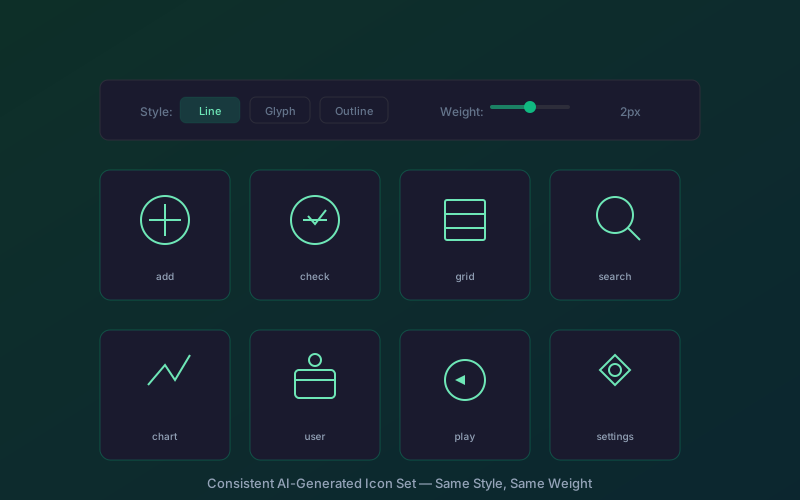
Key findings: Generating a consistent, matching icon set with AI requires more than running the same prompt repeatedly. Consistency depends on five visual properties: stroke weight, corner radius, grid alignment, color palette, and level of detail. Iconly's style system, reference image workflow, and built-in editing tools solve the consistency problem that plagues general-purpose AI generators. Most teams can produce a fully matched set of 50+ icons in under 3 hours using the techniques in this guide.
You need 30 icons for your app. You fire up an AI tool and start generating. The first icon looks great. The second looks fine too - but different. By icon five, you have five icons that could each be from a completely different set. Sound familiar?
The consistency problem is the single biggest frustration when trying to generate a matching icon set with an AI tool. General-purpose image generators like Midjourney and DALL-E treat each generation as an isolated event. They have no concept of a "set" and no mechanism to enforce visual coherence across multiple outputs.
This guide shows you how to solve that problem. You will learn the specific workflow, tools, and techniques that produce icon sets where every piece genuinely looks like it belongs together.
The Consistency Problem With AI Icon Generation
Most AI image generators fail at icon consistency for three fundamental reasons:
- No shared memory: Each generation starts from scratch. The model does not remember the stroke weight, corner style, or level of detail from your previous icon.
- Prompt interpretation drift: Even identical prompts produce slightly different visual interpretations each time. The AI might render "2px stroke" as 1.8px in one generation and 2.3px in the next.
- Lack of icon-specific controls: General tools are optimized for photographs and illustrations, not the precise geometric consistency that icon sets demand.
This is why specialized icon generation tools exist. Iconly's icon creator was built specifically to address these consistency challenges with style presets, reference image matching, and post-processing tools that standardize visual properties across an entire set.
What Makes Icons Look "Matching"
Before diving into the process, it helps to understand exactly what your brain evaluates when deciding whether icons "go together." Five visual properties determine cohesion:
Stroke Weight
Every line in every icon the same thickness (e.g., 2px)
Corner Radius
Corners rounded the same amount or all sharp across icons
Grid & Sizing
Same canvas size and optical balance for every icon
Visual Weight
Similar amount of detail and density per icon
Beyond these four visual factors, two more properties complete the picture:
- Color palette: Either all icons share one color, or they use colors from a pre-defined palette. Random color variation is the fastest way to destroy cohesion.
- Level of detail: A hyper-detailed camera icon next to a minimalist home icon looks wrong even if both are technically well-designed.
When all five properties are consistent, icons read as a set regardless of subject matter. A rocket, a coffee cup, and a spreadsheet can all look like they belong together. Nielsen Norman Group's research on icon usability confirms that visual consistency is critical for user recognition.
How Iconly's Style System Ensures Consistency
Iconly addresses the consistency problem at the system level rather than relying on prompts alone. When you select a style in the icon creator, the AI generation pipeline enforces specific visual parameters.
The available styles include:
- Line: Clean strokes with no fill, ideal for modern interfaces (similar to how Material Design 3 approaches icon design)
- Glyph: Solid filled shapes with high contrast
- Outline: Bold strokes for emphasis and buttons
- Pixel: Retro pixel-art aesthetic on a grid
- Flat: Solid colors with no gradients or shadows
Each style carries built-in constraints that limit visual drift between generations. When you choose "Line," every icon inherits the same stroke treatment. When you choose "Glyph," every icon gets the same solid fill approach. This is fundamentally different from prompting a general AI with "line style" and hoping it interprets that consistently. For a deeper comparison of when to use each style, see our line vs solid vs outline icons guide.
Tip: Pick your style before generating your first icon and commit to it for the entire set. Mixing styles within a set is the most common source of inconsistency, even for experienced designers.
Step-by-Step: Generate a Matching Icon Set
Here is the complete workflow for generating a cohesive icon set from start to finish.
Step 1: Choose Your Style
Open the Iconly icon creator and select your base style from the style dropdown. Consider where your icons will be used - line icons suit light, modern interfaces while glyph icons work better at small sizes and in navigation bars.
Step 2: Set Your Color Parameters
Define your color before generating. Use the color picker to set your primary icon color, or enter a specific hex value for exact brand matching. Every icon generated in this session will use this color as a starting point, which eliminates one major inconsistency variable.
Step 3: Generate and Perfect Your First Icon
Your first icon sets the visual standard for the entire set. Spend extra time here. Write a detailed prompt, generate a few variations, and pick the one that best represents the style you want across all icons. Use the editing tools to refine it - adjust thickness, smooth edges, crop and recenter as needed.
Step 4: Use as Reference for Style-Guided Generation
Once your first icon is perfected, click the Use as Reference button. This tells the AI to analyze your icon's visual characteristics and replicate them in all subsequent generations. This single step eliminates most consistency issues.
Step 5: Generate the Full Set
With your reference image set, work through your icon list. Keep your prompts structured consistently, changing only the subject while maintaining the same style descriptors. Generate each icon, do a quick visual check against your reference, and move on.
Step 6: Fine-Tune With Editing Tools
After generating the full set, review all icons together. Use Iconly's built-in tools to bring any outliers back in line:
- Recolor: Ensure exact color matching across all icons
- Adjust Thickness: Standardize stroke weight for icons that are slightly off
- Smooth Edges: Unify corner treatment across the set
- Crop & Recenter: Normalize sizing and padding
Prompting Techniques for Consistency
Even with a style system and reference images, your prompts play an important role. The key principle is structural consistency - every prompt should follow the exact same template.
Create a Prompt Template
Build a reusable structure and swap only the subject:
- Template: "[subject] icon, minimal detail, clean shapes, suitable for 24px display, no gradients or shadows"
- Icon 1: "home icon, minimal detail, clean shapes, suitable for 24px display, no gradients or shadows"
- Icon 2: "search magnifying glass icon, minimal detail, clean shapes, suitable for 24px display, no gradients or shadows"
- Icon 3: "notification bell icon, minimal detail, clean shapes, suitable for 24px display, no gradients or shadows"
Be Visually Specific, Not Conceptual
Describe what the icon looks like, not what it represents. "Two overlapping chat bubbles" produces more consistent results than "a communication icon." Visual descriptions give the AI concrete geometry to work with, reducing interpretation variance between generations. Our AI icon prompting tips guide covers this technique in detail.
Include Negative Instructions
Add the same exclusions to every prompt: "no gradients, no shadows, no background, no 3D effects." This prevents the AI from introducing random embellishments that break consistency.
Tip: Write your complete prompt template once, paste it into a text file, and copy-paste it for each icon. Manually retyping introduces subtle variations that the AI picks up on.
The Reference Image Workflow
The Use as Reference feature is the most powerful consistency tool in Iconly. Here is how to get the most out of it.
How It Works
When you click Use as Reference on a completed icon, Iconly stores that image as a style guide. For every subsequent generation, the AI receives both your text prompt and the visual reference. It extracts stroke characteristics, corner treatment, complexity level, and overall aesthetic from the reference, then applies those properties to the new subject.
Best Practices for Reference Images
- Choose a representative icon: Pick an icon with average complexity for your set. An overly simple or overly detailed reference can skew results.
- Perfect it first: Apply all your desired edits (thickness, smoothing, recolor) before setting it as reference. The AI matches what it sees, so a polished reference produces polished results.
- Use a single reference for the whole set: Changing your reference mid-set introduces a style break. Commit to one reference and keep it active throughout.
- Combine with the Attach for Refinement feature: If a generated icon is close but not quite right, use Attach for Refinement to iterate on that specific icon while keeping the overall style reference active.
Fine-Tuning With Editing Tools
Even with a solid workflow, some icons will need adjustment. Iconly's editing tools let you correct inconsistencies without regenerating from scratch.
Recolor for Exact Color Matching
AI generation can introduce subtle color shifts. The Recolor tool applies your exact target color to the entire icon, ensuring pixel-perfect color consistency across the set.
Adjust Thickness for Uniform Strokes
If an icon's strokes are slightly thinner or thicker than the rest, use Adjust Thickness to bring it in line. This is particularly useful for line and outline style icons where stroke weight differences are immediately visible.
Smooth Edges for Consistent Corners
The Smooth Edges tool unifies corner treatment. Apply the same smoothing level to any icons that have slightly different corner radii or edge roughness.
Crop and Recenter for Sizing
Icons that sit off-center or have inconsistent padding stand out in a set. Crop & Recenter normalizes the position and whitespace around each icon so they all occupy the same visual footprint.
All editing tools support Ctrl+Z / Cmd+Z undo, so you can experiment freely. Every edit is non-destructive - the Revert to Original button restores any icon to its initial generated state.
Test at Multiple Sizes
After fine-tuning, verify your icons hold up at every size they will be used. Consistency issues that are invisible at 48px often become obvious at 16px.
| Size | Use Case | What to Check |
|---|---|---|
| 16px | Dense UI, menus | Is it still recognizable? |
| 24px | Standard UI elements | Does detail level feel right? |
| 32px | Buttons, cards | Do proportions hold up? |
| 48px+ | Feature callouts | Is detail sufficient for size? |
Common Consistency Pitfalls and How to Avoid Them
After working with thousands of icon sets generated on the platform, these are the most common mistakes and their fixes:
- Mixing styles mid-set: Switching from "Line" to "Outline" for a few icons because they "look better" breaks the set. Commit to one style.
- Forgetting the reference image: Generating icons without a reference active means each one is independent. Always set a reference before batch generating.
- Over-prompting some icons: Adding extra detail to specific prompts produces icons that are more complex than the rest. Keep prompt complexity uniform.
- Skipping the group review: Icons look consistent individually but reveal drift when placed side by side. Always review the full set in a grid before finalizing. Major design systems like IBM's Carbon and Atlassian's design system enforce strict visual specs for this reason.
- Inconsistent colors: Using "blue" in a prompt instead of your exact hex code can produce different shades. Use the color picker or Recolor tool, not prompt-based colors.
- Ignoring visual weight: Some subjects are inherently more complex (a building vs a dot). Simplify complex icons or add subtle detail to simple ones so all icons carry similar visual density. Apple's SF Symbols library is a good example of how to balance visual weight across thousands of icons.
Documenting and Organizing Your Icon Set
A consistent icon set loses its value if your team cannot find and use the right icons correctly. Establishing clear conventions early prevents naming conflicts, duplicate icons, and confusion as the set grows.
Naming Conventions
Establish clear naming rules and apply them to every icon:
- Use nouns for objects: "home", "user", "file"
- Use verbs for actions: "add", "delete", "share"
- Add modifiers consistently: "user-add", "user-remove", "file-upload"
- Indicate state: "lock", "lock-open", "eye", "eye-off"
Organize by Category
Group icons logically in your file system or design tool. This structure scales well as your set grows from 20 to 200 icons:
icons/
├── navigation/
│   ├── home.svg
│   ├── menu.svg
│   └── search.svg
├── actions/
│   ├── add.svg
│   ├── edit.svg
│   └── delete.svg
└── status/
    ├── success.svg
    ├── warning.svg
    └── error.svg
Create Usage Guidelines
Document how icons should be used so every team member applies them correctly:
- When to use each icon (what it means in your product)
- Sizing rules (which sizes are allowed)
- Color rules (when to use which color variant)
- Spacing requirements (minimum padding around icons)
- Don'ts (common misuses to avoid)
If you are building a full design system icon library, these usage guidelines become part of your component documentation.
Maintaining Consistency Over Time
Icon sets grow as products evolve. Keeping them consistent requires ongoing discipline, especially when multiple team members are adding icons over months or years.
When Adding New Icons
- Review existing icons first - does one already work for this use case?
- Use your established style reference and prompt template
- Apply the same post-processing (thickness, smoothing, recolor)
- Test the new icon alongside existing icons before finalizing
- Update your documentation and naming index
When Updating Icons
If you need to update your icon style, update all icons together. Mixing old and new styles creates visual inconsistency that users notice immediately, even if they cannot articulate exactly what looks wrong.
Regular Audits
Quarterly or with major releases, review your full icon set:
- Are all icons still being used in the product?
- Are any icons inconsistent with the current style?
- Do you have duplicate icons with different names?
- Is the documentation current and accurate?
Tip: Save your original reference icon and prompt template permanently. When you need to add icons months later, these artifacts let you resume exactly where you left off without style drift.
Batch Generation vs One-by-One
Choosing the right generation approach depends on your set size, complexity, and quality requirements.
When to Generate One-by-One
- You are creating the first 3-5 icons and establishing your style
- Your icons have complex or unusual subjects that need custom prompts
- You need pixel-perfect control over each icon
- Your set is small (under 15 icons)
When to Use Batch Generation
- Your style reference is already established and perfected
- Your icon subjects are straightforward (common UI concepts)
- You need a large set quickly (20+ icons)
- You plan to do a refinement pass afterward
The Hybrid Approach
Most teams get the best results by combining both methods. Generate the first 3-5 icons one-by-one, perfecting each one and establishing your style. Then set your best icon as a reference and batch generate the remaining icons. Finish with a group review and targeted fine-tuning of any outliers.
This hybrid workflow typically produces a matched set of 50 icons in 2-3 hours, compared to 15-25 hours for manual design. For teams that need to automate set generation at scale, the Iconly REST API supports programmatic icon creation and management. Check our pricing plans to find the right token package for your project size, or explore the full feature set to see all the tools available for building consistent icon libraries.
Quick Reference Checklist
Use this checklist to ensure consistency at every stage of building your AI-generated icon set:
Before Starting
Style chosen. Specs defined (stroke, corners, grid). Color palette set. Prompt template written.
During Creation
Reference image active. Same prompt structure. Same post-processing applied. Testing at target size.
After Completion
Full grid review done. Names follow conventions. Usage guidelines documented. Reference icon saved.
Frequently Asked Questions
Why do AI-generated icons often look inconsistent?
Most AI image generators treat each icon as an independent creation with no memory of previous outputs. Without a shared style system, every generation produces different stroke weights, corner radii, levels of detail, and visual weight. Specialized icon tools like Iconly solve this with built-in style presets and reference image workflows that enforce consistency across an entire set.
What makes icons look like they belong to the same set?
Five visual properties determine whether icons look matched: consistent stroke weight across all icons, uniform corner radius treatment, adherence to the same grid and sizing system, a shared color palette, and similar levels of detail and visual complexity. When all five properties are aligned, icons read as a cohesive set even if their subjects are very different.
How does the Use as Reference feature help with icon consistency?
The Use as Reference feature in Iconly lets you upload a perfected icon as a style guide for all subsequent generations. The AI analyzes the reference icon's stroke weight, corner treatment, level of detail, and overall style, then applies those same characteristics to every new icon it generates. This creates a visual anchor that keeps your entire set looking unified.
Should I generate icons one by one or use batch generation?
Use one-by-one generation when you need precise control over each icon, are establishing your style with the first few icons, or have complex subjects that need custom prompts. Use batch generation when you have a large set of straightforward icons, your style reference is already established, and you want to maximize speed. Many teams use a hybrid approach: generate the first 3 to 5 icons individually to lock in the style, then batch generate the rest.
How do I fix icons that look slightly different from the rest of my set?
Iconly's built-in editing tools let you fix inconsistencies without regenerating. Use the Adjust Thickness tool to match stroke weights, the Recolor tool to align colors exactly, the Smooth Edges tool to unify corner treatments, and the Crop and Recenter tool to standardize sizing and padding. These targeted adjustments bring outlier icons back in line with the rest of your set.
What prompting techniques produce the most consistent icon sets?
Create a reusable prompt template where only the subject changes between icons. Keep style descriptors, complexity constraints, and negative instructions identical across every prompt. For example, use a structure like "[subject] icon, minimal line style, 2px stroke, rounded corners, no gradients." Combine this template approach with a reference image from your first perfected icon for maximum consistency.
How many icons can I generate in a matching set with Iconly?
There is no hard limit on set size. Teams commonly generate matching sets of 20 to 200 icons using Iconly. The style system and reference image workflow maintain consistency regardless of set size. Larger sets benefit from batch generation techniques and organizing icons by functional category to streamline the process.
How do I maintain icon consistency over time as my set grows?
When adding new icons, always check if an existing icon already works, use your established templates and references, and apply the same post-processing. If updating your icon style, update all icons together to avoid mixing old and new styles. Conduct quarterly audits to check for unused icons, inconsistencies, duplicates, and outdated documentation. Saving your original reference icon and prompt template permanently makes it easy to resume without style drift.