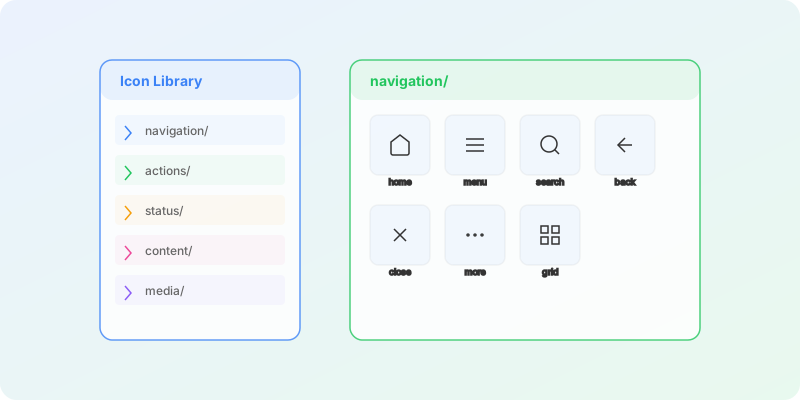
Key takeaways: A typical design system needs 30-50 icons across categories like navigation, actions, status, and content. Using AI generation with a systematic five-phase workflow, you can build a production-ready icon library in under an hour. The key is establishing a reference icon first, then batch generating with consistent templates.
A design system without a proper icon library is incomplete. Icons appear everywhere - navigation, actions, status indicators, content types - and inconsistent iconography undermines the entire system.
This guide walks you through building a complete icon library in under an hour using AI generation and systematic workflows. You'll end up with a production-ready set that integrates seamlessly with your design system.
Before You Start: Planning
Spending 10 minutes planning saves hours of rework. Answer these questions first:
1. What Icons Do You Need?
Audit your existing product or designs. Categorize icons by function:
Navigation
Home, menu, back, search, close, tabs
Actions
Add, edit, delete, save, share, copy
Status
Success, warning, error, info, loading
Content
File, folder, image, video, document
A typical design system needs 30-50 icons to cover core functionality. Start with essentials and expand later.
2. What Style Fits Your System?
Your icon style should match your design system's visual language. Consider:
| Design System Trait | Icon Style Match |
|---|---|
| Minimal, modern | Line icons with thin strokes |
| Bold, confident | Outline icons with thick strokes |
| Classic, trustworthy | Solid/glyph icons |
| Playful, friendly | Rounded icons with fills |
3. Technical Specifications
Define these before generating any icons:
- Grid size: 24×24px is the most common standard
- Stroke weight: 1.5px or 2px for 24px icons
- Corner radius: 2px rounded, sharp, or fully rounded
- Padding: 2px safe zone on all sides
- Export formats: SVG for web, PNG for documentation
Follow established patterns: Review public design systems like Atlassian, IBM, and Material Design for technical inspiration.
Phase 1: Create Your Reference Icon (10 min)
Your first icon sets the standard. Invest extra time to perfect it.
Step 1: Generate Options
Open Iconly's icon editor and generate your first icon. Choose something common like "home" or "search" that has a clear, universally understood form.
Write a detailed prompt following our prompting best practices:
"Home icon, simple house shape with door, line style, 2px stroke, rounded corners, minimal detail, suitable for 24px display"
Generate 3-5 variations and select the best starting point.
Step 2: Refine with Editing Tools
Use Iconly's post-processing tools to perfect your reference:
- Adjust thickness - Match your target stroke weight
- Smooth edges - Ensure clean, consistent lines
- Crop & recenter - Balance the icon in its frame
- Recolor - Apply your system's icon color
Step 3: Save as Template
Save your post-processing settings as a custom template. Every future icon will receive the same refinements automatically, ensuring consistency.
Phase 2: Batch Generation (20 min)
With your reference established, generate the rest of your icons efficiently.
Organize Your Icon List
Group icons by category for easier mental organization:
NAVIGATION (7)
- home, menu, back, search, close, more, grid

ACTIONS (10)
- add, edit, delete, save, share, copy, download, upload, refresh, undo

STATUS (5)
- success, warning, error, info, loading

USER (5)
- user, users, settings, lock, unlock

MEDIA (5)
- play, pause, volume, camera, image

CONTENT (8)
- file, folder, document, link, calendar, clock, tag, star
Generate by Category
Work through each category, using your reference icon as a style guide. For each icon:
- Write a specific prompt matching your template style
- Generate 2-3 options if needed
- Apply your saved template post-processing
- Save to your library
With practice, you can generate and refine an icon in under 30 seconds. For detailed guidance on generating multiple icons efficiently, see our batch icon generation tutorial.
Use Reference Mode
Click "Use as Reference" on your perfected home icon. This guides the AI to match your established style for all subsequent generations.
Speed tip: For very similar icons (like "play" and "pause"), generate one, then modify. The AI maintains consistency better when building on related concepts.
Phase 3: Consistency Review (10 min)
Before finalizing, review your complete set for inconsistencies.
Create a Grid View
Export all your icons and arrange them in a grid at their intended size. Look for:
- Visual weight: Do all icons have similar density?
- Stroke consistency: Are all lines the same thickness?
- Style coherence: Does any icon look out of place?
- Size balance: Do icons feel the same size?
Test at Multiple Sizes
View your icons at actual usage sizes:
| Size | Use Case | Check |
|---|---|---|
| 16px | Dense UI, tables | Still recognizable? |
| 24px | Standard UI | Details clear? |
| 32px | Buttons, cards | Proportions good? |
Fix Outliers
Regenerate any icons that don't match the set. It's faster to regenerate than to manually fix inconsistent icons. Review the full set of editing features available to help with final adjustments.
Phase 4: Organization & Documentation (15 min)
A library is only useful if your team can find and use icons correctly.
Naming Convention
Establish clear, consistent naming:
- Use lowercase with hyphens: "chevron-right" not "ChevronRight"
- Lead with the noun: "user-add" not "add-user"
- Be descriptive: "arrow-up-right" not "arrow1"
- Include state: "eye-open", "eye-closed"
Folder Structure
icons/
├── navigation/
│   ├── home.svg
│   ├── menu.svg
│   └── search.svg
├── actions/
│   ├── add.svg
│   ├── edit.svg
│   └── delete.svg
├── status/
│   ├── check.svg
│   ├── warning.svg
│   └── error.svg
└── index.json  (metadata file)
Create Usage Documentation
Document for your team:
- Icon inventory: All icons with names and visual preview
- Usage guidelines: When to use each icon
- Sizing rules: Allowed sizes and spacing
- Color rules: When to use which colors
- Don'ts: Common misuses to avoid
Phase 5: Delivery & Integration (5 min)
Make your icons available to your team.
Export Options
From Iconly, you can:
- Download PNGs: For documentation, presentations
- Get CDN links: For immediate web use via Iconly's CDN
- Save to Library: For access across sessions
- REST API: Pull icons programmatically into your build pipeline via the Iconly API
Integration Paths
Choose based on your tech stack:
| Platform | Recommended Approach |
|---|---|
| React/Vue/Angular | SVG sprites or icon components |
| Figma | Import SVGs as components |
| Native mobile | PDF (iOS) or VectorDrawable (Android) |
| Quick prototypes | Iconly CDN links |
Maintaining Your Library
Icon libraries grow over time. Keep them healthy with these practices:
Adding New Icons
- Check if an existing icon works first
- Use your saved template and reference icon
- Run through the consistency check
- Add to documentation
Quarterly Audits
Review your library regularly:
- Remove unused icons
- Consolidate duplicates
- Update any that don't match current style
- Add commonly requested icons
Example Timeline
Here's how the hour breaks down:
| Phase | Time | Outcome |
|---|---|---|
| Planning | 5-10 min | Icon list, specs defined |
| Reference icon | 10 min | One perfect icon, template saved |
| Batch generation | 20 min | 40 icons generated |
| Consistency review | 10 min | All icons match |
| Organization | 10-15 min | Named, organized, documented |
| Delivery | 5 min | Exported and shared |
Get Started
Ready to build your icon library? Sign up for Iconly and get 300 free tokens - enough to generate your core icon set and see the workflow in action. Start a free trial to unlock all Pro features.
For more detailed guidance on each step, see our tutorials on building consistent icon sets and AI prompting techniques. Once your library is ready, make sure to follow icon accessibility best practices for inclusive implementation. You can also explore the public icon library for additional inspiration, or check our pricing plans to find the best fit for your team.
Frequently Asked Questions
How many icons does a design system need?
A typical design system needs 30 to 50 icons to cover core functionality. These usually span categories like navigation (home, menu, search, close), actions (add, edit, delete, save), status indicators (success, warning, error), and content types (file, folder, image). Start with essentials and expand the library over time as new needs arise.
Can I build a complete icon library in under an hour?
Yes, using AI icon generation tools and a systematic workflow, you can build a production-ready icon library of about 40 icons in under an hour. The process breaks down into planning (5 to 10 minutes), creating a reference icon (10 minutes), batch generation (20 minutes), consistency review (10 minutes), and organization and delivery (15 to 20 minutes).
What icon style should I choose for my design system?
Your icon style should match your design system's visual language. Minimal and modern systems pair well with thin line icons. Bold and confident brands benefit from outline icons with thick strokes. Classic and trustworthy products work best with solid glyph icons. Playful and friendly designs suit rounded icons with fills. Choose one style and apply it consistently across the entire library.
How do I maintain an icon library after the initial build?
Maintain your icon library through regular quarterly audits where you remove unused icons, consolidate duplicates, update any that no longer match the current style, and add commonly requested new icons. When adding new icons, always use your saved template and reference icon for consistency, then run the new additions through the same consistency check used during the initial build.
What is the best naming convention for design system icons?
Use lowercase names with hyphens as separators. Lead with the noun rather than the verb, so use user-add instead of add-user. Be descriptive with names like arrow-up-right instead of arrow1. Include state information where relevant, such as eye-open and eye-closed. This convention makes icons easy to find and keeps the library organized as it grows.