Key takeaways:
- Reference images help AI understand layout, composition, visual mood, hierarchy, and production quality.
- The goal is direction, not duplication. Use references to guide original social creatives built from your own brand and campaign assets.
- Separate the reference's useful parts: structure, color mood, typography feel, product framing, spacing, or CTA treatment.
- Pair reference images with a saved brand profile, product media, and icons from your library for stronger consistency.
- Each output still needs review for readable text, platform-safe cropping, accurate claims, and brand fit.
AI social creative tools are much easier to direct when you can show them what you mean. A prompt can describe "clean premium ecommerce ad with bold product focus," but a reference image can show the spacing, crop, text hierarchy, visual mood, and level of polish you want.
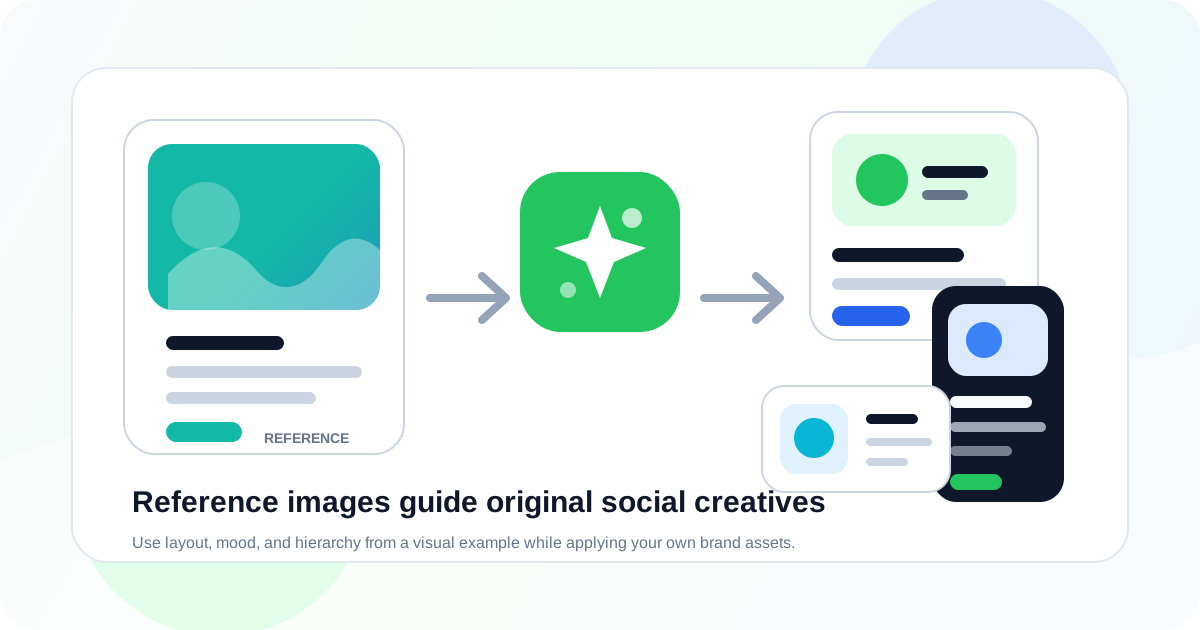
That is the value of reference images. They turn vague creative language into a visual anchor. Instead of asking the AI to invent a direction from scratch, you can guide it with an example and say, "use this kind of layout, this kind of product framing, this kind of text hierarchy, but apply our brand, our product, and our campaign message."
The important part is restraint. Reference images should guide a new design, not become a shortcut for copying someone else's creative. The best workflow extracts the useful design direction from a reference, combines it with your own brand profile and assets, then produces a fresh social creative that is editable and campaign-ready.
This guide shows how to use reference images inside Iconly's Social Graphics Studio, with support from Brand Studio, the media library, and saved icons from your Iconly library.
What Reference Images Do
A reference image gives the AI visual context. In social creative generation, that context can include:
- Composition: where the product, headline, CTA, logo, and supporting elements sit on the canvas.
- Hierarchy: what should be read first, second, and third.
- Visual mood: bright, editorial, technical, premium, playful, minimal, energetic, or calm.
- Spacing: dense retail layout, airy product launch layout, stacked mobile layout, or split composition.
- Typography feel: bold headline treatment, small label copy, high-contrast CTA, or quiet product annotation.
- Product framing: close crop, floating product, grid, hero object, screenshot mockup, or lifestyle placement.
- Asset treatment: shadows, cutouts, icon badges, backgrounds, borders, and overlays.
In Iconly, reference media can guide the generated social graphic while the campaign prompt controls the message and the selected brand profile controls the final brand system. That combination is stronger than a reference-only workflow because it keeps the output tied to your actual campaign.
Simple rule: tell the AI what to borrow from the reference and what to ignore. A good reference prompt might say, "Use the image for layout and hierarchy only. Use our brand colors, our product photo, and original copy."
When to Use Reference Images
Reference images are most useful when you already have a direction in mind but do not want to rebuild it manually. They are especially helpful for teams producing social graphics across campaigns, clients, or formats.
Campaign Refreshes
Use a strong previous post as a reference, then generate a new offer, product, or seasonal version.
Product Ads
Guide product placement, shadow style, offer badges, and CTA hierarchy without starting from a blank canvas.
Multi-Format Variants
Preserve the same visual direction across square, portrait, story, and landscape social creatives.
Fast Direction Setting
Help non-designers communicate "make it feel like this" while still keeping brand and copy controlled.
Use reference images when the visual direction matters. If you only need a simple announcement graphic, a prompt and a saved brand profile may be enough. If the campaign needs a specific composition, reference images save time and reduce guesswork.
How to Choose the Right Reference
The best reference is not necessarily the prettiest image. It is the image that communicates the specific design decision you want the AI to follow.
| Reference Type | Use It For | Watch Out For |
|---|---|---|
| Previous brand post | Keeping a campaign or brand feed consistent. | Old copy, outdated offers, or stale visual habits. |
| Product ad example | Product framing, badges, offer placement, CTA hierarchy. | Copying another brand's trade dress too closely. |
| Landing page hero | Translating website visual direction into social creative. | Too much desktop detail for a mobile social canvas. |
| Email header | Keeping launch emails and social posts visually connected. | Email layouts may need stronger hierarchy for feed scanning. |
| Competitor-style inspiration | Understanding a category convention or layout pattern. | Never ask for a direct copy. Extract broad structure only. |
Before uploading a reference, ask what job it is doing. Is it there for layout? Color mood? Product crop? Background treatment? Typography? The more specific you are, the better the output will be.
The Workflow
A reliable reference-image workflow has five steps:
- Write the campaign brief.
- Choose the reference image and define what it should influence.
- Add your brand profile, product media, logo, and icon assets.
- Generate format-specific drafts.
- Edit the output for readability, accuracy, and brand fit.
This sequence keeps the reference image in the right role. It becomes one input among several, not the entire creative strategy.
Step 1: Write the Creative Brief
Start with the campaign, not the image. A reference image can guide style, but it cannot decide the audience, offer, CTA, or claim for you.
Create a square Instagram ad for a premium coffee subscription.
Audience: remote workers who want better coffee at home.
Offer: first box 20% off.
Main message: cafe-quality beans delivered every month.
Tone: warm, confident, modern.
CTA: Start your first box.
Use our saved brand profile and product photo.
Use the reference image only for layout and text hierarchy.
This prompt gives the AI enough information to make a usable ad. The reference can shape the composition, but the campaign logic comes from the brief.
Step 2: Tell the AI What to Follow
Do not upload a reference image and leave the AI to guess. Name the exact traits you want carried into the new creative.
| If You Like... | Say This | Why It Works |
|---|---|---|
| The layout | "Use the same general composition: product on the right, headline on the left, CTA below." | Transfers structure without copying colors or text. |
| The mood | "Use the same premium, quiet, high-contrast mood, but apply our palette." | Keeps the emotional direction while preserving brand identity. |
| The product crop | "Use a close product crop with soft shadow and enough empty space for headline copy." | Guides the product treatment directly. |
| The CTA treatment | "Use a clear pill-shaped CTA area near the lower third, adapted to our brand color." | Makes the action visible without importing the whole design. |
| The typography hierarchy | "Use a large short headline, one smaller proof line, and a compact CTA." | Translates the reference into editable copy structure. |
Negative instructions help too. Add lines like "do not copy the reference text," "do not use the reference logo," or "do not match the exact color palette."
Step 3: Add Brand and Product Assets
Reference images work best when they are paired with owned assets. In Iconly, that means combining the reference with:
- A saved brand profile: colors, fonts, logo, brand description, and visual aesthetic from Brand Studio.
- Product or logo media: product photos, screenshots, background images, or campaign graphics from the media library.
- Custom icons: reusable icons from your Iconly library for badges, feature callouts, bullets, or decorative support.
- Campaign copy: approved offer, headline direction, proof point, CTA, and legal constraints.
This is what keeps the output from becoming generic. The reference image points the AI toward a design direction; your brand assets make the final creative yours.
If you are building the entire campaign from scratch, start with a saved brand profile first. The guide to creating campaign assets from one brief explains how brand, social, email, and icon assets connect across a launch workflow.
Step 4: Generate Format-Specific Drafts
Once the brief and reference instructions are clear, generate drafts for the formats you actually need. For most campaigns, start with square, story, and landscape.
| Format | Reference Guidance | Review Focus |
|---|---|---|
| Square | Use the reference for overall hierarchy and product placement. | Headline readability, product scale, CTA visibility. |
| Story | Use the same mood, but rebuild the layout vertically. | Top and bottom safe zones, large text, mobile clarity. |
| Portrait | Stack the reference structure into a taller feed layout. | Balanced spacing, natural reading order, product crop. |
| Landscape | Translate the reference into a horizontal composition. | Short headline, side-by-side structure, no tiny details. |
A reference image should not force every format into the same exact arrangement. A story creative needs a different composition than a landscape ad. Keep the same campaign DNA, but let each canvas breathe.
For more detail on placement sizes and format-specific review, read How to Generate Facebook and Instagram Ad Sizes With AI.
Step 5: Edit for Brand Fit
AI should get you to a strong first draft. The final pass still matters. Open the generated creative in the editor and check:
- Text accuracy: offer, discount, date, product name, and CTA are correct.
- Readability: headline and CTA are legible on mobile, not just desktop preview.
- Brand color: accents match the saved brand profile and do not drift toward the reference palette.
- Logo use: logo is clear, not stretched, and not too close to edges.
- Product image: product crop looks intentional and does not hide important details.
- Reference distance: final creative is inspired by the reference, not a close copy.
- Format safety: vertical and story outputs leave room for platform UI overlays.
Iconly's social creative editor lets you adjust text, spacing, image placement, sizing, and layout details after generation. That last mile is where a promising draft becomes publishable.
Prompt Templates
Use these prompts as starting points. Replace the bracketed details with your campaign information.
Reference Image for Layout
"Create a [format] social ad for [product]. Use the attached reference image for general layout only: [specific layout trait]. Do not copy the text, logo, exact colors, or imagery. Use our saved brand profile, [product/media asset], headline [headline], supporting copy [copy], and CTA [CTA]."
Reference Image for Product Framing
"Generate a [square/story/landscape] product ad. Use the reference image to guide product placement, shadow style, and spacing. Keep the final creative original, use our product image, apply our brand colors, and make the headline readable on mobile."
Reference Image for Campaign Consistency
"Use this previous campaign graphic as the reference for mood, hierarchy, and brand rhythm. Create a new social creative for [new offer]. Keep the same overall campaign feel, but update the headline, CTA, product image, and supporting icons."
Reference Image for Multi-Format Variants
"Create square, portrait, story, and landscape variants based on the attached reference direction. Preserve the same visual mood and campaign message across all formats, but recompose each layout for its canvas. Keep all text readable and maintain crop-safe spacing."
Common Mistakes
Reference images can improve AI social creative generation, but they can also make outputs worse if they are used loosely. Watch for these mistakes:
- Using too many references: several conflicting images can confuse the direction. Start with one clear reference.
- Forgetting the campaign brief: the reference does not replace audience, offer, proof, CTA, and format requirements.
- Copying too closely: use references for broad structure and mood, not direct imitation.
- Ignoring brand assets: if you do not provide brand colors, fonts, logo, and product media, the reference may dominate too much.
- Reusing one layout everywhere: story, square, portrait, and landscape formats need different compositions.
- Skipping QA: AI-generated text, claims, and product details still need human review before publishing.
Reference Image Checklist
Before generating the final creative, make sure you can answer these questions:
- What specific part of the reference should the AI follow?
- Which parts of the reference should be ignored?
- Are the brand profile, logo, product media, and icons selected?
- Is the campaign offer accurate and approved?
- Which formats need unique layouts instead of simple resizing?
- Will the final creative be editable after generation?
- Does the output feel original enough for your brand?
If the answer to any of those is fuzzy, tighten the prompt before generating more variants. Clear direction costs less time than fixing a batch of almost-right ads.
How Iconly Helps
Iconly's reference-image workflow is useful because it sits inside a broader asset system. You are not only generating an isolated image. You can create or select brand profiles, attach media assets, reuse custom icons, generate social creatives in multiple formats, edit the output, and keep assets organized for future campaigns.
That matters when your campaign needs more than one graphic. A launch might need a square ad, story creative, email header, feature icons, and a follow-up promotional post. The same reference direction can guide the social pieces while the saved brand profile and library keep the broader campaign consistent.
For bigger workflows, the Iconly Agent can help plan multi-step creative tasks across icons, social graphics, email templates, brand profiles, and library assets. For focused ad generation, start directly in the Social Graphics Studio.
Frequently Asked Questions
What is a reference image in AI social creative generation?
A reference image is an uploaded image that guides the AI's visual direction. It can influence layout, hierarchy, mood, spacing, product framing, and typography feel while the final creative still uses your own prompt, brand assets, product media, and copy.
Should AI copy a reference image exactly?
No. A reference image should guide a new creative, not become a direct copy. Use it for broad structure, quality level, visual mood, or product framing, then apply your own brand profile, product assets, icons, headline, and CTA.
What kinds of reference images work best?
Use clear, focused references: a previous brand post, a strong product ad layout, a landing page hero, an email header, or a campaign graphic with the hierarchy you want. Avoid cluttered screenshots, low-quality images, or several references with conflicting styles.
Can I use reference images with product photos?
Yes. A strong workflow uses the reference image for layout or mood and your product photo for the actual subject. Be explicit in the prompt: the reference should guide composition, while the product photo should appear in the final creative.
How do I keep reference-based social creatives on-brand?
Use a saved brand profile, provide your own logo and product media, reuse icons from your library, and describe which reference traits should be followed. Then edit the draft for color accuracy, spacing, text hierarchy, and brand fit before export.
Can one reference image guide several ad sizes?
Yes, but each size should be recomposed. Use the same reference direction and campaign message across square, portrait, story, and landscape formats, then adjust crop, spacing, text length, and CTA position for each canvas.
Continue reading: How to Organize AI Design Assets With a Media Library · HTML to Image API: Render Social Creatives and Email Previews · How to Keep Social Graphics and Emails On-Brand With AI · AI Newsletter Template Generator: Create Branded Newsletters Fast · AI Ad Copy and Design Generator: Create Visuals and Copy Together