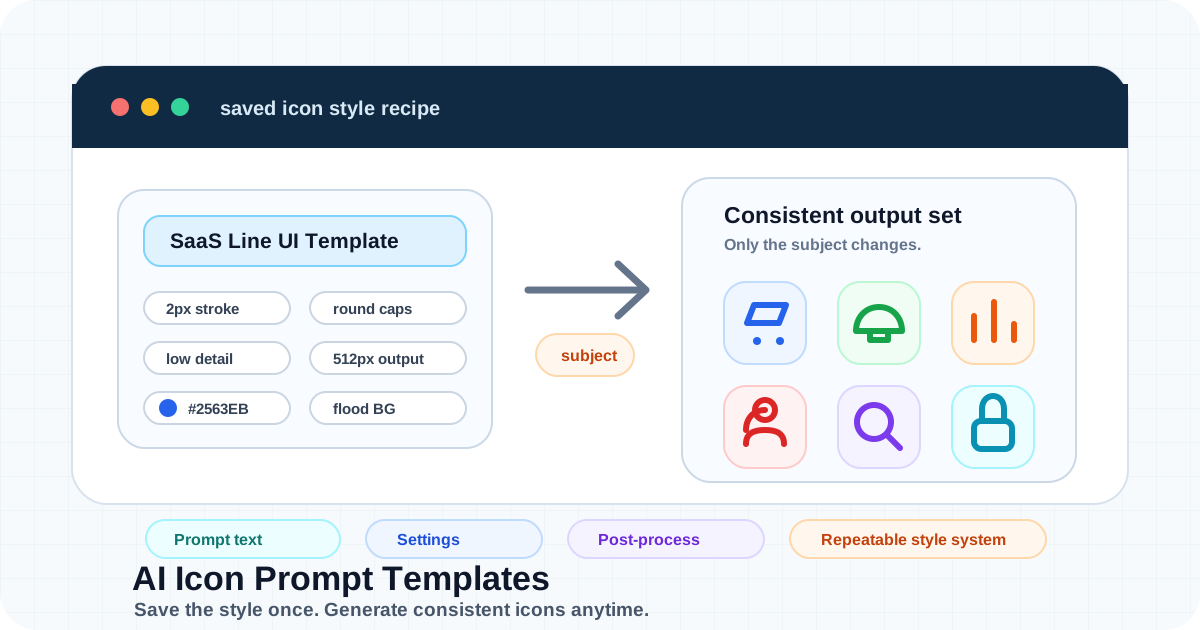
Key takeaways: AI icon prompt templates are reusable style recipes. They work best when the template stores the visual system and each generation supplies only the icon subject. In Iconly, custom templates can save prompt text, color mode, detail level, output size, background removal mode, post-processing settings, and flags such as allow text, AI background, keep background, and color bias.
Most AI icon problems do not start with a bad model. They start with a style system that lives only in someone's memory.
You prompt "minimal SaaS dashboard icon, blue line style, 2px stroke, rounded corners, no gradients" for the first icon. Then you write a slightly different prompt for the second icon. By the tenth icon, the set has drifted: some icons are more detailed, some use different padding, and some look like they came from a different product.
An AI icon prompt template solves that by turning the reusable parts of a prompt into a saved style recipe. In Iconly's icon generator, custom templates let you save the style instructions and the generation settings together, then reuse them whenever you need another icon in the same visual language.
What an AI Icon Prompt Template Is
An AI icon prompt template is a reusable set of instructions and settings for generating icons. It is not the same as a single prompt. A normal prompt asks for one icon. A template defines the visual rules that many icons should share.
Prompt Rules
Save the style language: stroke weight, shape treatment, detail limits, perspective, and negative instructions.
Generation Settings
Save color mode, detail level, output size, background behavior, and optional generation flags.
Post-Processing
Apply saved thickness, smoothing, crop, and background removal preferences to plain text-to-icon generations.
Repeatable Output
Use one style recipe across app icons, website icons, ecommerce categories, docs, or client work.
The best templates are deliberately boring. They do not try to describe every icon subject. They describe the repeatable system: "minimal line icon, uniform 2px stroke, rounded caps, simple geometric shapes, centered on a transparent background, no shadows, no gradients, readable at 24px."
Why Templates Beat Rewriting Prompts
Rewriting a prompt from memory works for one or two icons. It breaks when you need a set, a product library, a batch workflow, or a repeatable API pipeline.
| Workflow | Best For | Where It Breaks |
|---|---|---|
| One-off prompt | Single icons, quick experiments, rough concepts. | Style drifts when different people rewrite the same rules. |
| Saved prompt template | Icon sets, design systems, websites, apps, ecommerce categories, client brand styles. | Needs periodic QA when your brand style or icon usage changes. |
| Reference image | Matching a specific visual anchor from an existing icon. | Does not store structured settings like output size or background handling. |
Templates are especially useful when multiple people generate assets for the same product. Instead of handing teammates a long style paragraph and hoping everyone copies it correctly, save the template once and let the subject be the only changing input.
For general prompt-writing principles, read How to Generate Perfect Icons With AI. This article focuses on the next layer: saving those principles as reusable templates.
What to Save in a Template
A good template combines written instructions with concrete settings. In Iconly, a custom prompt template can save these fields:
| Template Field | What It Controls | Practical Advice |
|---|---|---|
| Name | The label you choose from the style dropdown. | Use functional names like SaaS Line UI, Ecommerce Glyph, or Brand Duotone. |
| Prompt text | The reusable style instructions. | Describe visual rules, not the current icon subject. |
| Color mode | Monochrome output or AI-selected full color. | Use monochrome for UI systems and full color for marketing or decorative icons. |
| Detail level | How simple or complex the icon should be. | Use low detail for small UI icons. Use medium or high only when the icon will be displayed larger. |
| Output size | Final generation size: 128, 256, 512, 1024, or 2048 px. | Use 512 px as a general default. Use smaller sizes for compact UI assets and larger sizes for rich icons. |
| Background removal | No removal, flood fill removal, or AI background removal. | Use flood fill for simple flat icons. Use AI removal when complex full-color styles leave artifacts. |
| Post-processing | Saved thickness, smoothing, and crop preferences. | Start at 0. Adjust only when the template consistently needs a correction. |
| Flags | Allow text, keep background, AI background, and color bias. | Keep flags off unless the style genuinely depends on them. |
That combination is what makes templates stronger than saved snippets. A saved text prompt remembers your words. A saved Iconly template remembers the words plus the generation behavior.
Simple rule: If you expect to generate more than five icons in the same style, make a template. The setup time pays for itself as soon as you stop rewriting the same constraints.
Create a Custom Template in Iconly
Here is a practical UI workflow for creating a reusable icon prompt template.
- Start with a real use case. Decide where the icons will appear: app navigation, feature pages, ecommerce categories, game inventory, docs, onboarding, or ads.
- Generate three test icons. Use the AI Icon Generator to test the style on different subjects before saving anything.
- Write the reusable style prompt. Keep the subject out of the template. Describe stroke, fill, perspective, detail, color behavior, padding, and exclusions.
- Open the custom style flow. Use the style dropdown and create a custom style template.
- Name the template clearly. Pick a name that tells future-you where to use it.
- Set color mode and detail level. Choose monochrome or full color, then choose the detail level that fits the display size.
- Choose output size. Use 512 px for most reusable web icons unless the icon needs to be very small or very large.
- Set background and post-processing. Keep thickness, smoothing, and crop at 0 until testing proves a repeated adjustment is useful.
- Save the template. It will appear in the style dropdown for future icon generation.
- Manage it later from Templates. Use Templates to review presets and custom templates as your style system evolves.
After saving the template, generate a small validation set: one simple object, one complex object, one abstract concept, and one edge-case subject. If all four look related, the template is probably ready for production.
Copy-Paste Template Examples
Use these examples as starting points, then adapt them to your product. The strongest templates are specific enough to constrain style but flexible enough to work across many subjects.
SaaS Dashboard Line Icons
Clean SaaS dashboard UI icon in minimal line style.
Use uniform 2px stroke, rounded caps, rounded joins, simple geometric forms,
centered composition, balanced padding, no fill, no gradients, no shadows,
no background scene, readable at 20-24px.| Setting | Recommended Value |
|---|---|
| Color mode | Monochrome |
| Detail level | Low |
| Output size | 512 px |
| Background removal | Flood fill |
Use it for subjects like analytics dashboard, automation workflow, customer profile, billing invoice, and security shield.
Ecommerce Category Glyphs
Bold ecommerce category glyph icon with solid filled silhouette.
Use simple recognizable shapes, rounded edges, high contrast, centered object,
no tiny interior details, no text, no perspective, no shadows, no gradients,
works as a category tile icon.
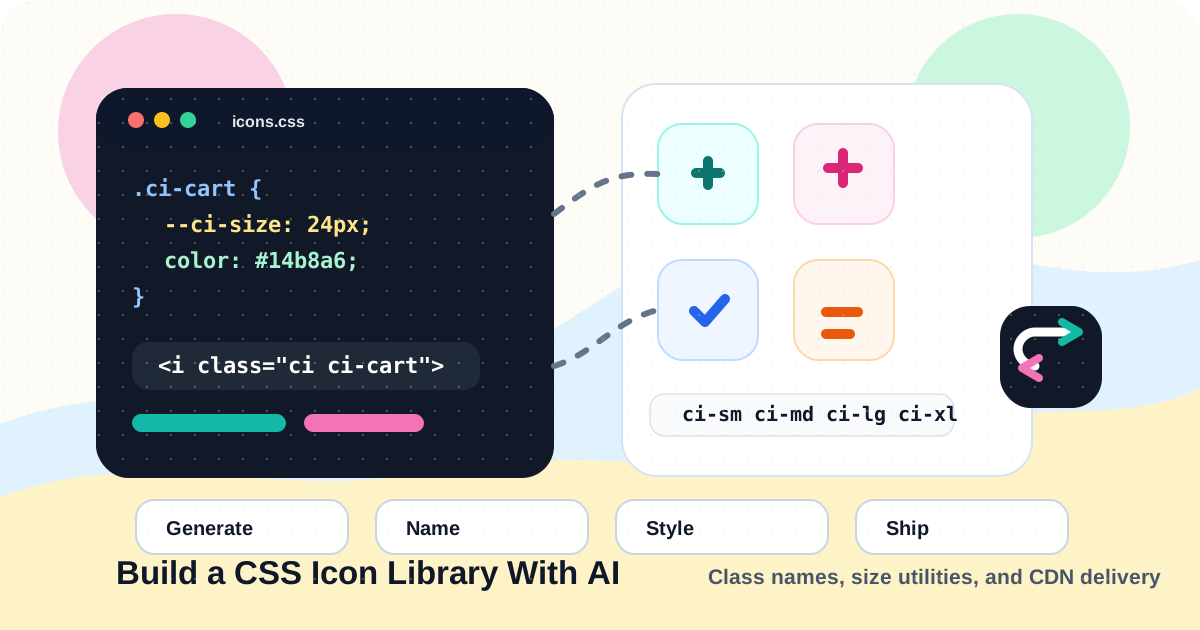
This template works well for store navigation, collection pages, sale graphics, and category filters. Pair it with predictable library names such as mens-shoes, skincare, home-decor, and gift-card. For web deployment, connect this workflow to the AI icon library with CDN guide.
Brand Duotone Marketing Icons
Modern duotone marketing icon with two brand-inspired colors.
Use smooth rounded shapes, simple dimensional layering, friendly polished style,
clear subject silhouette, subtle depth, no photorealism, no busy background,
no readable text unless the subject requires a simple symbol.
Use this for larger icons in pricing pages, feature sections, campaign graphics, and onboarding screens. Choose full color when you want the model to build the two-tone palette, or keep monochrome plus a color bias if your brand requires tighter color control.
Game Inventory Icons
Compact fantasy game inventory icon with centered object on transparent background.
Use readable silhouette, crisp edges, medium detail, subtle material texture,
slight top-down angle, high contrast, no scenery, no character, no text,
designed to work inside a square inventory slot.
This is a good example of a template that should allow more detail than a normal UI icon. The icon may be displayed larger, and material cues are part of the value. Use medium detail first, then move to high only if the icon has enough screen space.
Keep Subjects Separate From Style
The most common prompt-template mistake is putting the subject inside the template.
| Weak Template | Strong Template |
|---|---|
| "Create a blue line icon of a shopping cart with rounded corners." | "Create a blue line icon with uniform 2px stroke, rounded caps, simple geometric shapes, centered composition, no fill, no gradients." |
The weak version is really a prompt for one shopping cart icon. The strong version is a reusable style system. You can now use it for shopping cart, user profile, delivery truck, discount tag, and order confirmation without rewriting the style rules.
Think of the subject as a variable:
Template:
Minimal line UI icon, 2px stroke, rounded caps, no fill, no shadows,
centered on transparent background, low detail, readable at 24px.

Subjects:
- shopping cart
- user profile
- billing invoice
- analytics chart
- calendar reminder
That separation is what makes templates useful for generating matching icon sets with AI. The style remains stable while the subject changes.
Templates Plus Reference Images
Prompt templates and reference images solve different parts of the consistency problem.
- Template: saves structured rules and settings.
- Reference image: gives the AI a visual anchor from an existing icon.
- Library: stores the final approved icons for reuse, editing, download, and CDN delivery.
For a highly consistent icon set, use all three:
- Create a custom prompt template for the style system.
- Generate one excellent anchor icon with that template.
- Save the anchor icon to your Iconly Library.
- Use the anchor icon as a reference when generating additional subjects.
- Save approved outputs back into the library with clear names.
This gives the AI both written constraints and visual direction. The template says, "Here are the rules." The reference icon says, "This is what those rules should look like when executed well."
Best use case: Use a template alone for repeatable everyday generation. Add a reference icon when visual matching matters, such as design systems, client icon packs, app navigation, or category sets that will appear side by side.
Prompt Template API Workflow
Developers can manage prompt templates through the Iconly API. This is useful for internal tooling, agent workflows, client portals, build scripts, and repeatable asset pipelines.
List Templates
curl https://iconly.ai/api/prompt-templates/ \
  -H "X-API-Key: $ICONLY_API_KEY"
Use ?all=1 when you want all built-in presets and base styles, regardless of niche filtering:
curl "https://iconly.ai/api/prompt-templates/?all=1" \
  -H "X-API-Key: $ICONLY_API_KEY"
Create a Template
curl -X POST https://iconly.ai/api/prompt-templates/create/ \
  -H "Content-Type: application/json" \
  -H "X-API-Key: $ICONLY_API_KEY" \
  -d '{
    "name": "SaaS Line UI",
    "prompt_text": "Minimal SaaS UI icon, uniform 2px stroke, rounded caps, no fill, no gradients, no shadows, centered and readable at 24px.",
    "use_color": false,
    "detail_level": "low",
    "output_size": 512,
    "bg_removal": "flood",
    "thickness": 0,
    "smoothing": 0,
    "crop_percent": 0
  }'
The response includes the template ID:
{
  "id": "f60ab9e3-0000-0000-0000-123456789abc",
  "name": "SaaS Line UI",
  "message": "Template created successfully"
}
Generate an Icon With a Template
curl -X POST https://iconly.ai/api/generate-icon/ \
  -H "Content-Type: application/json" \
  -H "X-API-Key: $ICONLY_API_KEY" \
  -d '{
    "subject": "analytics dashboard",
    "template_id": "f60ab9e3-0000-0000-0000-123456789abc"
  }'
When a custom template is active, its saved settings replace request-level values for color mode, detail level, output size, background behavior, flags, and post-processing. Treat the template as the source of truth and edit the template when the style rules need to change.
Update or Delete a Template
curl -X POST https://iconly.ai/api/prompt-templates/f60ab9e3-0000-0000-0000-123456789abc/update/ \
  -H "Content-Type: application/json" \
  -H "X-API-Key: $ICONLY_API_KEY" \
  -d '{
    "name": "SaaS Line UI",
    "prompt_text": "Minimal SaaS UI icon, uniform 2px stroke, rounded caps, simple geometric forms, no fill, no gradients, no shadows, centered and readable at 20-24px.",
    "use_color": false,
    "detail_level": "low",
    "output_size": 512,
    "bg_removal": "flood"
  }'
curl -X DELETE https://iconly.ai/api/prompt-templates/f60ab9e3-0000-0000-0000-123456789abc/delete/ \
-H "X-API-Key: $ICONLY_API_KEY"For the full icon generation API, including library saving, CDN deployment, editing endpoints, and reference workflows, read the Iconly API icon generation guide.
Template QA Checklist
A prompt template should be tested like a small design system. Before using it across a production library, run this checklist:
- Generate at least five different subjects with the template.
- Include one simple subject, one complex subject, one abstract concept, and one edge-case subject.
- Review the outputs together, not one at a time.
- Check stroke weight, fill treatment, color behavior, padding, visual weight, and level of detail.
- Confirm the icons remain readable at their real display size.
- Make sure the prompt does not accidentally force one specific subject.
- Keep post-processing values at 0 unless the same correction is needed repeatedly.
- Use flood background removal for simple icons and AI background removal only when complex styles need it.
- Save approved outputs to the library with predictable names.
- Document when to use the template and when not to use it.
Do not be afraid to create multiple narrow templates instead of one giant universal template. A SaaS Line UI template, an Ecommerce Glyph template, and a Marketing Duotone template will usually outperform one overloaded "all brand icons" template.
When Not to Use a Prompt Template
Templates are powerful, but they are not the right tool for every icon request. Use a one-off prompt when you are experimenting with a new visual direction. Use a reference image when you need to match a specific existing icon. Use the Vector Studio when raw SVG output matters more than raster icon styling.
| Need | Use |
|---|---|
| One exploratory icon | Normal prompt |
| Many icons in one style | Prompt template |
| New icons matching a perfected icon | Prompt template plus reference image |
| Website deployment with CSS classes | Prompt template plus library/CDN workflow |
| Native scalable SVG illustration | Vector generation |
The goal is not to template everything. The goal is to make repeatable work actually repeatable.
Recommended workflow: Use Iconly's icon generator to test a style, save the reusable rules as a custom prompt template, generate an anchor icon, use that icon as a reference for strict matching, then save final icons to your library for editing, download, and CDN usage.
Frequently Asked Questions
What is an AI icon prompt template?
An AI icon prompt template is a saved set of reusable style instructions and generation settings for icon creation. Instead of rewriting the same style rules every time, you save the prompt text, color behavior, detail level, output size, background handling, and optional post-processing settings once.
How is a prompt template different from a normal icon prompt?
A normal icon prompt describes one output, such as "shopping cart icon." A prompt template describes the shared style system that many outputs should follow, such as "minimal line icon, uniform 2px stroke, rounded caps, no fill, no gradients, readable at 24px."
Should a prompt template include the icon subject?
Usually no. Keep the subject separate so the same template can generate many icons. The template should describe visual style, constraints, color behavior, detail level, background handling, and quality rules. The subject should change with each generation.
How many custom prompt templates can I save in Iconly?
Iconly currently supports up to 20 custom prompt templates per account. Built-in presets and base styles are separate from your custom templates, and custom templates remain available even when you customize which preset styles appear in your workspace.
Can I use prompt templates with the Iconly API?
Yes. The API supports listing templates, creating templates, updating templates, deleting templates, and generating icons with a saved template_id. This makes templates useful for internal tools, agent workflows, product integrations, and repeatable icon pipelines.
Do prompt templates replace reference images?
No. Prompt templates save written rules and settings, while reference images provide a visual anchor. For everyday consistency, a good template may be enough. For strict matching across a set, use a saved template plus a strong reference icon.
Continue reading: How to Generate Perfect Icons With AI: Prompting Tips That Work · Iconly Style Presets Explained: Line, Glyph, Pixel, Isometric, 3D, and More · How to Generate a Consistent, Matching Icon Set With AI in 2026 · The Complete Guide to AI Icon Generation in 2026 · AI Icon Library With CDN: Generate, Save, and Use Icons on Your Website