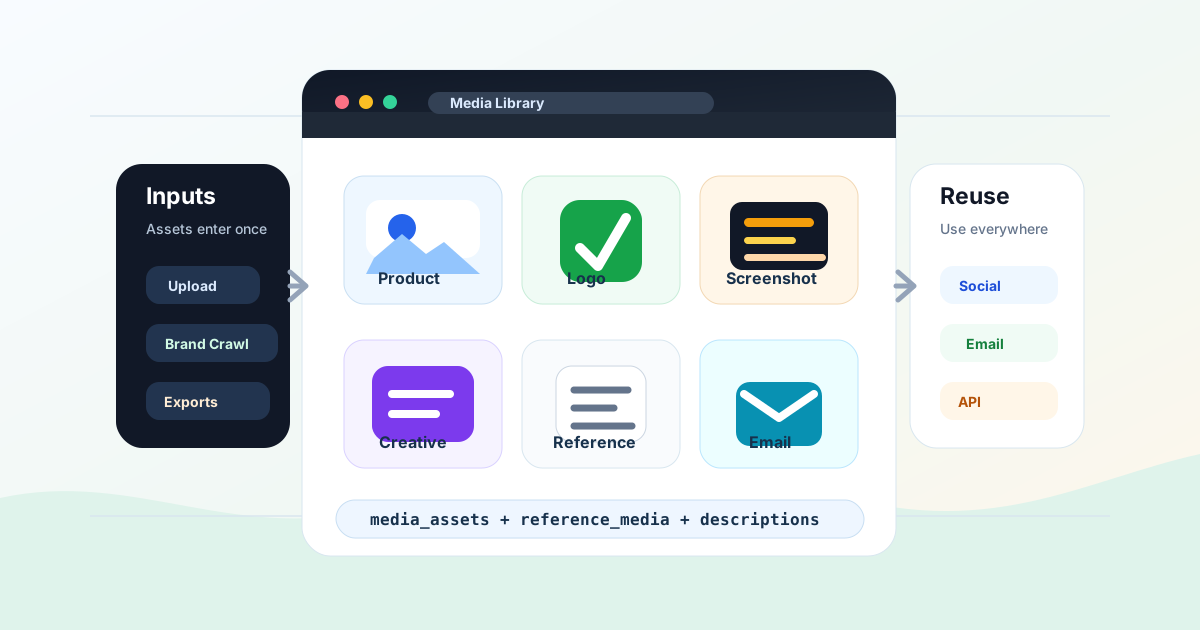
Key takeaways: A media library keeps non-icon assets ready for AI design workflows. Use it for product photos, logos, screenshots, campaign images, generated social exports, email visuals, and reference images. In Iconly, saved media can be uploaded manually, saved from Brand Studio, listed through the API, described for AI context, and reused inside Social Creative Studio and Email Builder.
AI design tools get much better when they can see the assets your team actually uses: the product photo, the app screenshot, the logo, the campaign header, the customer story image, the previous ad layout, and the brand imagery from your website.
Without a media library, those assets usually scatter across downloads folders, old design files, chat threads, CMS uploads, and campaign folders. The result is familiar: the AI gets a vague prompt, the wrong screenshot, an outdated logo, or no visual input at all.
A media library fixes that by giving your team a reusable source of truth for non-icon images. In Iconly, the Media Library stores uploaded images and saved brand-crawl media so they can be reused in AI-generated social graphics, HTML emails, and reference-based creative workflows.
What an AI Design Media Library Is
An AI design media library is a managed collection of image assets that can be selected, described, reused, downloaded, and passed into generation workflows. It is different from a normal folder because the assets are not only stored for humans. They are structured so AI workflows can use them too.
Reusable Images
Store product photos, logos, screenshots, banners, generated graphics, and campaign visuals in one place.
AI Context
Names and descriptions tell the generator what each image is, where it belongs, and how it should be used.
Upload and Save
Upload images directly or save selected assets discovered during a Brand Studio website crawl.
API-Ready
List assets, update descriptions, download files, serve images, and pass media into generation endpoints.
The best way to think about it: icons live in the icon library, while larger image assets live in the media library. Icons are usually symbolic. Media assets are usually concrete: a shoe photo, dashboard screenshot, product package, founder headshot, campaign banner, or reference layout.
What to Save
A media library should stay selective. The goal is not to save every image your team has ever touched. The goal is to keep the assets that are likely to improve future design generation.
| Asset Type | Use It For | Save It When |
|---|---|---|
| Product photos | Social ads, ecommerce graphics, promotional emails, feature launches. | The photo is clean, current, well-lit, and likely to appear in more than one campaign. |
| App screenshots | SaaS launches, product updates, email feature sections, comparison graphics. | The UI is current and the screenshot does not expose private data. |
| Logos and marks | Brand-aware social graphics, email headers, partner graphics, event banners. | The file is approved and has enough resolution for the formats you generate. |
| Generated creatives | Campaign archives, visual reference, thumbnails, client review, future remixing. | The creative is final enough to reuse or reference later. |
| Reference images | Guiding layout, product framing, visual hierarchy, or campaign direction. | The image communicates a useful design pattern without needing to be copied exactly. |
| Brand crawl media | Turning website imagery into reusable assets for social and email workflows. | The crawled image is relevant, not decorative filler, and still reflects the brand. |
Do not save blurry screenshots, temporary mockups, outdated sale banners, irrelevant stock images, or duplicate versions with unclear differences. AI will use the assets you give it, so stale media can quietly pull future designs in the wrong direction.
Three Ways Assets Enter the Library
Most useful media libraries grow from three sources: direct uploads, brand crawls, and generated campaign exports.
1. Direct Uploads
Use direct uploads for images your team already trusts: product photography, polished screenshots, customer story images, logos, backgrounds, packaging, and event photos. In Iconly, uploads are available from Media Library, and the upload flow accepts image files up to 5 MB each.
After upload, open the asset panel and add a short description. That description can become useful generation context later.
Good description:
"Dashboard screenshot showing revenue chart, customer health score,
and weekly growth metrics for SaaS founder audience."

Weak description:
"screenshot"
2. Brand Crawl Media
Brand Studio can crawl a website, extract brand details, and discover media such as logos, product screenshots, page images, and campaign visuals. Save only the useful discovered images into the media library.
This is especially helpful for agencies and multi-brand teams. You can crawl a client website, review the discovered assets, save the clean ones, and then use them in social graphics or emails without manually downloading and re-uploading files.
For the API version of that flow, see the Brand API guide. For the visual setup process, read How to Extract Brand Identity From a Website With AI.
3. Generated Campaign Assets
Generated social creatives, banners, previews, and screenshots can become media assets too. Save final exports when they are likely to be reused, referenced, attached to reports, or adapted for another channel.
For example, a strong square launch graphic can become a reference for the next story ad. A rendered email header can guide a matching social post. A final ad image can become a campaign archive item that helps future AI generations stay visually connected.
Naming and Descriptions
The media library is only as useful as its names. AI can inspect images, but names and descriptions make intent explicit. That matters when several assets look similar or when a product screenshot needs a specific role.
| Rule | Example | Why It Helps |
|---|---|---|
| Name by function | product-dashboard-q2-overview |
The asset can be found by product area and purpose. |
| Include campaign when relevant | spring-sale-product-photo |
Seasonal assets do not get mistaken for evergreen assets. |
| Describe the useful content | "Hero product photo on light background, use for premium ecommerce ads." | The AI understands what to emphasize and where the asset fits. |
| Flag constraints | "Use only for 2026 launch campaign. Do not use after July." | Outdated claims and offers are less likely to leak into new creatives. |
| Separate references from final assets | reference-layout-split-product-left |
Everyone knows the asset is guidance, not necessarily final content. |
Descriptions do not need to be long. One or two clear sentences is usually enough:
Logo mark for Acme Analytics. Use on dark backgrounds when possible.

Product screenshot showing the automations builder. Best for feature
launch emails and SaaS dashboard social posts.

Reference image for a clean split layout with product on the right,
headline on the left, and CTA in the lower third.
That kind of description makes the asset useful to a marketer browsing the library and to an AI model assembling a social graphic or email.
Use Media in Social Graphics and Emails
The biggest reason to keep a media library is reuse. When assets are saved and described, they can be attached to generation workflows instead of being re-explained from scratch.
Social Graphics
Use media assets in Social Creative Studio when the final graphic needs a concrete image: product photo, app screenshot, logo, background, event image, or campaign visual. Pair media with a clear brief, brand profile, and optional icons from your Iconly Library.
Create a square launch ad for the new automation dashboard.
Use the saved dashboard screenshot as the main product visual.
Use the saved logo in the top-left corner.
Audience: SaaS founders.
CTA: Start free trial.
For platform-specific output, combine this workflow with Facebook and Instagram ad size generation. For reference-guided layouts, use the dedicated reference image workflow.
Email Templates
Use media assets in Email Builder when an email needs visual proof: a product screenshot, hero image, customer photo, feature graphic, or event banner. Keep the asset list focused. One strong image is usually better than five weak ones.
Create a promotional email for the annual plan offer.
Use the product screenshot after the intro section.
Use the saved logo in the header.
Keep the layout responsive and around 600px wide.
CTA: Upgrade today.
If the email will be imported into an ESP, pair this workflow with Mailchimp-ready HTML email generation or the broader AI Email Template API guide.
Use Reference Images Correctly
There are two ways media can influence AI generation:
- As a media asset: the image should appear in the final creative, such as a product photo or screenshot.
- As a reference image: the image should guide layout, hierarchy, style, or composition, even if it does not appear in the final creative.
This distinction matters. If you attach a product photo as media, the AI should use that product photo. If you attach a previous ad as a reference, the AI should learn from its structure without copying the old offer, old text, or old image directly.
| Asset Role | Use This For | Prompt Language |
|---|---|---|
| Media asset | Product photo, logo, app screenshot, customer image. | "Use this product photo in the final graphic." |
| Reference image | Layout, mood, spacing, hierarchy, product framing. | "Use this only for layout direction. Apply our brand and new copy." |
| Archive asset | Past campaign record, client approval, reporting, future inspiration. | "Use as a visual reference for the next campaign, not as final content." |
Use only one reference image at a time when possible. Multiple references with different layouts can make the generation less focused. Keep the final prompt explicit about what the reference should and should not influence.
Campaign Organization Workflow
A practical campaign workflow looks like this:
- Create or update the brand profile. Use Brand Studio to store colors, fonts, description, visual aesthetic, products, and features.
- Save reusable brand media. Save clean logos, product screenshots, and useful website media into the media library.
- Upload campaign-specific assets. Add product photos, offer images, event visuals, or customer story images.
- Add descriptions. Explain what each asset is, where it should appear, and any time-sensitive constraints.
- Generate social creatives. Attach the relevant media and icons, then create platform-specific graphics.
- Generate matching emails. Reuse the same brand profile and approved media in newsletter, promotional, or launch emails.
- Save final exports. Keep final assets that are useful for archives, reporting, future references, or campaign reuse.
- Clean up after launch. Delete rejected drafts and outdated offer graphics before they confuse the next campaign.
This is the asset layer behind a bigger AI campaign workflow. The AI can generate the design, but your library decides which visuals are trusted enough to reuse.
Simple rule: save fewer, better assets. A small media library with approved, described images will produce better downstream results than a large library full of duplicates and unclear drafts.
Media Library API Workflow
Developers can manage media assets through the Iconly API. This is useful for custom dashboards, internal campaign tools, agent workflows, client portals, or automated asset pipelines.
Upload an Asset
curl -X POST https://iconly.ai/api/media/upload/ \
  -H "X-API-Key: $ICONLY_API_KEY" \
  -F "file=@product-screenshot.webp"
The response includes the saved asset ID, name, type, serve URL, width, and height:
{
  "success": true,
  "asset": {
    "id": "8b8a6c8d-0000-0000-0000-123456789abc",
    "name": "product-screenshot.webp",
    "type": "other",
    "url": "/api/media/8b8a6c8d-0000-0000-0000-123456789abc/serve/",
    "width": 1440,
    "height": 900
  }
}
Add or Update a Description
curl -X PATCH https://iconly.ai/api/media/8b8a6c8d-0000-0000-0000-123456789abc/ \
  -H "X-API-Key: $ICONLY_API_KEY" \
  -H "Content-Type: application/json" \
  -d '{
    "description": "Product dashboard screenshot for SaaS launch graphics. Use as the main product visual."
  }'
List Assets
curl https://iconly.ai/api/media/ \
  -H "X-API-Key: $ICONLY_API_KEY"
Each returned asset includes the fields needed for generation:
{
  "success": true,
  "assets": [
    {
      "id": "8b8a6c8d-0000-0000-0000-123456789abc",
      "name": "product-screenshot.webp",
      "url": "/api/media/8b8a6c8d-0000-0000-0000-123456789abc/serve/",
      "thumbnail_url": "/api/media/8b8a6c8d-0000-0000-0000-123456789abc/serve/",
      "file_type": "other",
      "description": "Product dashboard screenshot for SaaS launch graphics.",
      "width": 1440,
      "height": 900
    }
  ]
}
Use Media in Generation
Pass selected assets into social creative or email generation as media_assets. Use a single reference_media object when an image should guide layout or style.
{
  "platform": "square",
  "context": "Launch ad for a SaaS analytics dashboard. Use the dashboard screenshot as the main product visual.",
  "media_assets": [
    {
      "id": "8b8a6c8d-0000-0000-0000-123456789abc",
      "name": "product-screenshot.webp",
      "url": "/api/media/8b8a6c8d-0000-0000-0000-123456789abc/serve/",
      "description": "Product dashboard screenshot for SaaS launch graphics.",
      "width": 1440,
      "height": 900
    }
  ],
  "reference_media": {
    "id": "43f1f287-0000-0000-0000-123456789abc",
    "name": "reference-layout.webp",
    "url": "/api/media/43f1f287-0000-0000-0000-123456789abc/serve/",
    "description": "Reference for split layout and CTA placement.",
    "width": 1080,
    "height": 1080
  }
}
For a complete API overview, start with the Iconly API guide. For programmatic social asset generation, read the Social Creative API guide.
Cleanup and QA Checklist
A media library should get cleaner over time, not heavier. Run this checklist after each launch or major campaign:
- Delete rejected drafts that will not be reused.
- Remove duplicate uploads with unclear differences.
- Rename vague files such as
image-final-v3orscreenshot-new. - Add descriptions to any reusable product photos, logos, screenshots, and references.
- Flag time-sensitive assets with campaign dates or usage limits.
- Keep final social exports separate from reference images.
- Check that product screenshots do not expose private customer or account data.
- Review generated creatives for outdated offers before reusing them as references.
- Download or archive assets that need to live outside Iconly.
- Delete old media when storage limits become a constraint.
Good library hygiene pays off quickly. The next time you generate a campaign, you will not have to hunt for the right product shot, wonder which logo is current, or explain the same screenshot from scratch.
Recommended workflow: Keep brand identity in Brand Studio, reusable icons in the Iconly Library, non-icon images in the Media Library, and campaign generation in Social Creative Studio and Email Builder. That separation keeps each asset type easy to find and easy for AI to reuse.
Frequently Asked Questions
What is an AI design media library?
An AI design media library is a reusable asset library for non-icon images such as product photos, logos, screenshots, banners, social exports, and reference images. It keeps those assets available for social creative generation, HTML email generation, brand workflows, and API automation.
What should I save in a media library?
Save clean, reusable images: product photos, current app screenshots, approved logos, campaign banners, email header images, brand crawl media, final social exports, and clear reference images. Avoid duplicates, temporary drafts, outdated offer graphics, blurry screenshots, and images that are not likely to be reused.
How do media assets help AI generate better social graphics and emails?
Media assets give the AI concrete visuals to work with. In Iconly, selected media can be attached to social creative or email generation, and each asset's name, URL, dimensions, and description help explain what the image is and how it should be used.
What is the difference between a media asset and a reference image?
A media asset is an image the AI can use in the final design, such as a product photo, logo, or screenshot. A reference image is a single visual guide for layout, composition, hierarchy, or style. The reference should guide the design direction, not necessarily appear in the final creative.
Can I manage media assets with the Iconly API?
Yes. The Iconly API includes endpoints to upload media, list assets, update descriptions, download files, serve assets, delete assets, and save discovered brand crawl media into the media library. API-managed media can then be passed into social creative and email generation workflows.
How do I keep an AI media library clean?
Use descriptive names, add short AI-readable descriptions, keep one approved version of each reusable image, delete outdated campaign assets, separate final exports from references, and review the library after each launch. A smaller approved library is usually better than a large messy one.
Continue reading: How to Keep Social Graphics and Emails On-Brand With AI · How to Create a Consistent Brand Icon Set for Your Website in 2026: Complete Guide · Brand API Guide: Crawl Websites and Reuse Brand Profiles · How to Extract Brand Identity From a Website With AI · How to Use Reference Images to Generate On-Brand Social Creatives