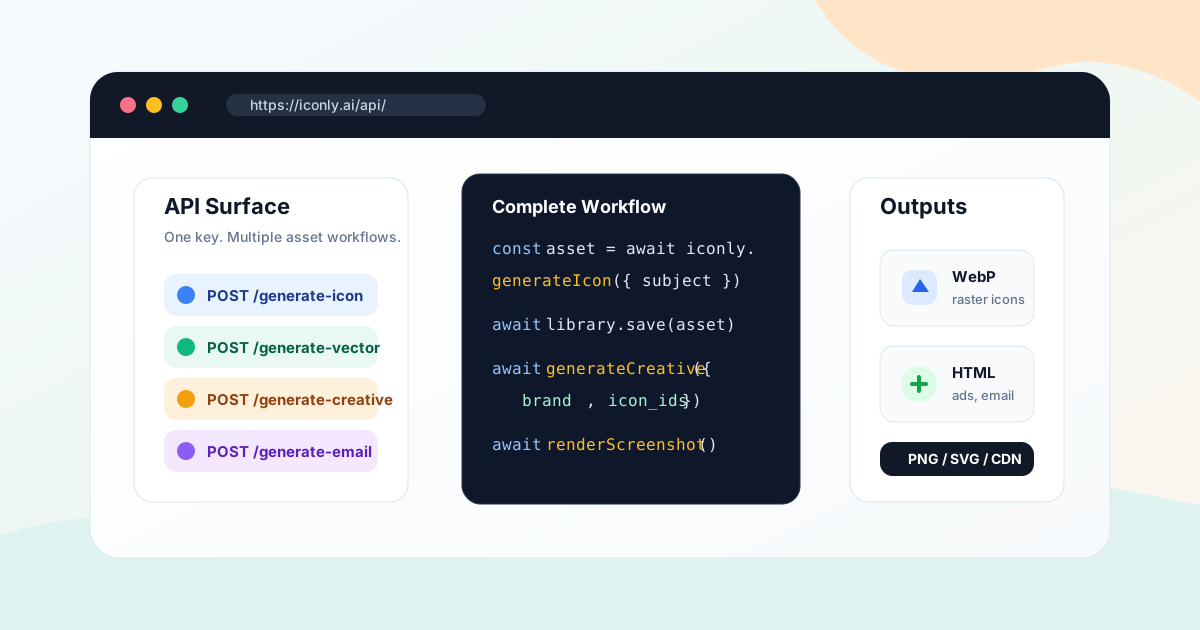
Key takeaways: The Iconly API is a REST API for generating and managing design assets from code. Use POST /api/generate-icon/ for raster icons, POST /api/generate-vector/ for SVG vectors, POST /api/generate-creative/ for social graphics, POST /api/generate-email/ for responsive HTML emails, POST /api/brands/ for brand profiles, and POST /api/html-screenshot/ to render HTML into PNG or WebP images.
Documentation status: Endpoint names, authentication examples, and workflow links in this overview were reviewed against the in-product API reference on August 28, 2026. Treat the API reference as the source of truth for request fields, limits, and response shapes.
Most design APIs stop at one asset type. They generate an image, return a URL, and leave the rest of the production workflow to you. That is useful, but it is not enough when your app needs a reusable visual system, a campaign builder, a client portal, an internal creative tool, or an AI agent that can produce actual brand assets.
The Iconly API is designed for the full design workflow: generate icons, save them to a library, reuse them in social graphics and email templates, apply brand colors and fonts, manage media assets, export SVG vectors, and render HTML designs into final PNG or WebP images.
This guide gives you the practical map. It explains what each endpoint is for, how the pieces fit together, and how to build a repeatable production pipeline instead of a pile of disconnected image calls.
Fastest route to a working integration: Create an API key, call GET /api/tokens/, make one generation request, persist the returned asset ID or output, and add retry handling only after that minimal path works. Use the specialist guides for production implementations: icon generation, social creatives, HTML email generation, and rendered exports.
What Is the Iconly API?
The Iconly API is a REST API for AI-generated design assets. You send JSON requests, authenticate with an API key, and receive JSON responses containing generated images, SVG markup, HTML creatives, copy fields, saved asset IDs, or account metadata.
The strongest use cases are workflows where design needs to be generated, edited, saved, and reused:
Icon Generation
Create raster icons from prompts, refine them, remove backgrounds, recolor, and save them to a reusable library.
SVG Vectors
Generate raw SVG markup for scalable web graphics, simple illustrations, and animated vector assets.
Campaign Assets
Generate social creatives and email templates using brand colors, fonts, icons, product images, and campaign context.
Export and QA
Render HTML into PNG or WebP screenshots, check token balance, and manage saved assets programmatically.
If you only need one icon, start with the Iconly icon API guide. If you need social ads specifically, read the Social Creative API guide. This article is the wider map across the whole platform.
Authentication and Setup
All authenticated API requests use the same base URL:
https://iconly.ai/api/Send your API key in the X-API-Key header. API keys use the ik_ prefix and can be generated from Settings in your Iconly dashboard.
X-API-Key: ik_your_api_key_hereUse JSON request bodies for POST, PUT, and PATCH requests:
Content-Type: application/jsonDo not expose your key in browser JavaScript, mobile app bundles, public repositories, client-side logs, or analytics events. Put it on your server, worker, queue processor, internal automation tool, or agent runtime.
First Health Check
The simplest first call is a token balance check:
curl https://iconly.ai/api/tokens/ \
  -H "X-API-Key: $ICONLY_API_KEY"
If that succeeds, your key is valid and your server can reach Iconly. Run this before long generation jobs so your app can fail cleanly when an account is out of tokens.
Tokens, Rate Limits, and Timeouts
Generation endpoints cost tokens. Utility, library, and management endpoints are usually free unless they trigger AI work such as smart background removal or website crawling.
| Workflow | Typical Cost | Notes |
|---|---|---|
| Raster icon generation | 6 to 24 tokens | Depends on model, full-color flag, detail flags, and template output size. |
| Smart background removal | 1 token | Standard recolor, thickness, smoothing, crop, and flood background removal are free. |
| SVG vector generation | 18 tokens | Returns raw SVG markup, optionally saved to the library. |
| Social creative generation | 12 to 75 tokens | Fast mode is 12 tokens per format or copy. Thinking mode is 25. |
| Email template generation | 12 to 25 tokens | One responsive HTML email template per call. |
| Brand website crawl | 10 tokens | Extracts colors, fonts, products, features, aesthetic, links, and discovered media. |
| HTML screenshot rendering | 0 tokens | Still rate-limited because browser rendering is compute-intensive. |
Rate limits are designed around workload type:
| Category | Limit | Examples |
|---|---|---|
| Generation | 10 requests/min | Icons, vectors, social creatives, email templates |
| Processing | 30 requests/min | Recolor, thickness, smoothing, crop, background cleanup |
| Uploads | 20 requests/min | Media upload workflows |
| Screenshots | 10 requests/min | HTML to PNG or WebP rendering |
Use longer client timeouts for AI work. Icon and vector generation usually fit under 60 seconds. Social creative and email generation can take 2 to 3 minutes, especially when producing multiple formats or richer HTML. Screenshot rendering should usually fit under 30 seconds.
Endpoint Map
Here is the high-level API surface by job type:
| Need | Endpoint | Returns |
|---|---|---|
| Generate a raster icon | POST /api/generate-icon/ |
Base64 WebP image data |
| Edit a raster icon | POST /api/recolor/, /adjust-thickness/, /smooth-edges/, /crop-recenter/, /remove-bg/ |
Processed base64 WebP image data |
| Generate an SVG vector | POST /api/generate-vector/ |
Raw SVG markup |
| Manage saved icons and vectors | GET /api/library/list/, POST /api/library/add/, GET /api/library/download/ |
Library items, IDs, CSS classes, files |
| Generate social graphics | POST /api/generate-creative/ |
Editable HTML creatives and ad copy |
| Generate email templates | POST /api/generate-email/ |
Responsive HTML email and copy fields |
| Create or crawl brands | POST /api/brands/, POST /api/brands/{brand_id}/crawl/ |
Brand profile data and discovered media |
| Render HTML to image | POST /api/html-screenshot/ |
PNG or WebP data URL |
| Check account status | GET /api/tokens/, GET /api/account/stats/ |
Token balance and usage metadata |
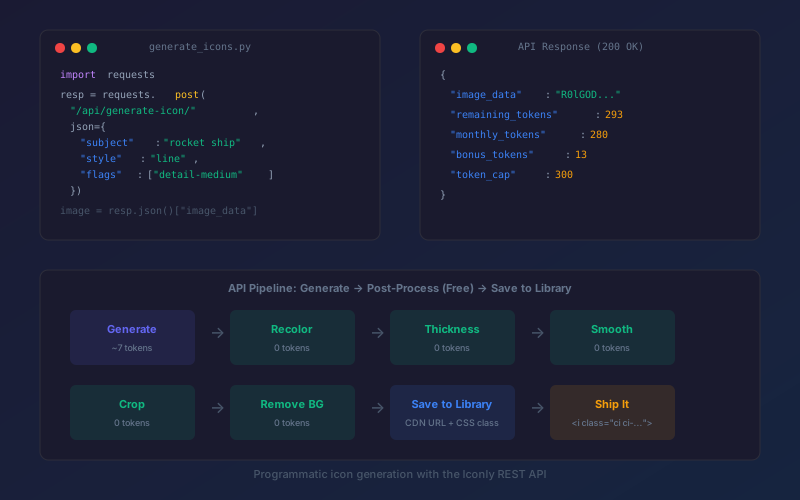
Generate Icons
Use POST /api/generate-icon/ when you need a raster icon for an app, website, email, social graphic, category tile, onboarding screen, or design system.
POST /api/generate-icon/The core request is simple:
{
  "subject": "rocket ship launching",
  "style": "line",
  "color": "#2563eb",
  "flags": ["detail-medium"]
}
The response includes image_data, a base64-encoded WebP image. For base styles such as line, glyph, outline, pixel, and isometric, the color parameter controls the monochrome output. If you add the color flag, the AI generates full-color output and the hex color is ignored.
Preset styles such as glassmorphism, photorealistic, clay-3d, neon, watercolor, stained-glass, hand-drawn, and woodcut package style instructions, detail level, and output size into a reusable setting. You can fetch presets and custom templates with GET /api/prompt-templates/.
Post-Processing
AI icon outputs often need small production cleanup. Iconly exposes those edits as API endpoints:
POST /api/recolor/changes a monochrome icon to a new hex color.POST /api/adjust-thickness/makes strokes thinner or thicker.POST /api/smooth-edges/smooths or sharpens edge quality.POST /api/crop-recenter/recenters icon content with controlled padding.POST /api/remove-bg/removes simple white or light backgrounds.POST /api/smart-remove-bg/uses AI background removal for complex images.
For a deeper icon-specific walkthrough, read the Iconly API for Icon Generation guide.
Generate SVG Vectors
Use POST /api/generate-vector/ when you need raw SVG markup instead of a raster image.
POST /api/generate-vector/{
"subject": "mountain analytics dashboard",
"style": "duotone",
"save": true,
"name": "mountain-analytics"
}Vector styles include simple, detailed, duotone, filled, and animated. The response contains an svg field with raw SVG markup. Animated vectors include CSS keyframes inside the SVG.
Vectors are best for scalable illustrations, SVG-first web assets, animated decorative elements, and workflows where native markup matters. They are not the right input for social creatives or email templates. Use raster icon generation when you want an icon to be placed into social graphics or emails.
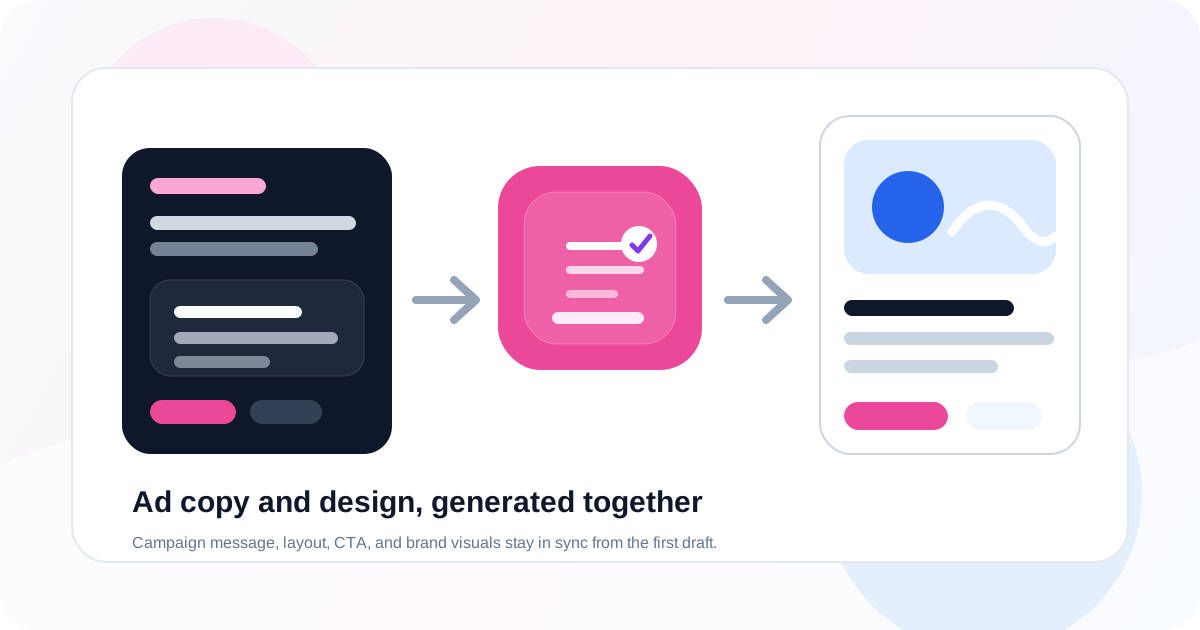
Generate Social Creatives
Use POST /api/generate-creative/ to generate campaign graphics for social media and paid ads.
POST /api/generate-creative/{
"platform": "instagram",
"context": "Launch campaign for a project management app. Promote AI summaries, team dashboards, and a 14-day trial.",
"colors": ["#111827", "#2563eb", "#f8fafc"],
"brand_fonts": ["Inter", "Manrope"],
"icon_ids": ["saved-icon-uuid"],
"model": "thinking"
}The endpoint returns editable HTML creatives, not final images. For facebook, Iconly generates feed, square, and story sizes. For instagram, it generates square, portrait, and story sizes. Single-size platforms include square, portrait, story, landscape, wide, and standard.
To export a final PNG or WebP, send each returned HTML creative to POST /api/html-screenshot/ with the creative width and height. The Social Creative API guide covers that workflow in detail.
Generate HTML Email Templates
Use POST /api/generate-email/ to generate responsive, portable HTML emails.
POST /api/generate-email/{
"email_type": "promotional",
"context": "Spring sale email for a wellness brand. Highlight 25% off starter kits and a calm, premium tone.",
"colors": ["#064e3b", "#a7f3d0", "#fff7ed"],
"brand_fonts": ["Inter", "Georgia"],
"model": "thinking",
"save": true,
"name": "Spring sale promo"
}Supported email types include newsletter, promotional, welcome, transactional, announcement, and event_invite. The response contains a responsive HTML email document, extracted text content, and copy fields such as subject line, preheader, headline, and CTA depending on the email type.
The final email deliverable should stay HTML. Use screenshots for approvals, previews, and thumbnails, not as a replacement for the HTML that your ESP sends.
Brands, Media, and Library Assets
The most valuable API workflows reuse assets. That usually means combining three pieces: brand profiles, media assets, and saved library items.
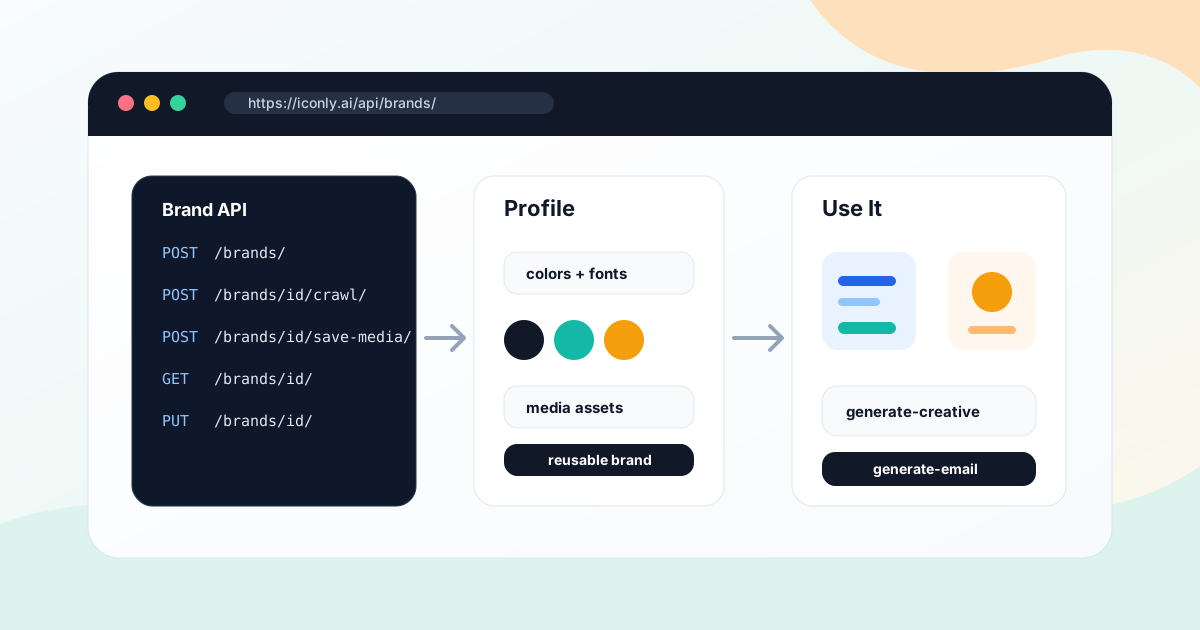
Brand Profiles
Brand endpoints store colors, fonts, product information, aesthetic direction, logo URL, links, and crawled website metadata.
POST /api/brands/
GET /api/brands/
GET /api/brands/{brand_id}/
PUT /api/brands/{brand_id}/
DELETE /api/brands/{brand_id}/
POST /api/brands/{brand_id}/crawl/
Creating a brand with a url can crawl the website and populate brand data. Use that brand data when generating social creatives or emails by merging the relevant brand context into the context field and passing colors and brand_fonts.
Media Assets
Media endpoints are useful for product photos, logos, backgrounds, and reference images:
POST /api/media/upload/
GET /api/media/
PATCH /api/media/{id}/
DELETE /api/media/{id}/delete/
GET /api/media/{id}/download/
GET /api/media/{id}/serve/
Social creative and email generation can also accept publicly accessible media URLs directly through media_assets and reference_media. Use saved media when your app needs browsing, reuse, or asset management inside Iconly.
Library Assets and CDN
The library stores generated icons and vectors so they can be reused later:
GET /api/library/list/
POST /api/library/add/
POST /api/library/remove/
POST /api/library/rename/
POST /api/library/update/
GET /api/library/download/
Saved icons receive IDs that can be passed into icon_ids for social creative and email generation. This is the important bridge: generate an icon once, save it, and then reuse it across campaign assets.
A Complete Campaign Workflow
A full campaign pipeline might look like this:
- Check tokens. Call
GET /api/tokens/before starting a multi-step job. - Create or fetch a brand. Use
GET /api/brands/orPOST /api/brands/with a website URL. - Generate campaign icons. Use
POST /api/generate-icon/for two or three custom icons. - Save icons to the library. Use
POST /api/library/add/so they have reusable IDs. - Generate social creatives. Use
POST /api/generate-creative/with brand context, colors, fonts, andicon_ids. - Render social exports. Use
POST /api/html-screenshot/for PNG or WebP ad files. - Generate an email. Use
POST /api/generate-email/with the same brand profile and campaign offer. - Save or show outputs. Store the HTML, images, asset IDs, token usage, and review status in your own system.
Brand profile
  -> icon prompts
  -> saved library icon IDs
  -> social creative HTML
  -> screenshot exports
  -> responsive email HTML
  -> campaign-ready assets
This is where Iconly differs from a single-purpose image endpoint. The API works best when each generated asset can feed the next step.
Python Example
This example checks tokens, generates an icon, saves it, creates a square social creative, and renders the creative to PNG.
import base64
import os
import requests

BASE = "https://iconly.ai/api"
HEADERS = {
    "X-API-Key": os.environ["ICONLY_API_KEY"],
    "Content-Type": "application/json",
}

tokens = requests.get(f"{BASE}/tokens/", headers=HEADERS, timeout=30)
tokens.raise_for_status()
print(tokens.json())

icon_resp = requests.post(
    f"{BASE}/generate-icon/",
    json={
        "subject": "spark icon for a product launch",
        "style": "line",
        "color": "#2563eb",
        "flags": ["detail-medium"],
    },
    headers=HEADERS,
    timeout=90,
)
icon_resp.raise_for_status()
icon = icon_resp.json()

saved_resp = requests.post(
    f"{BASE}/library/add/",
    json={
        "name": "launch-spark",
        "image_data": icon["image_data"],
    },
    headers=HEADERS,
    timeout=60,
)
saved_resp.raise_for_status()
icon_id = saved_resp.json()["icon_id"]

creative_resp = requests.post(
    f"{BASE}/generate-creative/",
    json={
        "platform": "square",
        "context": "Product launch graphic for a SaaS app. Emphasize faster planning, team visibility, and a free trial.",
        "colors": ["#111827", "#2563eb", "#f8fafc"],
        "brand_fonts": ["Inter", "Manrope"],
        "icon_ids": [icon_id],
        "model": "thinking",
    },
    headers=HEADERS,
    timeout=180,
)
creative_resp.raise_for_status()
creative = creative_resp.json()["creatives"][0]

screenshot_resp = requests.post(
    f"{BASE}/html-screenshot/",
    json={
        "html": creative["html"],
        "width": creative["width"],
        "height": creative["height"],
        "scale": 2,
        "format": "png",
    },
    headers=HEADERS,
    timeout=45,
)
screenshot_resp.raise_for_status()

data_url = screenshot_resp.json()["image"]
png_bytes = base64.b64decode(data_url.split(",", 1)[1])

with open("launch-creative.png", "wb") as f:
    f.write(png_bytes)
Node.js Example
Here is the same idea in Node.js using fetch:
const BASE = "https://iconly.ai/api";
const API_KEY = process.env.ICONLY_API_KEY;

async function iconly(path, body, options = {}) {
  const response = await fetch(`${BASE}${path}`, {
    method: options.method || "POST",
    headers: {
      "X-API-Key": API_KEY,
      "Content-Type": "application/json",
    },
    body: body ? JSON.stringify(body) : undefined,
  });

  const data = await response.json();
  if (!response.ok) {
    throw new Error(data.error || `Iconly API error: ${response.status}`);
  }
  return data;
}

const tokenStatus = await fetch(`${BASE}/tokens/`, {
  headers: { "X-API-Key": API_KEY },
}).then((res) => res.json());

console.log(tokenStatus);

const email = await iconly("/generate-email/", {
  email_type: "announcement",
  context: "New analytics dashboard announcement for SaaS users. Include a short intro, three feature sections, and a demo CTA.",
  colors: ["#0f172a", "#14b8a6", "#f8fafc"],
  brand_fonts: ["Inter", "Georgia"],
  model: "thinking",
  save: true,
  name: "Analytics dashboard announcement",
});

console.log(email.creatives[0].html);
Error Handling
All API errors return JSON with an error field. Your integration should handle these status codes explicitly:
| Status | Meaning | What to Do |
|---|---|---|
400 |
Missing or invalid parameters | Validate required fields and accepted values before sending the request. |
401 |
Missing or invalid API key | Check the X-API-Key header and regenerate the key if needed. |
403 |
Plan restriction, verification issue, or permission problem | Show a dashboard action such as verify account, upgrade plan, or contact support. |
429 |
Rate limited or insufficient tokens | Back off for rate limits. For token issues, surface the current balance and stop the job. |
500 or 503 |
Generation or service failure | Retry later with idempotency safeguards, or queue the job for manual review. |
For batch workflows, record each step independently. If icon generation succeeds but social creative generation fails, keep the saved icon ID and allow the user or job runner to resume from the failed step.
Implementation Best Practices
Keep Secrets Server-Side
Never put an Iconly API key in frontend code. If your web app needs user-triggered generation, call your own backend first, then let the backend call Iconly.
Check Tokens Before Multi-Step Jobs
A complete workflow can include icons, social creatives, screenshots, and emails. Check GET /api/tokens/ first and estimate the cost before starting.
Save Assets You Will Reuse
Use the library when an asset will appear in more than one place. Social and email generation use saved icon UUIDs, so library persistence is the bridge between icon generation and campaign generation.
Treat HTML as Editable Source
Social creatives and email templates return HTML because HTML can be inspected, edited, stored, rendered, and reviewed. Render images at the end of the workflow, not at the beginning.
Use Queues for Long Jobs
Social creative and email generation can take minutes. For production apps, prefer background jobs, status polling, and resumable task records over blocking a browser request until every asset is finished.
Review Generated Copy and Claims
AI can draft useful ad copy, email copy, and layout text, but your system should still verify prices, dates, legal claims, product names, and compliance-sensitive wording before publishing.
Frequently Asked Questions
What can you build with the Iconly API?
You can build icon generators, design system tools, SVG asset pipelines, social creative generators, HTML email builders, brand asset workflows, campaign automation systems, internal creative dashboards, client portals, and AI agents that generate design assets programmatically.
How do you authenticate with the Iconly API?
Send your API key in the X-API-Key header. Keys use the ik_ prefix and can be generated from Settings in the Iconly dashboard.
Does the Iconly API return editable design files?
It depends on the endpoint. Raster icons return base64 WebP image data. Vectors return raw SVG markup. Social creatives return editable HTML snippets. Email generation returns responsive HTML email documents.
Can I generate a social ad and export it as a PNG?
Yes. First call POST /api/generate-creative/ to create the editable HTML creative. Then call POST /api/html-screenshot/ with the returned HTML, width, and height to render PNG or WebP output.
Can I use Iconly icons inside generated social graphics and emails?
Yes, but the icons need to be saved to your Iconly library first. Generate the icon, save it with POST /api/library/add/, then pass the saved UUID in icon_ids.
Where should I start?
Start with GET /api/tokens/, then build one narrow workflow: generate an icon, save it to the library, generate one square social creative, and render it with the HTML Screenshot API. Once that works, add brands, emails, media assets, and batch jobs.