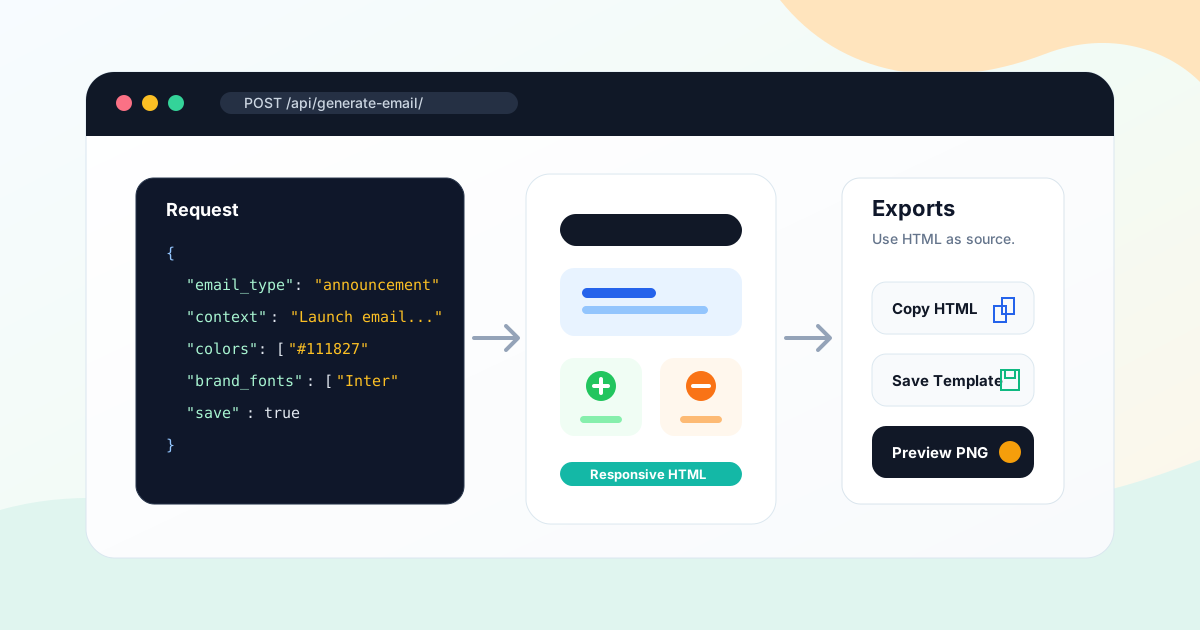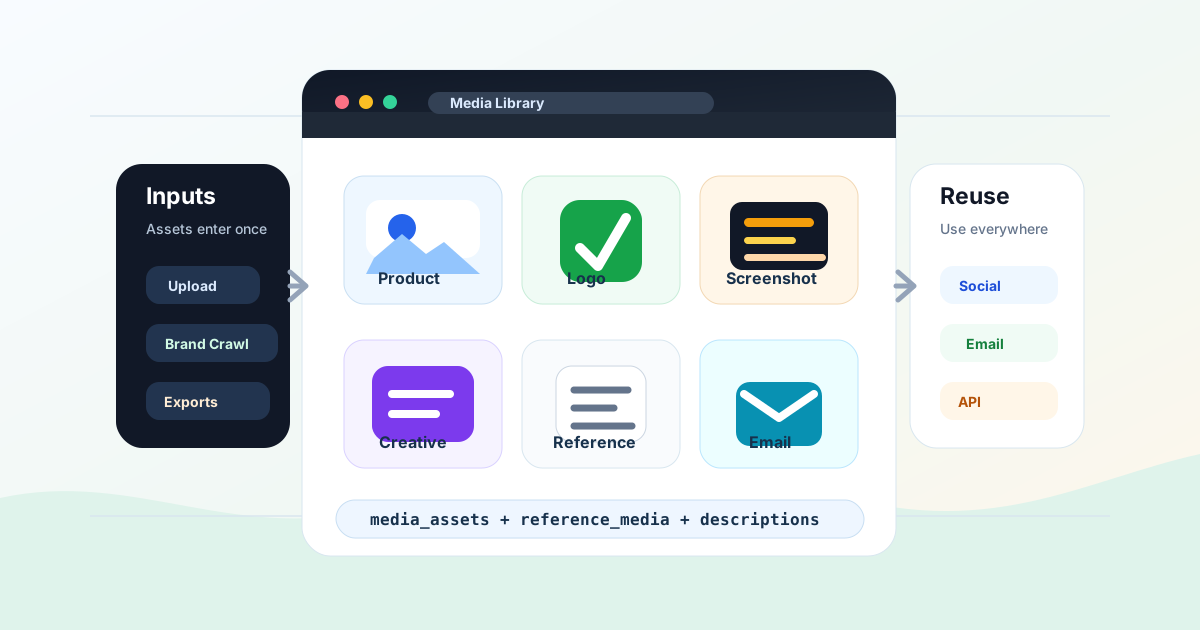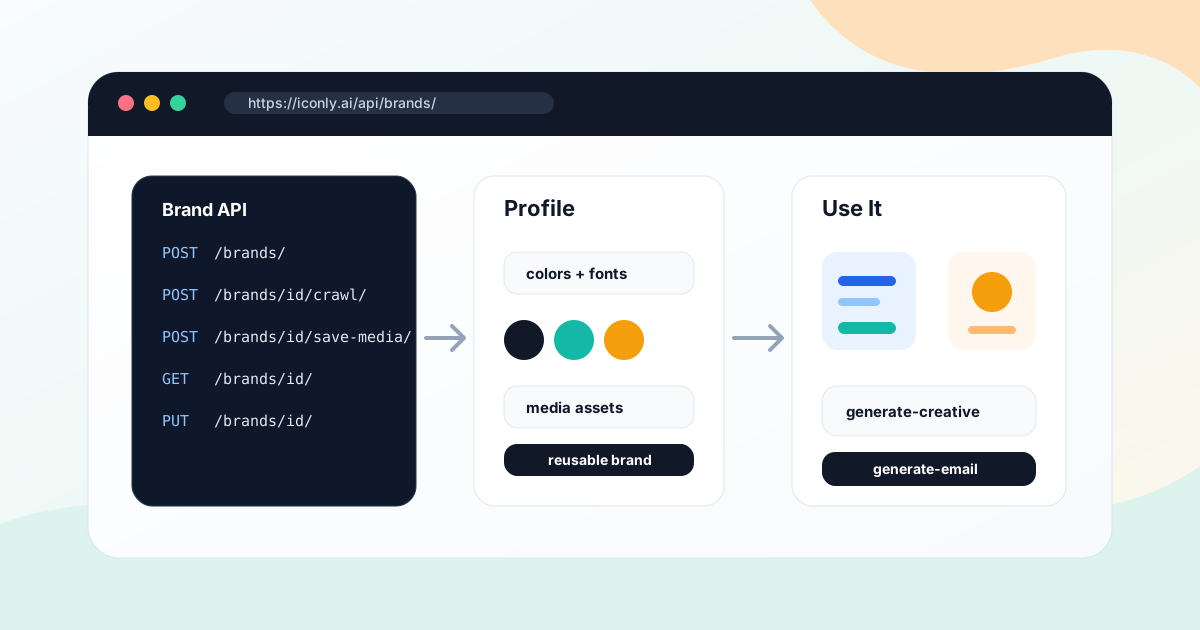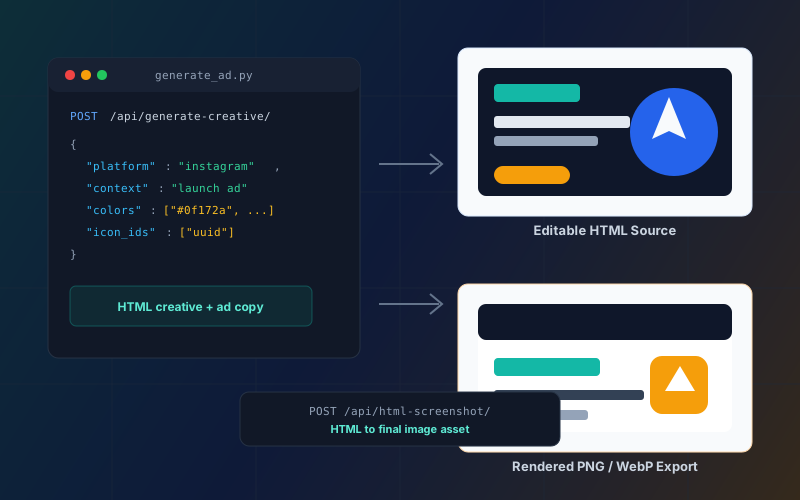
Key takeaways: The Iconly API can generate campaign-ready social creatives from code. Use POST /api/generate-creative/ to create editable HTML and AI-written copy, then use POST /api/html-screenshot/ to render that HTML into a final PNG or WebP. For best results, pass brand colors, fonts, saved library icon IDs, product media, and a clear campaign brief.
Most teams do not need just one ad image. They need a square post, a vertical story, a landscape feed placement, a matching product variation, and a way to repeat that process next week without rebuilding everything by hand.
The Iconly Social Creative API turns that workflow into a repeatable pipeline. A backend job, internal dashboard, AI agent, or campaign tool can send a structured creative brief to Iconly, receive editable HTML layouts and ad copy, render those layouts to PNG or WebP, and optionally save the creative for visual editing in Social Creative Studio.
The important detail: the generation endpoint does not return a finished image directly. It returns editable HTML. That is a feature, not a limitation. The HTML is the design source you can inspect, tweak, save, and render at exact dimensions. The final campaign asset comes from the screenshot endpoint.
Why Use a Social Creative API?
A social creative API is useful when creative production is part of a larger system. Instead of opening a design tool for every variation, you can generate assets from campaign data you already have.
Campaign Automation
Generate launch graphics, sale ads, announcement posts, and format variants from structured campaign briefs.
Brand Control
Pass colors, fonts, brand context, logos, saved icons, and product photos so generated ads follow your visual system.
Multi-Format Output
Create Facebook, Instagram, square, portrait, story, landscape, wide, and standard dimensions from one workflow.
Editable Source
Work with HTML before export, so your system can fix layout, update text, save drafts, and render final images later.
This is especially useful for SaaS launch workflows, ecommerce promotions, agency client reporting, automated creative testing, and AI assistants that need to produce actual campaign assets rather than just copy ideas.
The Two-Step Workflow
Social creative generation is a two-step pipeline:
- Generate the editable creative. Call
POST /api/generate-creative/with a platform, campaign context, and optional brand assets. The response includes one or more creative entries, AI-written copy, and HTML. - Render the final image. For each creative entry, call
POST /api/html-screenshot/with that entry'shtml,width, andheight. The response contains a PNG or WebP data URL.
Campaign brief
  -> POST /api/generate-creative/
  -> editable HTML + ad copy
  -> optional HTML QA or edits
  -> POST /api/html-screenshot/
  -> PNG or WebP campaign asset
Keep the HTML if you want later editing. Export the image when you need a file for Meta Ads, a scheduling tool, a website, a client preview, or a test asset.
Authentication and Setup
Every API call uses an Iconly API key in the X-API-Key header. Keys use the ik_ prefix and can be generated from Settings. API access is designed for Pro and Max plans.
X-API-Key: ik_your_api_key_hereUse this base URL:
https://iconly.ai/apiFor server code, store the key in an environment variable. Do not put it in frontend JavaScript, a mobile app bundle, a public repository, analytics events, browser logs, or generated screenshots.
Minimal Token Check
curl https://iconly.ai/api/tokens/ \
  -H "X-API-Key: $ICONLY_API_KEY"
A token check is a good first call before generating multi-format campaigns. It lets your app fail gracefully before starting an expensive workflow.
Generate Creative Request
The core endpoint is:
POST /api/generate-creative/The only required fields are platform and context. Everything else improves specificity, brand consistency, or reuse.
| Parameter | Type | Use |
|---|---|---|
platform |
string | Required. One of facebook, instagram, square, portrait, story, landscape, wide, or standard. |
context |
string | Required. Describe the product, offer, audience, message, tone, CTA, and any constraints. |
model |
string | fast for cheaper generation or thinking for higher-quality layout reasoning. Defaults to thinking. |
icon_ids |
array | Saved Iconly library icon UUIDs to include in the design. |
media_assets |
array | Product photos, logos, backgrounds, or other public image URLs to incorporate. |
reference_media |
object | A single reference image for layout, composition, typography hierarchy, or visual style. |
colors |
array | Three hex colors: primary, secondary, and accent. |
brand_fonts |
array | Font names to guide the generated typography. |
num_copies |
integer | Generate 1 to 3 independent variations for single-size platforms. |
save |
boolean | Save the generated creative to the user's Iconly account. |
name |
string | Name for the saved creative when save is true. |
Example Request
{
  "platform": "square",
  "context": "Launch graphic for a new analytics dashboard. Audience: SaaS founders. Tone: crisp, confident, technical. CTA: Start free trial.",
  "model": "thinking",
  "colors": ["#0f172a", "#14b8a6", "#f8fafc"],
  "brand_fonts": ["Inter", "Space Grotesk"],
  "icon_ids": ["2f4f6b92-7a4f-4c84-bf26-123456789abc"],
  "save": true,
  "name": "Analytics Dashboard Launch Square"
}
Response Shape
{
  "id": "uuid-when-saved",
  "platform": "square",
  "creatives": [
    {
      "format": "Square",
      "width": 1080,
      "height": 1080,
      "html": "<div style='position:relative;width:1080px;height:1080px;'>...</div>"
    }
  ],
  "text_content": "Generated text from the creative",
  "ad_copy": {
    "headline": "See Your Metrics Clearly",
    "primary_text": "Turn scattered data into decisions.",
    "cta": "Start Free Trial",
    "hashtags": "#SaaS #Analytics"
  }
}
Older integrations may treat creatives as an array of HTML strings. Current social creative entries include dimensions and HTML together. If you are writing a public integration, handle both forms defensively.
Supported Formats
Use facebook or instagram when you want a multi-format set in one call. Use single-size platforms when you need exact control or want multiple copy/design variations for one placement.
| Platform | Generated Formats | Dimensions |
|---|---|---|
facebook |
Feed, Square, Story | 1200x628, 1080x1080, 1080x1920 |
instagram |
Square, Portrait, Story | 1080x1080, 1080x1350, 1080x1920 |
square |
Single | 1080x1080 |
portrait |
Single | 1080x1350 |
story |
Single | 1080x1920 |
landscape |
Single | 1200x628 |
wide |
Single | 1920x1080 |
standard |
Single | 940x788 |
For a practical guide to format choices, read How to Generate Facebook and Instagram Ad Sizes With AI. For UI-first creation without code, use Social Creative Studio.
Python Example: Generate an Ad and Export PNGs
This example generates Instagram creatives, renders every returned format to PNG, and writes the files locally. It uses a helper function so it works whether each creative entry is an object or an HTML string.
import base64
import os
import re
import requests

API_KEY = os.environ["ICONLY_API_KEY"]
BASE = "https://iconly.ai/api"
HEADERS = {
    "Content-Type": "application/json",
    "X-API-Key": API_KEY,
}

def normalize_creative(entry, index, fallback_width=1080, fallback_height=1080):
    if isinstance(entry, str):
        return {
            "format": f"creative-{index + 1}",
            "width": fallback_width,
            "height": fallback_height,
            "html": entry,
        }
    return {
        "format": entry.get("format", f"creative-{index + 1}"),
        "width": entry.get("width", fallback_width),
        "height": entry.get("height", fallback_height),
        "html": entry["html"],
    }

def slugify(value):
    return re.sub(r"[^a-z0-9]+", "-", value.lower()).strip("-")

payload = {
    "platform": "instagram",
    "context": (
        "Launch campaign for an AI analytics dashboard. "
        "Audience: SaaS founders and growth teams. "
        "Highlight faster reporting, cleaner dashboards, and confident decisions. "
        "CTA: Start free trial."
    ),
    "model": "thinking",
    "colors": ["#0f172a", "#14b8a6", "#f8fafc"],
    "brand_fonts": ["Inter", "Space Grotesk"],
}

creative_resp = requests.post(
    f"{BASE}/generate-creative/",
    json=payload,
    headers=HEADERS,
    timeout=180,
)
creative_resp.raise_for_status()
creative = creative_resp.json()

for index, raw_entry in enumerate(creative["creatives"]):
    entry = normalize_creative(raw_entry, index)

    screenshot_resp = requests.post(
        f"{BASE}/html-screenshot/",
        json={
            "html": entry["html"],
            "width": entry["width"],
            "height": entry["height"],
            "scale": 2,
            "format": "png",
        },
        headers=HEADERS,
        timeout=120,
    )
    screenshot_resp.raise_for_status()
    image_url = screenshot_resp.json()["image"]

    b64_data = image_url.split(",", 1)[1]
    filename = f"instagram-{slugify(entry['format'])}.png"
    with open(filename, "wb") as output:
        output.write(base64.b64decode(b64_data))

print("Ad copy:", creative.get("ad_copy", {}))
In production, replace raise_for_status() with explicit handling for 400, 401, 403, 429, and transient 500 errors. For batch workflows, wait and retry on rate limits.
Node.js Example: Backend Proxy for a Web App
If you want users to trigger ad generation from your own app, proxy requests through your backend. The Iconly API key should stay server-side.
import express from "express";

const app = express();
app.use(express.json({ limit: "2mb" }));

const ICONLY_API_KEY = process.env.ICONLY_API_KEY;
const BASE = "https://iconly.ai/api";

function normalizeCreative(entry, index) {
  if (typeof entry === "string") {
    return {
      format: `creative-${index + 1}`,
      width: 1080,
      height: 1080,
      html: entry,
    };
  }
  return {
    format: entry.format || `creative-${index + 1}`,
    width: entry.width || 1080,
    height: entry.height || 1080,
    html: entry.html,
  };
}

async function iconly(path, body) {
  const response = await fetch(`${BASE}${path}`, {
    method: "POST",
    headers: {
      "Content-Type": "application/json",
      "X-API-Key": ICONLY_API_KEY,
    },
    body: JSON.stringify(body),
  });

  const data = await response.json();
  if (!response.ok) {
    const error = new Error(data.error || "Iconly request failed");
    error.status = response.status;
    error.details = data;
    throw error;
  }
  return data;
}

app.post("/api/ad-preview", async (req, res) => {
  try {
    const { brief, colors, fonts, platform = "square" } = req.body;

    if (!brief || brief.length > 1200) {
      return res.status(400).json({ error: "A brief under 1200 characters is required." });
    }

    const creative = await iconly("/generate-creative/", {
      platform,
      context: brief,
      colors,
      brand_fonts: fonts,
      model: "fast",
    });

    const first = normalizeCreative(creative.creatives[0], 0);
    const screenshot = await iconly("/html-screenshot/", {
      html: first.html,
      width: first.width,
      height: first.height,
      scale: 2,
      format: "webp",
    });

    res.json({
      image: screenshot.image,
      ad_copy: creative.ad_copy || {},
      source: first,
    });
  } catch (err) {
    const status = err.status || 502;
    res.status(status).json({
      error: err.message,
      details: err.details || null,
    });
  }
});

app.listen(3000);
This endpoint returns a rendered preview plus the editable source. Your frontend can display the image immediately and store the HTML for later edits, regeneration, or save workflows.
Brands, Icons, and Media
The strongest results usually come from context plus assets. A generic prompt can make a plausible ad. Brand and library data help it make your ad.
Use Brand Profiles
Iconly's Brand Studio can store brand colors, fonts, products, features, logo URL, domain, and aesthetic. In API workflows, fetch the brand, merge key details into the context, and pass the colors/fonts explicitly.
brand = requests.get(
    f"{BASE}/brands/{brand_id}/",
    headers=HEADERS,
    timeout=30,
).json()["brand"]

brand_context = f"""Brand: {brand["name"]}
Website: {brand["domain"]}
Description: {brand["description"]}
Products: {", ".join(brand["products"])}
Features: {", ".join(brand["features"])}
Aesthetic: {brand["aesthetic"]}"""

payload = {
    "platform": "square",
    "context": brand_context + "\n\nPromote the spring product launch.",
    "colors": [
        brand["colors"]["primary"],
        brand["colors"]["secondary"],
        brand["colors"]["accent"],
    ],
    "brand_fonts": brand["fonts"],
}
If you do not have a saved brand yet, you can create one manually or crawl a website through the brand endpoints. A brand crawl costs tokens, but it can save setup time for agencies and teams managing several client brands.
Attach Saved Icons
Pass saved library icon IDs with icon_ids. The IDs must belong to icons in the user's Iconly library. If you generate icons first, save them with POST /api/library/add/, then pass the returned icon_id to the social creative request.
{
  "platform": "square",
  "context": "Feature launch graphic for automated reports.",
  "icon_ids": [
    "2f4f6b92-7a4f-4c84-bf26-123456789abc",
    "d7522e9f-9ac8-4ce8-8ef0-123456789abc"
  ]
}
For a full icon generation API workflow, see Iconly API for Icon Generation.
Attach Product Media
Use media_assets for product photos, logos, backgrounds, screenshots, or other imagery. The URLs should be publicly accessible so the generated HTML can reference them.
{
  "media_assets": [
    {
      "id": "product-photo-1",
      "name": "Dashboard screenshot",
      "url": "https://example.com/dashboard.png",
      "width": 1440,
      "height": 900
    }
  ]
}
Use Reference Media
Use reference_media when you want to match a known layout or visual direction. It should be a single image object. The API uses it as composition guidance, then adapts the generated ad to your campaign and brand inputs.
{
  "reference_media": {
    "id": "reference",
    "name": "Preferred launch layout",
    "url": "https://example.com/reference-ad.jpg",
    "width": 1080,
    "height": 1080
  }
}
For a non-code version of this workflow, read How to Use Reference Images to Generate On-Brand Social Creatives.
Saving and Updating Creatives
By default, generation can be temporary. That is useful for scripts and experiments because it keeps the user's dashboard clean. When you want the creative available in Iconly's visual editor, save it.
Save During Generation
{
  "platform": "square",
  "context": "Promotional ad for a new annual plan.",
  "save": true,
  "name": "Annual Plan Promo Square"
}
Save After Generation
If you render, inspect, or edit the HTML first, save the finished creative afterward:
POST /api/social-creatives/save/

{
  "creatives": [...],
  "platform": "square",
  "name": "Annual Plan Promo Square",
  "context": "Promotional ad for a new annual plan.",
  "text_content": "Generated text...",
  "ad_copy": {"headline": "...", "cta": "..."}
}
Update a Saved Creative
PATCH /api/social-creatives/{creative_id}/

{
  "name": "Annual Plan Promo - Final",
  "creatives": [...]
}
Once saved, the creative can be opened in Social Creative Studio for visual editing, text adjustments, repositioning, and export.
Token Costs and Rate Limits
Social creative generation is billed per format or copy:
| Mode | Cost | Best For |
|---|---|---|
fast |
12 tokens per format/copy | High-volume drafts, quick variants, internal previews. |
thinking |
25 tokens per format/copy | Final campaigns, dense briefs, brand-heavy layouts. |
Multi-format platforms multiply the base cost by three. A Facebook creative in fast mode costs 36 tokens. An Instagram creative in thinking mode costs 75 tokens. A single square creative in fast mode costs 12 tokens, while three square copies in thinking mode cost 75 tokens.
Generation and screenshot endpoints are rate-limited. Plan for up to 10 generation requests per minute and 10 screenshot requests per minute. Use queues for batch jobs, and give generation requests multi-minute timeouts because layout generation, media analysis, font loading, and rendering can take longer than simple JSON APIs.
Rendering QA Checklist
Because the generated HTML is editable, you can build a real QA step before export. This is where developer workflows get nicely practical.
- Check dimensions. Render with the exact width and height returned by each creative entry.
- Inspect text fit. Look for clipping, overlap, tiny legal copy, and long words that exceed their container.
- Verify CTA clarity. Make sure the CTA in
ad_copymatches the visible CTA in the creative. - Confirm brand colors. The output should use brand colors without flattening everything into one color family.
- Review safe areas. Story placements need breathing room near top and bottom UI overlays.
- Validate media URLs. Product images and logos must remain reachable when the HTML is rendered.
- Keep source and export together. Save the HTML, dimensions, rendered image, prompt, platform, and brand data for reproducibility.
If a rendered result has small layout issues, edit the HTML and screenshot again. If the image needs final pixel-level cleanup after HTML fixes, the API also includes POST /api/refine-creative-image/, which can refine a rendered creative image at the pixel level.
Frequently Asked Questions
Does Iconly have a social creative API?
Yes. Iconly provides POST /api/generate-creative/ for generating social media creatives from a campaign prompt. It supports platform-specific dimensions, AI-written copy, optional brand colors, fonts, saved icons, media assets, and reference images.
Does the Social Creative API return a PNG?
The generation endpoint returns editable HTML creatives and copy. To create a PNG or WebP, send each creative's HTML, width, and height to POST /api/html-screenshot/. This separation gives you an editable design source and a final rendered image.
Can I use saved icons in API-generated ads?
Yes. Pass saved library icon UUIDs in the icon_ids array. If you generate icons through the API first, save them to the library before using them in social creative generation.
How much does the Social Creative API cost?
Fast mode costs 12 tokens per format or copy. Thinking mode costs 25 tokens per format or copy. Facebook and Instagram generate three formats, so those calls cost three times the selected base cost.
Can I generate multiple ad sizes in one API call?
Yes. Use facebook for feed, square, and story sizes, or instagram for square, portrait, and story sizes. For a single-size platform like square, use num_copies to generate one to three variations.
Can API-generated creatives be edited in Iconly?
Yes. Save the creative during generation with save: true, or save it afterward with POST /api/social-creatives/save/. Saved creatives are available in Social Creative Studio for visual editing and export.
Next step: If you are building a broader campaign workflow, pair this API with Brand Studio, the icon generation API, and AI Email Builder so your social graphics, icons, and emails share the same visual system.
Continue reading: HTML to Image API: Render Social Creatives and Email Previews · Iconly API for Icon Generation: Developer Guide With Code Examples · Iconly API: Complete Guide to Icons, Social Graphics, Emails, and Vectors · How to Build a CSS Icon Library With AI · Iconly Agent Skills: How AI Assistants Can Use the Design API