Key takeaways: A good CSS icon library starts before CSS. Generate icons in one consistent style, save approved outputs to a library, use predictable names, load the CDN script once, rely on size utility classes, document accessibility rules, and audit the set whenever new icons are added.
Most teams start with icons as files. A designer exports a few SVGs, a developer drops them into an assets folder, and everyone moves on. That works until the product needs search, filter, download, user-add, user-remove, billing, warning, success, empty-state, AI, API, and 40 more icons that all need to match.
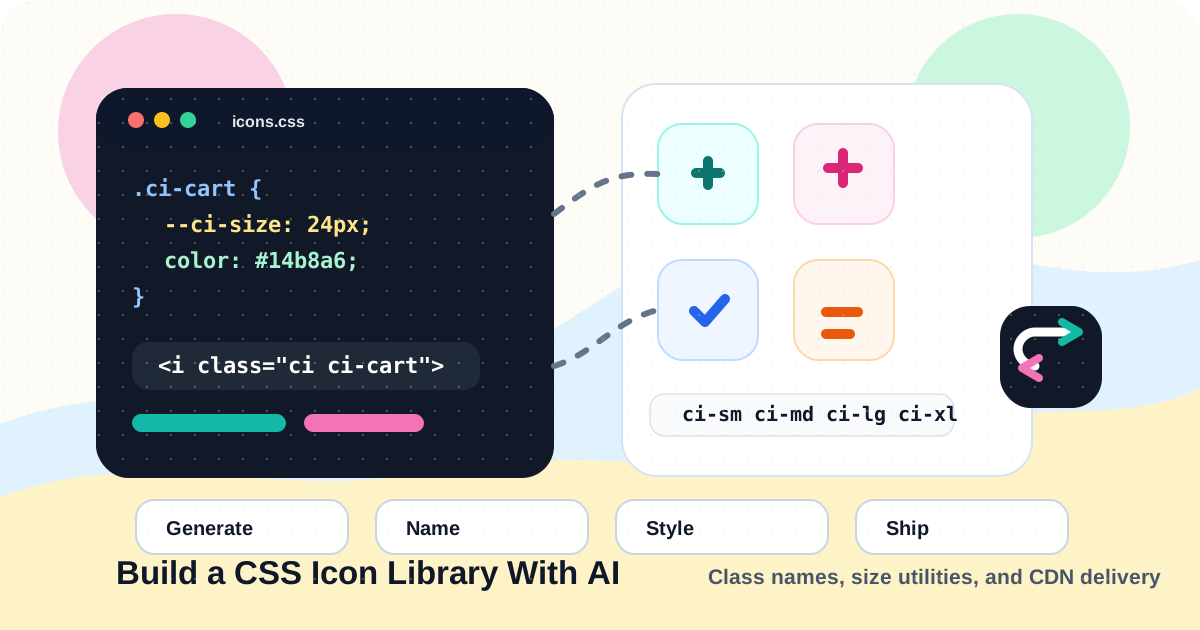
A CSS icon library solves the reuse problem. Instead of manually managing every icon file, you load one shared library and reference icons with classes. With Iconly, you can generate the icons with AI, save them to your Library, copy a CDN script, and use classes like ci ci-cart ci-md in your HTML.
This guide focuses on the implementation side: naming, sizing, class patterns, CSS variables, accessibility, and maintenance. For the broader generate-save-deploy workflow, read AI Icon Library With CDN.
What a CSS Icon Library Is
A CSS icon library is a reusable system for placing icons with class names instead of manually embedding each asset. It usually has three parts:
Icon Assets
The actual generated icons saved in a library, set, CDN, or project asset store.
Class Names
Predictable classes such as ci-search, ci-user-add, and ci-status-warning.
Utility Rules
Size, color, alignment, spacing, and accessibility rules that make icons usable in UI.
Delivery
A CDN script, generated CSS, or app bundle that makes the classes available to pages.
In Iconly, the CDN path is the fastest way to get this working. Save icons to your library, copy your script, and reference the generated icon names in HTML.
Why Use AI to Build One?
AI is useful because icon needs are unpredictable. You may not know you need workflow-branch, empty-cart, or invoice-overdue until a feature is halfway built. Static icon packs often force you to pick the closest match. AI lets you create the exact icon you need, then add it to the same class-based library.
| Need | Static Pack | AI + CSS Library |
|---|---|---|
| Custom product concepts | Limited to existing icons. | Generate icons for your exact feature language. |
| Consistent additions | New icons may come from different packs. | Use the same style rules and reference workflow. |
| Developer reuse | Requires file paths or manual imports. | Use shared classes and size utilities. |
| Maintenance | Assets drift across folders. | Library, names, sets, and CDN stay centralized. |
The trick is to treat AI as the asset generator, not the whole system. The system still needs naming rules, review, accessibility, and documentation.
CSS Icon Library Architecture
A practical architecture looks like this:
Iconly AI Icon Generator
  -> saved icon library
  -> clean icon names
  -> CDN script or generated CSS
  -> HTML class usage
  -> product-level CSS rules
The product-level CSS is optional, but most teams benefit from a small wrapper layer. The CDN exposes the icons. Your product CSS decides how those icons behave inside buttons, nav items, alerts, and cards.
.app-icon {
  width: 1em;
  height: 1em;
  display: inline-flex;
  align-items: center;
  justify-content: center;
  color: currentColor;
  flex-shrink: 0;
}

.button .app-icon {
  margin-right: 0.5rem;
}
That layer keeps icon usage consistent even when components vary across the app.
Generate the Icon Set
Start with a short inventory. For most UI systems, group icons by function:
- Navigation: home, menu, search, close, back, settings.
- Actions: add, edit, delete, copy, save, download, share.
- Status: success, warning, error, info, loading.
- Commerce: cart, checkout, coupon, receipt, shipping, refund.
- Account: user, user-add, team, lock, key, billing.
- Product-specific: your own domain concepts, features, and workflows.
Then generate a strong reference icon first. If you are building a line-style library, make the reference icon define the stroke width, corner radius, detail level, and visual rhythm. Use the same style direction for the rest of the set.
Tip: Do not generate 60 icons before approving the style. Generate 3-5, review them in the UI where they will actually appear, then scale up.
Iconly supports line, glyph, outline, pixel, isometric, and many preset styles in the AI Icon Generator. Use prompt templates if you want repeatable rules for output size, color mode, detail, and post-processing.
Create a Naming System
Naming is the part everyone wants to skip, and it is the part developers feel every day. Keep names functional, lowercase, and hyphenated.
| Pattern | Examples | Why It Works |
|---|---|---|
| Noun first | user-add, file-upload |
Related icons sort together in search and docs. |
| Direction explicit | arrow-up-right, chevron-down |
Developers do not have to inspect the icon to understand it. |
| State included | eye-open, eye-closed |
Opposite states remain clear in code. |
| Semantic status | status-warning, status-success |
The name survives color or shape changes. |
Avoid names like icon-final, new-search, blue-star, or cart-2. If you need variants, name the actual difference: cart-empty, cart-full, or cart-checkout.
Load the CDN Script
After saving and naming icons in your Iconly Library, copy your personalized CDN script and place it in the site head.
<script defer src="https://cdn.iconly.ai/your-id/iconly.js"></script>Put it in your shared layout, not on every page manually. In a server-rendered app, that might be the base template. In a frontend app, it might be the document head or app shell.
For public icons, Iconly also has a public CDN script documented in the Library and CDN docs. Public icons use style-prefixed classes such as ci-line, ci-glyph, ci-outline, ci-pixel, and ci-isometric.
Use Icon and Size Classes
The basic pattern is:
<i class="ci ci-search ci-md"></i>
<i class="ci ci-cart ci-lg"></i>
<i class="ci ci-user-add ci-xl"></i>
Iconly size classes include:
ci-sm- small utility icon.ci-md- medium/default UI icon.ci-lg- larger button, card, or nav icon.ci-xl- empty state, feature card, or marketing icon.ci-2xl- large display usage.ci-cs- custom size controlled by your own CSS.
Use size classes consistently. If every component chooses icon size independently, the library becomes visually noisy even if the icons themselves match.
Add Product-Level CSS Rules
The CDN gives you icon availability. Your product CSS gives you component behavior.
.nav-item .ci {
  margin-right: 0.5rem;
  color: currentColor;
}

.alert-success .ci {
  color: #16a34a;
}

.feature-card .ci {
  width: 2rem;
  height: 2rem;
}
For a design system, consider documenting a small usage table:
| Context | Recommended Class | Notes |
|---|---|---|
| Inline button icon | ci-md |
Align with text and inherit button color. |
| Navigation item | ci-md or ci-lg |
Keep nav icons the same size across sections. |
| Feature card | ci-lg or ci-xl |
Use brand color or a semantic accent. |
| Empty state | ci-xl or ci-2xl |
Pair with explanatory copy and a CTA. |
| Custom component | ci-cs |
Use your own CSS when a fixed utility size is not enough. |
Accessibility Rules
Icons are either decorative or meaningful. Treat them differently.
Decorative Icons
If the surrounding text already says what the icon means, hide the icon from assistive technology.
<button type="button">
  <i class="ci ci-download ci-md" aria-hidden="true"></i>
  Download
</button>
Icon-Only Buttons
If the icon is the only visible content, give the button an accessible label.
<button type="button" aria-label="Open settings">
  <i class="ci ci-settings ci-md" aria-hidden="true"></i>
</button>
Status Icons
Do not rely on icon shape or color alone. Pair status icons with text, tooltips, or screen-reader labels where needed.
<p class="status-message">
  <i class="ci ci-status-success ci-md" aria-hidden="true"></i>
  Saved successfully
</p>
For broader icon accessibility guidance, see Icon Accessibility: Making Icons Usable for Everyone.
Maintenance Workflow
A CSS icon library is a living system. Keep it healthy with a simple review process:
- Request: A designer, developer, or marketer requests a new icon with context.
- Generate: Use the existing style prompt or template in Iconly.
- Review: Check the icon at real UI sizes, not just in a large preview.
- Name: Apply the naming rules before saving or deploying.
- Save: Add the icon to the correct library set.
- Document: Add the class name to your internal icon list.
- Ship: Use the class in the component, page, or template.
Review the library every quarter. Remove duplicates, rename unclear icons, flag outdated styles, and make sure high-use icons are easy to find. If you need a larger design-system process, the design system icon library guide walks through planning and review.
Implementation Checklist
- Choose one icon style before generating the full set.
- Create a reference icon and approve it in real UI context.
- Use lowercase, hyphenated, functional icon names.
- Save approved icons to the Iconly Library.
- Organize icons into sets by project, product area, or client.
- Copy the CDN script from the Library page and load it once.
- Use consistent classes such as
ci ci-search ci-md. - Document size rules for buttons, nav, cards, empty states, and custom components.
- Hide decorative icons with
aria-hidden="true". - Add labels to icon-only buttons.
- Audit the library after each major product release.
Once the pattern is in place, adding a new icon becomes a small operational task instead of a messy asset-management chore.
Frequently Asked Questions
Can AI help build a CSS icon library?
Yes. AI can generate the icons, while Iconly's Library and CDN features make them reusable with class names. The strongest workflow combines AI generation with human naming, review, organization, and accessibility checks.
What is the difference between a CSS icon library and downloaded SVG files?
Downloaded SVG files are individual assets managed inside a project. A CSS icon library exposes icons through shared classes, which is usually easier for websites, dashboards, docs, and reusable UI systems.
How should I name icons in a CSS icon library?
Use lowercase hyphenated names based on function: cart, search, user-add, arrow-up-right, and status-warning. Avoid names based only on color, version, or temporary project notes.
What size classes should I use?
Use ci-sm, ci-md, ci-lg, ci-xl, and ci-2xl for common sizes. Use ci-cs when your component needs a custom size controlled by product CSS.
Are CSS icon libraries accessible?
They can be. Hide decorative icons from assistive technology, label icon-only buttons, and pair important status icons with readable text. Accessibility depends on how the icon is used in context.
Next step: Generate a small 5-icon set in Iconly's AI Icon Generator, save it to your Library, copy the CDN script, and test the classes in one real component before scaling the library.
Continue reading: AI Icon Library With CDN: Generate, Save, and Use Icons on Your Website · Iconly API for Icon Generation: Developer Guide With Code Examples · Building a Design System Icon Library in Under an Hour With AI · The Canva Alternative for Developers: AI Design + CDN Hosting + CSS Icon Fonts · AI Icon Prompt Templates: Save Reusable Styles for Consistent Icons