Key takeaways: The Iconly API includes POST /api/html-screenshot/ for rendering HTML into PNG or WebP images. Use it after Social Creative API generation to create final ad images, or after AI Email Builder generation to produce visual previews. Pass exact dimensions, use scale for high-resolution output, and use selector when you only want to capture one element.
HTML is a good design source because it is editable, inspectable, and easy to generate from structured data. But many real workflows still need an image at the end: a PNG for a paid social ad, a WebP preview for a dashboard, a client approval image, a QA artifact, or a thumbnail saved into a media library.
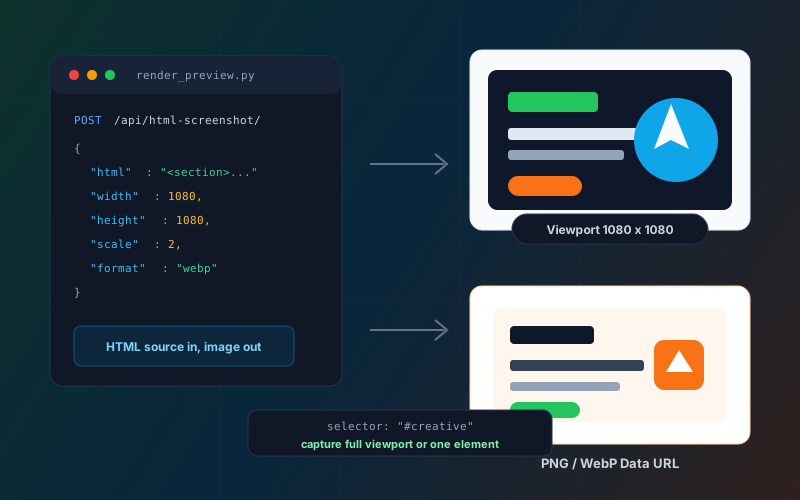
The Iconly HTML Screenshot API is the bridge between those two states. It renders HTML in a headless browser at exact dimensions and returns a base64 image data URL. That makes it useful for generated social creatives, email previews, automated design QA, internal campaign tools, and AI agents that need to see what their HTML actually looks like.
This matters because generated design HTML is only as useful as the final rendered result. Text can wrap differently than expected. Product photos can load slowly. A call-to-action can look fine in source but sit too close to the edge of a story placement. Screenshot rendering gives your workflow a reliable visual checkpoint.
Why Use an HTML to Image API?
An HTML to image API is useful whenever design output starts as HTML but needs to move through systems that expect images, previews, or review artifacts.
Final Social Exports
Turn generated social creative HTML into PNG or WebP files for ads, posts, stories, and client review.
Email Previews
Render responsive HTML emails into shareable preview images while keeping the HTML as the real deliverable.
Automated QA
Screenshot HTML at fixed dimensions so a human reviewer or AI agent can catch clipping, overlap, and brand issues.
Preview Thumbnails
Create dashboard thumbnails, media-library previews, approval snapshots, and test artifacts from the same source HTML.
The main pattern is simple: keep HTML as the editable source of truth, then render images whenever a downstream tool, human review step, or publishing channel needs pixels.
Endpoint, Authentication, and Limits
The endpoint is:
POST https://iconly.ai/api/html-screenshot/Authenticate with your Iconly API key in the X-API-Key header. API keys use the ik_ prefix and can be generated from Settings.
X-API-Key: ik_your_api_key_hereThe HTML Screenshot API is available on Pro and Max plans. It does not generate new AI content, but it is still rate-limited because browser rendering is compute-intensive. The current screenshot throttle is 10 requests per minute.
| Limit | Value | Why It Matters |
|---|---|---|
| Width | 1 to 4096 px | Use the exact creative or preview width you want rendered. |
| Height | 1 to 4096 px | Match social formats, email preview height, or dashboard card dimensions. |
| Scale | 1 to 4 | Use 2 for high-resolution output; higher scales produce larger images. |
| Format | png or webp |
PNG is safest for quality; WebP is useful for lighter previews and web dashboards. |
| Rate limit | 10/min | Queue batch rendering jobs instead of firing hundreds of screenshots at once. |
Request Parameters
The request body is intentionally small. The only required field is html. Width, height, scale, format, and selector control how the source is rendered.
| Parameter | Type | Use |
|---|---|---|
html |
string | Required. The HTML content to render. It can be a full fragment; Iconly wraps it in a minimal document. |
width |
integer | Viewport width in pixels. Defaults to 1080. |
height |
integer | Viewport height in pixels. Defaults to 1080. |
scale |
integer | Device scale factor. Defaults to 2 for high-resolution output. |
format |
string | png or webp. Defaults to png. |
selector |
string | Optional CSS selector. Captures the first matching element instead of the full viewport. |
Minimal Request
{
  "html": "<div style='width:1080px;height:1080px;background:#0f172a;color:white;'>Hello</div>",
  "width": 1080,
  "height": 1080,
  "scale": 2,
  "format": "png"
}
Response
{
  "image": "data:image/png;base64,iVBORw0KGgo..."
}
The response is a data URL. You can display it directly in a browser, store it in a database, upload it to object storage, or decode the base64 payload and write it as an image file.
Export Social Creatives
For social creative automation, the HTML Screenshot API is the final export step. The Social Creative API generates editable HTML and ad copy. The screenshot endpoint turns that HTML into the image file a platform or client actually needs.
POST /api/generate-creative/
  -> editable creative HTML
  -> width and height
  -> ad copy

POST /api/html-screenshot/
  -> PNG or WebP data URL
Always render each creative using the dimensions returned by the creative entry. Instagram square output should render at 1080x1080. Stories should render at 1080x1920. Landscape ads should render at 1200x628. If you render every format into a generic square viewport, the design will be cropped or padded incorrectly.
Social creative rule: For social ads and posts, the final deliverable is usually an image. Keep the HTML for editing and reproducibility, but export PNG or WebP before handing the asset to an ad platform, scheduler, client, or campaign dashboard.
For the full generation workflow, including platforms, brand colors, saved icons, media assets, and token costs, read Social Creative API: Generate Ads and Export PNGs Programmatically.
Render Email Previews
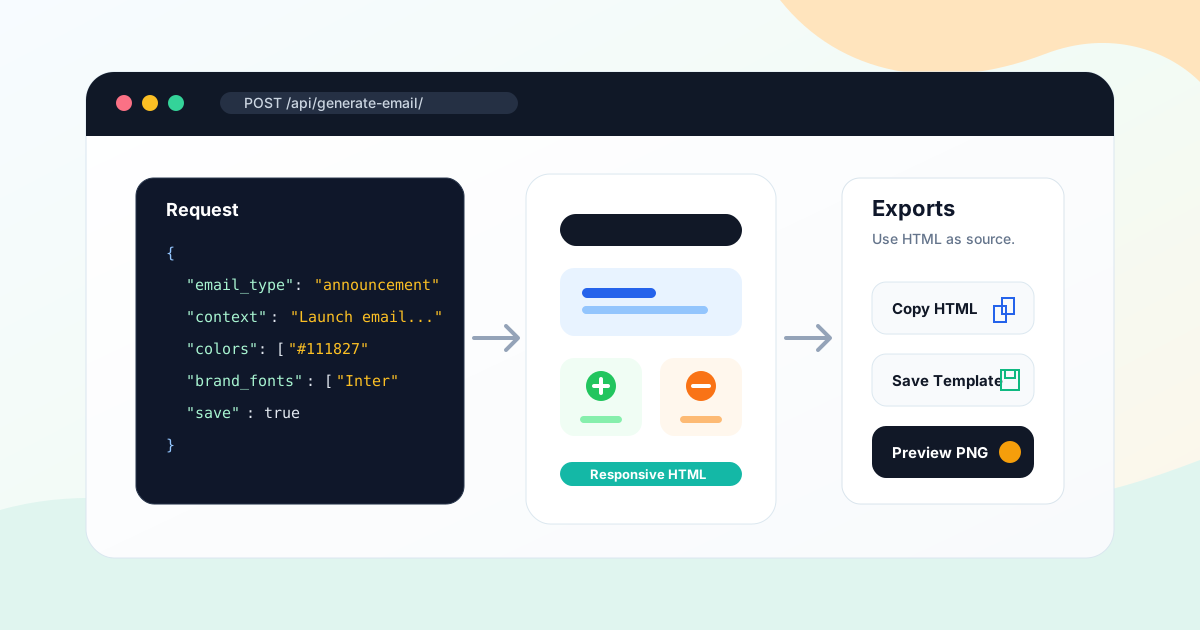
Email workflows are slightly different. A screenshot is useful, but it is not the final deliverable. The final email deliverable should remain responsive HTML that can be pasted into an ESP like Mailchimp, Brevo, SendGrid, Klaviyo, HubSpot, or ActiveCampaign.
Use screenshots for:
- Internal review before sending an email for approval.
- Visual QA after AI generation or manual HTML edits.
- Preview thumbnails in a saved-template dashboard.
- Side-by-side comparison between email variants.
- Reference images for an AI agent or design reviewer.
Use the HTML itself for:
- ESP import and campaign sending.
- Merge tags, personalization, and dynamic content.
- Responsive behavior across email clients.
- Future editing and version control.
A good default for email previews is width: 600, because many email templates are designed around a 600px content container. Set height based on the part of the email you want to review. For a full long email, you may need a tall viewport up to the 4096px limit, or you can capture a specific section with selector.
Capture a Specific Element
The selector parameter captures the first element that matches a CSS selector instead of the full viewport. This is useful when your HTML contains multiple previews, a wrapper UI, or a section you want to isolate.
{
  "html": "<main><section id='creative'>...</section></main>",
  "width": 1200,
  "height": 900,
  "selector": "#creative",
  "format": "webp"
}
If the selector does not match anything, the API returns a 400 error. That is helpful in automation because it lets your pipeline catch broken markup or changed IDs before a blank preview reaches a reviewer.
Selector capture is especially useful for email section previews, product cards, generated hero sections, dashboard thumbnails, and multi-creative review pages where you want to render one asset at a time.
Python Example: Render HTML to PNG
This example renders a square HTML creative and writes the PNG to disk. In production, store the output in your media library, S3 bucket, CDN, or campaign asset database.
import base64
import os
import requests

API_KEY = os.environ["ICONLY_API_KEY"]
BASE = "https://iconly.ai/api"

headers = {
    "Content-Type": "application/json",
    "X-API-Key": API_KEY,
}

html = """
<section id="creative" style="
  width:1080px;
  height:1080px;
  background:#0f172a;
  color:white;
  font-family:Inter, Arial, sans-serif;
  display:flex;
  flex-direction:column;
  justify-content:center;
  padding:96px;
  box-sizing:border-box;
">
  <p style="margin:0 0 20px;color:#5eead4;font-size:36px;font-weight:700;">Launch Week</p>
  <h1 style="margin:0;font-size:92px;line-height:1.02;max-width:760px;">Turn prompts into campaign assets</h1>
  <p style="margin:36px 0 0;color:#cbd5e1;font-size:34px;max-width:760px;line-height:1.35;">Generate icons, ads, emails, and previews from one workflow.</p>
</section>
"""

response = requests.post(
    f"{BASE}/html-screenshot/",
    json={
        "html": html,
        "width": 1080,
        "height": 1080,
        "scale": 2,
        "format": "png",
        "selector": "#creative",
    },
    headers=headers,
    timeout=60,
)
response.raise_for_status()

data_url = response.json()["image"]
base64_payload = data_url.split(",", 1)[1]

with open("creative-preview.png", "wb") as file:
    file.write(base64.b64decode(base64_payload))
Node.js Example: Render and Return a WebP Preview
This Express route receives HTML from an internal app, renders a WebP preview through Iconly, and returns the data URL to the frontend. The Iconly API key stays server-side.
import express from "express";

const app = express();
app.use(express.json({ limit: "2mb" }));

const ICONLY_API_KEY = process.env.ICONLY_API_KEY;
const BASE = "https://iconly.ai/api";

app.post("/api/render-preview", async (req, res) => {
  try {
    const {
      html,
      width = 1080,
      height = 1080,
      selector = null,
    } = req.body;

    if (!html || html.length > 250000) {
      return res.status(400).json({ error: "HTML is required and must be reasonably sized." });
    }

    const response = await fetch(`${BASE}/html-screenshot/`, {
      method: "POST",
      headers: {
        "Content-Type": "application/json",
        "X-API-Key": ICONLY_API_KEY,
      },
      body: JSON.stringify({
        html,
        width,
        height,
        scale: 2,
        format: "webp",
        selector,
      }),
    });

    const data = await response.json();

    if (!response.ok) {
      return res.status(response.status).json(data);
    }

    res.json({
      image: data.image,
      mime_type: "image/webp",
    });
  } catch (error) {
    res.status(502).json({ error: "Preview rendering failed." });
  }
});

app.listen(3000);
For public-facing apps, validate inputs carefully. Limit HTML size, restrict who can call your proxy, and store the Iconly API key only in server-side environment variables.
Visual QA Workflow
The best HTML-to-image workflow is not just "render and ship." It is "render, inspect, fix, render again." That loop is where a screenshot API becomes more than a file converter.
- Generate or assemble the HTML. This might come from Social Creative Studio, AI Email Builder, a custom template, or your own application.
- Render the screenshot. Use the exact viewport dimensions and a predictable scale.
- Review the image. Look for clipped text, overlapping elements, low contrast, off-brand colors, missing images, broken fonts, and unsafe margins.
- Fix the HTML source. Adjust font sizes, line heights, padding, absolute positions, image sizing, z-index, and overflow behavior.
- Render again. Save the approved HTML, screenshot image, prompt, dimensions, and any brand data used to generate it.
This loop is useful for humans, but it is also useful for AI agents. An agent can generate a creative, screenshot it, examine the resulting image, make targeted HTML edits, and screenshot again. That is often more reliable than trying to infer layout quality from raw HTML alone.
Practical rule: Fix layout problems in HTML first. Use image-level refinement only after HTML fixes are exhausted, because the HTML is the editable source you can reuse later.
Troubleshooting
The screenshot is blank
Make sure your HTML creates visible content inside the viewport. If you use a selector, confirm the selector matches an element. Also check that content is not positioned outside the captured area or hidden behind display:none, opacity:0, or a negative z-index.
Images do not appear
Use publicly reachable HTTPS image URLs when the renderer needs to load external media. Avoid local file paths, authenticated image URLs, expiring URLs, and URLs blocked by hotlink protection. If the image is important to the design, test the URL before rendering.
Text wraps differently than expected
Set explicit widths, line heights, and font sizes. Avoid relying on fluid viewport units for fixed-format social creative exports. For long headlines, design with a max line count and reduce font size before the text reaches the edge of the canvas.
The output is too large
Use webp for lighter previews, reduce scale, or render a smaller viewport when you do not need production-size output. Keep png for maximum quality or when downstream tools expect PNG specifically.
You hit rate limits
Queue rendering jobs and process them in batches. The screenshot endpoint is rate-limited to protect browser rendering capacity, so high-volume systems should use backoff and retry logic when they receive 429 responses.
Frequently Asked Questions
Does Iconly have an HTML to image API?
Yes. Iconly provides POST /api/html-screenshot/ for rendering HTML into a PNG or WebP data URL. It is designed for social creative exports, email previews, visual QA, and generated design workflows.
What image formats does the API return?
The endpoint returns either PNG or WebP. Set format to png or webp. PNG is the default and is safest for quality; WebP is useful when you want smaller preview files.
Can the API capture only one element?
Yes. Use the selector parameter with a CSS selector such as #creative or .email-preview. Iconly captures the first matching element instead of the full viewport.
Should I export emails as screenshots?
No. For email campaigns, keep the responsive HTML as the final deliverable. Screenshots are useful for review, approval, thumbnails, and QA, but the HTML is what should go into your ESP.
What dimensions should I use for social creatives?
Use the exact dimensions for the placement. Common examples include 1080x1080 for square posts, 1080x1920 for stories, 1080x1350 for portrait posts, and 1200x628 for landscape feed ads.
Does the screenshot API use my Iconly tokens?
The endpoint is plan-gated and rate-limited, but it does not create new AI content. Token usage is primarily tied to generation endpoints such as icons, vectors, social creatives, emails, brand crawls, and image refinement.
Next step: Use POST /api/html-screenshot/ with Social Creative API output when you need final ad images, and with AI Email Builder output when you need review previews before exporting responsive HTML.
Continue reading: Iconly API: Complete Guide to Icons, Social Graphics, Emails, and Vectors · Social Creative API: Generate Ads and Export PNGs Programmatically · How to Use Reference Images to Generate On-Brand Social Creatives · Brand API Guide: Crawl Websites and Reuse Brand Profiles · How to Organize AI Design Assets With a Media Library