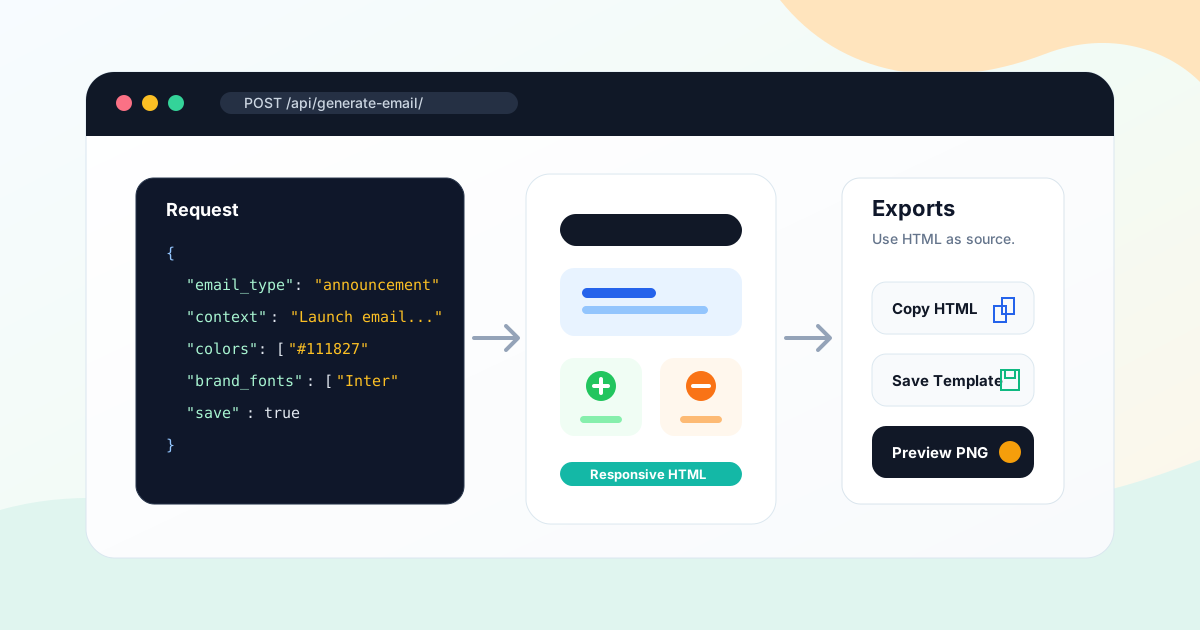
Key takeaways: Use POST /api/generate-email/ to generate responsive, portable HTML email templates from code. The endpoint accepts an email_type, campaign context, brand colors, fonts, saved icon IDs, media assets, and optional reference media. The response includes HTML, extracted text, structured copy fields, and an ID when saved. Use POST /api/html-screenshot/ when you need a PNG or WebP preview, but keep HTML as the final email deliverable.
Most email builders are designed for a person sitting in a visual editor. That works for one-off campaigns, but it breaks down when your product, agency workflow, or internal tool needs to create emails from structured data: product launches, customer onboarding, event reminders, ecommerce promotions, recurring newsletters, or client reports.
The Iconly AI Email Template API turns email design into a repeatable backend workflow. Your app sends the campaign context, brand colors, fonts, icons, and optional media. Iconly returns a responsive HTML email template plus structured copy fields such as subject line and preheader. You can save the template, send it to an email service provider, render a review image, or hand it to a user for final edits in AI Email Builder.
The important difference from a screenshot API: the HTML is the deliverable. Screenshots help with review and thumbnails, but the final asset should remain responsive HTML that can be imported into Mailchimp, Klaviyo, SendGrid, HubSpot, Brevo, or another ESP that accepts custom HTML.
Why Use an Email Template API?
An AI email template API is useful when email creation is part of a larger system, not a manual design task.
Campaign Automation
Generate launch emails, sale campaigns, newsletters, and event invites directly from product or marketing data.
Brand Consistency
Apply saved brand context, colors, fonts, product details, icons, and visual style across every generated email.
Portable HTML
Export generated templates as HTML instead of getting locked into one email platform's editor or block system.
Review Previews
Render HTML previews for dashboards, approvals, QA artifacts, and client review while preserving editable source HTML.
This is especially useful for SaaS lifecycle messaging, ecommerce campaign tooling, agency portals, AI assistants, internal marketing operations, and products that generate email-ready content for users.
Endpoint and Authentication
The endpoint is:
POST https://iconly.ai/api/generate-email/Authenticate with your Iconly API key in the X-API-Key header. API keys use the ik_ prefix and can be generated from Settings.
X-API-Key: ik_your_api_key_here
Content-Type: application/json
API access is designed for Pro and Max plans. For a broader map of all API surfaces, start with the complete Iconly API guide.
Request Parameters
The only required fields are email_type and context. Everything else improves brand fit, asset reuse, or save behavior.
| Parameter | Type | Use |
|---|---|---|
email_type |
string | Required. One of newsletter, promotional, welcome, transactional, announcement, or event_invite. |
context |
string | Required. Describe the purpose, audience, offer, product, tone, CTA, required sections, and any compliance notes. |
model |
string | fast for 12 tokens or thinking for 25 tokens. Defaults to thinking. |
icon_ids |
array | UUIDs of saved library icons to include in the email design. |
media_assets |
array | Product photos, logos, hero images, or other public image URLs to include. |
reference_media |
object | A single image reference for layout, hierarchy, typography, or design style. |
colors |
array | Three hex strings: primary, secondary, and accent. |
brand_fonts |
array | Font names. Email-safe fonts are used directly; web fonts get progressive enhancement with fallbacks. |
save |
boolean | When true, saves the generated template to the user's Iconly account. |
name |
string | Name for the saved template when save is true. |
Minimal Request
{
  "email_type": "announcement",
  "context": "Announce our new analytics dashboard to SaaS customers. Friendly but concise tone, one CTA to book a demo."
}
Branded Request
{
  "email_type": "promotional",
  "context": "Spring sale email for a premium skincare brand. Highlight 25% off starter kits, free shipping, and a calm editorial tone.",
  "colors": ["#064e3b", "#a7f3d0", "#fff7ed"],
  "brand_fonts": ["Inter", "Georgia"],
  "media_assets": [
    {
      "id": "hero",
      "name": "Starter kit product photo",
      "url": "https://example.com/skincare-kit.jpg",
      "width": 1200,
      "height": 800
    }
  ],
  "model": "thinking",
  "save": true,
  "name": "Spring starter kit promotion"
}
Supported Email Types
Choose the email type that matches the job. The type affects structure, copy fields, and layout priorities.
| Email Type | Best For | Common Copy Fields |
|---|---|---|
newsletter |
Recurring updates, content digests, product roundups | Subject line, preheader, section headers |
promotional |
Sales, discount campaigns, seasonal offers | Subject line, preheader, headline, CTA |
welcome |
Subscriber onboarding, account activation, first purchase follow-up | Subject line, preheader, greeting, CTA |
transactional |
Order confirmations, receipts, shipping updates, account notices | Subject line, preheader |
announcement |
Product launches, feature updates, company news | Subject line, preheader, headline, CTA |
event_invite |
Webinars, workshops, launches, in-person events | Subject line, preheader, event details, CTA |
Response Format
The response includes the generated template and the copy extracted from it.
{
  "id": "uuid",
  "creatives": [
    {
      "format": "Promotional",
      "width": 600,
      "html": "<!DOCTYPE html><html>...</html>"
    }
  ],
  "text_content": "Extracted text from the email",
  "ad_copy": {
    "subject_line": "Refresh your routine",
    "preheader": "Starter kits are 25% off this week.",
    "headline": "Build your spring skincare ritual",
    "cta": "Shop Starter Kits"
  },
  "copy_fields": [
    {"key": "subject_line", "label": "Subject Line", "max_chars": 60}
  ],
  "email_type": "promotional"
}
The main field is creatives[0].html. It is the HTML you export, save, edit, preview, or pass into your ESP. The generated email is designed around a 600px email width for broad client compatibility.
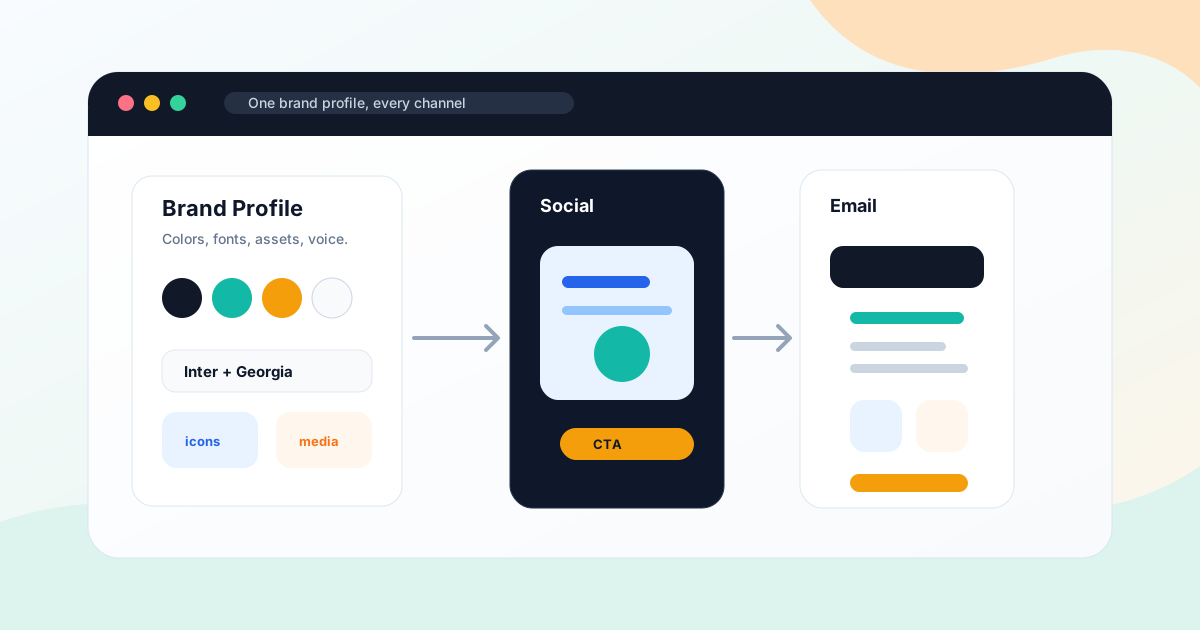
Brands, Icons, and Media
Email quality improves when the API has brand and asset context. A plain prompt can generate a usable template, but a brand-aware prompt generates something much closer to production.
Apply a Saved Brand
Brand data is passed as context plus explicit colors and fonts. Fetch a saved brand, then build a richer prompt:
Brand: Acme Analytics
Website: acme.example
Brand Info: Analytics platform for modern SaaS teams.
Products: Team dashboards, AI summaries, revenue reports.
Brand Aesthetic: Clean, confident, data-rich, modern.

Email task: Announcement email for the new executive dashboard. The CTA is "Book a demo".
Then pass brand colors and fonts through colors and brand_fonts. This split matters: the context tells the AI what the brand means, while the explicit arrays give it usable design constraints.
Use Saved Icons
Icons must be saved to your Iconly library before they can be used in email generation. Generate or choose icons first, save them, then pass their UUIDs in icon_ids. For icon workflows, see the Iconly icon generation API guide.
Use Media Assets
media_assets accepts public image URLs for product photos, logos, editorial images, or feature screenshots. Keep the list focused. Too many images can make an email heavy and harder to scan.
HTML Export Workflow
For email, HTML is not an intermediate artifact. It is the thing you send.
- Generate the email. Call
POST /api/generate-email/. - Read the HTML. Extract
creatives[0].html. - Store it. Save the HTML in your app, database, object storage, or Iconly account.
- Preview it. Render it in an iframe, email preview pane, or screenshot job.
- Export it. Copy the HTML or write it to a file for your ESP.
- QA it. Check links, subject line, mobile view, images, merge variables, and compliance text.
- Send it through your ESP. Iconly creates the template; your ESP handles lists, personalization, deliverability, unsubscribe logic, and sending.
Iconly is the design and template generation layer. It is not an email service provider, so you should still rely on your ESP for sending infrastructure, suppression lists, unsubscribe headers, analytics, and deliverability controls.
Preview Screenshots
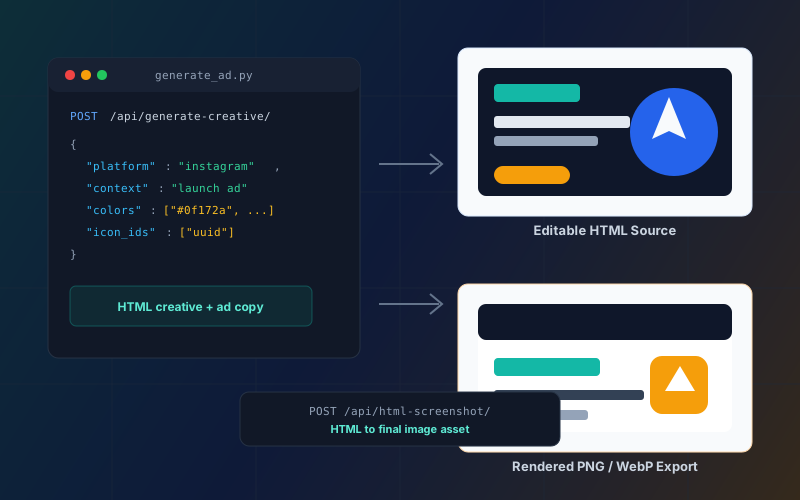
Use POST /api/html-screenshot/ when you need a visual preview, approval image, QA artifact, or dashboard thumbnail.
POST /api/html-screenshot/
{
  "html": "<!DOCTYPE html><html>...</html>",
  "width": 600,
  "height": 1200,
  "scale": 2,
  "format": "png"
}
For emails, a screenshot should support the workflow rather than replace the email. Keep the HTML as the editable and sendable source. The HTML Screenshot API guide covers screenshot parameters, selector capture, and rendering limits in more detail.
Python Example
This example generates a branded announcement email, writes the HTML to disk, and creates a PNG preview.
import base64
import os
import requests

BASE = "https://iconly.ai/api"
HEADERS = {
    "X-API-Key": os.environ["ICONLY_API_KEY"],
    "Content-Type": "application/json",
}

email_resp = requests.post(
    f"{BASE}/generate-email/",
    json={
        "email_type": "announcement",
        "context": (
            "Announcement email for a SaaS analytics product. "
            "Introduce the new executive dashboard, mention faster reporting, "
            "and use one CTA: Book a demo."
        ),
        "colors": ["#0f172a", "#14b8a6", "#f8fafc"],
        "brand_fonts": ["Inter", "Georgia"],
        "model": "thinking",
        "save": True,
        "name": "Executive dashboard announcement",
    },
    headers=HEADERS,
    timeout=180,
)
email_resp.raise_for_status()
email = email_resp.json()

html = email["creatives"][0]["html"]

with open("announcement-email.html", "w", encoding="utf-8") as f:
    f.write(html)

preview_resp = requests.post(
    f"{BASE}/html-screenshot/",
    json={
        "html": html,
        "width": 600,
        "height": 1200,
        "scale": 2,
        "format": "png",
    },
    headers=HEADERS,
    timeout=45,
)
preview_resp.raise_for_status()

data_url = preview_resp.json()["image"]
preview_bytes = base64.b64decode(data_url.split(",", 1)[1])

with open("announcement-email-preview.png", "wb") as f:
    f.write(preview_bytes)

print(email["ad_copy"])
Node.js Example
This example generates a promotional email and prints the HTML plus copy fields.
const BASE = "https://iconly.ai/api";
const API_KEY = process.env.ICONLY_API_KEY;

async function post(path, body) {
  const response = await fetch(`${BASE}${path}`, {
    method: "POST",
    headers: {
      "X-API-Key": API_KEY,
      "Content-Type": "application/json",
    },
    body: JSON.stringify(body),
  });

  const data = await response.json();
  if (!response.ok) {
    throw new Error(data.error || `Iconly API error: ${response.status}`);
  }
  return data;
}

const email = await post("/generate-email/", {
  email_type: "promotional",
  context: "Promotional email for a project management app. Offer 20% off annual plans, mention faster planning, and include one CTA.",
  colors: ["#111827", "#2563eb", "#f8fafc"],
  brand_fonts: ["Inter", "Manrope"],
  model: "fast",
  save: true,
  name: "Annual plan promotion",
});

const html = email.creatives[0].html;

console.log(email.ad_copy);
console.log(html);
Email QA Checklist
Generated emails still need review before they are sent. Use this checklist before handing HTML to your ESP:
Copy
Check subject line, preheader, offer details, dates, pricing, product names, claims, and CTA language.
Brand
Confirm colors, logo usage, typography, icon style, image choices, and overall tone match the brand profile.
Mobile
Preview at narrow widths, check heading wraps, button size, image scaling, and section spacing.
Links
Replace placeholders, test URLs, verify UTM parameters, and make sure unsubscribe and footer requirements are handled.
Also test the template in the ESP you will use to send it. Email clients are stricter than browsers, and ESPs may rewrite links, images, merge fields, and tracking pixels.
Errors, Tokens, and Timeouts
Email generation costs 12 tokens in fast mode or 25 tokens in thinking mode. Each call generates one template. Generation requests count toward the general generation throttle, which is 10 requests per minute.
Use a timeout of at least 3 minutes for email generation. The workflow can include AI generation, HTML construction, font handling, and asset placement. If you are building a production app, put email generation in a background job and show the user a progress state instead of blocking a short web request.
| Status | Meaning | What to Do |
|---|---|---|
400 |
Missing or invalid request data | Validate email_type, context, media shape, and required fields. |
401 |
Missing or invalid API key | Check the X-API-Key header and make sure the key is server-side. |
403 |
Plan, permission, or verification issue | Ask the user to verify the account or use a plan with API access. |
429 |
Rate limited or insufficient tokens | Back off for rate limits. For token issues, show balance and stop the job. |
500 |
Generation failed | Retry later, reduce prompt complexity, or route the template to manual review. |
Frequently Asked Questions
Does Iconly have an AI email template API?
Yes. Use POST /api/generate-email/ to generate responsive HTML email templates from a prompt. It supports newsletter, promotional, welcome, transactional, announcement, and event invite emails.
What does the AI Email Template API return?
It returns generated HTML, extracted text content, structured copy fields, the email type, and an ID when the template is saved. The HTML is the main export.
Can I export generated HTML to Mailchimp, Klaviyo, SendGrid, or HubSpot?
Yes. Iconly returns portable HTML. Paste or import that HTML into any ESP that accepts custom HTML templates, then use the ESP for sending, unsubscribe handling, deliverability, and reporting.
Can I use icons in API-generated emails?
Yes. Icons need to be saved in your Iconly library first. Pass saved icon UUIDs in icon_ids so the email generator can embed them in the design.
Should I export an email as an image?
No. Use images only for previews, approvals, and thumbnails. The final email should remain responsive HTML so links, text, accessibility, and mobile layout work properly.
How do I keep email templates consistent across campaigns?
Use the same saved brand profile, pass consistent colors and fonts, reuse saved library icons, and save strong templates for later reference. For broader campaign consistency, pair email generation with Brand Studio and Social Creative Studio.
Continue reading: HTML to Image API: Render Social Creatives and Email Previews · How to Build a CSS Icon Library With AI · Brand API Guide: Crawl Websites and Reuse Brand Profiles · Iconly API for Icon Generation: Developer Guide With Code Examples · Iconly API: Complete Guide to Icons, Social Graphics, Emails, and Vectors