Key takeaways: Brand consistency with AI is a workflow problem, not just a prompt problem. Start with one clean Brand Studio profile, reuse the same campaign brief, save shared icons and media, generate social graphics and email templates from the same brand context, then review the outputs side by side. The goal is not identical layouts; it is a campaign that feels recognizable across feed, story, ad, and inbox.
AI makes it easy to create assets quickly. That is also why brand consistency can fall apart quickly. One prompt creates a bold blue Instagram graphic. Another creates a soft beige email. A third creates feature icons with a different line weight. Each asset looks acceptable alone, but together they feel like three different companies.
The fix is not a longer prompt. The fix is a shared workflow: one brand profile, one campaign message, one set of reusable assets, and one review pass across channels.
This guide shows how to keep AI-generated social graphics and emails on-brand using Iconly's Brand Studio, Social Creative Studio, Email Builder, icon library, and media library.
Why AI Campaign Assets Drift Off-Brand
Brand drift usually happens for boring reasons. The system has no shared memory, so every generation makes new choices.
Separate Prompts
Each asset is generated from scratch, so the AI chooses new colors, wording, hierarchy, and style.
No Brand Profile
Colors, fonts, logo rules, product context, and aesthetic notes are not stored anywhere reusable.
Different Assets
Social uses one image, email uses another, and icons come from a third unrelated style.
No Joint Review
Assets are approved one by one instead of being compared as one campaign system.
The more assets you generate, the more this matters. A single off-brand post is annoying. A launch campaign with mismatched posts, ads, icons, and emails is confusing.
Start With One Brand Source of Truth
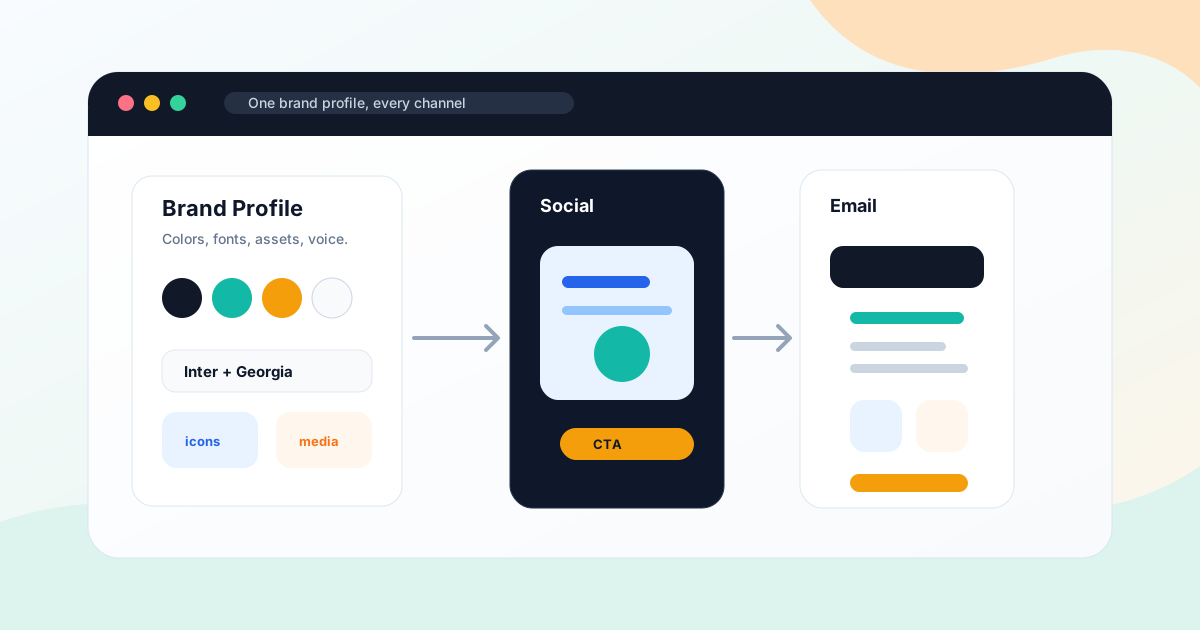
Before generating anything, create or clean a brand profile. In Iconly, a useful brand profile includes:
- Brand name and domain so the output knows who it represents.
- Description explaining what the company does and who it serves.
- Aesthetic describing the visual tone in plain language.
- Primary, secondary, and accent colors with exact hex values.
- Fonts for headings and body copy.
- Logo URL and media assets for visual continuity.
- Products and features so campaign copy stays accurate.
If you do not have a formal brand guide, use AI brand identity extraction to crawl the website and create a first draft. Then review the colors, fonts, media, and description before using it in production.
Example Brand Profile
Brand: Northstar Analytics
Website: northstar.example
Description: Analytics dashboards for SaaS founders and operators.
Aesthetic: Modern B2B SaaS, dark navy base, teal accents, clean cards, calm data visuals, confident but not loud.
Colors: #0f172a, #14b8a6, #f59e0b
Fonts: Inter, Georgia
Products: Executive dashboards, AI weekly summaries, revenue reports
Features: Team activity insights, product usage trends, board-ready reporting
This profile is the anchor. Every social graphic and email should inherit from it.
Write One Cross-Channel Campaign Brief
Next, write one campaign brief that both social and email generation can use. Do not write a social prompt first and an unrelated email prompt later. Write the campaign once, then adapt it by channel.
| Brief Element | Example | Why It Matters |
|---|---|---|
| Campaign goal | Launch the new executive dashboard. | Keeps social and email focused on the same outcome. |
| Audience | SaaS founders and operators. | Controls tone, proof points, and level of detail. |
| Core message | Turn messy weekly reporting into board-ready dashboards. | Prevents each asset from inventing a new angle. |
| CTA | Book a demo. | Creates consistency across button text and final action. |
| Proof points | AI summaries, revenue trends, product usage, team activity. | Gives both channels the same content hierarchy. |
A good campaign brief is short but specific. It should be reusable across a square post, a story creative, a launch email, and follow-up assets.
Build Shared Icons and Media
Shared visuals are what make the campaign feel connected. Before generating the final social and email assets, prepare the supporting pieces:
- Feature icons: Generate or choose icons for the campaign's main proof points.
- Product media: Save product screenshots, logos, packaging, founder photos, or hero images to the media library.
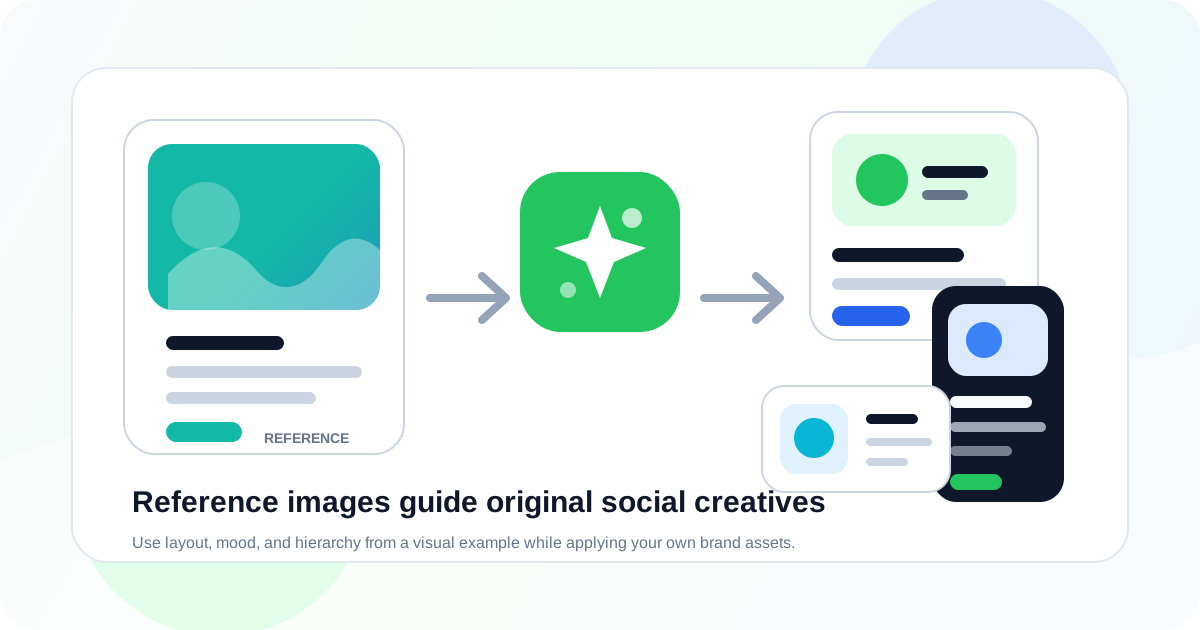
- Reference direction: Save one strong image or previous campaign asset if you want a similar layout or mood.
Icons are especially useful because they can appear in both channels. A feature icon set can support social proof points, email sections, landing page cards, and future follow-up posts. For a deeper icon workflow, see how to generate a matching icon set with AI.
Generate Social Graphics
Start with social because it forces the campaign into a clear visual hierarchy. Social graphics have limited space, so the AI has to choose the most important message, image, and CTA.
- Select the saved brand profile.
- Attach saved icons or media assets if needed.
- Use the campaign brief as the prompt.
- Generate the formats you need: square, portrait, story, landscape, or platform-specific sets.
- Edit text wrapping, CTA placement, crop, spacing, and image hierarchy.
Create an Instagram square and story graphic for the Northstar Analytics executive dashboard launch. Audience: SaaS founders. Core message: turn messy weekly reporting into board-ready dashboards. Use the saved brand profile, dark navy base, teal accents, clean data visuals, and CTA: Book a demo.Social output does not need to contain every detail. Its job is attention, recognition, and one clear action.
Generate Email Templates
Next, generate the email from the same brand and campaign brief. Email can carry more detail than a social graphic, but it should still feel like the same campaign.
In Email Builder:
- Select the same brand profile.
- Use the same campaign goal, audience, message, proof points, and CTA.
- Attach the same icons or product media where useful.
- Choose the right email type: announcement, promotional, newsletter, welcome, transactional, or event invite.
- Export responsive HTML for your ESP after review.
Create an announcement email for the Northstar Analytics executive dashboard launch. Use the same campaign message as the social graphics: turn messy weekly reporting into board-ready dashboards. Include sections for AI summaries, revenue trends, product usage, and team activity. CTA: Book a demo.The email should reuse the campaign language and visual cues, but it should not simply copy the social graphic. Email needs scannable sections, working links, accessible text, and responsive HTML. For developer workflows, see the AI Email Template API guide.
Review Social and Email Together
This is the step most teams skip. Do not approve the social creative and email template separately. Put them side by side and ask whether they feel like one campaign.
| Review Area | Social Graphic | Email Template |
|---|---|---|
| Brand colors | Do the dominant and accent colors match the profile? | Do buttons, headers, and section accents use the same palette? |
| Typography | Do headings feel like the brand? | Are email-safe fonts or fallbacks close enough? |
| Message | Is the core promise clear in one glance? | Does the email expand the same promise instead of changing it? |
| CTA | Is the action obvious? | Does the button use the same CTA language? |
| Assets | Are icons and product images consistent? | Do sections reuse the same visual language? |
If one asset feels wrong, fix it before generating the next variation. Otherwise the inconsistency spreads across the whole campaign.
Example Campaign Workflow
Here is a complete workflow for a product launch:
- Create or crawl the brand. Use Brand Studio to extract the website identity or manually enter colors, fonts, logo, products, and aesthetic.
- Clean the profile. Remove temporary colors, fix fonts, rewrite the description, and save useful media.
- Write one campaign brief. Define audience, goal, message, proof points, and CTA.
- Create feature icons. Generate a small matching icon set for the campaign proof points and save it to the library.
- Generate social formats. Create square, portrait, story, or ad placements with the brand applied.
- Generate the email. Use the same brand, icons, media, proof points, and CTA to create responsive HTML.
- Review together. Compare visual identity, message, CTA, and asset usage side by side.
- Export and save. Save final graphics, copy HTML for your ESP, and keep reusable assets in the library.
This same flow works for sales, webinars, product updates, ecommerce drops, onboarding campaigns, and client deliverables. The topic changes, but the consistency pattern stays the same.
Brand Consistency Checklist
Brand Profile
Colors, fonts, description, aesthetic, products, features, logo, and media are accurate and current.
Campaign Message
Every asset uses the same audience, promise, proof points, and CTA.
Shared Assets
Icons, product images, screenshots, and logos come from the same library or approved source.
Channel Fit
Social is punchy and visual; email is readable, responsive, linkable, and accessible.
Before publishing, also check product names, legal claims, pricing, discounts, dates, image rights, unsubscribe/footer requirements, UTM links, mobile previews, and accessibility.
Common Mistakes
Trying to Make Every Asset Identical
Consistency does not mean sameness. A story graphic, feed ad, and email header can share the same palette and message while using different layouts.
Using Brand Colors Without Brand Context
Colors alone are not enough. The AI also needs product context, audience, visual aesthetic, and messaging direction.
Letting Email Become an Image
Email should remain responsive HTML. Use screenshots for previews and approvals, not as the final sendable asset.
Skipping the Media Library
If every asset uses a different upload or product image, the campaign will drift. Save the best media assets and reuse them deliberately.
Approving Assets One at a Time
Side-by-side review is what catches drift. Check the social graphic, email, and supporting icons together before export.
Frequently Asked Questions
How do you keep AI-generated social graphics and emails on-brand?
Use one reusable brand profile for both channels, pass the same colors and fonts into each generation, reuse the same icons and media assets, keep one campaign message, and review social and email outputs together before publishing.
Why do AI-generated campaign assets drift off-brand?
Brand drift happens when each asset is generated from a separate prompt, with no shared brand profile, no saved colors or fonts, no reusable icons, and no cross-channel review step.
Can the same AI brand profile be used for social graphics and email templates?
Yes. In Iconly, Brand Studio stores reusable brand profiles with colors, fonts, description, visual aesthetic, products, features, logo references, and media. Those profiles can be applied to Social Creative Studio and Email Builder.
Should social graphics and emails look identical?
No. They should feel like the same campaign, but each channel needs its own layout constraints. Social graphics need stronger visual hierarchy and platform sizing, while email templates need responsive HTML, scannable sections, and accessible links.
What should I check before publishing AI-generated social and email assets?
Check colors, fonts, logo usage, icon style, product names, offer details, dates, CTA language, mobile readability, image rights, links, unsubscribe/footer requirements, and whether the assets feel like one coherent campaign.
Can developers automate this workflow?
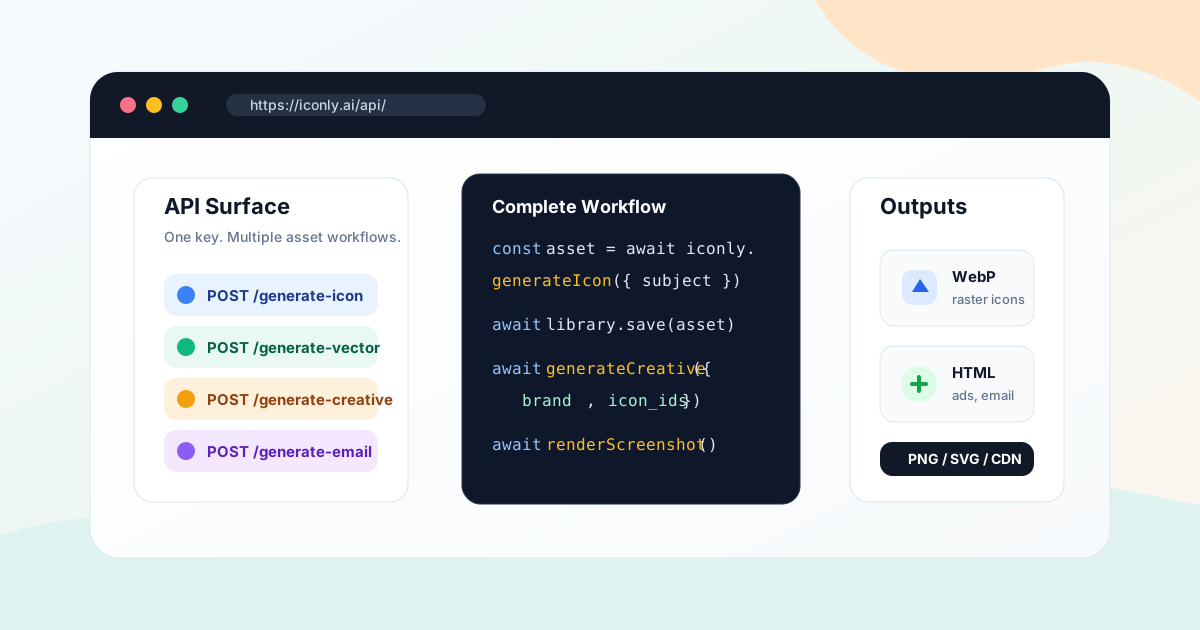
Yes. Use the Brand API to fetch or crawl a brand profile, then pass brand context, colors, fonts, icons, and media into the Social Creative API and Email Template API.
Continue reading: How to Organize AI Design Assets With a Media Library · How to Extract Brand Identity From a Website With AI · Brand API Guide: Crawl Websites and Reuse Brand Profiles · How to Create Promotional Email Templates With AI · AI Newsletter Template Generator: Create Branded Newsletters Fast