Key takeaways: A good AI newsletter workflow starts with a clear editorial brief, not a vague prompt. Use one saved brand profile, define the newsletter sections, attach approved icons and media, generate the responsive HTML, edit the hierarchy, then export to your ESP for testing and sending.
Newsletters look simple until you have to make one every week. You need a headline, intro, featured story, secondary links, product updates, maybe a customer quote, maybe an event block, and a CTA that feels useful instead of desperate. Then you need it to match the brand, work on mobile, and survive Gmail and Outlook.
An AI newsletter template generator compresses that work. Instead of starting from a blank drag-and-drop canvas, you write a brief, apply a saved brand profile, and generate a responsive HTML newsletter draft with layout, copy, styling, icons, and media direction already in place.
This guide shows how to create a branded newsletter in Iconly's AI Email Builder, then export the finished HTML to Mailchimp, Klaviyo, HubSpot, SendGrid, Brevo, ActiveCampaign, or the ESP your team already uses.
What an AI Newsletter Template Generator Does
A newsletter generator is more than an AI copywriter. A copywriter can draft the text. A template generator creates the structure around that text.
Layout
Header, hero, featured story, link blocks, update cards, CTA, footer, and mobile-friendly spacing.
Branding
Colors, fonts, logo context, visual tone, products, and saved brand rules applied automatically.
Assets
Icons, logos, screenshots, product photos, media library images, and visual references.
HTML Export
Responsive email HTML you can copy, download, test, and send through your ESP.
In Iconly, newsletter generation is part of the broader AI Email Builder. That means the same brand profile can also power promotional emails, announcements, welcome sequences, and campaign follow-ups.
Start With a Newsletter Brief
The best newsletter prompts are short briefs. They tell the AI what the issue is trying to do, who it is for, and what sections should appear.
| Brief Element | What to Include | Example |
|---|---|---|
| Audience | Who receives it and what they care about. | SaaS founders who want faster product analytics. |
| Goal | The main action or impression you want. | Drive readers to book a demo for the new dashboard. |
| Featured story | The lead item that deserves the most space. | New executive dashboard launch. |
| Secondary items | Updates, links, resources, events, or product notes. | Webinar invite, customer quote, three feature highlights. |
| Tone | How the newsletter should feel. | Helpful, concise, confident, not salesy. |
| CTA | The main button or next step. | Book a demo. |
A vague prompt like "make a newsletter" gives the AI too much room to invent. A concrete brief creates a usable first draft.
Apply a Brand Profile
Newsletters are recurring. That makes brand consistency especially important. If every issue looks slightly different, subscribers feel it, even if they cannot name why.
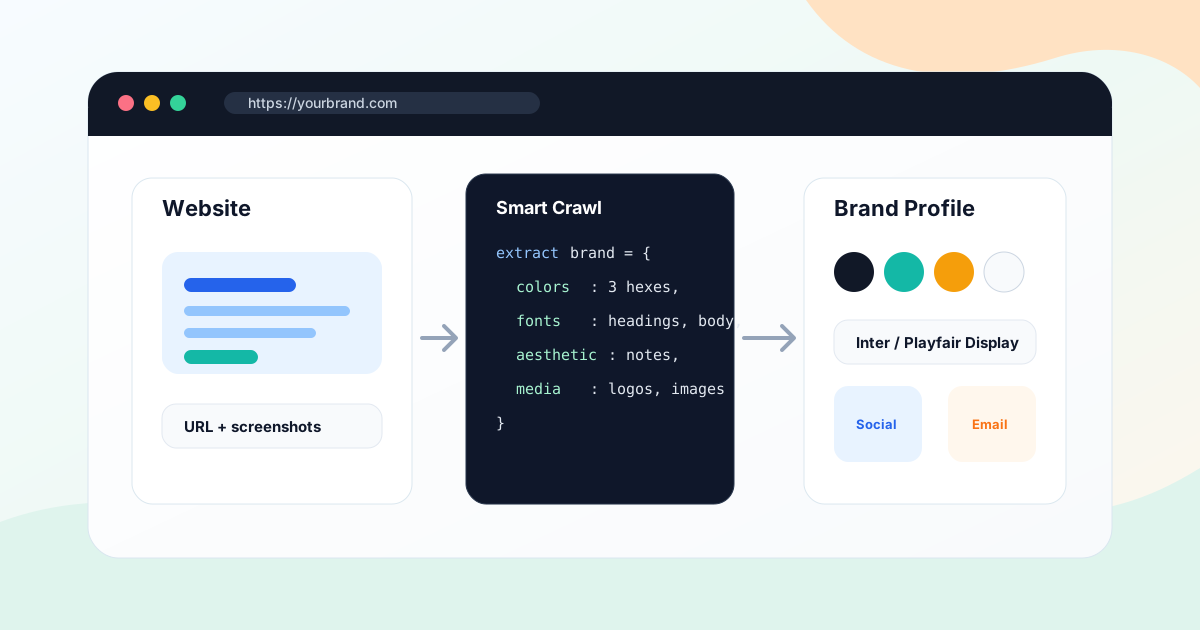
With Iconly Brand Studio, you can save a reusable brand profile that includes:
- Brand name and domain for context.
- Description and audience so copy stays relevant.
- Colors and fonts for consistent visual identity.
- Logo and media for headers, product sections, and proof points.
- Products, features, and aesthetic so the newsletter sounds like the right company.
If the brand does not have a clean style guide, start by crawling the website to extract colors, fonts, media, and brand context. Then clean up the profile before generating the newsletter. For the full setup workflow, read how to extract brand identity from a website with AI.
Choose the Right Newsletter Sections
Most newsletters fail because they have too many sections with equal weight. A strong newsletter has one lead story and a few supporting blocks.
Editorial Newsletter
Intro note, featured article, curated links, team note, and one soft CTA.
Product Update
Launch headline, feature cards, screenshot block, customer value, and product CTA.
Ecommerce Newsletter
Featured collection, product grid, offer block, social proof, and shop CTA.
Community Digest
Highlights, events, member story, resources, and upcoming dates.
Tell the AI which structure you want. If you do not specify, it may create a generic layout that looks fine but does not match your newsletter's job.
Prompt Examples
Use these examples as starting points. Replace the bracketed details with your campaign information.
Product Update Newsletter
Create a branded product update newsletter for [company]. Audience: [audience]. Lead story: [feature or launch]. Include a short intro, three feature highlight cards, one customer value section, a product screenshot block, and a CTA button: [CTA]. Tone: concise, helpful, confident. Use the saved brand profile and keep the layout mobile-friendly.Weekly Editorial Newsletter
Create a weekly editorial newsletter for [brand]. Audience: [audience]. Main story: [topic]. Include an editor note, featured article section, three curated links, one quote or stat block, and a soft CTA to [action]. Tone: thoughtful, direct, useful. Use brand colors and include small section icons.Ecommerce Newsletter
Create a promotional newsletter for [store]. Theme: [collection or offer]. Include a hero section, three product cards, benefit icons, shipping or returns note, customer quote, and CTA: Shop the collection. Use the saved brand profile, product media, and a clean mobile-first layout.Event Newsletter
Create an event invitation newsletter for [event]. Audience: [audience]. Include event title, date, time, speaker highlights, three reasons to attend, agenda preview, and CTA: Reserve your seat. Make the design branded, scannable, and ready for HTML export.Tip: Save your best prompt as a reusable pattern. For a recurring newsletter, keep the structure stable and only swap the issue-specific stories, links, images, and CTA.
Use Icons and Media Without Clutter
Newsletters need visual rhythm. Icons and images help readers scan, but too many visuals slow the email down and distract from the message.
Use visuals where they clarify the structure:
- Header logo: Keep it simple and sized for mobile.
- Featured image: Use one hero image or screenshot when it supports the lead story.
- Section icons: Use small matching icons for feature highlights, resource categories, or benefits.
- Product media: Use clear, cropped images with descriptive alt text.
- CTA support: Use visual cues sparingly around the primary action.
Iconly is useful here because your generated icons, media assets, and newsletter template live in the same workflow. You can generate a matching icon set, save it to the library, and attach those icons to the newsletter generation.
For email compatibility, keep icons as raster images such as PNG or WebP where your ESP supports it, include alt text, and avoid relying on SVG or icon fonts in the final email. Email clients are stricter than browsers.
Generate, Edit, and Save the Template
Once the brief, brand, and assets are ready, generate the newsletter in Email Builder.
- Select Newsletter as the email type.
- Choose the saved brand profile so colors, fonts, product context, and visual tone are applied.
- Attach approved icons and media if the issue needs product shots, screenshots, or section icons.
- Paste the newsletter brief with audience, goal, stories, sections, and CTA.
- Generate the template and review the first draft for hierarchy before editing details.
- Edit visually to adjust copy, reorder sections, resize elements, delete weak blocks, and refine spacing.
- Save the template so the next issue can start from a proven structure.
The editing pass matters. AI should give you a strong first draft, but newsletters are editorial assets. Tighten headlines, remove filler, confirm links, and make sure the most important story gets the most visual weight.
Export and Test in Your ESP
Iconly exports responsive HTML for use in your sending platform. The normal handoff looks like this:
- Copy the generated HTML or download the HTML file.
- Open your ESP's custom HTML or code template editor.
- Paste or upload the template.
- Replace placeholder links with final URLs and UTM parameters.
- Adapt personalization fields to your ESP's merge tag syntax.
- Send test emails to Gmail, Outlook, Apple Mail, and mobile inboxes.
- Fix rendering issues, proof copy, and schedule the campaign.
For a more technical workflow, see the Email Builder docs and the AI Email Template API guide. If you are still choosing a tool, compare options in the best HTML email template builders guide.
Newsletter QA Checklist
| Area | Check |
|---|---|
| Brand | Logo, colors, fonts, tone, icon style, and media all match the saved brand profile. |
| Content | Lead story is clear, secondary links are useful, and the CTA matches the newsletter goal. |
| Mobile | Headlines wrap cleanly, buttons are easy to tap, images fit, and sections remain readable. |
| Links | Every URL is final, tracked, and pointed to the correct destination. |
| Personalization | Merge tags use the syntax required by your ESP and have sensible fallbacks. |
| Compliance | Footer, unsubscribe link, mailing address, and preference links are present where required. |
| Testing | Test sends are checked in Gmail, Outlook, Apple Mail, webmail, and mobile clients. |
Common Mistakes
Using a Prompt Instead of a Brief
"Create a newsletter" is not a brief. Include the audience, goal, lead story, sections, CTA, tone, and brand profile.
Changing the Layout Every Issue
Recurring newsletters work best when readers recognize the structure. Save a strong template and evolve it gradually.
Adding Too Many Sections
If everything is featured, nothing is featured. Pick one lead story and support it with a few useful blocks.
Forgetting the ESP Handoff
The generated newsletter still needs final links, merge tags, unsubscribe details, sender information, and test sends inside the ESP.
Treating Email Like a Web Page
Email clients are stricter than browsers. Keep the layout simple, use email-safe structure, compress images, add alt text, and test before sending.
Frequently Asked Questions
What is an AI newsletter template generator?
An AI newsletter template generator creates a branded newsletter layout, copy, styling, and responsive HTML from a written brief. Instead of manually choosing blocks, you describe the audience, sections, stories, CTA, and brand direction, then edit and export the generated template.
Can AI generate responsive HTML newsletters?
Yes. Iconly's AI Email Builder generates responsive HTML newsletters designed around email-safe layouts, inline styles, brand colors, fonts, icons, media assets, and export options for common ESPs.
What should I include in an AI newsletter prompt?
Include the newsletter audience, goal, brand profile, send frequency, main story, secondary sections, CTA, tone, links, images, icon needs, and any personalization fields. The more specific the brief, the better the generated structure.
Can I use AI-generated newsletters in Mailchimp, Klaviyo, HubSpot, or SendGrid?
Yes. If the tool exports portable HTML, you can copy or upload the generated newsletter template into Mailchimp, Klaviyo, HubSpot, SendGrid, Brevo, ActiveCampaign, or another ESP. Always test the final email before sending.
Do AI newsletter templates replace email strategy?
No. AI can create the newsletter layout, copy draft, and HTML quickly, but you still need a clear audience, send cadence, editorial judgment, link strategy, compliance checks, and performance review.
How do I keep AI-generated newsletters on-brand?
Use a saved brand profile in Brand Studio, reuse approved icons and media, keep a stable newsletter structure, and review each issue against your colors, fonts, tone, logo usage, and visual hierarchy before export.
Continue reading: How to Create Promotional Email Templates With AI · How to Keep Social Graphics and Emails On-Brand With AI · How to Organize AI Design Assets With a Media Library · How to Create Mailchimp-Ready HTML Emails With AI · How to Use Reference Images to Generate On-Brand Social Creatives