Key takeaways: The cleanest Mailchimp AI workflow is to generate the email design in a dedicated AI email builder, edit the HTML until the layout and copy are ready, then bring it into Mailchimp for audience, sending, automation, analytics, compliance, and testing. Use full custom HTML for complete templates, Code blocks for small snippets, and always adapt links, images, unsubscribe tags, and merge tags before sending.
Mailchimp is strong at sending email campaigns: audiences, automations, analytics, ecommerce integrations, deliverability tools, and reports. But when the bottleneck is the design itself, starting inside a blank email builder can still feel slow.
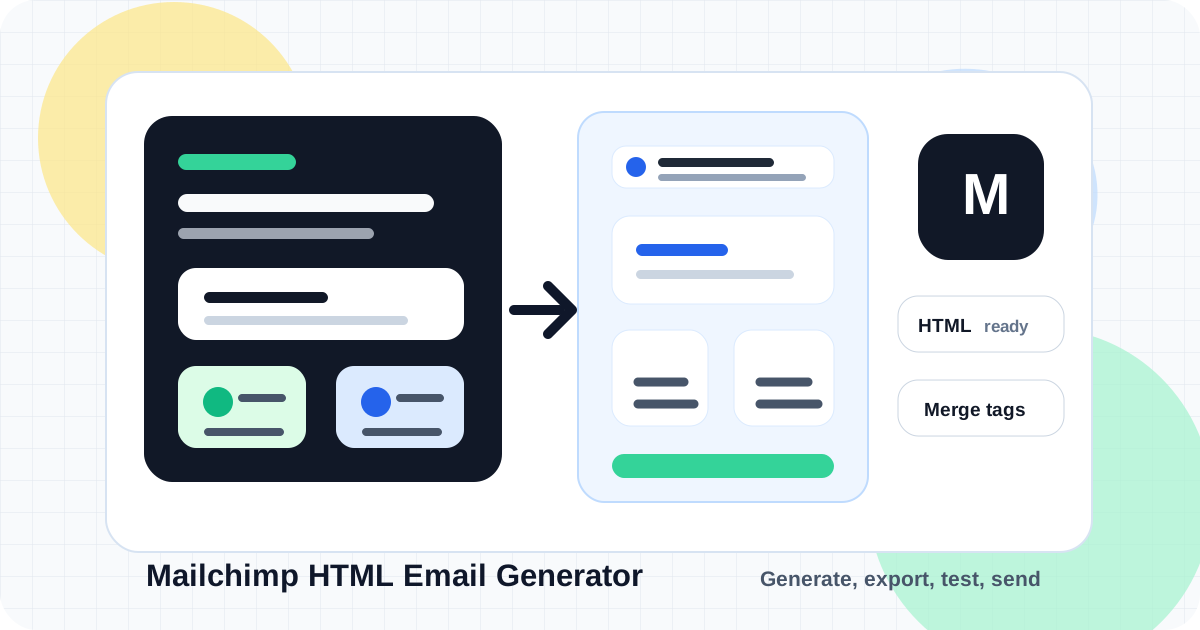
That is where an AI email builder helps. You can generate the first version of the email layout, copy, visual hierarchy, brand styling, icons, and responsive HTML from a short brief. Then you take the finished HTML into Mailchimp for the operational side of email marketing.
This guide shows how to create Mailchimp-ready HTML emails with AI using Iconly's AI Email Builder, then prepare the result for Mailchimp custom templates, paste-in-code emails, Code blocks, image hosting, merge tags, unsubscribe requirements, and final test sends.
What Mailchimp-Ready HTML Means
"Mailchimp-ready" does not mean the email is ready to send the moment AI creates it. It means the email has been designed and exported in a way that can be moved into Mailchimp without rebuilding the design from scratch.
Responsive Layout
A 600px-centered email structure with mobile-friendly sections, buttons, text, and spacing.
Brand System
Colors, fonts, logo context, icons, product language, and visual tone applied before export.
Absolute Assets
Image and icon URLs are public, final, compressed, and not dependent on local files.
ESP Details
Merge tags, unsubscribe links, sender information, tracking links, and test sends are handled in Mailchimp.
Mailchimp's own help docs explain that custom HTML emails need practical email-safe constraints: simple code, public image URLs, table-friendly layouts, a 600px-or-less width target, inline CSS where possible, and rendering tests across inboxes. Those rules matter even when AI creates the first draft.
The AI to Mailchimp Workflow
The workflow is simple when each tool does the job it is best at. Use Iconly for design generation and portable HTML. Use Mailchimp for the audience, campaign settings, compliance, testing, sending, automation, and reporting.
- Create or choose a brand profile in Brand Studio.
- Generate the email in Iconly's AI Email Builder using a specific campaign brief.
- Edit the output visually so the hierarchy, CTA, copy, spacing, and assets are ready.
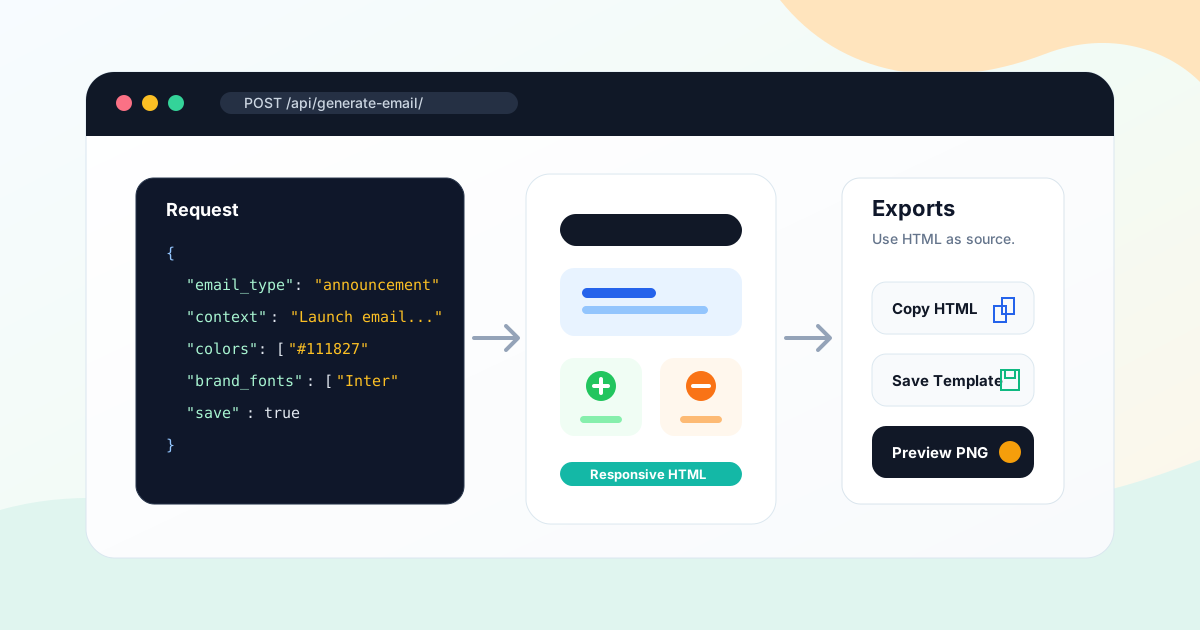
- Copy or download the HTML from Iconly.
- Open the right Mailchimp workflow: full custom template, paste-in-code email, or Code block.
- Replace placeholders with final links, hosted image URLs, UTM parameters, and Mailchimp merge tags.
- Preview and test on desktop, mobile, and the inboxes your audience actually uses.
- Send or schedule through Mailchimp after final proofing.
Important distinction: Iconly creates the email design and HTML. Mailchimp sends the campaign. The email deliverable is HTML, not a screenshot or image.
Choose the Right Mailchimp Import Method
There are a few ways to bring generated HTML into Mailchimp. The right choice depends on whether you are replacing the entire email or only inserting one custom section.
| Mailchimp Method | Best For | What to Know |
|---|---|---|
| Custom HTML Template | Reusable full email templates generated outside Mailchimp. | Mailchimp's help docs say custom HTML templates are available on Standard plan or higher. You can paste code, import HTML, or import a ZIP. |
| Paste in Code | One campaign where the full email HTML already exists. | Good for a complete Iconly-exported email. Mailchimp notes that this is an advanced feature and uses the legacy builder flow. |
| Code Content Block | Small custom HTML sections inside Mailchimp's new builder. | Useful for a banner, special offer block, custom table, or small snippet. It is not the cleanest way to paste an entire complete email. |
| Native Mailchimp Builder | Teams that want to stay fully inside Mailchimp's editor. | Convenient for sending and operations, but less portable if you want to reuse the same design across ESPs. |
Before choosing the custom HTML route, check Mailchimp's current pricing and feature table. As of this review, Mailchimp's pricing page lists custom-coded templates as "Create and Send" on Premium and Standard, and "Create - upgrade to send" on Essentials and Free.
For a broader tool comparison, read Best HTML Email Template Builders in 2026. For a product-specific comparison, see Iconly vs Mailchimp or Mailchimp alternatives.
Set Up the Brand Before Generating
The fastest way to get a useful AI email is to set the brand context before you generate. Otherwise, the AI can produce a layout that looks polished but generic.
In Iconly Brand Studio, save the core brand details first:
- Brand name and domain so the email knows who it represents.
- Colors and fonts so sections, buttons, and headings match the brand.
- Logo and media for headers, product sections, proof points, and feature cards.
- Products and features so copy uses the right language.
- Aesthetic direction such as minimal, playful, editorial, premium, technical, or warm.
If you do not have those details ready, start with a website crawl. Iconly can extract colors, fonts, visual style, products, features, and discovered media from a website, then save that profile for future emails and social creatives. The full setup workflow is covered in How to Extract Brand Identity From a Website With AI.
Prompt Examples for Mailchimp Emails
Mailchimp-ready prompts should include both the design goal and the handoff requirements. Mention the email type, audience, CTA, brand profile, asset needs, and any Mailchimp merge tags you plan to use.
Newsletter Prompt
Create a branded newsletter email for [brand]. Audience: [audience]. Lead story: [topic]. Include a short intro, featured article section, three curated links, a product update block, and CTA button: [CTA]. Use the saved brand profile, keep the layout around 600px wide, include clear mobile spacing, and leave room for Mailchimp merge tags.Promotional Campaign Prompt
Create a Mailchimp-ready promotional email for [brand]. Offer: [offer]. Audience: [segment]. Include a hero, benefit icons, product image section, social proof, urgency line, and CTA: [button text]. Use brand colors and fonts, write concise conversion-focused copy, and prepare the HTML for hosted images and Mailchimp testing.Welcome Email Prompt
Create a welcome email for new subscribers to [brand]. Use a friendly tone. Include a personalized greeting placeholder for first name, a short brand introduction, three value bullets with icons, one featured resource, and CTA: [next step]. Export as responsive HTML suitable for Mailchimp.Product Launch Prompt
Create a product launch email for [product]. Audience: [audience]. Include launch headline, problem statement, three feature cards, product screenshot area, quote block, and CTA: [CTA]. Use the saved brand profile, make the design scannable on mobile, and keep images easy to replace with public URLs in Mailchimp.Prompt tip: Ask for "Mailchimp-ready" only after you define what that means: responsive HTML, simple email-safe layout, public image URLs, final CTA areas, and placeholders for merge tags.
HTML Rules That Matter in Mailchimp
Email HTML is not web page HTML. Browser layouts can use modern CSS freely. Email layouts have to survive inconsistent rendering engines, stripped tags, blocked scripts, and narrow mobile screens.
Mailchimp's HTML email guidance recommends keeping the message focused, hosting images publicly, using simple table-friendly code, keeping width at 600px or less, testing the rendering, and using inline CSS because webmail clients can strip document-level tags and styles.
| Rule | Why It Matters |
|---|---|
| Use a narrow email frame | Mailchimp notes that its templates are never more than 600px wide or are fluid-width, which helps emails work in preview panes and mobile inboxes. |
| Inline critical CSS | Many webmail clients strip head, body, and embedded styles. Inline styles are more reliable for email. |
| Avoid JavaScript | Mailchimp's Code block documentation says detectable JavaScript is removed because most email clients block it. |
| Use public image URLs | Images should be hosted somewhere public, either in Mailchimp Content Studio or on another public server. |
| Test real inboxes | Gmail, Outlook, Apple Mail, mobile clients, and webmail can render the same HTML differently. |
Iconly generates responsive HTML email templates with email-safe layout patterns and export options. Still, the final Mailchimp pass is where you confirm the exact rendering and campaign details before sending.
Merge Tags, Unsubscribe Links, and Personalization
Personalization should happen through Mailchimp's merge tag syntax, not hard-coded placeholders. When you generate the email in Iconly, you can ask for a placeholder like "first name greeting," then replace or confirm the exact Mailchimp tag during the Mailchimp setup.
First Name
Use a Mailchimp first-name merge tag such as *|FNAME|* where the greeting should appear.
Unsubscribe
Mailchimp requires an unsubscribe link in campaigns. Custom HTML commonly uses *|UNSUB|*.
Fallbacks
Plan for subscribers without a first name or segment value, especially in welcome and promotional emails.
Dynamic Content
Use Mailchimp's own dynamic content tools for audience-specific sections when available on your plan.
Do not wait until the final send screen to think about compliance. Your AI-generated template should leave a clean footer area for unsubscribe, mailing address, preference center links, and any legal language your campaign needs.
Images, Icons, and Hosted Assets
Images are usually the part of the handoff that breaks first. A local file path may look fine in a preview on your machine, but recipients cannot load it. For Mailchimp, images need public URLs.
Mailchimp's paste-in HTML docs say images should be hosted on a public server and links should use absolute paths. It also notes that Mailchimp's Content Studio can host images and provide URLs for custom HTML.
A practical image workflow looks like this:
- Generate or choose icons, product images, screenshots, and logos.
- Compress images so the email loads quickly.
- Upload final images to Mailchimp Content Studio or another public host.
- Copy absolute image URLs into the HTML.
- Add descriptive alt text for every meaningful image.
- Send a test email with images enabled and disabled.
Iconly helps because your generated icons, media, and email template can live in the same workflow. You can create a matching icon set in Icon Generator, save the icons to your library, attach them to the email, then export the final HTML for Mailchimp.
Test Before You Send
AI can get you to a strong first draft quickly, but final email QA is still human work. The test send is where you catch broken links, awkward mobile wrapping, missing alt text, incorrect merge tags, and rendering quirks.
- Preview in Mailchimp before sending a test.
- Send tests to multiple inboxes, especially Gmail, Outlook, Apple Mail, and mobile clients.
- Click every link, including logo, CTA, secondary links, preference center, and unsubscribe.
- Check personalization with sample subscriber data.
- View with images blocked to confirm the email still makes sense.
- Proof the plain-text version because not every subscriber will read the HTML version.
If you need a reusable production process, pair this post with AI Newsletter Template Generator and the Email Builder docs.
Mailchimp-Ready Checklist
| Area | Check |
|---|---|
| Brand | Colors, logo, fonts, icon style, tone, and media match the saved brand profile. |
| HTML | Template is responsive, simple, email-safe, and built around a narrow email frame. |
| Images | All images use public absolute URLs, are compressed, and include meaningful alt text. |
| Links | Every URL is final, absolute, tracked where needed, and checked in a test send. |
| Merge Tags | Personalization tags use Mailchimp syntax and have sensible fallbacks. |
| Compliance | Unsubscribe, preference, sender, address, and legal details are present where required. |
| Testing | Preview and test emails have been checked on desktop, mobile, Gmail, Outlook, and Apple Mail. |
Recommended workflow: Generate and edit the branded HTML in Iconly, import or paste it into Mailchimp using the workflow your plan supports, then do final campaign setup, compliance, tests, and sending in Mailchimp.
Frequently Asked Questions
Can AI create HTML emails for Mailchimp?
Yes. An AI email builder can generate responsive HTML email templates that you prepare for Mailchimp by adding final links, image URLs, merge tags, unsubscribe details, and test sends. In Iconly, you can generate the branded template, edit it visually, then copy or download the HTML for Mailchimp.
What is the best way to use AI-generated HTML in Mailchimp?
Use Iconly to create and edit the full branded HTML email, then use Mailchimp's custom HTML template or paste-in-code workflow when you need a complete template. If you only need a small custom section inside Mailchimp's new builder, use a Code content block instead.
Do Mailchimp custom HTML templates require a paid plan?
Mailchimp's public help documentation says custom HTML templates and paste-in-code emails are available on Standard plan or higher. Plan details can change, so verify the current pricing and feature table before publishing or choosing a workflow.
Can I use Mailchimp merge tags in AI-generated emails?
Yes. Include placeholders in the Iconly generation brief, then confirm the exact Mailchimp syntax during setup. Common examples include *|FNAME|* for first-name personalization and *|UNSUB|* for the unsubscribe link in custom HTML campaigns.
Can I use external images in Mailchimp HTML?
Yes. Mailchimp recommends public, absolute image URLs. You can host images in Mailchimp's Content Studio or another public image host, then reference those URLs in the HTML. Always test with images loaded and blocked.
Should I use Iconly or Mailchimp's native builder?
Use Mailchimp's native builder if you want to stay entirely inside Mailchimp and your design needs are simple. Use Iconly's AI Email Builder when you want AI to generate the branded layout, copy, icons, and portable HTML before sending through Mailchimp.
Continue reading: How to Create Promotional Email Templates With AI · AI Newsletter Template Generator: Create Branded Newsletters Fast · How to Keep Social Graphics and Emails On-Brand With AI · AI Email Template Builder: Create On-Brand Emails With Custom Icons and Branding · How to Organize AI Design Assets With a Media Library