Key takeaways: A strong AI promotional email starts with a clear offer, not a vague request for "a sale email." Define the audience, value proposition, discount code, urgency, product proof, brand profile, images, and CTA before generating. Then edit the hierarchy, export responsive HTML, and test it inside your ESP before sending.
Promotional emails have a strange little pressure to them. They need to be exciting without sounding fake, urgent without being frantic, visually rich without becoming cluttered, and clear enough that the reader knows exactly what to do in the first few seconds.
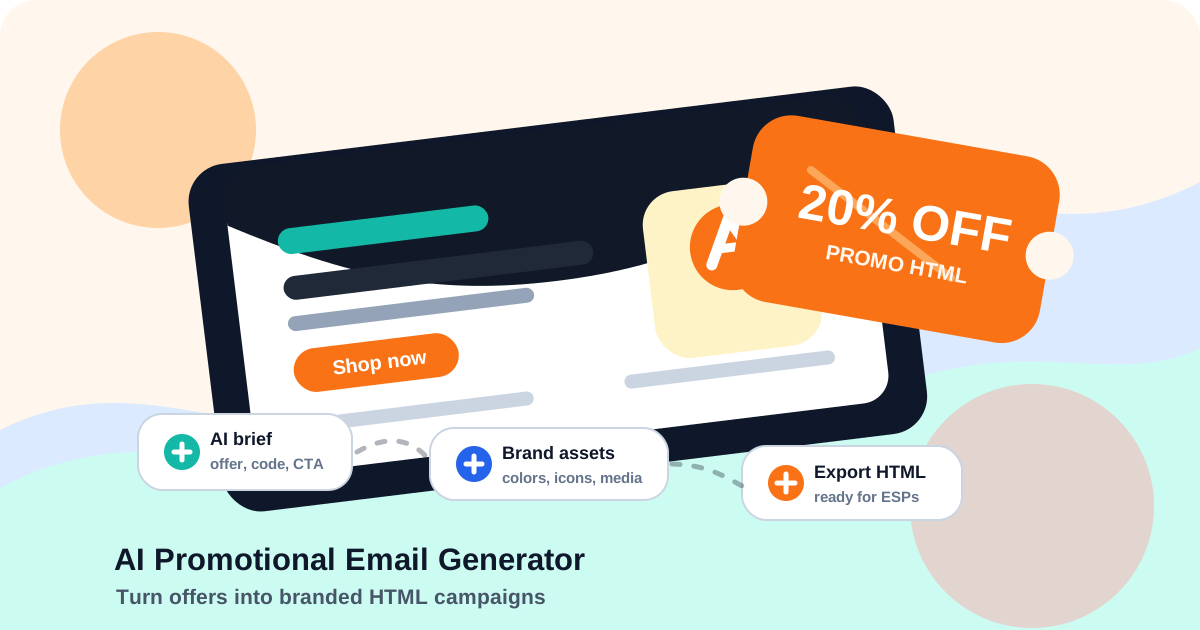
An AI promotional email generator helps by turning a campaign brief into a designed email template: headline, offer section, product blocks, benefit copy, buttons, discount code placement, brand colors, icons, and responsive HTML. You still make the marketing decisions. The AI speeds up the structure and first production draft.
This guide shows how to create promotional email templates in Iconly's AI Email Builder, apply reusable brand details from Brand Studio, use saved icons and media assets, and export HTML for Mailchimp, Klaviyo, HubSpot, SendGrid, Brevo, ActiveCampaign, or the ESP your team already uses.
What an AI Promotional Email Generator Does
A promotional email generator is not just an email subject line tool. The useful version creates the full email asset: copy, layout, styling, hierarchy, image direction, and HTML export.
Offer Hierarchy
A clear hero, discount, reason to buy, product proof, urgency cue, and primary CTA.
Brand Control
Colors, fonts, tone, logo context, icon style, product language, and visual system.
Responsive HTML
A 600px-centered email layout with inline styles and mobile-aware spacing.
ESP Export
Copy or download the final HTML, then use your sending platform for lists, tests, and delivery.
In Iconly, promotional email generation lives inside the same AI Email Builder used for newsletters, welcome emails, announcements, event invites, and transactional templates. That matters because a promotion rarely exists alone. A sale email may need matching social graphics, icons, and follow-up emails, all using the same brand profile.
Start With a Campaign Brief
The fastest way to get a weak promotional email is to prompt the AI with only "make a promo email." The better workflow is to write a compact campaign brief first.
| Brief Element | What to Include | Example |
|---|---|---|
| Audience | Who receives the promotion and what they care about. | Returning customers who bought skincare in the last 90 days. |
| Offer | The exact value, discount, bundle, trial, gift, or launch benefit. | 20% off the summer refill kit with code SUMMER20. |
| Reason | Why the promotion exists now. | Seasonal restock before travel season. |
| Deadline | The end date or urgency rule. | Ends Sunday at midnight, while supplies last. |
| Primary CTA | The one action readers should take. | Shop the refill kit. |
| Proof | Reviews, benefits, product stats, guarantee, or trust signals. | Best-selling kit, 4.8-star average, free shipping over $50. |
You do not need a long document. A good promotional brief can be 6-10 lines. What matters is that the AI can distinguish the offer from the supporting details.
Tip: Write the discount code, deadline, product names, and exclusions exactly as they should appear. AI is useful for layout and copy polish, but your final numbers and conditions must come from your real campaign.
Choose the Right Offer Structure
Not every promotion should use the same layout. A flash sale needs speed. A product launch needs explanation. A bundle needs comparison. A winback email needs reassurance.
| Promotion Type | Best Structure | Use When |
|---|---|---|
| Flash sale | Short hero, large discount, countdown language, one CTA. | The offer is simple and urgency is the point. |
| Product launch | Hero story, product image, benefits, proof, launch CTA. | Readers need to understand what is new. |
| Bundle or kit | Product tiles, included items, value comparison, savings callout. | The offer includes multiple products or services. |
| Seasonal campaign | Theme-first hero, curated picks, deadline, social proof. | The creative should feel timely and visual. |
| Upgrade offer | Current pain, upgrade benefit, feature list, plan CTA. | You are moving users from one plan or product tier to another. |
When you generate in Iconly, choose Promotional as the email type, then describe the structure you want. The AI can draft the first layout, but you should still remove sections that dilute the main offer.
Apply Brand Assets Before Generating
Promotional emails are easy to over-style. The offer is already loud. Brand consistency keeps the email from feeling like a disposable coupon blast.
Before generating, gather the core assets:
- Brand profile: colors, fonts, tone, logo context, products, and brand description from Brand Studio.
- Product media: product photos, screenshots, lifestyle images, or campaign graphics stored in your media library.
- Icons: benefit icons, shipping icons, feature icons, or trust icons from your saved icon library.
- Offer details: code, deadline, exclusions, audience, CTA, destination URL, and any approved legal footer language.
- ESP requirements: merge tag format, unsubscribe link, physical address block, and any required tracking parameters.
If you already have a website, use Brand Studio to create or update the profile before building the email. That same profile can also power launch graphics in Social Creative Studio, which is useful when the promotion needs email and social posts that look related.
Prompt Examples
Here are practical prompts you can adapt inside Iconly. Replace the placeholder details with your real campaign data.
Flash Sale Email Prompt
Create a promotional HTML email for a 48-hour flash sale.
Audience: existing customers who have purchased before.
Offer: 20% off all refill kits with code REFILL20.
Deadline: Sunday at midnight.
Tone: energetic, clean, confident, not pushy.
Layout: bold hero offer, short benefit list, product image area, one primary CTA, small terms section.
CTA: Shop refill kits.
Use the saved brand profile and include two simple benefit icons.
Product Launch Email Prompt
Create a promotional product launch email for a new analytics dashboard.
Audience: SaaS trial users and current customers.
Goal: drive readers to book a demo.
Message: the new dashboard turns scattered reports into one executive view.
Sections: launch hero, three benefits, screenshot area, customer quote, demo CTA, short FAQ.
Tone: polished, concise, B2B, trustworthy.
Include merge tag {{first_name}} in the greeting.
Ecommerce Bundle Prompt
Create a promotional email for a limited summer travel bundle.
Audience: shoppers who viewed travel-size products.
Offer: bundle saves $18 compared with buying separately.
Code: TRAVELKIT.
Sections: seasonal hero, bundle contents, savings callout, product care tips, shop CTA, free shipping note.
Visual direction: warm, bright, premium, with product cards and small icons for TSA-friendly, refillable, and giftable.
The pattern is the same each time: audience, offer, reason, structure, brand, assets, CTA, and constraints.
Promotional Email Layout Anatomy
Most promotional emails work best when the hierarchy is simple. The reader should be able to understand the offer before reading the body copy.
Hero Offer
The main discount, launch message, or benefit should be visible immediately.
Supporting Proof
Use benefits, reviews, product details, comparison notes, or guarantee copy.
Code or Price
Place the discount code near the CTA and repeat it if the email is long.
One Main CTA
Secondary links are fine, but the primary action should dominate the design.
For most campaigns, one strong CTA repeated two or three times beats five competing buttons. AI can generate many sections, but promotional email editing is often about cutting.
Use Icons, Product Media, and Discount Codes
Promotional emails benefit from visual assets, but every asset should earn its place.
- Use product images for product promotions. If the reader is buying a physical product, show the product clearly.
- Use screenshots for software promotions. Make the feature or workflow visible, not abstract.
- Use icons for benefits. Shipping, warranty, refillable, easy setup, API access, and time savings are good icon use cases.
- Use discount code blocks sparingly. The code should be easy to copy, but not louder than the offer itself.
- Use media from one brand system. Mixing unrelated stock images, icons, and colors is what makes promotions feel generic.
In Iconly, you can attach icons from the library and use uploaded media assets while generating the promotional template. If the campaign also needs matching social posts, use the same brand and media assets in AI Social Graphics.
Generate, Edit, and Save the Template
Once the brief and assets are ready, generate the template. Then move into editing mode and review the output like a marketer, not like a prompt engineer.
- Check the subject of the email. The first screen should clearly say what the offer is.
- Remove extra ideas. If a section does not support the offer, cut it.
- Shorten body copy. Promotional emails usually improve when paragraphs become scannable lines.
- Make the CTA specific. "Shop the bundle" is clearer than "Learn more."
- Verify discount details. Code, date, product names, exclusions, and price language must be exact.
- Save the template. Keep the final structure for future seasonal campaigns, launches, and variations.
The goal is not to accept the first generated draft. The goal is to get from blank page to editable campaign creative quickly. For broader email workflows, the Email Builder docs cover template types, variables, editing, and export options.
Export and Test in Your ESP
Iconly's email output is HTML. Your ESP is still where the campaign is sent, tracked, segmented, and tested.
After exporting, move the template into Mailchimp, Klaviyo, HubSpot, SendGrid, Brevo, ActiveCampaign, or your preferred platform. Then finish the operational details:
- Add final destination links and UTM parameters.
- Swap placeholder media with public image URLs if your ESP requires hosted assets.
- Convert variables to the ESP's merge tag format.
- Add unsubscribe, address, and preference-center details required by your platform and region.
- Send tests to desktop and mobile inboxes.
- Preview dark mode if your ESP supports it.
- Check that the discount code works before scheduling.
If your next step is Mailchimp specifically, read How to Create Mailchimp-Ready HTML Emails With AI. For a broader tool comparison, see Best HTML Email Template Builders in 2026.
Pre-Send QA Checklist
Use this checklist before every promotional send:
| Check | What to Confirm |
|---|---|
| Offer accuracy | Discount, product, deadline, exclusions, and price language are correct. |
| CTA links | Every button and text link goes to the right landing page with tracking applied. |
| Mobile rendering | Hero text, buttons, product images, and code blocks remain readable on small screens. |
| Brand consistency | Colors, fonts, icons, and media match the brand profile and campaign creative. |
| ESP variables | Personalization tags use the correct syntax for the sending platform. |
| Compliance footer | Unsubscribe, sender, and preference information are present where required. |
| Test purchase or signup | The discount code, landing page, cart, booking flow, or upgrade link works. |
Common Mistakes
Making the Email About the Discount Instead of the Value
A discount is not a story. Tell readers what they get and why it matters, then use the discount to reduce friction.
Using Too Many CTAs
Promotional emails are conversion assets. A clear primary CTA usually performs better than a menu of equally loud options.
Forgetting the Sending Platform
AI can create the design, but your ESP controls merge tags, segmentation, unsubscribe handling, analytics, and final rendering. Export is a handoff, not the end of QA.
Letting the AI Invent Terms
Do not let AI guess deadlines, percentages, product claims, warranty language, or legal terms. Provide them explicitly and verify them manually.
Frequently Asked Questions
Can AI create promotional email templates?
Yes. A tool like Iconly's AI Email Builder can generate a promotional email layout, copy draft, styling, icons, media placement, buttons, and responsive HTML. You still review the campaign details before sending.
What should I include in a promotional email prompt?
Include the audience, offer, product, reason for the promotion, deadline, discount code, primary CTA, brand tone, required sections, product media, icon needs, exclusions, and the ESP where the email will be used.
Can I use an AI-generated promotional email in Mailchimp, Klaviyo, or HubSpot?
Yes, as long as the generator exports portable HTML. You can copy or download the HTML from Iconly, then finish the campaign setup inside Mailchimp, Klaviyo, HubSpot, SendGrid, Brevo, ActiveCampaign, or another ESP.
How do I keep promotional emails on-brand?
Start with a saved brand profile, use approved media, attach matching icons, keep the offer language consistent with your brand voice, and reuse campaign assets across email and social creative generation.
Should I use AI for every promotional email?
AI is best when you need a polished first draft quickly, need multiple campaign variants, or want a consistent brand system across offers. For sensitive campaigns, legal claims, pricing changes, or high-value launches, keep a human review step in the workflow.
Next step: Open AI Email Builder, choose the Promotional email type, paste your campaign brief, apply a brand profile, generate the first draft, and export the final HTML after review. For newsletter-style campaigns, see the AI newsletter template generator guide.
Continue reading: AI Newsletter Template Generator: Create Branded Newsletters Fast · How to Keep Social Graphics and Emails On-Brand With AI · How to Organize AI Design Assets With a Media Library · How to Create Mailchimp-Ready HTML Emails With AI · AI Email Template Builder: Create On-Brand Emails With Custom Icons and Branding