Key takeaways: AI brand extraction works best when you treat the website as a starting point, not a perfect style guide. Crawl the site, review the extracted colors, fonts, aesthetic, logo URL, products, features, and media, then save a reusable profile in Brand Studio. Once the profile is clean, apply it to Social Creative Studio and Email Builder so new assets stay visually consistent.
A lot of companies have a website before they have a clean brand guide. The colors are in CSS. The logo is somewhere in the header. The fonts are buried in stylesheets. Product positioning is scattered across the homepage, pricing page, and feature pages. That is fine until you need to create a social post, campaign email, landing page image, or client asset and nobody knows which version of the brand is current.
AI brand extraction solves the setup problem. Instead of manually inspecting a website, copying hex codes, guessing fonts, and collecting screenshots, you can use AI to crawl the site and turn the visible identity into a reusable brand profile.
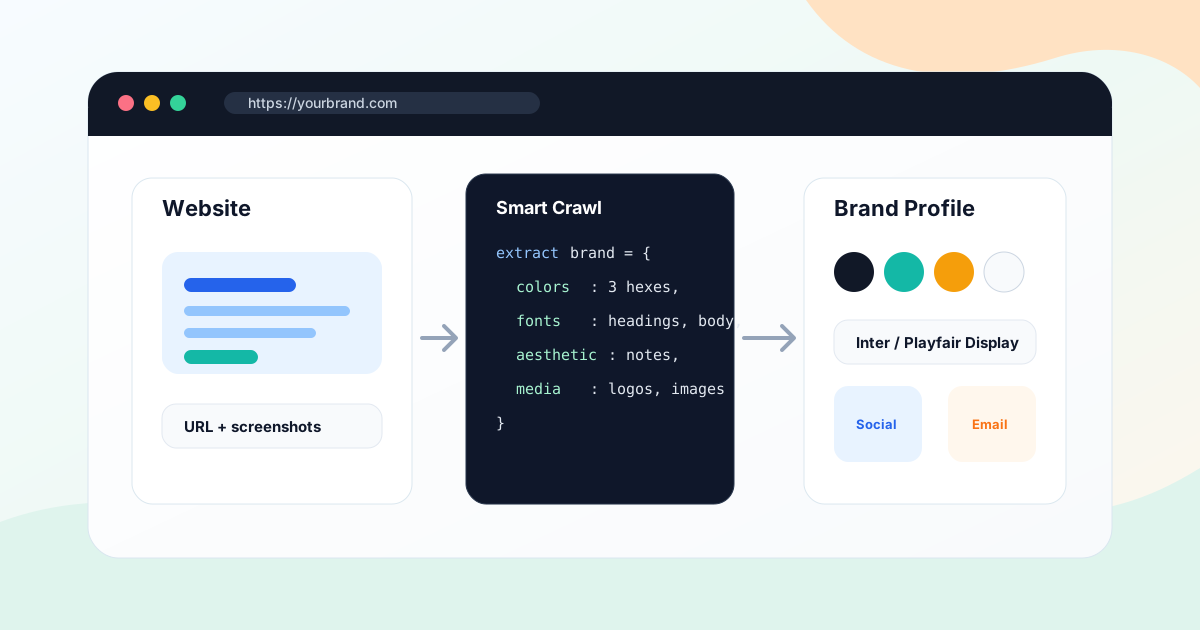
In Iconly, that happens inside Brand Studio. You provide a website URL, Smart Crawl analyzes the site, and the resulting profile can be used across social graphics and email templates. This guide walks through the full workflow, including the human review step that keeps the result reliable.
Why Extract Brand Identity From a Website?
Website brand extraction is useful when the site is the most complete version of the brand. That is common for startups, small businesses, ecommerce stores, agencies onboarding new clients, and teams that never formalized their design system.
Faster Setup
Turn a URL into a working brand profile without manually hunting through CSS, images, and copy.
Less Brand Drift
Use the same colors, fonts, and visual direction across social graphics, email templates, and campaign assets.
Reusable Assets
Save discovered media, logos, product images, and visual references for future creative generation.
Cleaner Handoff
Give marketers, freelancers, agencies, or AI agents one profile to use instead of scattered notes.
If you are comparing tools for this job, the best AI brand kit generators guide explains how Brand Studio differs from logo-first tools and template editors.
What AI Can Extract
A website crawl can produce a strong first draft of the brand profile. In Iconly, that profile can include:
| Brand Data | What It Means | How You Use It |
|---|---|---|
| Colors | Primary, secondary, and accent colors with hex values. | Buttons, backgrounds, text accents, social graphics, and emails. |
| Fonts | Visible heading and body typography from the site. | Brand-consistent typography in social and email layouts. |
| Logo URL | A discovered logo or header image reference. | Visual identity, profile cleanup, and media library saving. |
| Aesthetic | Plain-language description of the visual style. | Prompt guidance for AI-generated creative. |
| Products and features | What the company sells and how it describes its value. | Campaign context, ad copy, email sections, and product graphics. |
| Discovered media | Images, logos, screenshots, and visual assets from the site. | Save useful media into the library for social graphics and emails. |
Think of this as brand data extraction, not brand strategy. AI can observe what is already public on the site. It cannot know whether a color is deprecated, whether a temporary campaign banner should be ignored, or whether a logo usage is legally approved. That is why review matters.
Before You Crawl
Start with the right URL. The homepage is usually best, but not always. For some brands, the product page, ecommerce storefront, or marketing landing page is more current than the homepage.
Best starting URL: Use the page that most clearly represents the brand today. Avoid temporary sale pages, old blog posts, login screens, support docs, or heavily customized event pages unless that exact campaign identity is what you want.
Before crawling, check three things:
- The page loads publicly. AI cannot reliably extract a brand from private dashboards, password gates, or blocked pages.
- The page shows the real visual identity. It should include logo, colors, typography, imagery, and product positioning.
- You have permission to use the assets. Crawling is a setup shortcut, not a license to reuse someone else's protected brand or media.
Step 1: Create the Brand Profile
Open Brand Studio and create a new brand. Add the brand name and website URL. If you already know the description, logo URL, or preferred color palette, you can fill those in before the crawl or use the crawl to create the first draft.
A good brand name is specific. Use "Northstar Analytics" instead of "Client Brand" or "Test Brand." If you manage multiple brands, clear naming is what keeps future social and email generation from using the wrong profile.
Step 2: Run the Website Crawl
Run Smart Crawl on the website URL. The crawl analyzes the site, takes visual cues from the page, and extracts structured brand information. In the API workflow, creating or re-crawling a brand from a URL costs 10 tokens. In the web app, the same idea is exposed through Brand Studio's crawl flow.
The crawl result should give you a draft profile, not a locked answer. The first result is usually good enough to start, but the highest-value step is the review.
Step 3: Review Colors and Fonts
Color extraction is often the most useful part of the workflow, but it also needs judgment. Websites include brand colors, neutrals, button colors, alert colors, background tints, and sometimes campaign-specific colors. Decide which colors belong in the reusable profile.
| Review Area | Good Sign | Warning Sign |
|---|---|---|
| Primary color | Matches logo, buttons, nav highlights, or key brand moments. | It only appears in a temporary banner or third-party widget. |
| Secondary color | Supports backgrounds, cards, charts, or secondary CTAs. | It is just a neutral gray or browser default color. |
| Accent color | Works for highlights, badges, small icons, and email CTAs. | It clashes with the primary color or hurts contrast. |
| Fonts | Heading and body fonts match the visible site. | Extracted font is a fallback, system font, or icon font. |
If you are unsure, choose the stable colors used in navigation, logo, CTAs, and repeated product sections. Those tend to survive campaigns and redesigns better than one-off landing page accents.
Step 4: Clean the Brand Profile
After the crawl, edit the profile so it becomes useful for generation. The best profile is short enough for AI to follow but specific enough to prevent generic output.
Brand Description
Write one or two sentences explaining what the brand does and who it serves. Avoid vague claims like "innovative solutions for everyone." A better description gives the AI real context:
Northstar Analytics helps SaaS founders turn product, revenue, and customer data into weekly executive dashboards. The brand should feel clear, confident, technical, and calm.Brand Aesthetic
Describe the visual system in plain language:
Modern B2B SaaS, dark navy base, teal accents, clean cards, soft charts, confident but not loud, minimal illustration, high contrast CTAs.Products and Features
Keep the list focused. A few accurate products and features are more useful than a long scrape of every page heading.
- Executive dashboards
- AI weekly summaries
- Revenue reports
- Team activity insights
This cleaned profile becomes the source of truth for future generation.
Step 5: Save Useful Media
Brand crawls often discover logos, product images, screenshots, backgrounds, and other visual assets. Save only the assets that help with future creative work.
Save
Logos, product photos, clean app screenshots, brand hero images, founder photos, packaging, and campaign-ready visuals.
Skip
Tracking pixels, tiny icons, stock placeholders, old event banners, distorted thumbnails, and low-resolution images.
Saved media can be used later inside social graphics and email templates. This matters because brand consistency is not only colors and fonts. Product imagery and logo usage are part of the system too.
Step 6: Apply the Brand to Assets
The real value of an extracted brand profile shows up after setup. Use the saved brand whenever you generate campaign assets.
Social Graphics
In Social Creative Studio, select the saved brand profile before generating posts or ads. The brand context, colors, fonts, and saved media help the AI produce graphics that feel connected to the website instead of visually random.
For example:
Create an Instagram square post announcing the new executive dashboard. Use the Northstar Analytics brand profile. Emphasize faster weekly reporting, calm confidence, and one CTA: Book a demo.Email Templates
In Email Builder, use the same brand profile for newsletters, welcome emails, announcements, and promotions. This keeps email headers, buttons, section styling, and typography aligned with your social graphics.
For a developer version of this workflow, the AI Email Template API guide explains how to pass colors, fonts, media, and brand context into email generation.
Icons and Campaign Assets
If the campaign needs feature icons, create them with the same brand colors and visual direction. Save strong icons to the library, then reuse them in social graphics and emails. This is how a crawled brand profile becomes a reusable asset system rather than a one-time setup step.
Quality Checklist
Before you rely on a crawled profile, run this checklist:
| Check | Question | Fix If Needed |
|---|---|---|
| Colors | Do the palette colors appear repeatedly on the site? | Replace temporary campaign colors with stable brand colors. |
| Contrast | Can button and text colors be read clearly? | Adjust accent or background colors before generating assets. |
| Fonts | Are fonts real brand fonts rather than fallbacks? | Manually set the correct heading and body fonts. |
| Logo | Does the logo URL point to the right asset? | Use a clean logo file, not a favicon or cropped thumbnail. |
| Aesthetic | Would a designer recognize the written style description? | Rewrite it with concrete visual language. |
| Products | Are products and features accurate? | Remove scraped navigation labels and outdated copy. |
| Media | Are saved images high quality and legally usable? | Delete placeholders, third-party images, and low-quality assets. |
Common Mistakes
Using a Temporary Campaign Page
A seasonal sale page might have colors, fonts, and imagery that are intentionally different from the evergreen brand. Crawl the canonical site unless you are building assets for that exact campaign.
Trusting the Crawl Without Review
AI can identify patterns, but it cannot know which extracted details are official. Review the output before using it in customer-facing assets.
Saving Too Many Media Assets
A messy media library makes future generation harder. Save only the assets that are clean, relevant, and likely to be reused.
Confusing Brand Extraction With Brand Strategy
Brand extraction documents what already exists. It does not decide the right positioning, naming, logo direction, legal clearance, or long-term brand architecture. For a strategic rebrand, involve a human designer or strategist.
Not Applying the Brand After Setup
The profile only helps if you use it. Select the saved brand whenever you generate social graphics, email templates, campaign icons, or reusable marketing assets.
Frequently Asked Questions
Can AI extract brand identity from a website?
Yes. AI can crawl a website, analyze visible design patterns, and extract brand colors, fonts, logo references, visual aesthetic, product context, features, links, and media assets. The result should still be reviewed before it becomes the source of truth.
What brand information can AI extract from a website?
AI can extract primary, secondary, and accent colors; font names; logo URLs; aesthetic descriptions; product and feature summaries; discovered images; links; contact data; and general brand positioning clues.
When should I use website brand extraction?
Use it when a company has a website but no formal brand guide, when an agency is onboarding a client, when a startup needs a quick brand profile, or when a team wants consistent social graphics and email templates without manually copying colors and fonts.
Is AI brand extraction accurate enough to use automatically?
It is accurate enough to create a strong first draft, but not enough to skip review. Check colors, fonts, logo URLs, product descriptions, media assets, and contrast before using the profile for production campaigns.
What can I do with an extracted brand profile?
In Iconly, an extracted brand profile can be reused in Social Creative Studio and Email Builder so generated graphics and HTML email templates use the same colors, fonts, identity, and visual direction.
Can I manage multiple extracted brands?
Yes. Brand Studio supports multiple brand profiles, which is useful for agencies, freelancers, multi-product companies, and ecommerce teams managing several stores or sub-brands.
Continue reading: How to Keep Social Graphics and Emails On-Brand With AI · How to Organize AI Design Assets With a Media Library · Brand API Guide: Crawl Websites and Reuse Brand Profiles · How to Use Reference Images to Generate On-Brand Social Creatives · Best AI Brand Kit Generators in 2026: Tools Compared