Key takeaways: The best icon workflow is not just prompt, download, repeat. Generate icons with a consistent style, clean them up, save them to your library, give them predictable names, organize sets, copy the CDN script, and reference icons with CSS classes wherever your website needs them.
Generating one icon is useful. Building a reusable icon system is where the workflow gets interesting.
If every new icon becomes a separate downloaded file, your website eventually fills with inconsistent names, duplicate assets, unclear versions, and old icons nobody wants to delete. Developers need a cleaner path: generate the icon, save it once, name it clearly, then use it anywhere through a predictable class.
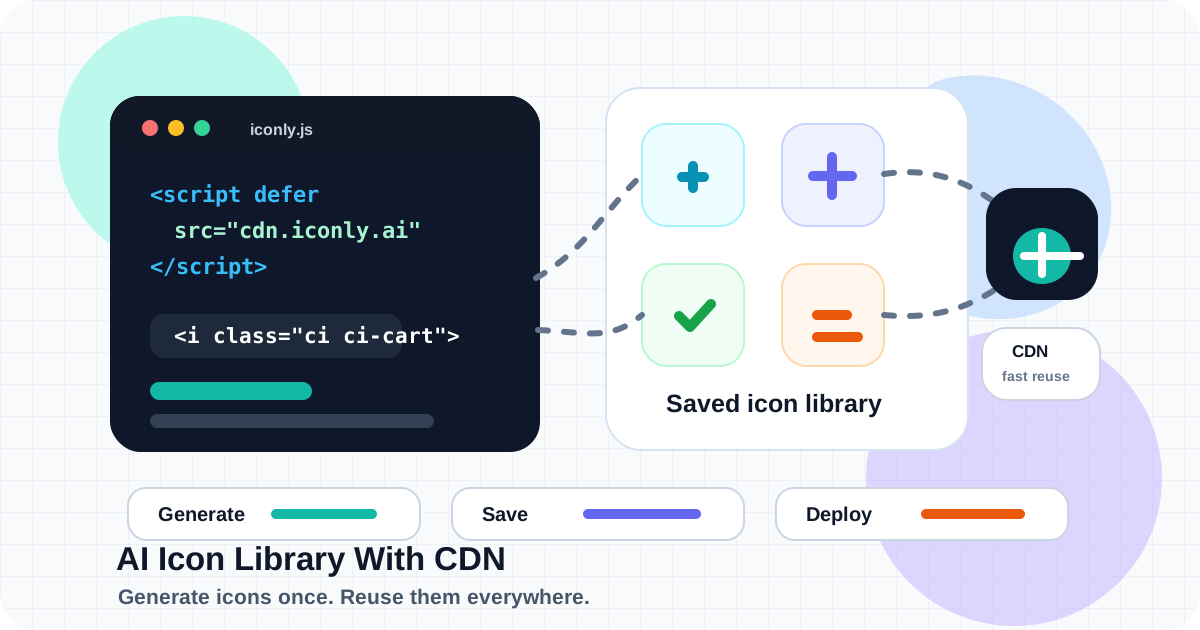
That is the purpose of an AI icon library with CDN delivery. In Iconly, you can create custom icons in the AI Icon Generator, save them to your Library, organize them into sets, copy a CDN script, and place icons on your site with classes such as ci, ci-your-icon-name, and ci-md.
What an AI Icon Library With CDN Is
An AI icon library is a managed collection of icons you create or save with AI. A CDN icon library adds web delivery on top of that collection.
Generate
Create custom icons from prompts, styles, colors, templates, and reference workflows.
Save
Store the icons in a searchable personal library instead of scattering files across projects.
Organize
Group icons into sets for apps, websites, ecommerce categories, dashboards, or clients.
Deploy
Load the library from a CDN script and use icons with class names in HTML.
This is different from a static icon pack. A static pack gives you whatever icons already exist. An AI icon library lets you keep adding the exact icons your product needs, then deploy them through the same system.
Why Use CDN Delivery for Icons?
Downloading icon files works for one-off assets. CDN delivery works better when icons become part of your product system.
| Workflow | Best For | Tradeoff |
|---|---|---|
| Download PNG/SVG | One-off exports, design files, presentations, and offline handoff. | Each project has to manage files, paths, naming, and updates manually. |
| CDN script | Websites, apps, docs, landing pages, dashboards, and reusable UI systems. | You need to include the script and keep icon names predictable. |
| API workflow | Internal tools, build scripts, CMS flows, client portals, and automation. | Requires API keys and server-side handling. |
For developers, the main advantage is maintainability. Instead of sprinkling asset URLs through templates, you can use a simple class-based pattern:
<i class="ci ci-search ci-md"></i>
<i class="ci ci-cart ci-lg"></i>
<i class="ci ci-user-add ci-xl"></i>
That makes icons easier to scan in code, easier to replace, and easier to document for the rest of the team.
The Generate, Save, Deploy Workflow
The workflow is straightforward:
- Generate the icon in Iconly's icon generator.
- Edit the output if it needs recoloring, line weight adjustment, smoothing, cropping, or cleanup.
- Save it to the Library with a clear name.
- Add it to a set if it belongs to a project or design system group.
- Copy your CDN script from the Library page.
- Use the icon class in your website HTML.
- Maintain the set as new icons are added over time.
This turns icon generation from an isolated design task into a repeatable website asset pipeline.
Generate Icons With a Consistent Style
The library is only as useful as the consistency of the icons inside it. Before generating the full set, decide the style rules.
- Base style: line, glyph, outline, pixel, isometric, or another preset that fits the product.
- Color mode: monochrome for UI systems, full color for product or marketing icons.
- Detail level: low detail for small UI icons, higher detail for hero or category icons.
- Reference direction: use a strong first icon as the visual anchor for the rest of the set.
- Output size: choose a size that fits your export and reuse needs.
For deeper style selection, read Line vs Solid vs Outline Icons. For production icon generation from code, see the Iconly API icon generation guide.
Save, Name, and Organize Icons
CDN workflows reward boring names. The icon name becomes part of the developer experience, so keep it predictable.
| Use This | Avoid This | Why |
|---|---|---|
cart |
shopping cart icon final |
Short names are easier to type in classes. |
user-add |
add user 2 |
Hyphenated names map cleanly to CSS-style class names. |
arrow-up-right |
arrow diagonal |
Directional names reduce ambiguity. |
status-warning |
yellow triangle |
Functional names survive visual redesigns. |
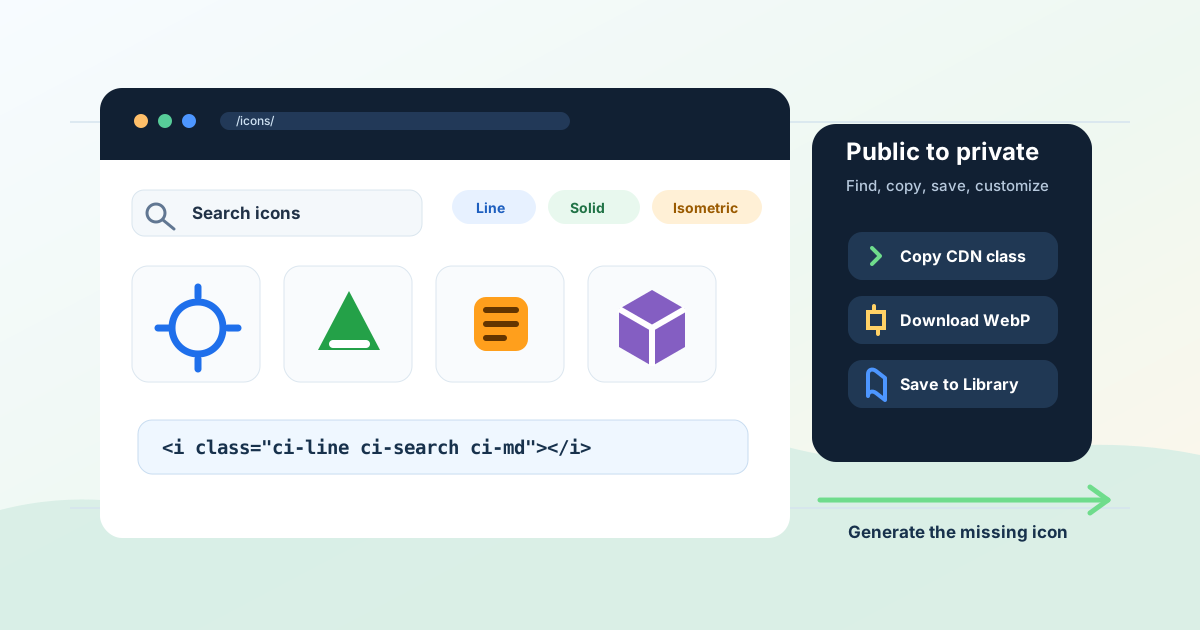
In the Library, you can browse, search, rename, download, delete, refine, revert, and edit saved icons. You can also organize icons into sets, which is useful for project-specific groups like "Dashboard navigation," "Ecommerce categories," or "Client onboarding."
Add the CDN Script
Once the icons are saved and named, open the Library and copy your CDN script. Add it to the <head> of the website where you want to use the icons.
<!-- Add to your website head -->
<script defer src="https://cdn.iconly.ai/your-id/iconly.js"></script>
Your actual script URL is personalized to your library. The exact ID should come from the Library page, not from this example.
Tip: Add the script once in your base layout, app shell, or shared document head. Then individual pages can reference icons with classes without repeating the script tag.
Use Icons With CSS Classes
After the script is installed, place icons with an <i> element and the generated class name.
<button class="checkout-button">
  <i class="ci ci-cart ci-md"></i>
  Checkout
</button>
Iconly's library documentation includes these size classes:
ci-sm- smallci-md- mediumci-lg- largeci-xl- extra largeci-2xl- 2x largeci-cs- custom size for your own CSS rules
For a design system, document the default size rules in one place. For example, navigation may use ci-md, empty states may use ci-xl, and feature cards may use ci-lg.
Sets, Favorites, and Maintenance
A library should not become a junk drawer. A few habits keep it useful:
- Create sets by context. Use sets for projects, products, clients, or UI areas.
- Favorite common icons. Favorites help you find the icons you reuse constantly.
- Rename before deploying. Do not ship temporary names like
icon-23. - Audit duplicates. If you generate three versions of the same icon, keep the best one and remove the rest.
- Review visual consistency. New icons should match the existing set before they go into production.
If you are building a broader design system, pair this workflow with the design system icon library guide and the Library and CDN docs.
API and Developer Workflows
For no-code and light developer usage, the Library page is enough. For internal tools, build scripts, CMS integrations, and AI agents, the API can manage parts of the same workflow.
| API Area | What It Helps With |
|---|---|
POST /api/generate-icon/ |
Create icons programmatically from prompts. |
GET /api/library/list/ |
List saved icons for an app, dashboard, or internal tool. |
POST /api/library/add/ |
Save generated icons into the user's library. |
GET /api/library/css/ |
Retrieve library CSS for custom integration workflows. |
GET /api/library/download/ |
Download library assets when a direct export is needed. |
Use API keys on the server side, not in public browser JavaScript. If you need the complete technical path, start with Iconly API docs and the complete Iconly API guide.
Launch Checklist
Before you ship a CDN-backed icon library, check the basics:
- Every production icon has a clear, lowercase, hyphenated name.
- Icons are visually consistent in style, stroke, fill, detail, and color.
- Important icons are grouped into sets for easier management.
- The CDN script is loaded once in the shared page layout.
- Icon classes render in the target pages and components.
- Size classes match the design system rules.
- Fallback or download workflow is documented for environments that cannot use hosted scripts.
- The team knows where to request, generate, review, and save new icons.
The result is a cleaner loop: generate new icons when the product needs them, save approved icons to the library, and use them on the site without rebuilding the asset pipeline every time.
Frequently Asked Questions
What is an AI icon library with CDN?
It is a reusable icon collection where icons are generated with AI, saved to a managed library, and loaded on websites through a CDN script. Developers can then use icons with CSS classes instead of manually managing every file path.
How do I use Iconly icons on a website?
Save icons to your Iconly Library, copy the CDN script, add it to your website head, then use classes such as ci, ci-cart, and ci-md in your HTML.
Can I edit saved icons?
Yes. Saved icons can be edited in Iconly with tools for recoloring, adjusting thickness, smoothing, cropping, refining, reverting, downloading, renaming, and deleting.
What is the best naming convention for CDN icons?
Use lowercase hyphenated names that describe the icon's function: search, cart, user-add, arrow-up-right, and status-warning are better than vague or numbered names.
Should I use CDN icons or downloaded SVG files?
Use CDN icons when the site needs a reusable icon system with class-based usage. Download SVG or PNG files when you need one-off exports, design-file placement, offline use, or environments where a hosted script is not allowed.
Next step: Generate a few icons in AI Icon Generator, save them to your Library, copy your CDN script, and add one icon class to a test page. Once that works, expand the set and document the naming rules for your team.
Continue reading: How to Build a CSS Icon Library With AI · Iconly API for Icon Generation: Developer Guide With Code Examples · The Canva Alternative for Developers: AI Design + CDN Hosting + CSS Icon Fonts · Building a Design System Icon Library in Under an Hour With AI · AI Icon Prompt Templates: Save Reusable Styles for Consistent Icons