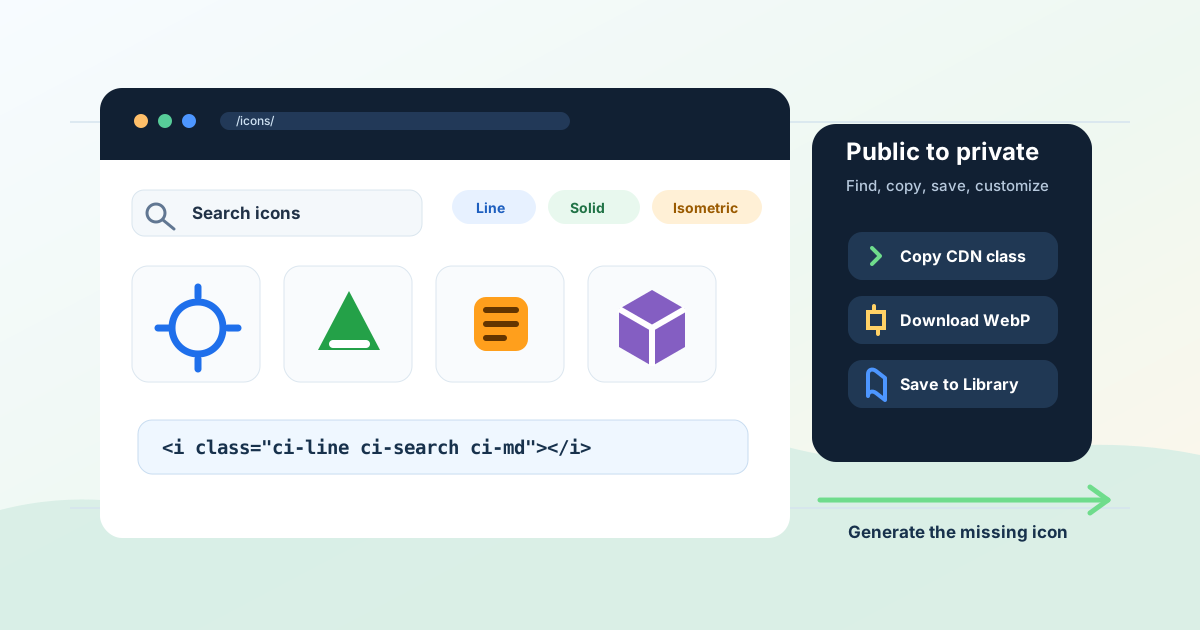
Key takeaways: Start with the free public AI icon library when you need common icons quickly. Search by name, filter by style, open the icon detail page, copy the CDN-ready HTML class, or download the WebP. When you need a custom concept, save the closest icon to your private library and generate a matching icon with the same style rules.
A free icon library is still one of the fastest ways to get a product screen, landing page, docs page, or prototype moving. You search for calendar, upload, invoice, or shopping cart, copy the icon, and keep building.
The problem with traditional icon libraries is that they stop exactly where real product work starts. The first 20 icons are easy. The next 20 are oddly specific: failed webhook, AI prompt template, empty campaign, bulk export, unverified domain. A public library can get you started, but a production icon system needs a way to extend the set without changing visual style every time you need one more symbol.
That is where an AI icon library is different. Iconly gives you a public collection of free AI-generated icons at /icons/, plus the ability to save public icons into a private library and generate new matching icons when the public set does not have the exact one you need. This guide shows the full workflow.
What a Free AI Icon Library Is
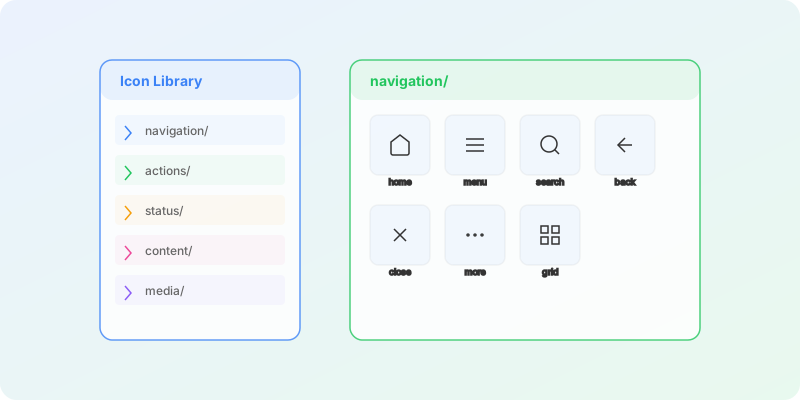
A free AI icon library is a browsable public collection of AI-generated icons. In Iconly, the public library includes searchable icon cards, style filters, category pages, individual icon detail pages, download links, and CDN-ready usage snippets.
Searchable
Find common concepts by name instead of browsing folders or guessing pack names.
Style-Filtered
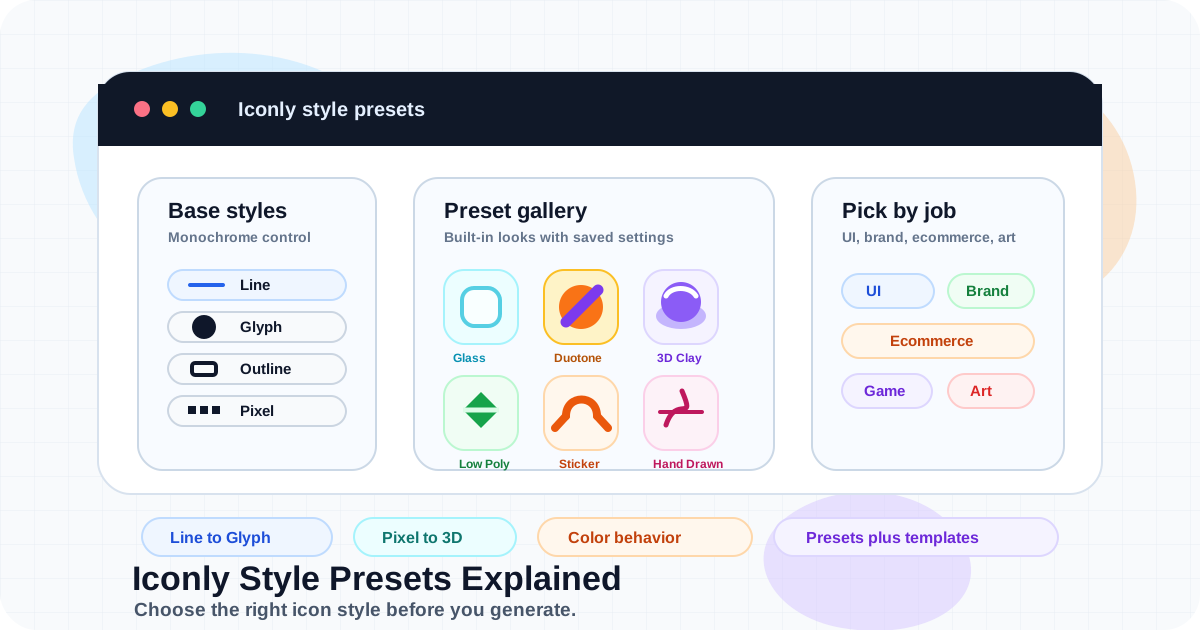
Choose line, solid glyph, outline, pixel, isometric, photorealistic, product, pop art, oil painting, or hand drawn icons.
CDN-Ready
Copy the public CDN script and place icons with HTML classes such as ci-line ci-search.
Saveable
Move useful public icons into your private library so you can organize, edit, and reuse them with custom icons.
The important idea is that the public library is a starting point, not a dead end. Use it for speed, then move selected icons into your own system when you need control.
When to Start With Public Icons
Start with public icons when the concept is common, the design risk is low, or you need a quick visual placeholder that might become permanent. Search first for anything with a widely understood metaphor: search, cart, user, calendar, settings, download, alert, upload, folder, message, payment, lock, chart, or location.
| Use Case | Start With Public Icons? | Why |
|---|---|---|
| Common UI actions | Yes | Search, settings, download, close, and add icons rarely need custom symbolism. |
| Landing page feature blocks | Yes | A public set can quickly establish visual rhythm while you test copy and layout. |
| Brand-specific product concepts | Sometimes | Use a public icon as a style anchor, then generate the exact concept. |
| App store icons or hero graphics | No | Those should usually be custom generated for the product, not pulled from a public set. |
| Design system foundation | Yes, with review | Public icons can seed the first pass, but approved icons should live in your private library. |
If you are building a larger website icon system, pair this article with AI Icon Library With CDN and How to Build a CSS Icon Library With AI. Those guides cover the private library and CSS architecture after you select your public icons.
Browse by Style and Category
The first decision is style. Icon style affects readability, brand tone, file usage, and how easy it is to extend the set later. On Iconly's public library, you can browse all icons or open a style-specific collection such as line art icons, solid glyph icons, outline icons, or pixel art icons.
| Style | Best For | Notes |
|---|---|---|
| Line Art | SaaS dashboards, docs, settings, navigation, product UI. | Clean and flexible. Good default for modern interfaces. |
| Solid Glyph | Small UI icons, mobile navigation, badges, buttons. | Reads quickly at compact sizes because the shapes are filled. |
| Outline | Minimal marketing pages, lightweight product UI, editorial layouts. | More delicate than glyphs. Watch contrast and stroke weight. |
| Pixel Art | Games, achievements, playful apps, retro visuals. | Best when the entire product moment supports the style. |
| Isometric | Feature cards, onboarding, technical diagrams, 3D-flavored UI. | Good for larger placements where detail can breathe. |
| Photorealistic and Product Shot | Ecommerce, launch pages, product categories, premium marketing assets. | Useful when object realism matters more than simple UI symbolism. |
| Pop Art, Oil Painting, Hand Drawn | Campaigns, creator brands, education, editorial and expressive pages. | More personality, less neutral. Use intentionally. |
Categories are useful when you know the domain but not the exact icon name. Browse category pages for clusters such as business, ecommerce, education, food, health, gaming, sports, travel, and more. If a style-specific category has enough matching icons, Iconly links directly to that style and category together.
Search, Inspect, and Compare Icons
Use search for exact concepts and style pages for visual comparison. A fast review process looks like this:
- Search the broad concept first:
calendar,invoice,rocket,lock,upload. - Filter to the style you expect to use across the page or product.
- Open the icon detail page to inspect the larger preview, HTML class, direct URL, download link, related styles, and more icons from the same style.
- Compare alternate styles before committing. The same concept can feel very different as line art, glyph, pixel, or isometric.
- Save only the icons you would actually ship. A smaller approved set is easier to maintain than a large unsorted pile.
Tip: Pick the style before you pick every icon. Mixing line, glyph, outline, and isometric icons in the same toolbar usually looks accidental. Mixing styles can work on a landing page, but each section should have a clear reason for the change.
Use Public Icons With the CDN
The fastest way to use a public icon on a website is the CDN workflow. On the public icons page, click the CDN button, copy the script, add it to your page, then copy an icon's HTML snippet from the icon modal or detail page.
<!-- Copy the current public CDN script from /icons/ -->
<script defer src="https://cdn.iconly.ai/iconly/public/iconly.js"></script>
Public icon classes include the style and the icon slug. For example:
<i class="ci-line ci-search ci-md" aria-hidden="true"></i>
<i class="ci-glyph ci-shopping-cart ci-lg" aria-hidden="true"></i>
<i class="ci-outline ci-calendar"></i>
Size classes are available for common display sizes:
| Class | Size | Good For |
|---|---|---|
ci-sm |
16px | Dense UI, table rows, small labels. |
ci-md |
32px | Buttons, cards, docs, navigation accents. |
ci-lg |
64px | Feature cards, empty states, onboarding steps. |
ci-xl |
128px | Landing sections, showcase grids, hero support art. |
ci-2xl |
256px | Large previews and visual demos. |
Because public icons are delivered as background images, use CSS for layout, spacing, sizing, and alignment. If you need to change the actual icon color or stroke character, save the icon to your private library and edit or regenerate it there.
.feature-icon {
  display: inline-block;
  vertical-align: -0.15em;
  margin-right: 0.5rem;
}

.empty-state-icon {
  width: 72px;
  height: 72px;
}
For accessibility, treat icons based on meaning. If the icon is decorative and sits next to visible text, use aria-hidden="true". If an icon is the only label for a button, label the button itself:
<button type="button" aria-label="Search">
  <i class="ci-line ci-search ci-sm" aria-hidden="true"></i>
</button>
For deeper accessibility rules, read Icon Accessibility: Making Your Icons Work for Everyone.
Download WebP Icon Files
CDN classes are convenient for websites, but downloads are still useful. Use WebP downloads when you need to place an icon in a document, upload an asset to a CMS, attach it to a social creative, hand it to another team, or work in an environment where external scripts are not allowed.
Each public icon detail page includes a direct URL and a download action. The public download endpoint returns a WebP file, so it is practical for lightweight web use. If you need a whole custom system with private CDN delivery, save selected icons to your library instead of downloading them one at a time.
Save Public Icons to Your Library
The public library is shared. Your private library is where your actual icon system should live.
When you save a public icon to your Iconly Library, you can keep it with your generated icons, organize it into sets, rename it, download it, refine it, and use it with your private CDN workflow. That makes public icons useful as approved starting assets instead of one-off copied snippets.
| Surface | Best Use | Control Level |
|---|---|---|
| Public Library | Find free existing icons, copy CDN classes, download WebP files. | Fast, shared, limited to existing icons. |
| Private Library | Build your approved product icon set, organize assets, use private CDN. | More control over naming, editing, sets, favorites, and maintenance. |
| AI Icon Generator | Create missing icons, brand-specific concepts, style-matched additions. | Highest control over concept, style, detail, color, and output size. |
A good rule: use public icons to discover and prototype, then save approved icons to your private library before shipping a durable design system. That gives you a stable place to manage changes as the product grows.
Customize or Generate Matching Icons
There are three levels of customization.
1. Layout Customization
If the icon itself is right, adjust size, spacing, alignment, touch target, and surrounding label styles in your product CSS. This is enough for most public icons used in feature lists, docs pages, buttons, and navigation.
2. Library Customization
If the icon is close but needs production cleanup, save it to your private library. Iconly's library workflow supports renaming, downloading, organizing into sets, editing, and refining saved icons. This is the right path when a public icon is visually useful but needs to become part of your own asset system.
3. Custom Generation
If the concept is missing, generate it. Keep the same style family and describe the icon in functional language. For example:
Line art icon of a failed webhook event, simple dashboard symbol,
rounded stroke caps, minimal detail, transparent background.
For a matching set, use one approved icon as a visual reference and generate the missing concepts around it. Then save the new outputs to the same library set. Our guide to generating a consistent matching icon set with AI covers that process in more detail.
Developer and API Workflows
Developers can use the public library without manually clicking through the UI. Iconly exposes public icon data through JSON endpoints:
GET /api/public/list/?style=line&search=calendar&limit=20
GET /api/icons.json
GET /api/icons/line/
The list endpoint supports pagination and filters:
| Parameter | Example | Purpose |
|---|---|---|
offset |
offset=100 |
Load the next page of results. |
limit |
limit=50 |
Control page size, up to the endpoint maximum. |
style |
style=line |
Filter to one public icon style. |
search |
search=invoice |
Find icons by name. |
colored |
colored=true |
Filter icons based on color mode. |
A simple browser fetch might look like this:
async function findPublicIcons(query) {
  const params = new URLSearchParams({
    style: 'line',
    search: query,
    limit: '20'
  });

  const response = await fetch('/api/public/list/?' + params.toString());
  const data = await response.json();

  return data.icons.map((icon) => ({
    name: icon.name,
    html: '<i class="' + icon.css_class + ' ci-md"></i>',
    url: icon.webp_url,
    detailUrl: icon.detail_url
  }));
}
For AI assistants, documentation sites, or automated asset discovery, /api/icons.json provides a broader machine-readable index that includes styles, CDN usage examples, size classes, and icon metadata. For authenticated application workflows, a saved public icon can be copied into a user's private library with POST /api/public/save-to-library/.
If your team is building a deeper automated workflow, start with the complete Iconly API guide and the Iconly API icon generation guide.
Recommended Public-to-Private Workflow
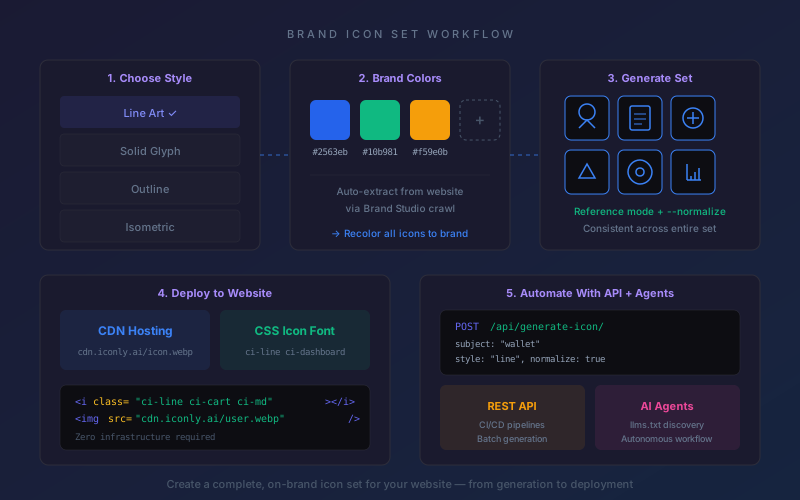
The best workflow is not "use public icons forever" or "generate everything from scratch." It is a public-to-private pipeline:
- Choose the target style. Pick line, glyph, outline, pixel, or another style before collecting icons.
- Search the public library. Save time by finding existing common icons first.
- Shortlist only good fits. Avoid saving every icon that might be useful someday.
- Save approved icons to your private library. Treat the private library as the source of truth.
- Name icons by function. Prefer
invoice-paid,user-invite, andwebhook-errorover vague visual names. - Generate missing concepts. Use the same style and reference workflow so new icons fit the selected set.
- Test at real sizes. Check icons at 16px, 24px, 32px, and the largest display size your UI uses.
- Deploy through your chosen path. Use public CDN for quick public assets, private CDN for owned libraries, or downloaded files for static handoff.
This workflow is especially useful for startups, SaaS teams, ecommerce brands, agencies, and docs-heavy products. It gives you the speed of a free icon library without trapping your product in a fixed stock set.
Launch Checklist
- Pick one primary style for each product surface.
- Search the public library before generating common icons from scratch.
- Open icon detail pages to inspect the larger preview and related styles.
- Use CDN classes for quick website placement.
- Download WebP files only when file-based handoff is the better workflow.
- Save approved public icons to your private library before building a long-term set.
- Generate missing icons in the same style, using references when consistency matters.
- Use functional, lowercase, hyphenated names.
- Add accessible labels for icon-only buttons.
- Review the full set for style drift before publishing.
Frequently Asked Questions
What is the best way to use free AI icons?
Use free AI icons as a starting point. Search the public library for common concepts, copy the CDN class or download the file, then save approved icons to your private library if they become part of a reusable product or brand system.
Do I need an account to browse public icons?
No. The public icon library can be browsed without an account. An account is useful when you want to save icons to your private library, organize them, edit them, or generate matching custom icons.
What is the difference between public CDN and private CDN?
The public CDN exposes icons from the shared public library. A private CDN exposes icons saved in your own Iconly library. Use the public CDN for quick public assets and examples; use your private library for an approved product icon system.
Can I recolor public icons with CSS?
Public icons are delivered as image-backed icon classes, so CSS can easily control size, spacing, and placement. For actual color or stroke changes, save the icon to your library and use Iconly's editing or generation workflow.
What if two public icons have the same name?
Public icon classes include both the style and the slug, such as ci-line ci-calendar or ci-glyph ci-calendar. Including the style class keeps the usage explicit when the same concept appears in multiple styles.
How do I build a complete icon set from public icons?
Choose one style, collect the public icons that match your product needs, save them to your private library, rename and organize them, then generate missing concepts in the same style. Use a CSS icon library workflow when the set needs to be reused across a website or app.
Continue reading: AI Icon Library With CDN: Generate, Save, and Use Icons on Your Website · How to Build a CSS Icon Library With AI · AI Icon Prompt Templates: Save Reusable Styles for Consistent Icons · Icon Accessibility: Making Your Icons Work for Everyone in 2026 · How to Organize AI Design Assets With a Media Library