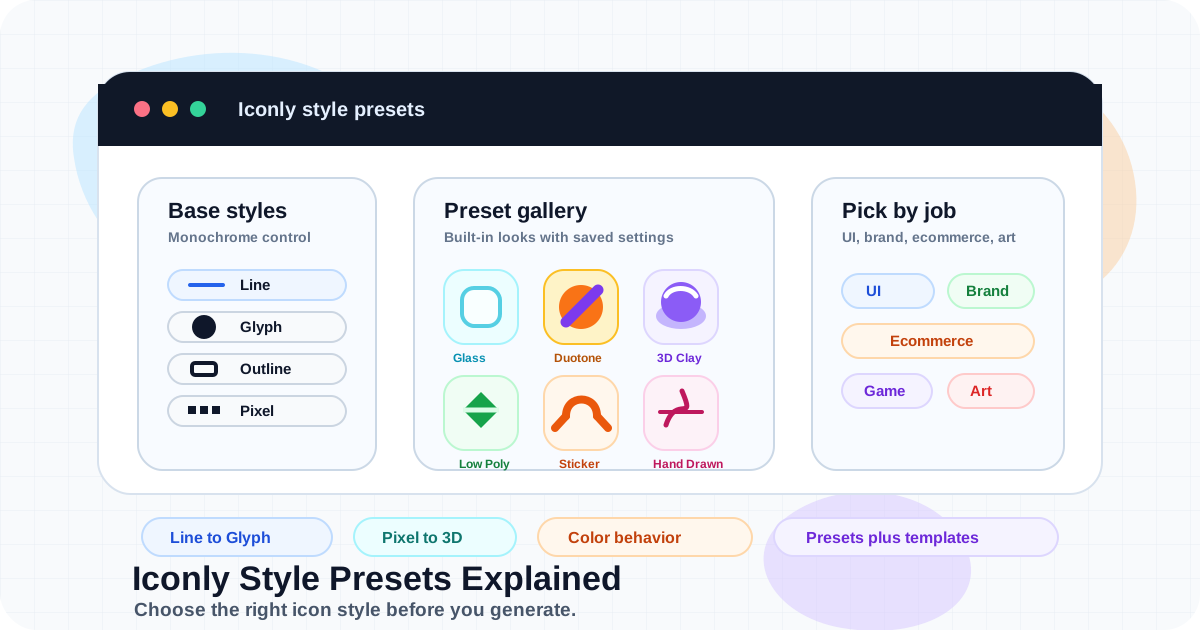
Key takeaways: Iconly has two layers of icon styling: base styles and preset templates. Base styles such as Line, Glyph, Outline, Pixel, and Isometric are best for controlled icon systems. Preset templates such as Glassmorphism, Duotone, Photorealistic, Product Shot, 3D Clay, Sticker, Watercolor, Hand Drawn, and Woodcut are best when you want a stronger visual treatment with saved detail and output settings.
Choosing an icon style before generation saves a lot of cleanup later. A dashboard icon, a game inventory item, a product-shot graphic, and a brand illustration are all "icons," but they should not be generated with the same visual rules.
Iconly's style presets exist for that reason. They give the AI Icon Generator a clear starting point: simple monochrome UI icon, filled glyph, pixel-art asset, isometric object, glassy app icon, clay 3D icon, hand-drawn sketch, woodcut illustration, and more.
This guide explains what each style is for, how color and detail settings behave, and when to move from built-in presets to custom prompt templates.
What Iconly Style Presets Are
Iconly style presets are reusable generation recipes. They influence the prompt, the expected visual treatment, whether the icon is monochrome or AI-colored, the detail level, and in many cases the output size.
There are two practical groups:
Base Styles
Line, Glyph, Outline, Pixel, and Isometric. These are simple, predictable, and useful for UI systems.
Preset Templates
Specialized looks such as Glassmorphism, Duotone, Photorealistic, 3D Clay, Sticker, Watercolor, and Woodcut.
Custom Templates
Your own saved style recipes with prompt text, color mode, detail level, output size, and post-processing settings.
Niche Selection
The Templates page lets you choose preset groups for app, marketing, brand, ecommerce, game, and artistic workflows.
The important distinction: base styles are restrained and system-friendly. Preset templates are expressive and opinionated. That difference should guide your choice.
Quick Style Picker
If you only need a fast recommendation, start here:
| Goal | Best Starting Style | Why |
|---|---|---|
| Modern app or website UI icons | Line | Low visual weight, clean strokes, easy to use in dense interfaces. |
| Small navigation icons | Glyph | Solid silhouettes stay legible at small sizes. |
| Buttons, toolbars, and strong UI controls | Outline | More visual weight than Line without becoming a filled glyph. |
| Retro games or nostalgic UI | Pixel | Blocky, grid-based output fits arcade, game, and retro themes. |
| Feature illustrations or dimensional app icons | Isometric or 3D Clay | Depth makes the icon feel more like a feature object than a symbol. |
| Product, ecommerce, or ad visuals | Product Shot or Photorealistic | Better for object-focused images and promotional graphics. |
| Brand or marketing accent icons | Duotone, Sticker, or Retro Vintage | Stronger personality than base UI styles. |
| Organic, handmade, or editorial look | Hand Drawn, Watercolor, or Woodcut | Texture and irregularity become part of the style. |
When in doubt, generate three test icons in the same style before committing to a whole set. Style choices are easiest to judge side by side.
The Five Base Styles
Base styles are the safest place to start when you need consistent, reusable icons for products, docs, websites, apps, and design systems. They generate monochrome icons by default, so your selected hex color can control the output color.
Line
Line creates minimalist stroke-based icons with no fill. Use it for modern web apps, SaaS dashboards, settings screens, docs, landing pages, and design systems where icons should support the content instead of shouting over it.
- Best for: product UI, settings, docs, feature lists, navigation, dashboard actions.
- Avoid when: icons must be tiny, very high contrast, or visible over busy backgrounds.
- Prompt tip: ask for simple shapes, consistent stroke weight, centered composition, and low detail.
Glyph
Glyph creates filled, solid silhouettes. Use it when visibility matters more than internal detail: tab bars, compact nav, small buttons, status icons, mobile UI, and accessibility-conscious layouts.
- Best for: small UI icons, active states, navigation bars, high-contrast controls.
- Avoid when: the subject needs internal line detail to be recognizable.
- Prompt tip: describe the silhouette clearly and avoid subjects that depend on tiny interior features.
Outline
Outline sits between Line and Glyph. It keeps the icon hollow but gives it more presence. Use it for buttons, cards, category grids, and interfaces where Line feels too delicate.
- Best for: call-to-action icons, filter buttons, product cards, empty states, bolder UI systems.
- Avoid when: the page already has many heavy borders and controls.
- Prompt tip: keep the icon simple and specify no fill if the subject tends to become solid.
Pixel
Pixel creates 8-bit style icons with visible square pixels and blocky geometry. It is not a general UI style; it is a themed style. Use it when the retro treatment is intentional.
- Best for: games, retro brands, playful products, collectible badges, nostalgic landing pages.
- Avoid when: you need polished enterprise UI icons or smooth vector-like forms.
- Prompt tip: choose simple subjects. Pixel icons struggle when the concept needs lots of detail.
Isometric
Isometric adds a 3D perspective while staying more icon-like than a full illustration. Use it for feature icons, product concepts, onboarding, platform diagrams, and app-store-style visual metaphors.
- Best for: feature sections, product concepts, data objects, architecture diagrams, app-like assets.
- Avoid when: you need a simple 16-24px UI icon.
- Prompt tip: describe the object clearly and avoid asking for full scenes.
For a deeper comparison of the three most common UI styles, read Line Icons vs Solid Icons vs Outline.
Built-In Preset Templates
Preset templates are stronger visual treatments with saved settings. Many of them use AI-selected color palettes and higher detail levels. They are excellent for marketing assets, brand systems, ecommerce visuals, and icons that will be displayed larger than normal UI symbols.
| Preset | Best For | Color Behavior | Detail / Size |
|---|---|---|---|
| Glassmorphism | App icons, modern feature graphics, translucent UI metaphors. | AI-colored | High / 1024px |
| Duotone | Brand accents, landing pages, marketing icons. | AI-colored | Medium / 512px |
| Photorealistic | Detailed object icons, product-like visuals, premium marketing assets. | AI-colored | High / 1024px |
| Product Shot | Ecommerce objects, promotional product visuals, catalog-style assets. | AI-colored | High / 1024px |
| Metallic Chrome | Futuristic, premium, tech, fashion, or event graphics. | AI-colored | High / 1024px |
| 3D Clay | Friendly product icons, playful app visuals, game UI, onboarding. | AI-colored | High / 1024px |
| Low Poly | Game assets, stylized 3D objects, geometric brand systems. | AI-colored | Medium / 512px |
| Neon Glow | Gaming, nightlife, cyberpunk, event graphics, high-energy marketing. | AI-colored | Medium / 512px |
| Anime | Gaming, creator brands, character-adjacent assets, playful campaigns. | AI-colored | Medium / 512px |
| Sticker | Social posts, creator assets, product launches, badges, game items. | AI-colored | Medium / 512px |
| Pop Art | Bold marketing graphics, campaign icons, editorial visuals. | AI-colored | Medium / 512px |
| Cute | Kids products, creator brands, friendly UI, lighthearted campaigns. | AI-colored | Medium / 512px |
| Retro Vintage | Heritage brands, lifestyle campaigns, nostalgic product visuals. | AI-colored | Medium / 512px |
| Paper Cut | Layered editorial visuals, brand icons, event graphics. | AI-colored | Medium / 512px |
| Watercolor | Creative brands, wellness, education, editorial illustrations. | AI-colored | High / 1024px |
| Embroidery | Apparel, handmade goods, craft brands, ecommerce categories. | AI-colored | High / 1024px |
| Art Deco | Luxury, hospitality, events, premium brand accents. | AI-colored | High / 1024px |
| Oil Painting | Editorial, artistic, decorative, and fine-art-inspired assets. | AI-colored | High / 1024px |
| Stained Glass | Decorative icons, symbolic visuals, event or artistic campaigns. | AI-colored | High / 1024px |
| Botanical | Nature, wellness, lifestyle, packaging, and organic brands. | AI-colored | High / 1024px |
| Hand Drawn | Organic brand icons, sketches, informal editorial graphics. | Monochrome | Medium / 512px |
| Woodcut | Bold carved-print icons, heritage brands, artistic category icons. | Monochrome | High / 1024px |
Because preset templates are more opinionated, they are often better for icons that appear in marketing surfaces, social graphics, email headers, product cards, and hero sections. If an icon is going into a dense toolbar, start with a base style instead.
Color Behavior: Hex Color vs AI Color
Color behavior is where many icon workflows get confusing. Iconly has two different ideas that sound similar:
- Color parameter: a hex color for monochrome styles.
- Color flag / AI-colored preset: asks the AI to create a full-color result.
| Scenario | What Happens | Use When |
|---|---|---|
| Base style without full color | Your selected hex color controls the monochrome icon. | You need brand-color UI icons. |
| Base style with full color | The AI chooses a multi-color palette and the hex color is ignored. | You want a colorful object, not a single-color UI icon. |
| AI-colored preset | The preset controls color behavior and the AI picks the palette. | You want Glassmorphism, Photorealistic, 3D Clay, Sticker, Watercolor, and similar looks. |
| Monochrome preset | The selected hex color can recolor the output. | You want Hand Drawn or Woodcut in a brand color. |
Use monochrome when icons need to behave like a system. Use AI-colored presets when the icon is closer to an illustration, marketing asset, product graphic, or decorative object.
Practical rule: If the icon has to match CSS text color, button color, or design tokens, use Line, Glyph, Outline, Pixel, Isometric, Hand Drawn, or Woodcut. If the icon should look rich and self-contained, use an AI-colored preset.
Detail Level and Output Size
Detail and size should follow where the icon will appear. A 1024px photorealistic product icon can look great in a hero section but collapse into noise at 20px. A low-detail line icon may be perfect in a settings row but too plain for a campaign graphic.
| Display Context | Detail Level | Output Size | Good Starting Styles |
|---|---|---|---|
| 16-24px UI icons | Low | 128-512px | Line, Glyph, Outline |
| Feature cards and docs | Low to medium | 512px | Line, Outline, Isometric, Duotone |
| Marketing graphics | Medium | 512px | Sticker, Pop Art, Cute, Retro, Paper Cut |
| Hero, product, or ecommerce visuals | High | 1024px | Photorealistic, Product Shot, 3D Clay, Glassmorphism |
| Artistic/editorial assets | Medium to high | 512-1024px | Watercolor, Oil Painting, Stained Glass, Woodcut, Botanical |
In Iconly, many built-in presets already carry sensible detail and output-size defaults. Custom prompt templates can save your own output size when you need repeatable control across a team or API workflow.
Which Preset to Use by Use Case
Instead of memorizing every preset, choose by job.
App and SaaS UI
Start with Line, Glyph, or Outline. Use Line for light, modern interfaces. Use Glyph for small navigation icons or active states. Use Outline when Line feels too faint.
Good subjects:
analytics dashboard
billing invoice
automation workflow
security shield
calendar reminder
For reusable sets, pair the selected style with a custom template and a reference icon. See How to Generate a Consistent, Matching Icon Set With AI.
Ecommerce and Product Graphics
Use Product Shot or Photorealistic when the icon is really an object visual: shoe, skincare bottle, coffee bag, desk lamp, backpack, or packaged item. Use Glyph or Outline for category navigation, filters, and checkout UI.
Product Shot:
white running shoe
ceramic coffee mug
minimal skincare bottle

Glyph:
shopping cart
discount tag
package delivery
Marketing and Social Graphics
Use Duotone, Sticker, Pop Art, Cute, Retro Vintage, Neon Glow, or Paper Cut when the icon needs to feel campaign-ready. These styles can stand out inside Social Creative Studio and promotional emails.
Keep one campaign style per asset family. Mixing Sticker, Watercolor, Metallic Chrome, and Pixel in one campaign will usually look accidental.
Games and Creator Brands
Use Pixel for retro game UI, Low Poly for geometric 3D items, Anime for cel-shaded creator assets, 3D Clay for friendly playful items, and Neon Glow for high-energy game or event assets.
If the icons will appear in a game inventory, test them at the final slot size. A style that looks great at 512px can lose clarity when reduced to a small square.
Brand and Editorial Systems
Use Duotone, Retro Vintage, Paper Cut, Watercolor, Embroidery, Art Deco, Botanical, Hand Drawn, or Woodcut when the icon needs to support a brand mood. These styles are less neutral than Line or Glyph, but that is the point.
For brand consistency across multiple assets, combine style presets with Brand Studio, saved icons in your library, and custom prompt templates.
Presets vs Custom Templates
Built-in presets are fast. Custom templates are specific. Use both.
| Option | Use It When | Example |
|---|---|---|
| Base style | You need a clean general-purpose icon style. | Line icons for a SaaS settings page. |
| Built-in preset | You want a stronger visual treatment without designing your own style rules. | 3D Clay icons for onboarding cards. |
| Custom template | Your team needs a repeatable brand-specific style with saved settings. | "Acme Blue Outline" with color mode, output size, and cleanup settings saved. |
| Reference workflow | You need new icons to match a perfected icon closely. | Use one approved feature icon as a reference for the rest of the set. |
A good workflow looks like this:
- Start with a base style or preset that is close to the desired look.
- Generate three to five test subjects.
- Pick the best output and refine the prompt/settings.
- Save the repeatable version as a custom template if the style will be reused.
- Use a strong generated icon as a visual reference when strict matching matters.
- Save final icons to the library for search, editing, download, and CDN usage.
For the full template workflow, read AI Icon Prompt Templates: Save Reusable Styles for Consistent Icons. For web deployment, read AI Icon Library With CDN.
Using Presets With the API
Developers can use styles and presets through the Iconly API. Base styles can be passed as style. Built-in presets can be passed as preset_id, or in many cases as a matching style slug.
Generate With a Base Style
curl -X POST https://iconly.ai/api/generate-icon/ \
  -H "Content-Type: application/json" \
  -H "X-API-Key: $ICONLY_API_KEY" \
  -d '{
    "subject": "analytics dashboard",
    "style": "line",
    "color": "#2563EB"
  }'
Generate With a Preset
curl -X POST https://iconly.ai/api/generate-icon/ \
  -H "Content-Type: application/json" \
  -H "X-API-Key: $ICONLY_API_KEY" \
  -d '{
    "subject": "running shoe",
    "preset_id": "product"
  }'
List Available Styles and Presets
curl "https://iconly.ai/api/prompt-templates/?all=1" \
  -H "X-API-Key: $ICONLY_API_KEY"
The response includes custom templates, built-in presets, and base styles. This is useful when building an internal design tool or an agent workflow where users choose from style options dynamically.
API behavior to remember: active presets and templates can override request-level color mode, detail flags, output size, and post-processing. Treat the preset or template as the source of truth for style behavior.
For a deeper developer walkthrough, see the Iconly API icon generation guide and the broader Iconly API complete guide.
Style QA Checklist
Before you generate a whole icon set in one style, run a small QA pass:
- Generate at least five subjects in the same style.
- Include one simple object, one complex object, one abstract concept, and one edge case.
- View the icons together, not only one at a time.
- Check visual weight, padding, color behavior, level of detail, and recognizability.
- Test the icons at the size where they will actually appear.
- Use monochrome styles for strict design-system icons.
- Use AI-colored presets for richer visual assets that do not need CSS-like recoloring.
- Do not mix many expressive presets inside one icon set unless the variety is intentional.
- Save approved outputs to the library with predictable names.
- Create a custom template when the style will be reused by a team.
The right style is not the flashiest one. It is the one that works at the final size, fits the surrounding design, and can be repeated without visual drift.
Recommended workflow: Start in Create Icons, choose the simplest style that fits the job, generate a small test set, save your best repeatable rules as a template, and keep final icons organized in your Iconly Library.
Frequently Asked Questions
What are Iconly style presets?
Iconly style presets are built-in icon generation styles that control the visual look, color behavior, detail level, and output size of generated icons. Base styles include Line, Glyph, Outline, Pixel, and Isometric. Preset templates include looks such as Glassmorphism, Duotone, Photorealistic, Product Shot, 3D Clay, Sticker, Hand Drawn, Woodcut, and more.
Which Iconly style should I use for app or website UI icons?
Use Line for light, modern interfaces, Glyph for small high-contrast UI icons, Outline for bolder controls and buttons, Pixel for retro or game interfaces, and Isometric when you want more dimensional product or feature icons. For dense product UI, Line or Glyph is usually the safest starting point.
What is the difference between base styles and preset templates?
Base styles are simple monochrome icon styles that can use your selected hex color. Preset templates have their own saved prompt, detail level, output size, and color behavior. AI-colored presets ignore the hex color parameter because the preset controls the palette.
Can I recolor every Iconly preset?
You can directly control the color of base styles and monochrome presets such as Hand Drawn and Woodcut. AI-colored presets such as Photorealistic, Glassmorphism, 3D Clay, Sticker, Watercolor, and Product Shot use their own generated palettes, so the hex color parameter does not force a single-color output.
When should I use custom templates instead of built-in presets?
Use built-in presets when one of the existing styles already fits the job. Use a custom template when your team needs a reusable brand-specific style with saved prompt text, color mode, detail level, output size, background handling, and post-processing settings.
Can I use Iconly style presets with the API?
Yes. The Iconly API supports base styles through the style field and built-in presets through preset_id or matching style slugs. You can also list available styles and presets with GET /api/prompt-templates/?all=1.
Continue reading: AI Icon Prompt Templates: Save Reusable Styles for Consistent Icons · How to Generate Perfect Icons With AI: Prompting Tips That Work · How to Generate a Consistent, Matching Icon Set With AI in 2026 · Line Icons vs Solid Icons vs Outline: When to Use Each Style · Batch Icon Generation: How to Create Large Icon Sets Fast With AI